
This how-to enables and configures the Apple App Store as a purchase provider in LootLocker so it can process in-app purchases.
Prerequisites
- An Apple Developer Program membership with access to App Store Connect.
- An API key generated in App Store Connect (Users and Access → Integrations → Keys) with In-App Purchase access, along with its Issuer ID, Key ID, and downloaded
.p8private key file.
Configure IAP Settings in LootLocker
In the Web Console, open Settings and select In-App Purchases.
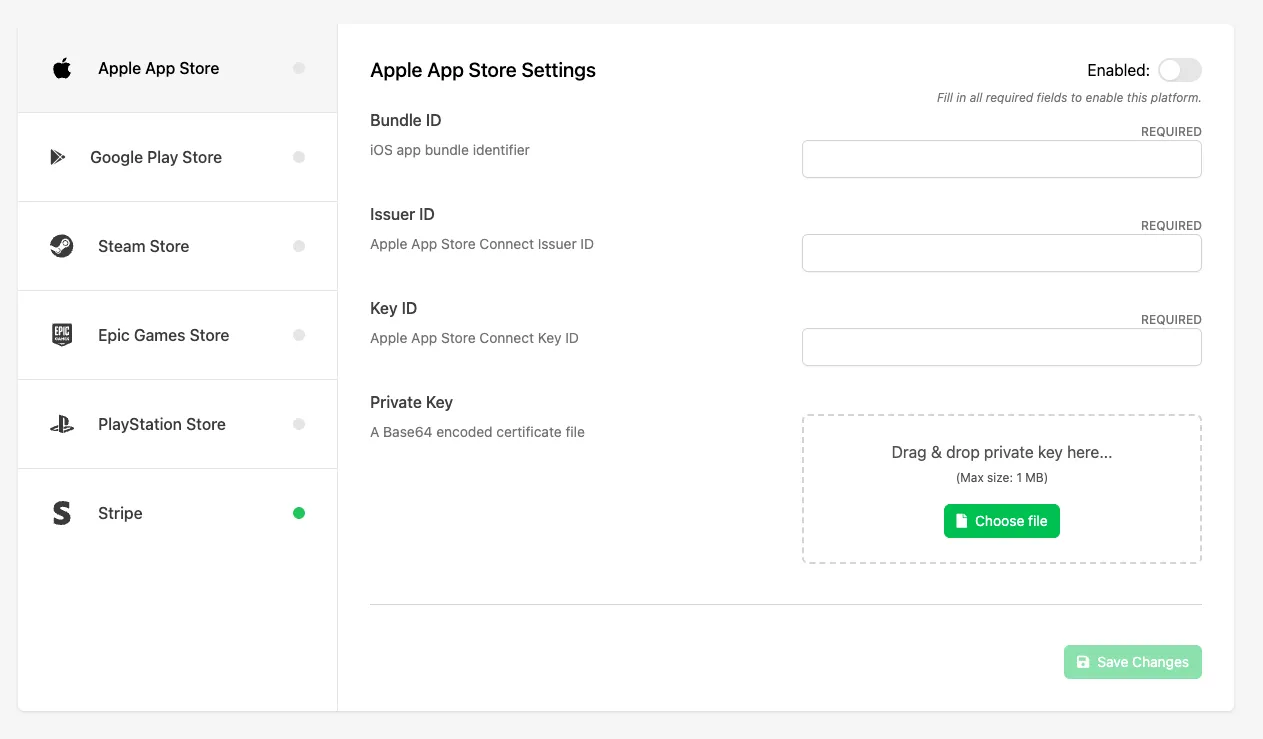
Select Apple App Store from the list of available providers.
Configure Apple App Store Settings
Fill in the following fields:
- Bundle ID: the unique identifier for your iOS app (e.g.,
com.yourcompany.yourgame). This must match the Bundle ID configured in your Xcode project and registered in App Store Connect. - Issuer ID: your App Store Connect API Issuer ID. This is used to authenticate server-to-server communication with Apple's App Store APIs.
- Key ID: the identifier for the API key generated in App Store Connect. This key is used together with the Issuer ID and Private Key to authorize requests.
- Private Key: the
.p8private key file generated in App Store Connect for your API key. Upload the file here (Base64 encoded). This key is used to sign requests when validating purchases with Apple.
Once all required fields have been filled in, click the Enable toggle to enable Apple App Store as a purchase provider for your game.
Click Save Changes to save your configuration.
Conclusion
You've enabled Apple App Store for in-app purchases and configured the required settings in LootLocker. Next, create purchasable Catalog Listings that can be purchased in-game.