
This how-to enables Presence in your game.
Prerequisites
Section titled “Prerequisites”- Unity, Unreal, or Godot SDK installed and configured in your project (not required for REST).
- Basic Presence enabled in the Web Console.
Enabling Presence
Section titled “Enabling Presence”Basic Presence just needs to be enabled in the SDK and the Web Console — after that, playtime data is automatically sent to LootLocker to be viewed.
Navigate to Player Settings → LootLocker SDK and select Enable Presence.
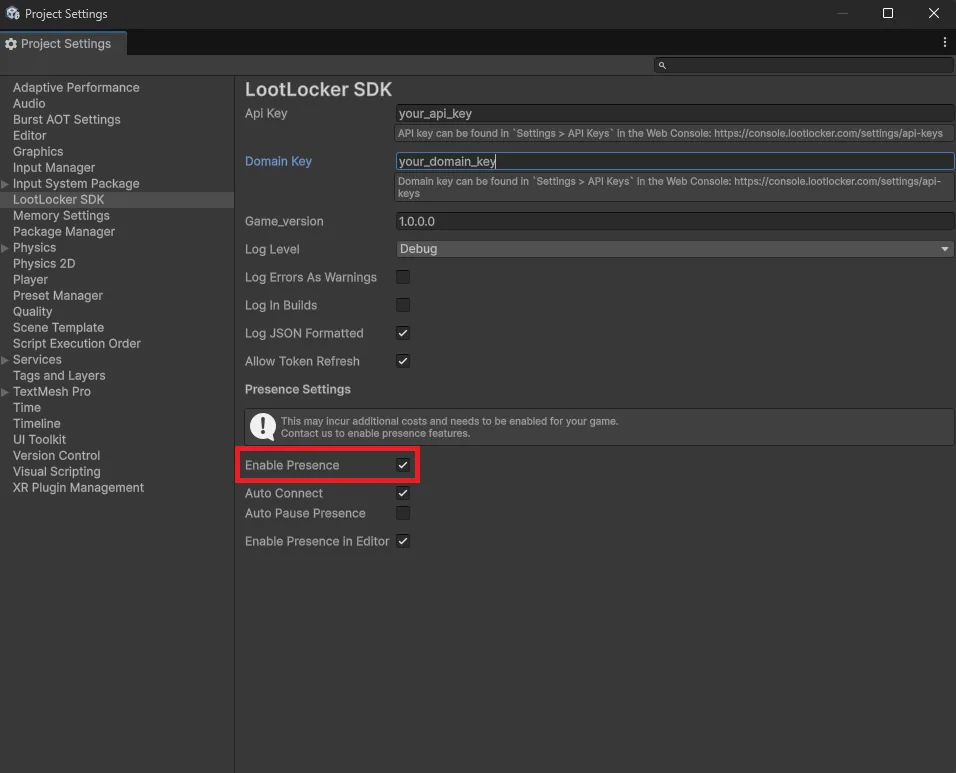
Presence Settings
After Presence is enabled, you can toggle settings to change some of the behavior:
- Auto Connect: should Presence connect automatically when a LootLocker Session exists? Can be controlled at runtime with
LootLockerSDKManager.SetPresenceAutoConnectEnabled(). Presence can be manually connected by callingLootLockerSDKManager.ForceStartPresenceConnection(<callback>, <optional player ulid>). - Auto Pause Presence: disconnects Presence when the application loses focus or is paused — useful for battery saving. Can be controlled at runtime with
LootLockerSDKManager.SetPresenceAutoDiscconnectOnFocusChangeEnabled(). Presence can be manually disconnected by callingLootLockerSDKManager.ForceStopPresenceConnection(<callback>, <optional player ulid>). - Enable Presence in Editor: uncheck this if you don't want development to affect your Presence data.
Navigate to Project Settings → Plugins → LootLocker SDK and select Enable Presence.
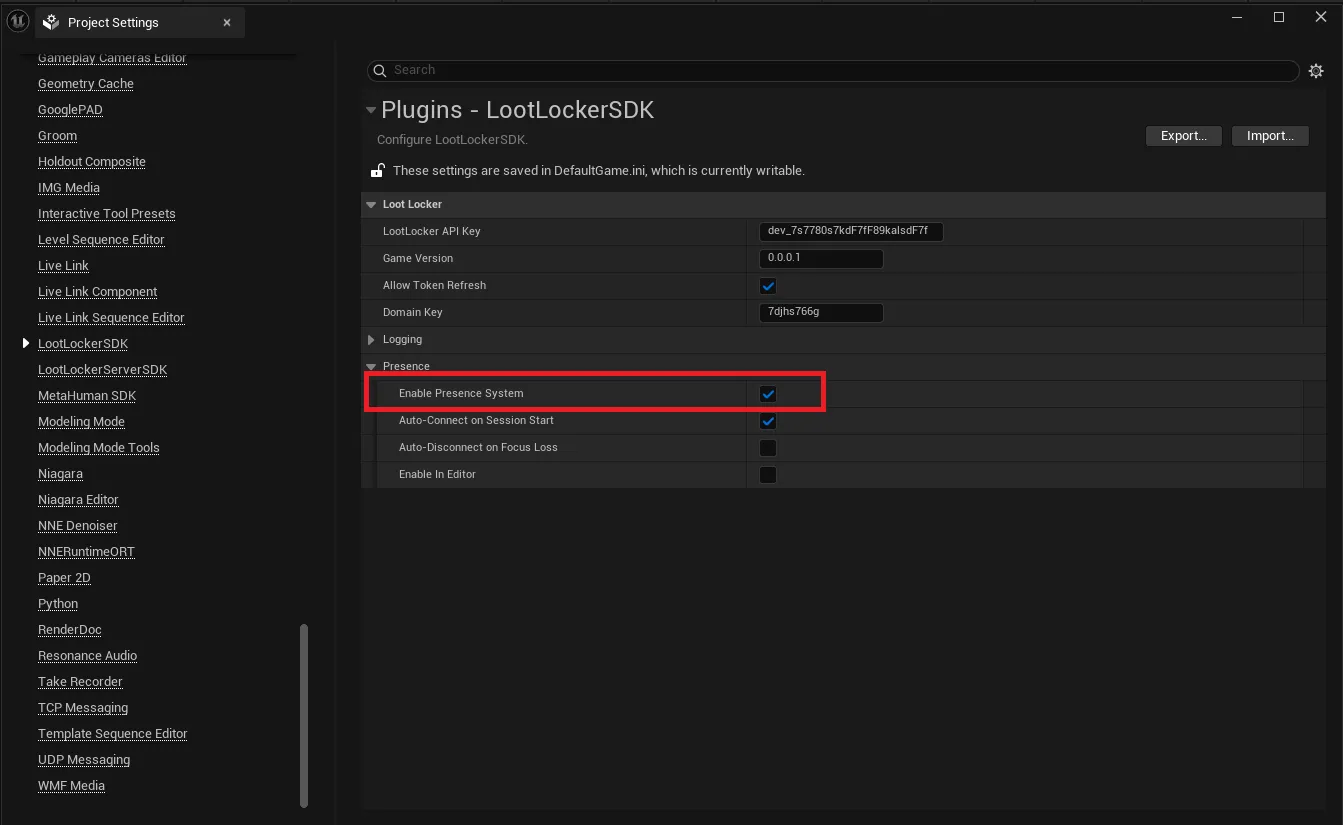
Presence Settings
After Presence is enabled, you can toggle settings to change some of the behavior:
- Auto-connect on Session Start: should Presence connect automatically when a LootLocker Session starts? Can be controlled at runtime with
SetPresenceAutoConnectEnabled(). Presence can be manually connected by callingForceStartPresenceConnection(<callback>, <optional player ulid>). - Auto-disconnect on Focus Loss: disconnects Presence when the application loses focus or is paused — useful for battery saving. Can be controlled at runtime with
SetPresenceAutoDisconnectOnFocusChangeEnabled(). Presence can be manually disconnected by callingForceStopPresenceConnection(<callback>, <optional player ulid>). - Enable Presence in Editor: uncheck this if you don't want development to affect your Presence data.
Coming soon — this sample hasn't been written yet.
Presence uses a WebSocket connection. First initialize a user session with REST using any of the authentication methods. Once authorized, open a WebSocket connection to ws://domain_key.lootlocker.com/game/presence/v1, with the first message being:
{"token": "the_signed_in_users_session_token"}You'll get back a response confirming whether you were authenticated:
{"authenticated":true}The WebSocket disconnects automatically after 1 minute of no activity. Send a ping once per minute to cover any network delays or interruptions — if the WebSocket disconnects, you'll need to reconnect.
{"type":"ping"}Response:
{"type":"pong"}Interact with the Presence System
Section titled “Interact with the Presence System”For more detailed control, or to read data about the current presence connection, the SDK exposes interfaces for two main use cases: manually controlling when presence connections are made, and reading information about the presence connection.
Manual Presence Control
Section titled “Manual Presence Control”If auto connect is disabled in the SDK, call LootLockerSDKManager.ForceStartPresenceConnection(<callback>, <optional player ulid>) at any time after authenticating a user with LootLocker.
To disconnect, call LootLockerSDKManager.ForceStopPresenceConnection(<callback>, <optional player ulid>). To disconnect all active connections, call LootLockerSDKManager.ForceStopAllPresenceConnections().
If auto connect is disabled in the SDK, call ForceStartPresenceConnection(<callback>, <optional player ulid>) at any time after authenticating a user with LootLocker.
To disconnect, call ForceStopPresenceConnection(<callback>, <optional player ulid>). To disconnect all active connections, call ForceStopAllPresenceConnections().
Coming soon — this sample hasn't been written yet.
Coming soon — this sample hasn't been written yet.
Presence Connection Information
Section titled “Presence Connection Information”To check if Presence is currently connected for a player, call LootLockerSDKManager.IsPresenceConnected(<optional player ulid>), or for more granular information, call LootLockerSDKManager.GetPresenceConnectionState(<optional player ulid>).
To see detailed information about the current connection, call LootLockerSDKManager.GetPresenceConnectionStats(<optional player ulid>). This returns a struct with information such as current latency toward LootLocker and how long the connection has been running.
To check if Presence is currently connected for a player, call IsPresenceConnected(<optional player ulid>), or for more granular information, call GetPresenceConnectionState(<optional player ulid>).
To see detailed information about the current connection, call GetPresenceConnectionStats(<optional player ulid>). This returns a struct with information such as current latency toward LootLocker and how long the connection has been running.
Coming soon — this sample hasn't been written yet.
Coming soon — this sample hasn't been written yet.
Conclusion
Section titled “Conclusion”You've enabled Basic Presence in the SDK. To learn how to interpret this information, continue to View Presence in Web Console, or read up on Rich Presence and its use cases.