
This how-to views a Player's Wallet in the Web Console and manually credits or debits their Currency balances.
Prerequisites
Section titled “Prerequisites”- A Player that has either started a session at least once, or been created manually in the Player Manager.
- At least one Currency configured in the Web Console.
View a Player's Wallet
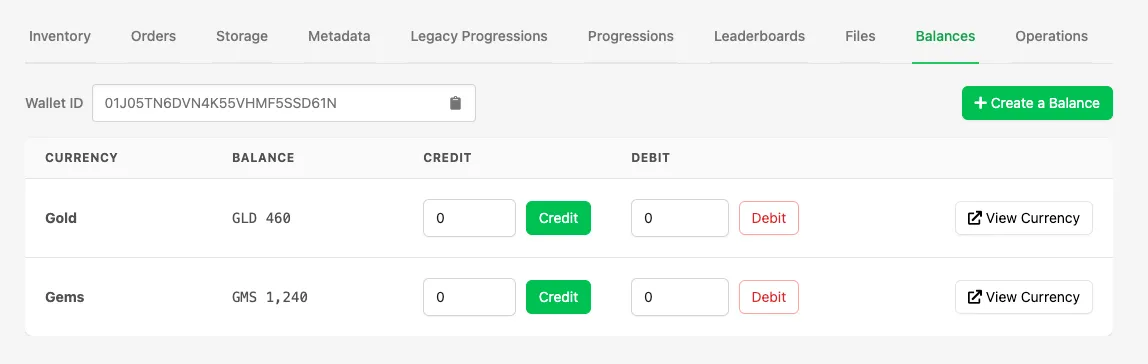
Section titled “View a Player's Wallet”Search for or select the player from the recent players list in the Player Manager, then select the Balances tab on their profile. Here you can see the player's Wallet ID and all Currency balances stored in their Wallet.
Create a Balance
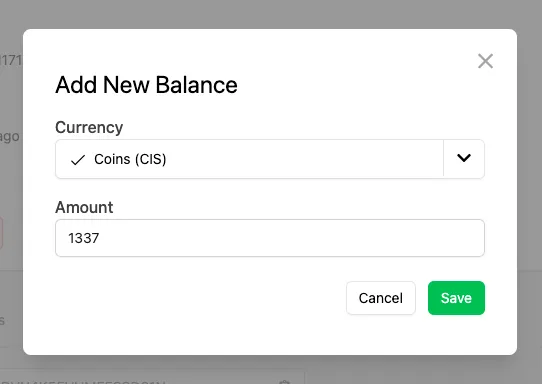
Section titled “Create a Balance”If a player hasn't earned a particular Currency yet, it won't appear in their Wallet. Click Create a Balance, select the Currency, and specify the amount to credit when the balance is created — you can also create a balance of 0.
Credit or Debit a Wallet
Section titled “Credit or Debit a Wallet”To adjust a player's Wallet balance, enter the desired amount and click Credit to add Currency, or Debit to remove it.
Conclusion
Section titled “Conclusion”You've viewed a Player's Wallet in the Web Console and adjusted their Currency balances. Next, learn how to use Wallets in your game.