
This how-to computes a Drop Table Asset from your game and grants the resulting Assets to the Player.
Prerequisites
Section titled “Prerequisites”- Unity, Unreal, or Godot SDK installed and configured in your project (not required for REST).
- An active Player session (see Authentication).
- A Drop Table Asset created in the Web Console (see Create a Drop Table).
- The Player owns an instance of the Drop Table Asset, for example through a purchase or a Reward.
Get Drops From Drop Table
Section titled “Get Drops From Drop Table”Computing the Drop Table selects Assets from its drop groups and locks the result so it can be picked from.
int dropTableInstanceID = 87;LootLockerSDKManager.ComputeAndLockDropTable(dropTableInstanceID, (response) =>{ if (response.success) { Debug.Log("Successfully computed drops: " + response.items.Length); } else { Debug.Log("Error computing drops"); }});See the Reference Documentation for the full response.
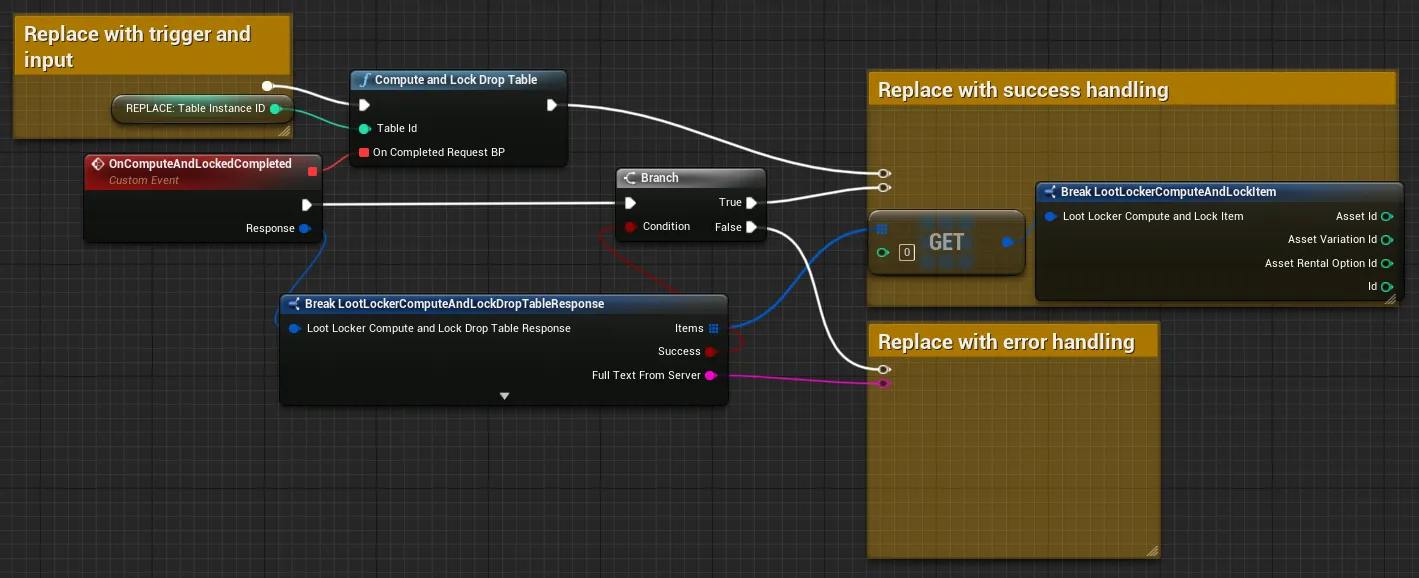
Coming soon — this sample hasn't been written yet. In the meantime, refer to the Reference Documentation for this endpoint.
Coming soon — this sample hasn't been written yet. In the meantime, refer to the Reference Documentation for this endpoint.
Give Dropped Items to the Player
Section titled “Give Dropped Items to the Player”Using the IDs from the compute drops response, you can grant any of the drops to the Player.
int dropTableInstanceID = 87;int[] pickIDs = new int[] { 1 };LootLockerSDKManager.PickDropsFromDropTable(pickIDs, dropTableInstanceID, (response) =>{ if (response.success) { Debug.Log("Successfully computed drops: " + response.items.Length); } else { Debug.Log("Error computing drops"); }});See the Reference Documentation for the full response.
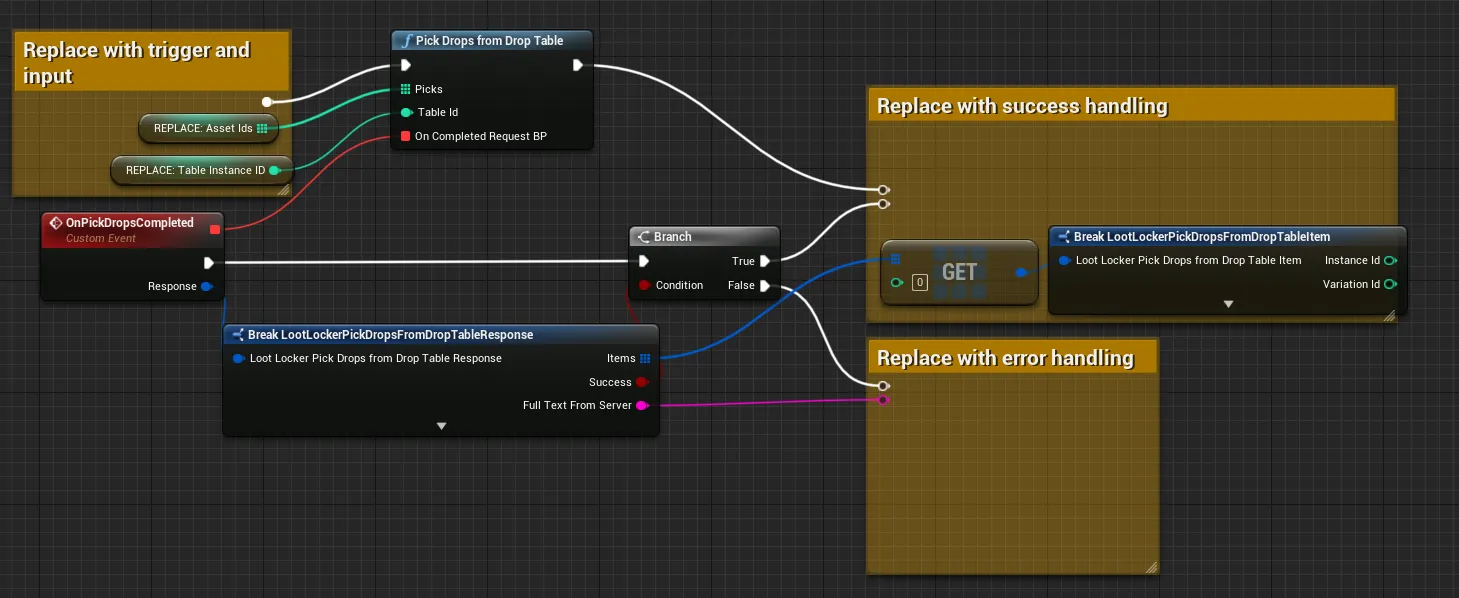
Coming soon — this sample hasn't been written yet. In the meantime, refer to the Reference Documentation for this endpoint.
Coming soon — this sample hasn't been written yet. In the meantime, refer to the Reference Documentation for this endpoint.
Conclusion
Section titled “Conclusion”You've computed a Drop Table and granted the resulting Assets to the Player. Next, review Check Grant Notifications to confirm what was granted.