
This how-to configures Sign in with Apple for LootLocker's Unified Player Accounts, letting your users authenticate with Sign in with Apple on https://auth.game to start remote sessions or link their accounts to other accounts.
Prerequisites
Section titled “Prerequisites”- An existing Apple app with an App ID.
- An Apple Developer Account.
Configure a Service ID in Apple
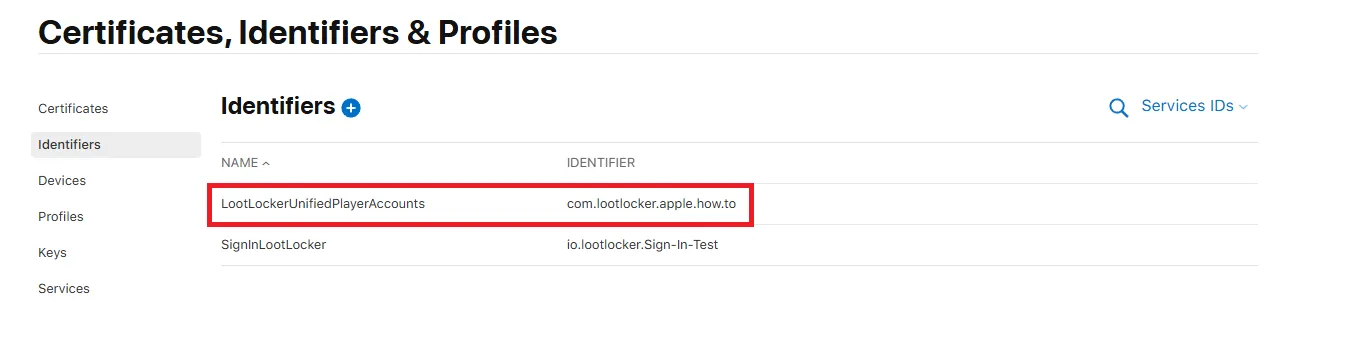
Section titled “Configure a Service ID in Apple”Go to your Apple Developer Dashboard and click Identifiers.
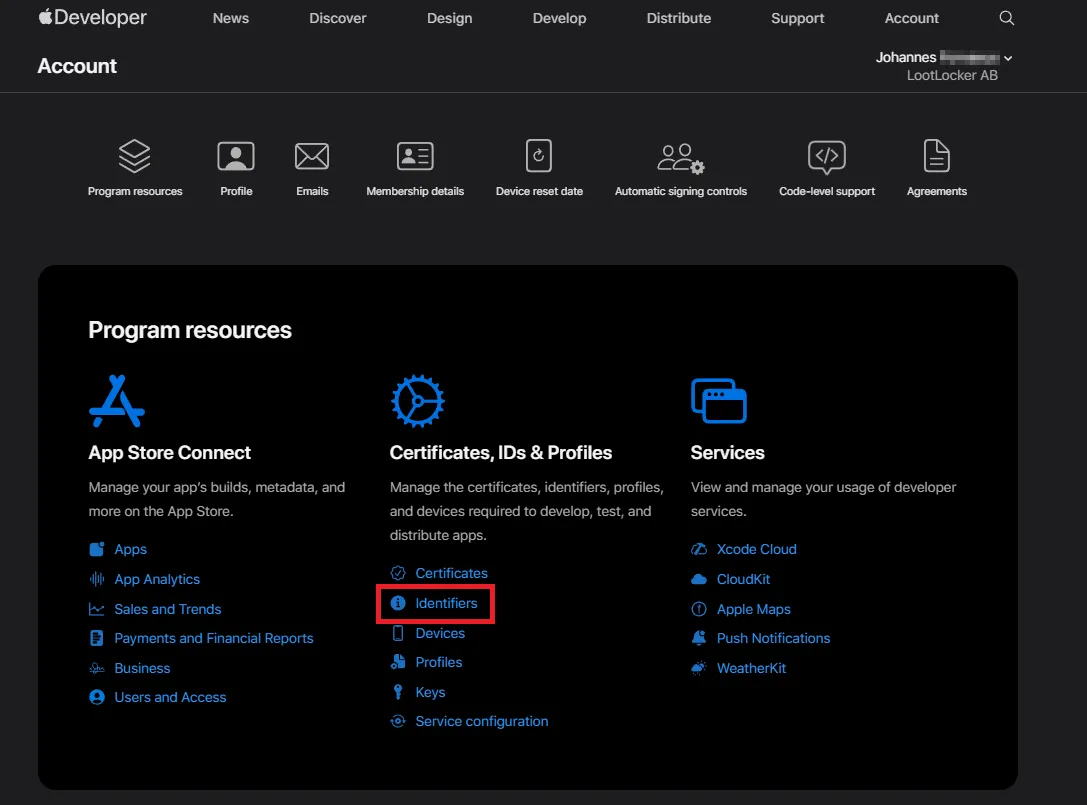
Create a new Service ID to use with LootLocker. Click the magnifying glass next to App IDs in the top right corner and choose Service IDs:
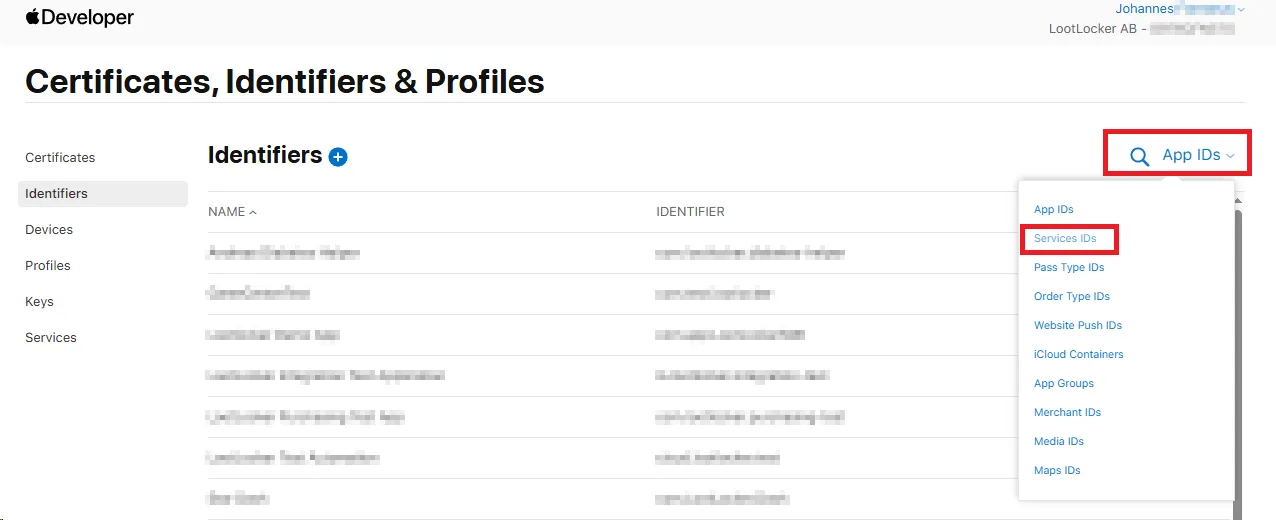
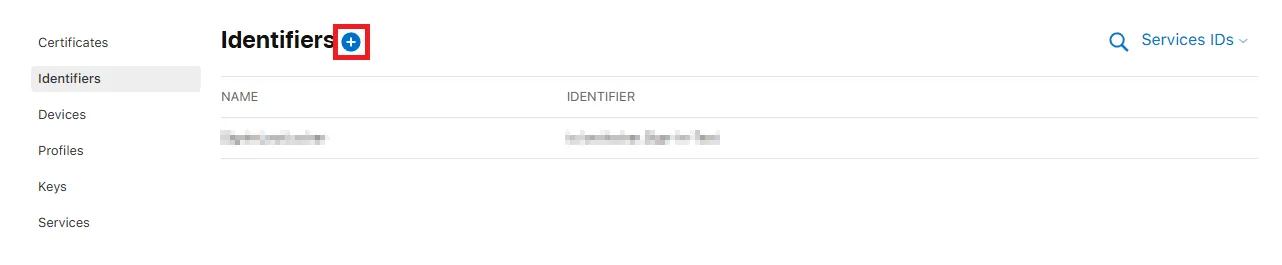
Click the + next to Identifiers to create a new Service ID:
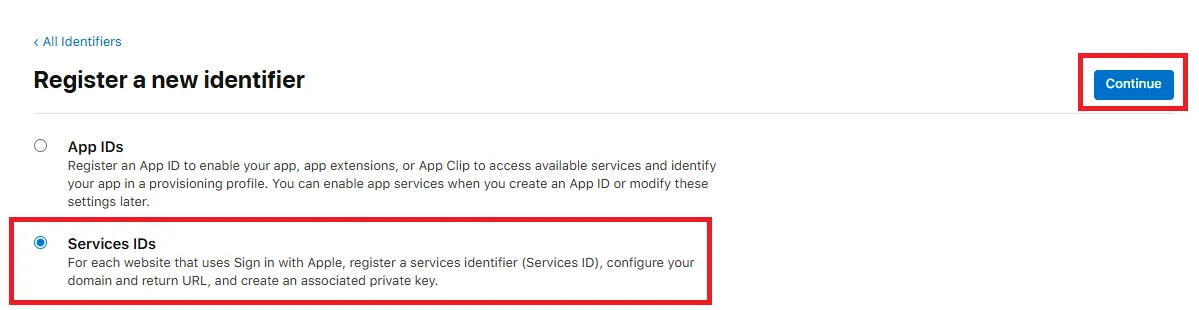
Select Services ID and click Continue. Enter a description and an identifier for your Services ID, then click Continue:
Verify your information and click Register:

Back in the list of Services IDs, click your newly created Service ID:
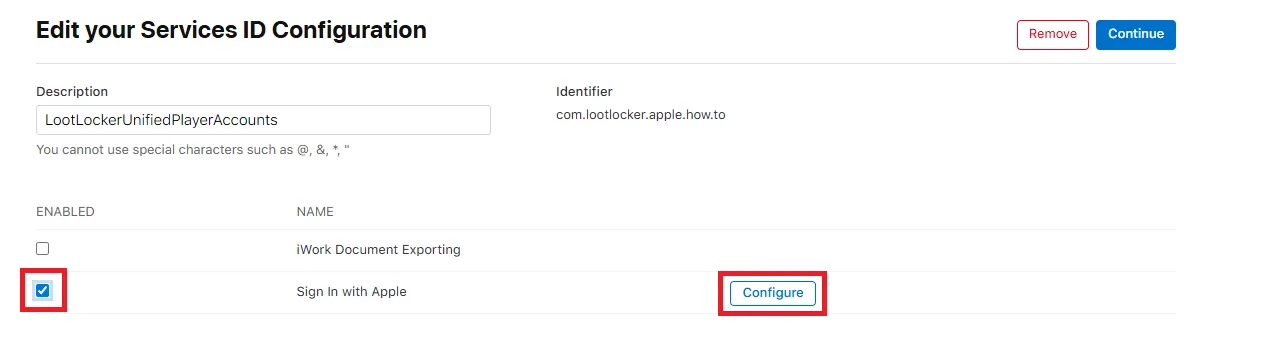
Enable Sign in with Apple by checking the checkbox, then click Configure:
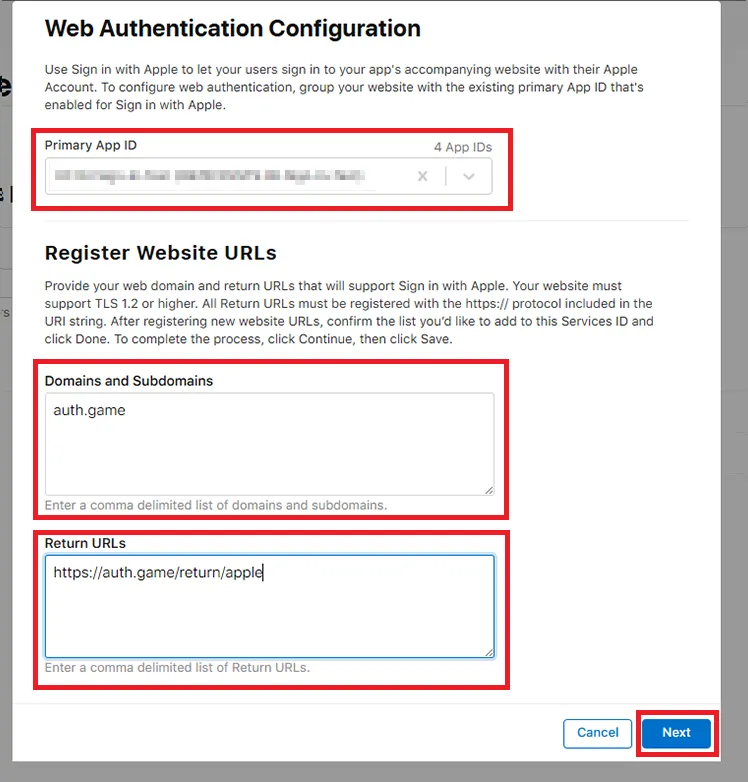
Select your existing App ID from the dropdown list. In Domains & Subdomains, enter:
auth.game(withouthttps://)
In Return URLs, enter:
https://auth.game/return/apple
Click Next.
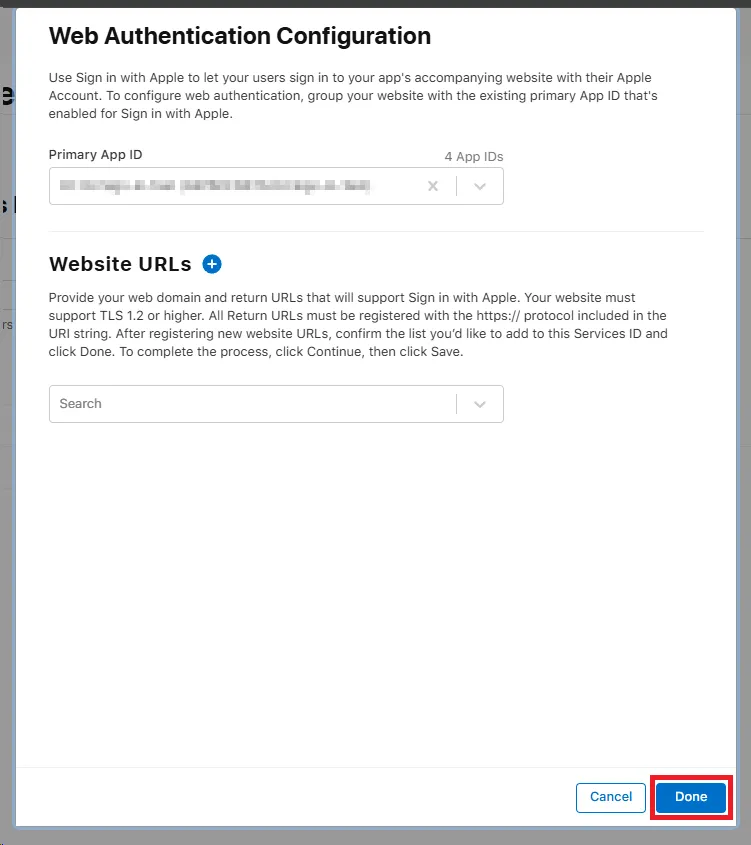
On the next screen, press Done:
Create a Key
Section titled “Create a Key”With the Service configured, next create a Key shared between LootLocker and Apple.
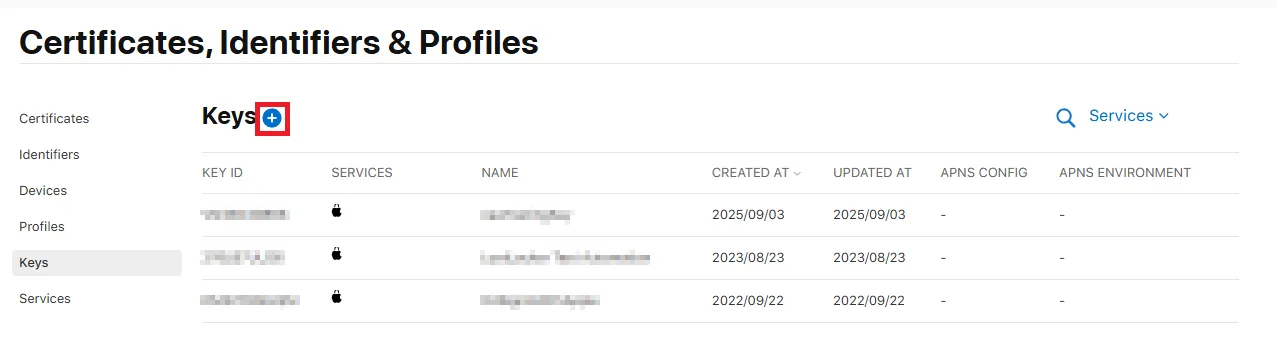
Click All Identifiers in the top left corner, then select Keys in the list (or go to https://developer.apple.com/account/resources/authkeys/list). Click the + icon to create a new Key.
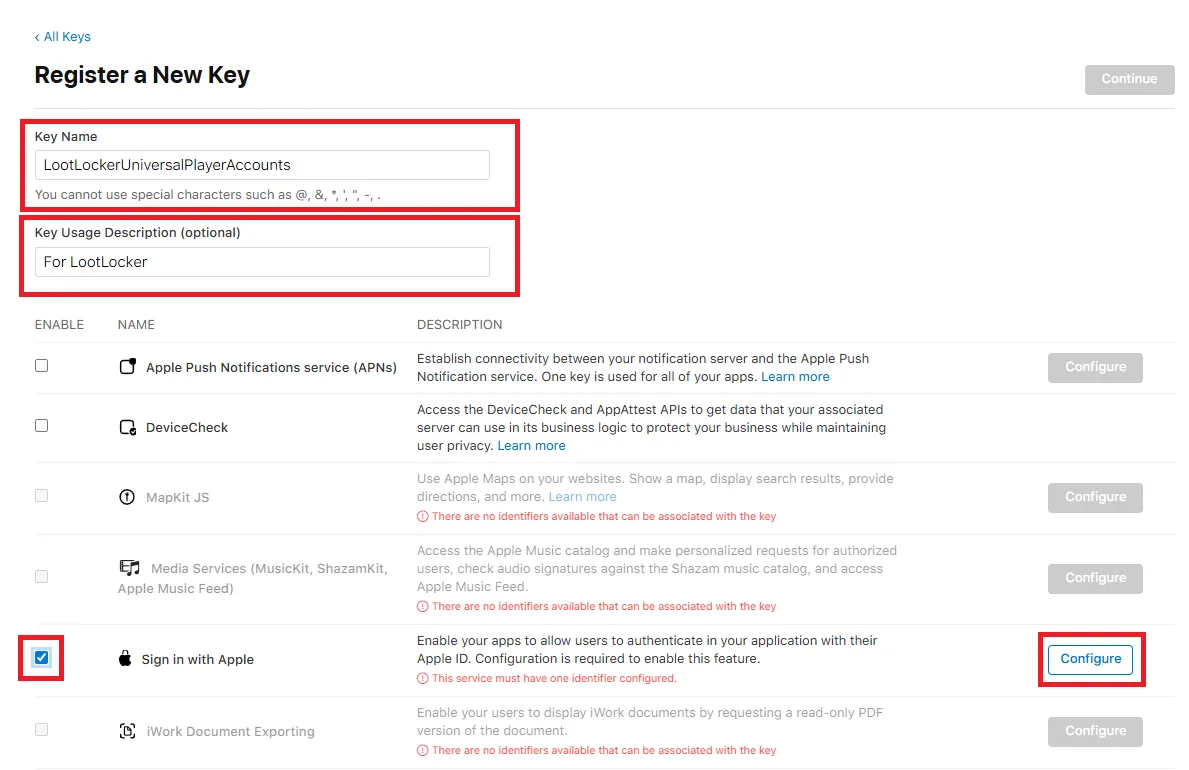
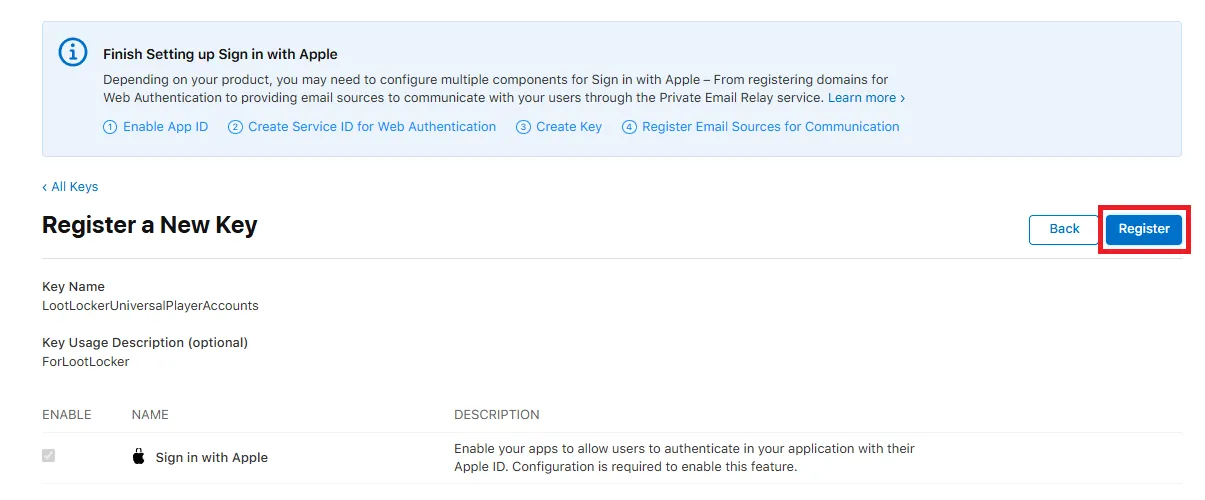
Enter a name for the Key and an optional description. Check Sign In With Apple and press Configure.
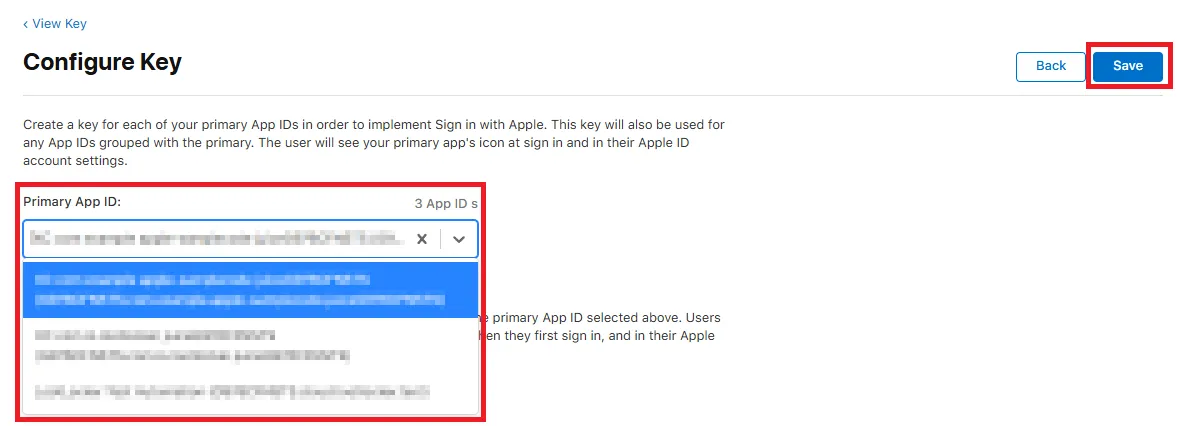
Select the same App ID as your app from the dropdown list and click Save.
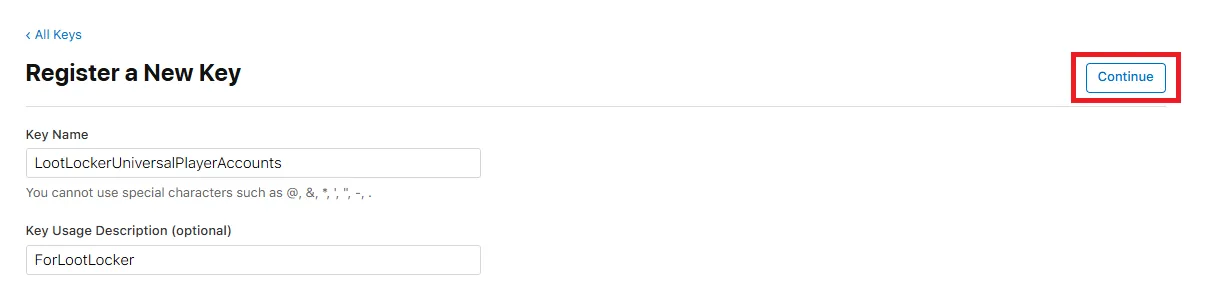
You're taken back to the previous screen — press Continue.
Click Register.
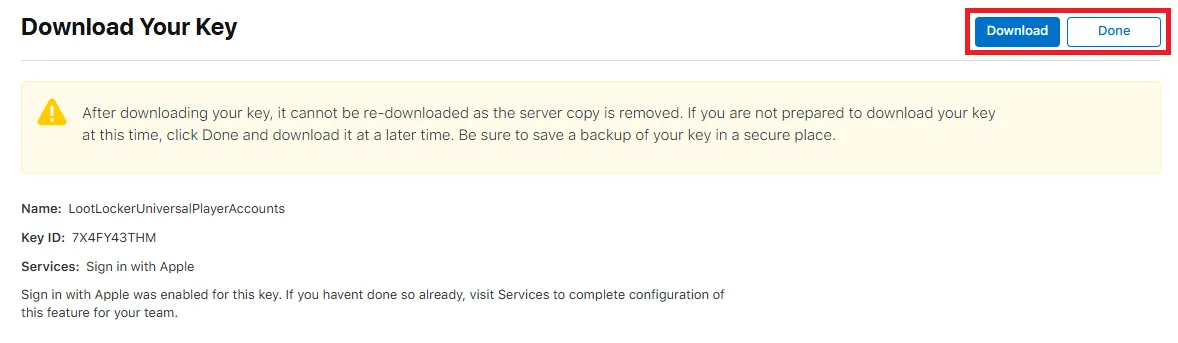
Download the key and store it locally, then press Done.
Configure Apple in the Web Console
Section titled “Configure Apple in the Web Console”With setup on Apple's side complete, enable External Authentication and Sign in with Apple in the LootLocker Web Console.
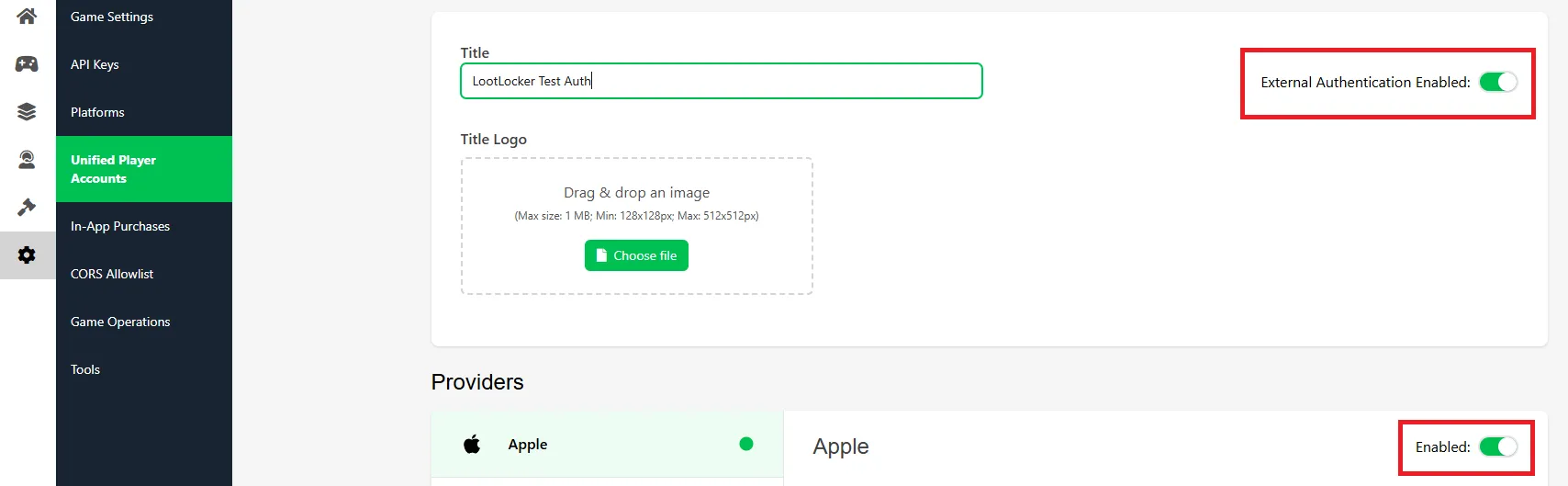
With this enabled, input the information from your Apple Developer Account.
Client ID: go to the Apple Developer Console and copy the Identifier of your app:
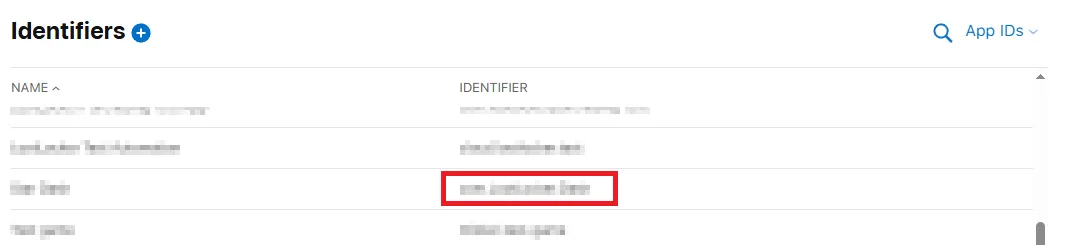
Paste it into the Client ID field in LootLocker:
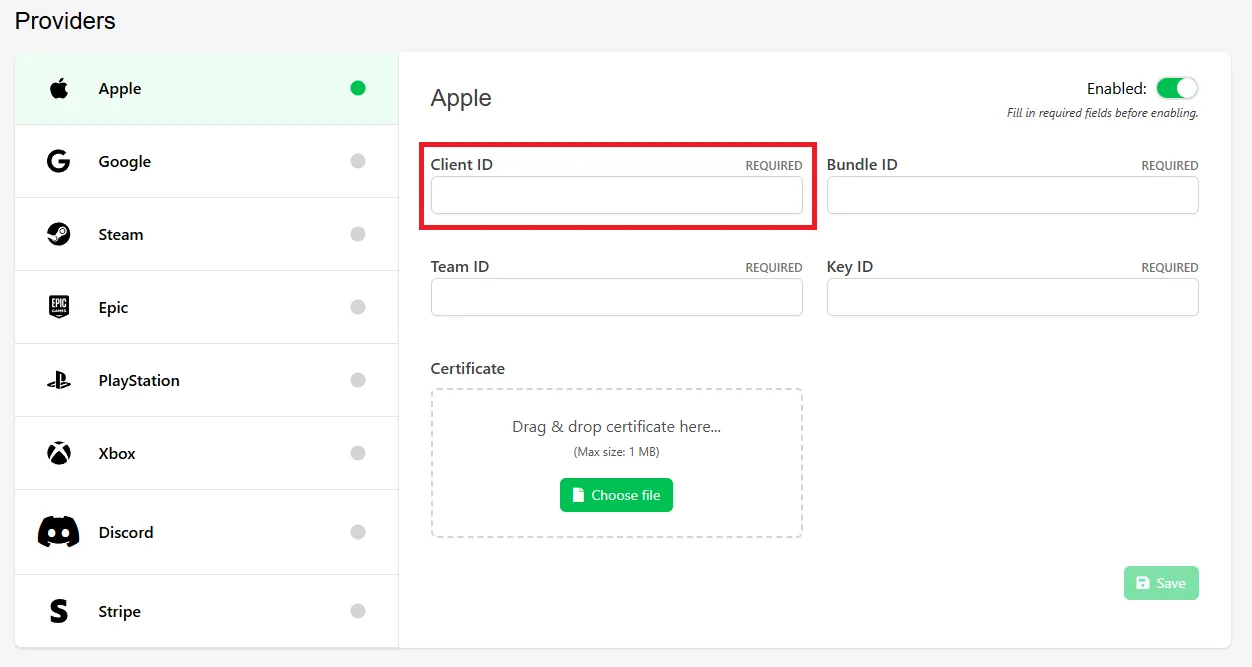
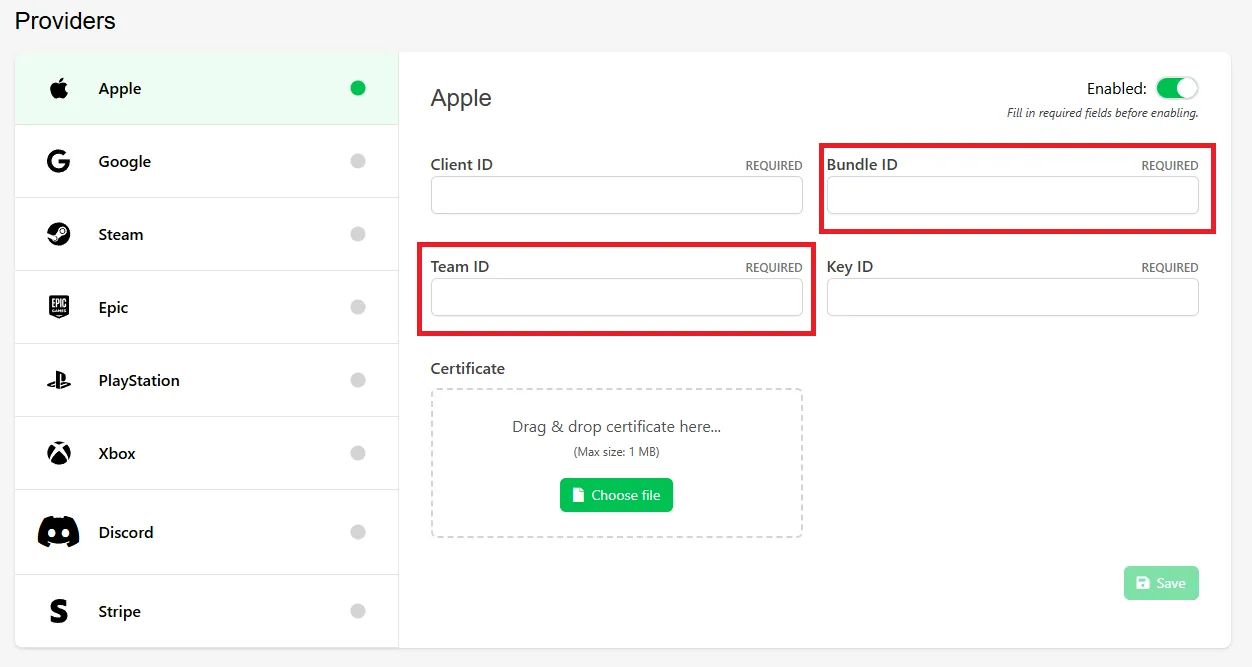
Bundle ID and Team ID: click the entry for your app that had the Client ID you copied, and copy the Team ID and Bundle ID:

Paste them into LootLocker:
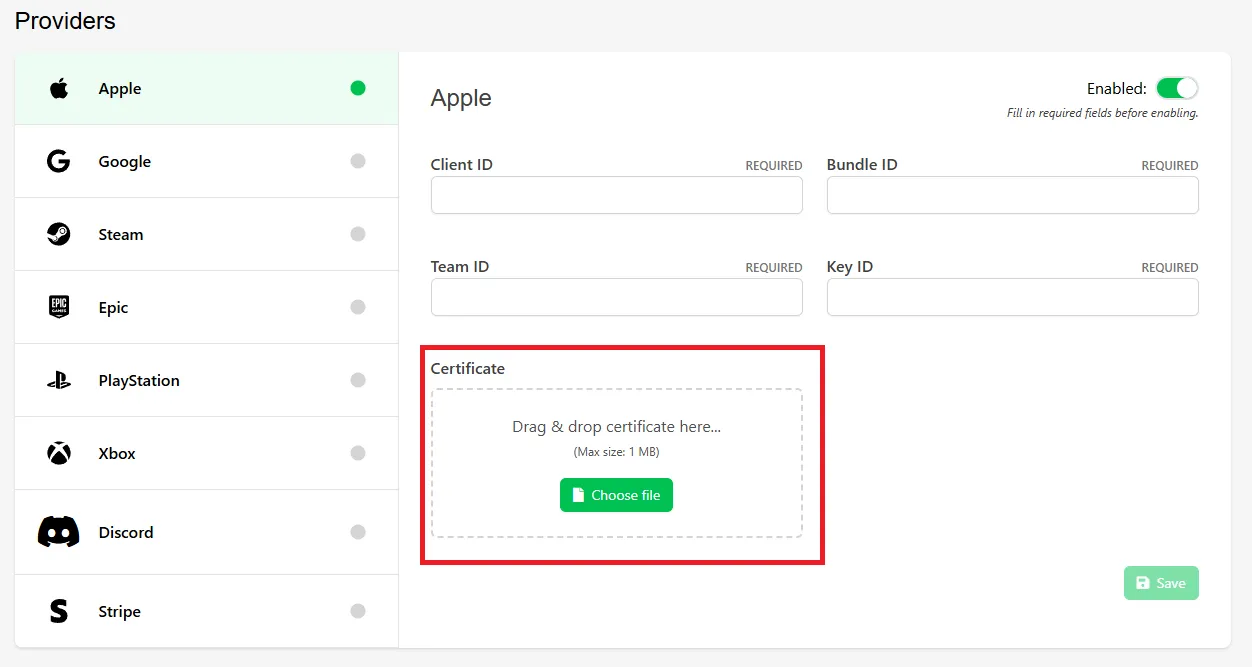
Press Choose File and upload the file you downloaded previously from Apple:
Conclusion
Section titled “Conclusion”You've enabled and configured Sign in with Apple for Unified Player Accounts. With Sign in with Apple available in your game, you're prepared to start remote sessions with Apple, and by adding more platforms to Unified Player Accounts, you unlock the ability for players to connect all their accounts together — syncing their game saves, progressions, and more.