
This how-to walks you through configuring Sign in with Epic Games and starting an Epic Games session from your game. Both Epic Games Sign In and Epic Games Connect are supported.
Prerequisites
Section titled “Prerequisites”- Unity, Unreal, or Godot SDK installed and configured in your project (not required for REST).
- An Epic Games developer account with access to the Epic Dev Console.
Configuration
Section titled “Configuration”Configure your integration in Platform Settings.
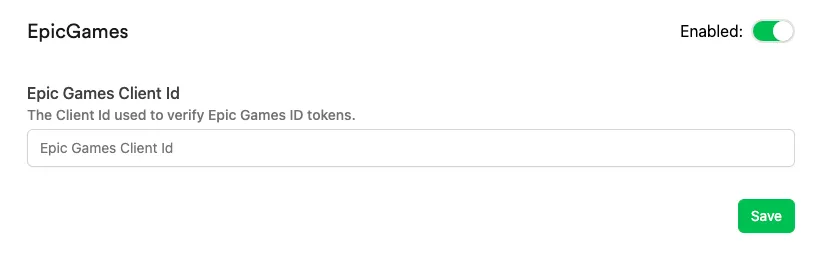
Client ID: retrieve this from the Epic Dev Console. If you don't have a client, create one.
Start Session
Section titled “Start Session”Acquire an Epic Identity Token, then use it to start a session. The response includes a refresh token, which lets you refresh the session without repeating the full sign-in flow.
string idToken = "eyJhbGciOiJSUz............";LootLockerSDKManager.StartEpicSession(idToken, (response) =>{    if (!response.success)    {        Debug.Log("error starting LootLocker session");
        return;    }
    Debug.Log("session started successfully");
    // Store these if you want to manually supply it to refresh the session without using the full sign in flow    string refreshToken = response.refresh_token;});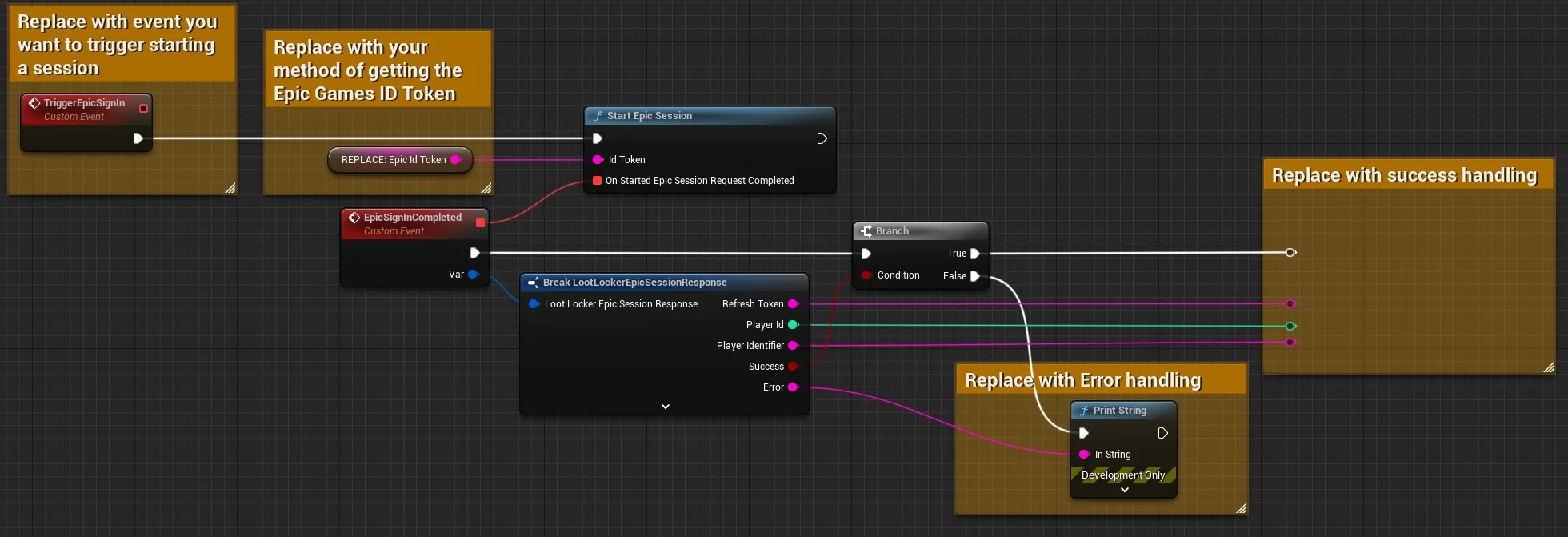
Input
Exchange the TriggerEpicSignIn event for whatever event should trigger the login flow. Remove the REPLACE: Epic ID Token node and replace it with your preferred method of getting the Epic Identity Token.
Output
Branch the completed events on the success flag, and add error handling for the failure case. Create variables from the Player ID and Player Identifier outputs for subsequent LootLocker calls. The session response also includes a refresh token (saved automatically, but available if you want to manage it manually), along with other fields such as current XP and level.
Coming soon — this sample hasn't been written yet.
curl -X POST "https://api.lootlocker.io/game/session/epic" \ -H "LL-Version: 2021-03-01" \ -H "Content-Type: application/json" \ -d "{\"game_key\": \"your_game_key\", \"id_token\": \"eyJQa....\", \"game_version\": \"1.0.0.0\" }"Example response:
{ "session_token": "eb13a7bf17efg36cb8481a8ds18809c7e85686e6", "player_id": 9358, "public_uid": "J72YP6MS", "player_name": null, "player_created_at": "2023-02-21T15:33:25+00:00", "check_grant_notifications": false, "check_deactivation_notifications": false, "seen_before": true, "refresh_token": "eyJh............................."}Refresh Session
Section titled “Refresh Session”Refresh the session instead of having the player go through the full sign-in flow every time. The request returns a 401 (Unauthorized) if the refresh token has expired, in which case start a new session instead.
LootLockerSDKManager.RefreshEpicSession((response) =>{    if (!response.success)    {        if (response.statusCode == 401) {            // Refresh token has expired, use StartEpicGamesSession        }        else {            Debug.Log("error starting LootLocker session");        }
        return;    }
    Debug.Log("session started successfully");
    // Store these if you want to manually supply it to refresh the session without using the full sign in flow    string refreshToken = response.refresh_token;});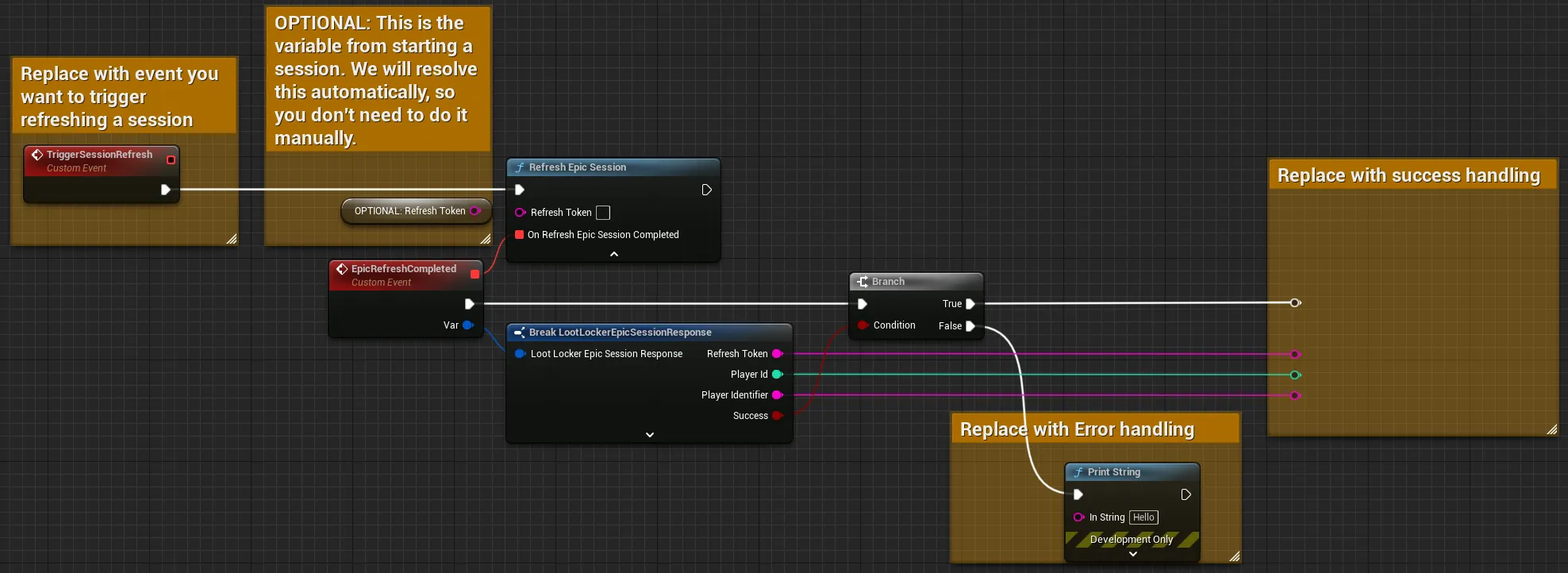
Input
Exchange the TriggerSessionRefresh event for whatever event should trigger the login flow. The Refresh Token node is the one you saved when starting a session, but it's optional since LootLocker saves it automatically.
Output
Branch the completed events on the success flag, and add error handling for the failure case. Create variables from the Player ID and Player Identifier outputs for subsequent LootLocker calls.
Coming soon — this sample hasn't been written yet.
curl -X POST "https://api.lootlocker.io/game/session/epic" \ -H "LL-Version: 2021-03-01" \ -H "Content-Type: application/json" \ -d "{\"game_key\": \"your_game_key\", \"refresh_token\": \"748b....\", \"game_version\": \"1.0.0.0\" }"Example response:
{ "session_token": "eb13a7bf17efg36cb8481a8ds18809c7e85686e6", "player_id": 9358, "public_uid": "J72YP6MS", "player_name": null, "player_created_at": "2023-02-21T15:33:25+00:00", "check_grant_notifications": false, "check_deactivation_notifications": false, "seen_before": true, "refresh_token": "eyJh............................."}Conclusion
Section titled “Conclusion”You've started using LootLocker in your game with Sign in with Epic Games. Next, review LootLocker's full feature set to decide which other features to implement.