
This how-to creates a Base Class and configures its default equipment loadout in the Web Console.
Prerequisites
Section titled “Prerequisites”- At least one Asset created (see Create & Configure an Asset).
Create a Class
Section titled “Create a Class”A Class lets you define what Contexts are associated with each class. For some games you may not have any classes and can completely ignore this system. Other games might want to take advantage of both the Class system and Heroes.
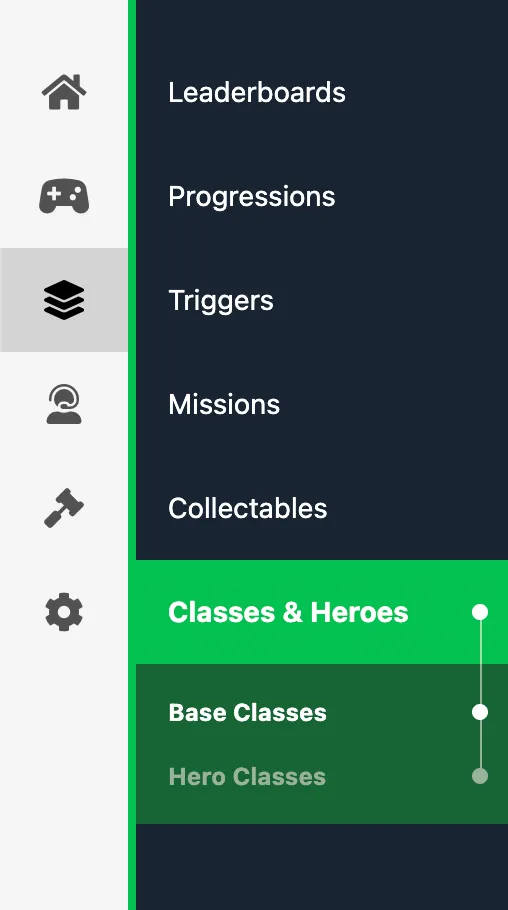
In the Web Console, go to the Systems menu in the sidebar and select the Classes & Heroes tab.
Click the Create button to save and create this Class.
Add Contexts to the Default Loadout
Section titled “Add Contexts to the Default Loadout”The Default Loadout of a Class is used to define what Assets a player with the specific Class will be assigned and equipped when the Class is created. The Default Loadout will usually display empty Context loadout slots that have been assigned to this Class. Since we do not have any Contexts set up, the Default Loadout of our Classes are empty. Contexts are created when you set up Assets in LootLocker. To learn how to do this, visit the Create & Configure an Asset how-to guide. Alternatively, read more about Contexts here.
We are going to create Contexts associated with different slots that the player can equip Assets to on their Class. To add a Context to a Class's Default Loadout, click on the Manage Contexts button next to Equippable Contexts in the Class view. In the Context menu, click Create Context and select the Asset Complexity and give the Context a name.
| Name | Detachable | Complexity | Class |
|---|---|---|---|
| Weapon | ✔ | Customization | Warrior |
| Armor | ✔ | Generic | Warrior Wizard |
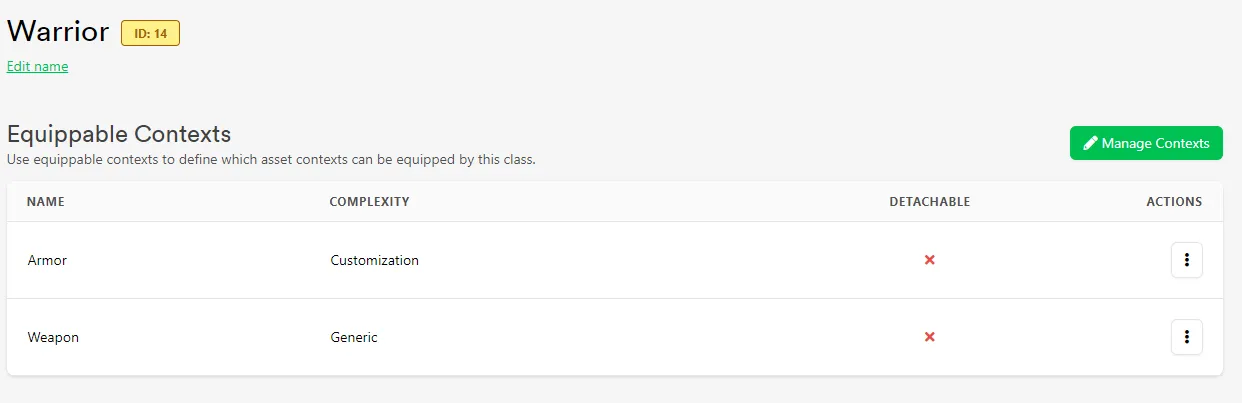
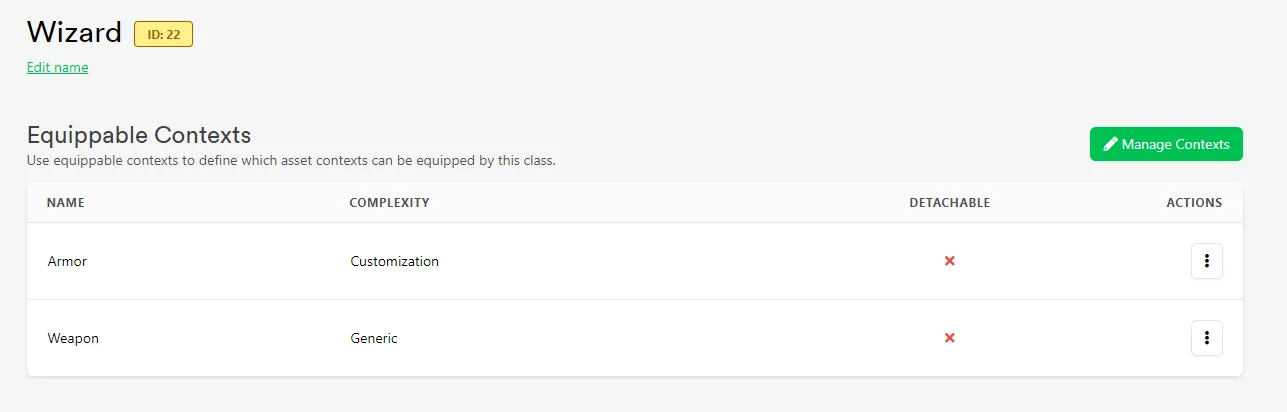
Going back to the Classes page, we can now see the Contexts we associated with the Classes appear in the Default Loadout.
Assign Assets to the Default Loadout
Section titled “Assign Assets to the Default Loadout”To add an Asset to a Default Loadout slot, click the Assign button in the Default Loadout section and select an Asset from the modal. Once a Class's Default Loadout has been populated, click Save Settings to save the loadout.
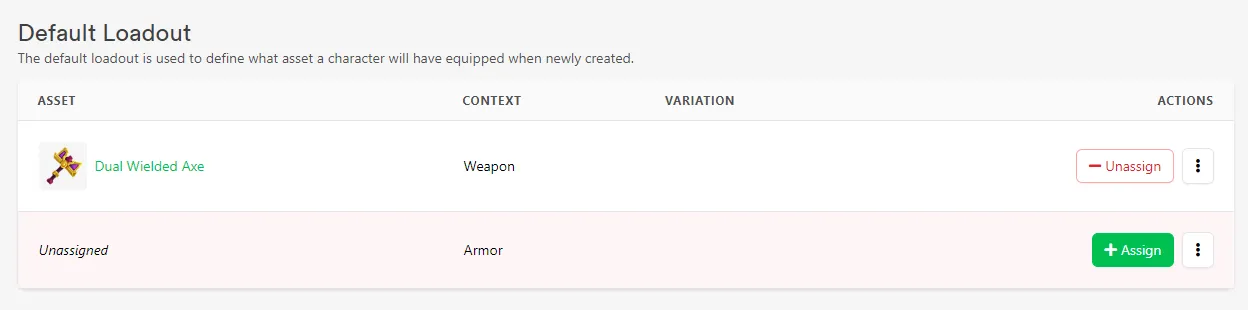
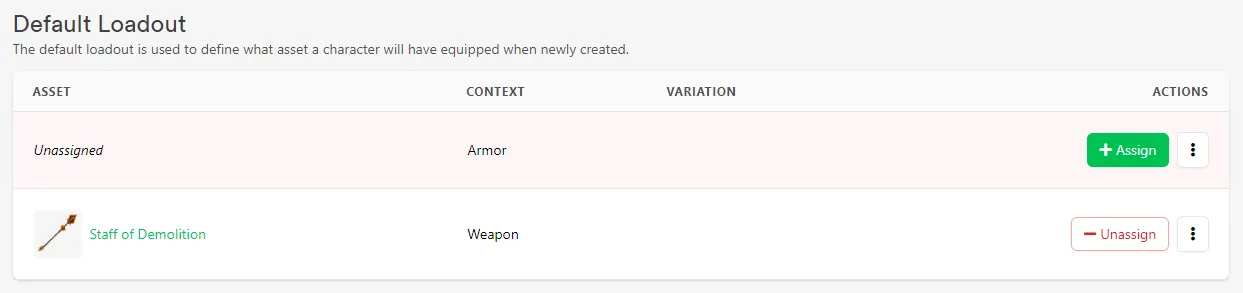
As you can see, we have intentionally left some slots empty, while assigning some slots with different Assets, to show the different states.
Conclusion
Section titled “Conclusion”You've created a Base Class and configured its default equipment loadout. Next, see Hero Classes to build specialized variations on top of your Base Classes.