
This how-to adds Metadata to a Leaderboard, Progression, Catalog Item, or Currency in the Web Console. The process is the same across all four feature types.
Prerequisites
Section titled “Prerequisites”- A Leaderboard, Catalog Item, Progression, or Currency already created
Open Metadata for a Feature
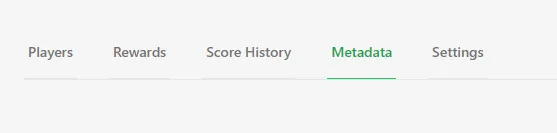
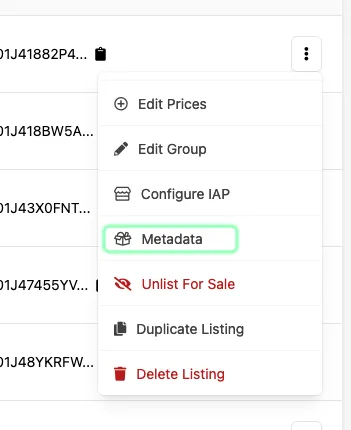
Section titled “Open Metadata for a Feature”Navigate to the feature you want to edit and click Metadata to edit Metadata for that item. On Leaderboards and Progressions, this is a tab on the item's detail page; on Currencies and Catalog items, it's a tab within the item's edit view.
Add a Metadata Field
Section titled “Add a Metadata Field”Click Add Field and choose one from the list of available types: string, bool, number, json, or file.
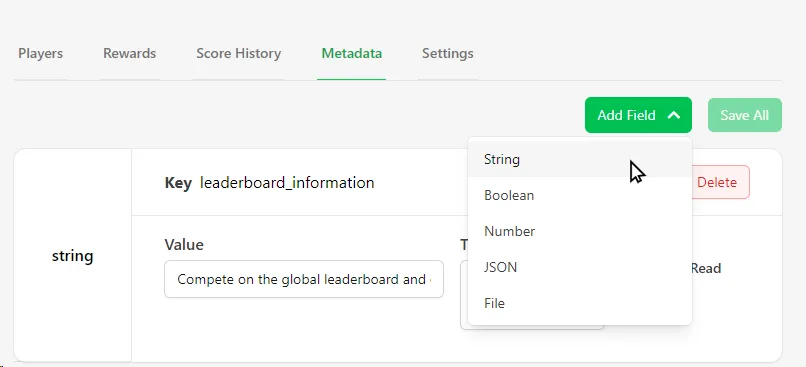
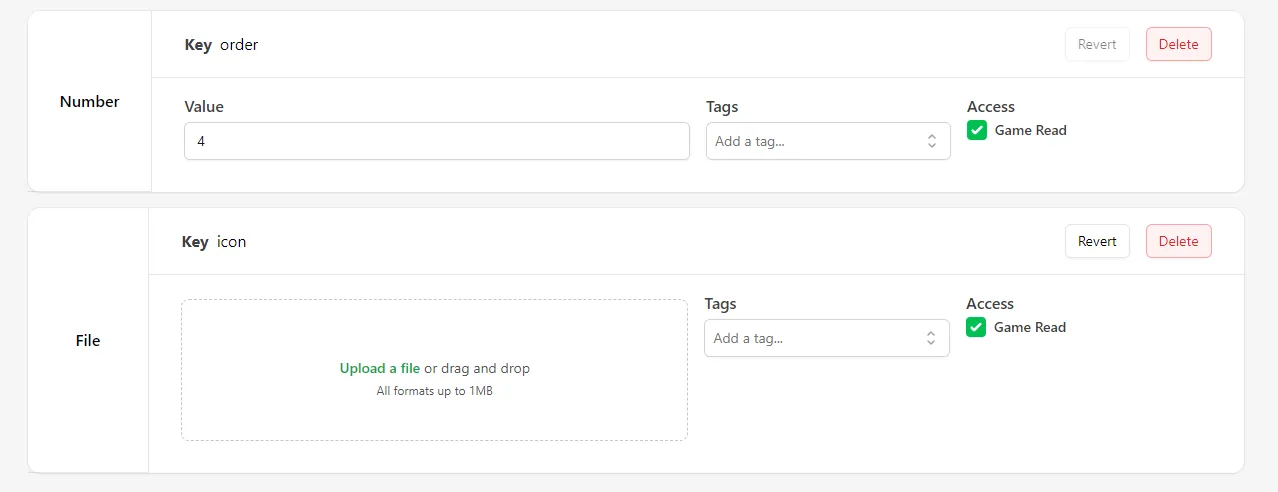
Input a key and add data into your newly created Metadata field. For files, click to open a file browser or use drag and drop.
Add Tags (Optional)
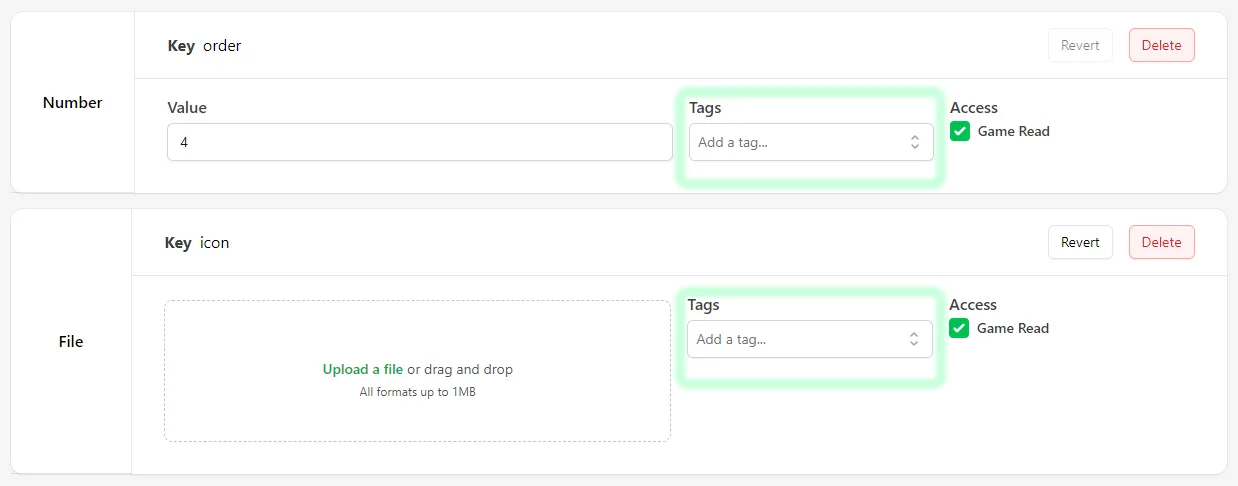
Section titled “Add Tags (Optional)”You can add tags to your Metadata to make it easier to fetch specific Metadata from the game client.
Set Game Read Access
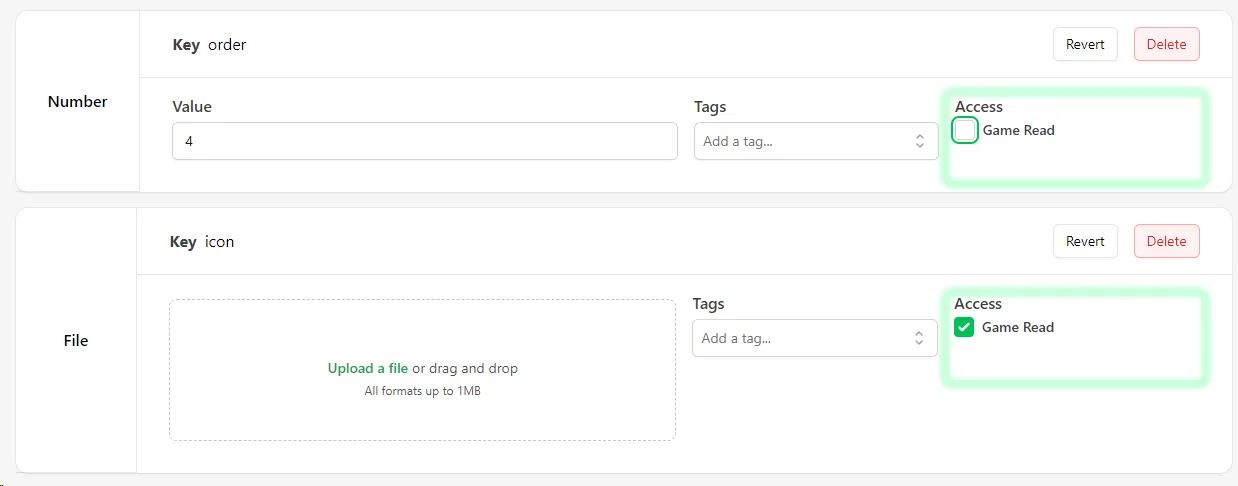
Section titled “Set Game Read Access”Use the Game Read checkbox to decide whether the Metadata should be readable from the game client, or only from the server.
Conclusion
Section titled “Conclusion”You've added Metadata to a feature in the Web Console. Now that you have Metadata set, fetch it from your game: Fetch a Single Metadata In-Game, Fetch Metadata In-Game by Tags, or Fetch Metadata In-Game from Multiple Sources.