
Enable and configure Steam in LootLocker so it can be used to handle in-app purchases.
Prerequisites
- A Steamworks account
Enable Steam Store
In the LootLocker Web Console, select Settings > In-App Purchases, then select Steam Store from the list of available providers.
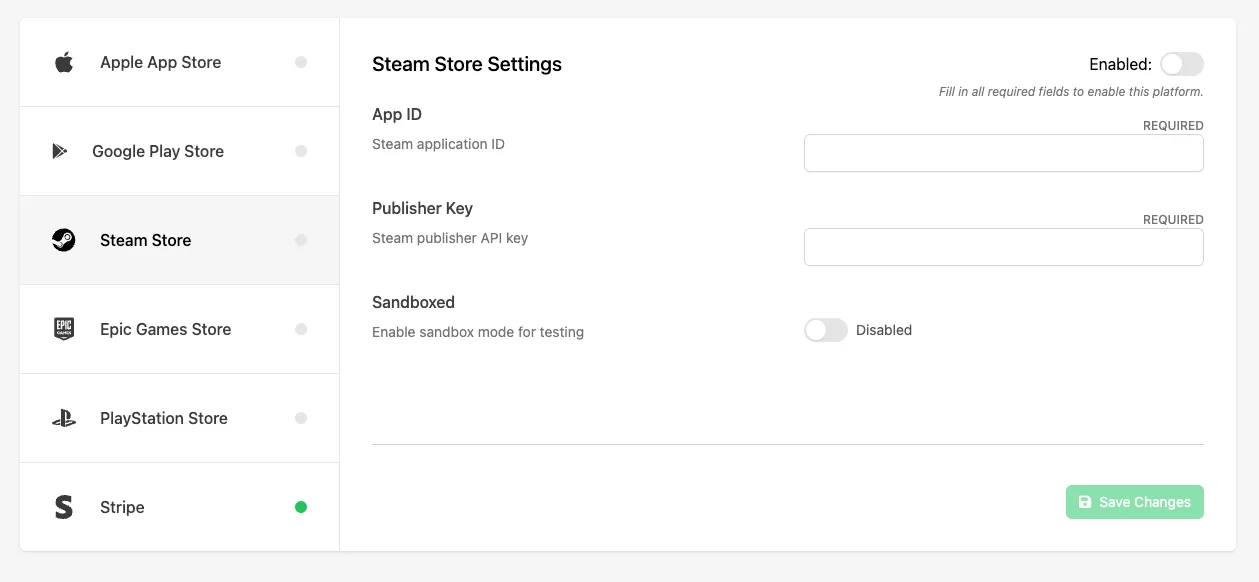
Configure Steam Store Settings
Fill in the following fields:
- App ID: the unique identifier for your game on Steam. This must match the App ID assigned to your application in the Steamworks dashboard.
- Publisher Key: your Steam Web API publisher key, used to authenticate server-to-server requests for validating purchases and retrieving entitlement data.
- Sandboxed: enables sandbox (test) mode for Steam purchases. Use this during development to simulate transactions without affecting live user data.
Once you've filled in the required fields, click the Enable toggle to enable Steam as a purchase provider for your game, then click Save Changes.
Conclusion
You've enabled Steam for in-app purchases and configured the required settings in LootLocker. Next, configure a Catalog Listing for it.