
This how-to connects an additional identity provider to a player's account. This is useful if the player wants to play from multiple devices, or if you want to offer the player the option to authenticate with different providers.
Prerequisites
Section titled “Prerequisites”- Unity, Unreal, or Godot SDK installed and configured in your project (not required for REST).
- UPA configured in the LootLocker Web Console.
- A player with an active LootLocker game session.
Connect Provider
Section titled “Connect Provider”To connect an additional provider to the player, the general flow is:
- Have the player signed in with an active LootLocker session on the game client.
- Connect the provider to the player's LootLocker account, using the token from the authentication.
Getting the authentication token differs per provider, but the general idea is the same. This example uses Apple Sign In, but you can substitute another provider. The following providers are currently supported: Apple Sign In, Google Sign In.
If you're interested in support for other identity providers, reach out to us.
// The token retrieved from authenticating with Apple in the game clientstring token = "xxxxxxxxxxxxxxxxxxxxxxxxxxxxxxxxx.0.xxxxx.xxxxxxxx-xxxxxxxxxxxxx";LootLockerSDKManager.ConnectAppleAccount(token, (response) =>{    if(!response.success)    {        Debug.Log("Error connecting Apple");        return;    }
    Debug.Log("Successfully connected Apple");});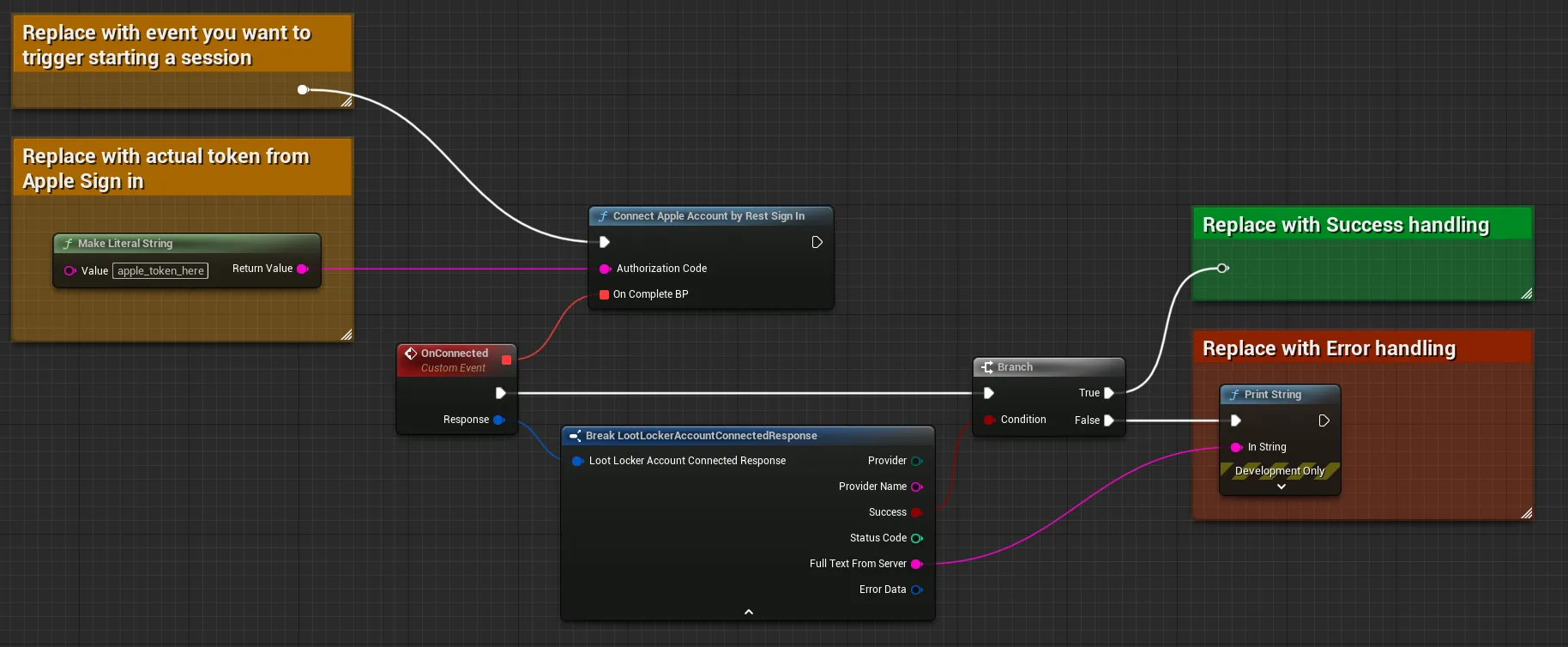
Coming soon — this sample hasn't been written yet.
Specific references for providers:
Example for Apple:
curl -X PUT "https://api.lootlocker.io/game/v1/connected-accounts/apple-rest" \ -H "x-session-token: your_token_here" \ -H "Content-Type: application/json" \ -d '{"authorization_code": "xxxxxxxxxxxxxxxxxxxxxxxxxxxxxxxxx.0.xxxxx.xxxxxxxx-xxxxxxxxxxxxx"}'Conclusion
Section titled “Conclusion”You've added an additional provider to a player's account, so they can now authenticate with multiple providers. To learn more, read about how to disconnect a provider or the general Unified Player Accounts documentation.