
This how-to sends an individual player notification through the Web Console.
In addition to notifications generated automatically by other LootLocker systems (such as Triggers, Catalog Purchases, Twitch Drops, or the Admin API), LootLocker also lets you send notifications directly to individual players from the Web Console. This is useful for tasks such as:
- Thanking a player for submitting feedback
- Informing a player about a successful refund
- Communicating game-specific information to a specific player
Notifications sent this way are added to the player's notification queue and can be retrieved by the game client like any other LootLocker notification.
Prerequisites
Section titled “Prerequisites”- A Player that has either started a session at least once, or been created manually in the Player Manager.
Sending a Notification
Section titled “Sending a Notification”Navigate to the Player Manager in the Web Console and search for or select the player you want to notify from the recent players list.
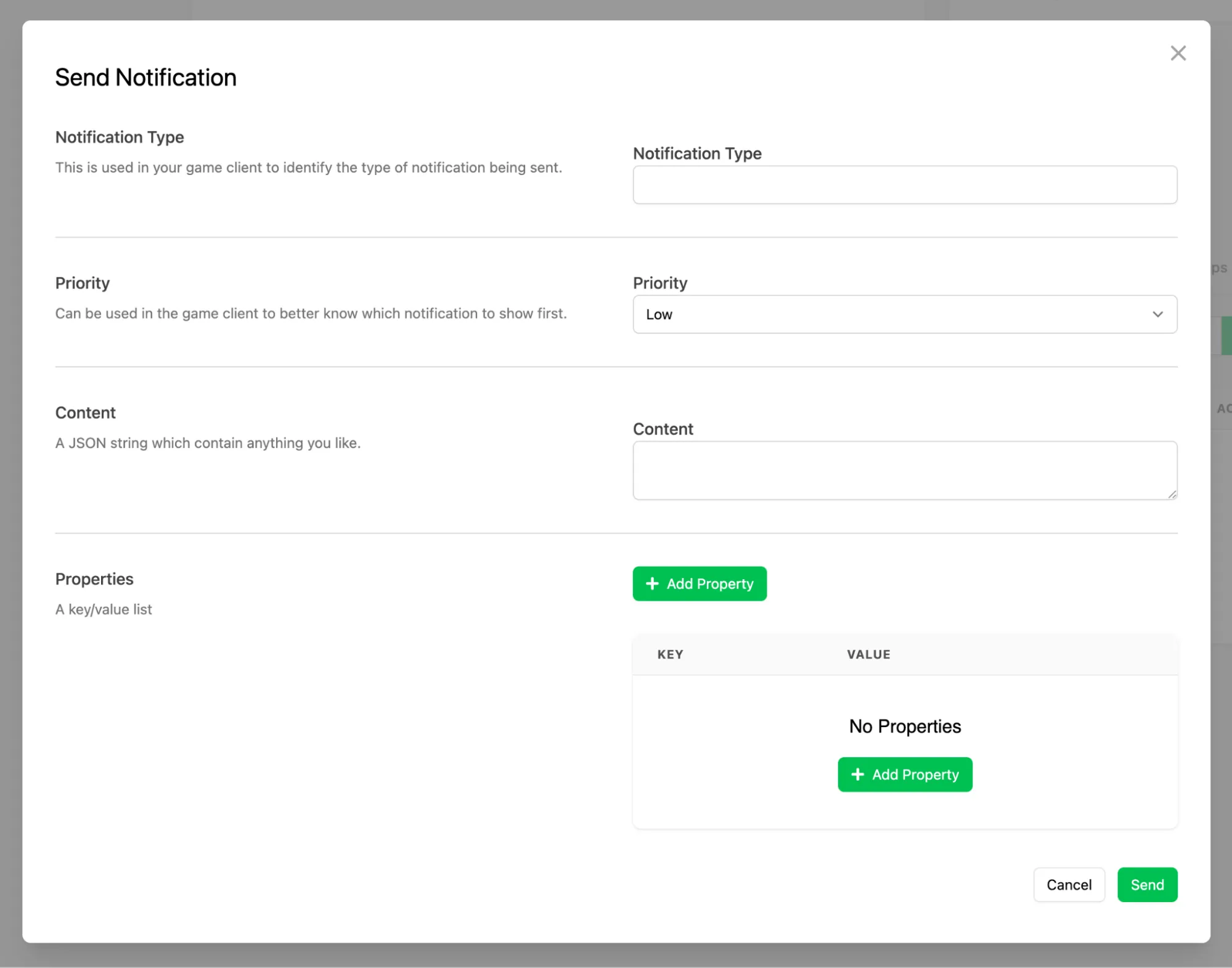
Click the Actions dropdown menu and select Send Notification. In the modal that appears, provide:
- Notification Type: used by the game client to identify what type of notification is being sent.
- Priority: indicates how urgent the notification is. The game client can use this value to decide which notifications to show first.
- Content: a JSON payload delivered with the notification and parsed by the game client.
- Properties: optional key–value pairs attached to the notification.
Click Send. The notification is added to the player's Notification Queue, where it can be retrieved by the game client.
Viewing Notification Status
Section titled “Viewing Notification Status”View notifications sent to a player from their profile page, under the Notifications tab. This displays all notifications sent through the Web Console along with their read status, so you can confirm whether the player has retrieved the notification.

Conclusion
Section titled “Conclusion”You've sent a player notification and viewed its status. Visit the Notifications documentation to learn how to implement notifications in your game.