
This page explains the Asset Manager interface — its views, fields, filters, and batch actions — and the data fields available on an Asset.
Asset Manager
Section titled “Asset Manager”The Asset Manager is the interface in the Web Console used to search for, create, and edit your game's Assets.
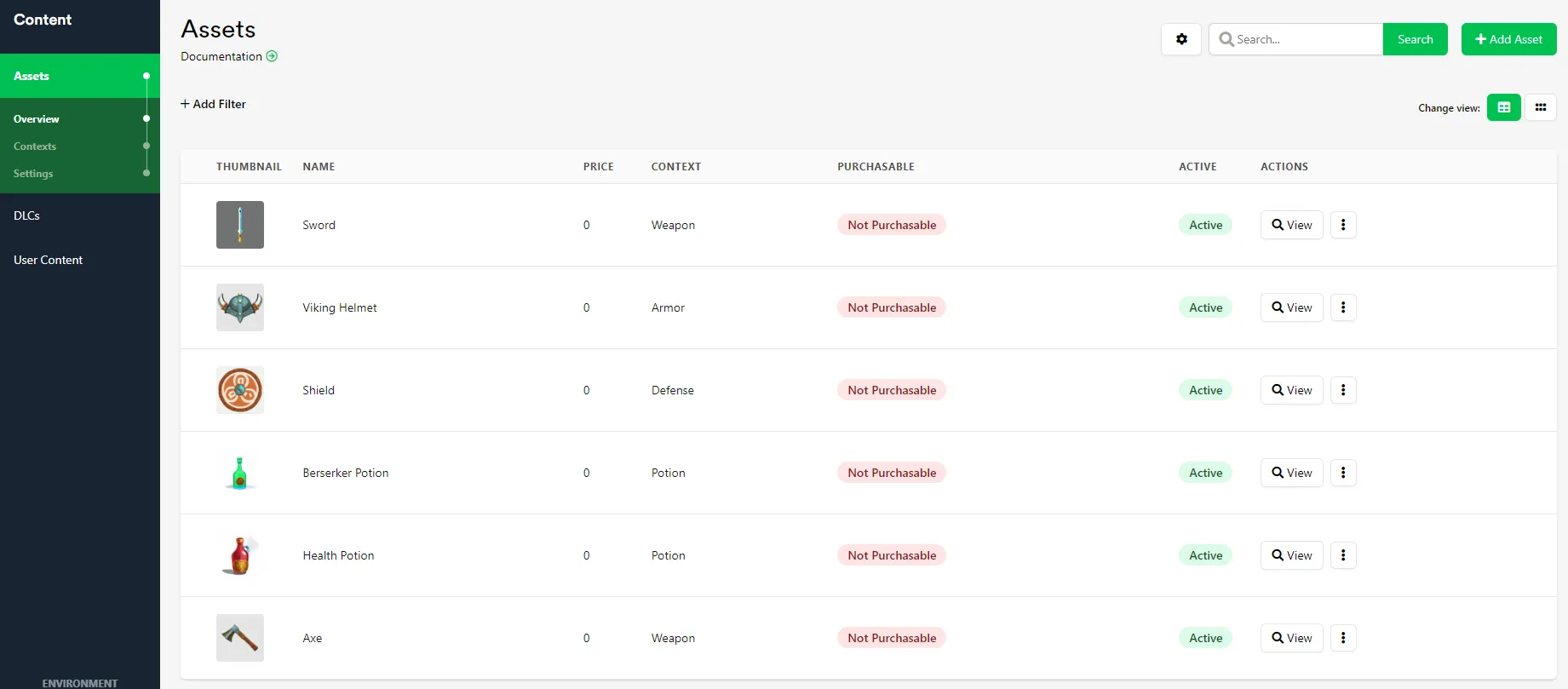
The Asset Manager can be viewed as a List or a Grid. Click Change View in the top right corner of the interface to switch between them.
Fields
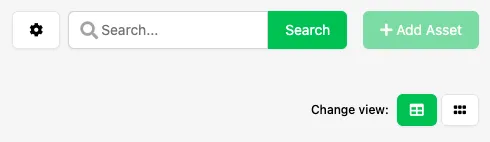
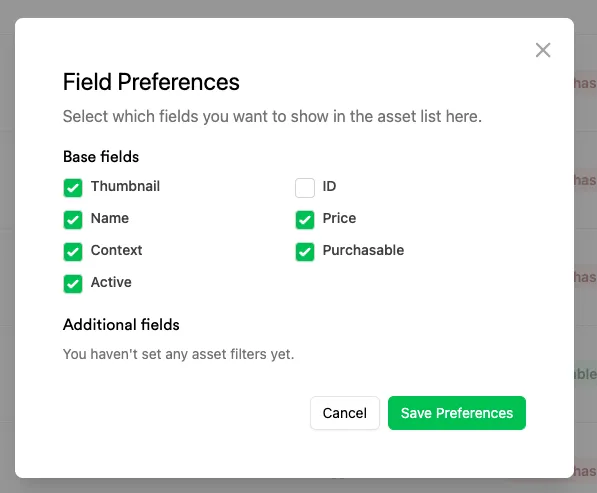
Section titled “Fields”Click the cog icon in the top right corner of the interface to choose which fields are displayed as columns in the Asset Manager.
The field preferences window lets you toggle default fields on or off, as well as any additional fields automatically created when you use the Asset Filter Key or Asset Filter Value filters — see Filters below.
Filters
Section titled “Filters”Filters let you narrow down the Assets displayed in the Asset Manager to only those matching specific criteria. Click + Add Filter in the top left corner of the interface to create a new filter — filters can be stacked. Click the delete icon on a filter to remove it, or Clear Filters to remove them all at once.

There are three types of filters:
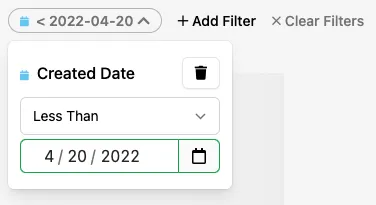
Created Date
Section titled “Created Date”Filters Assets that were created before or after a specific date.
Asset Filter Key
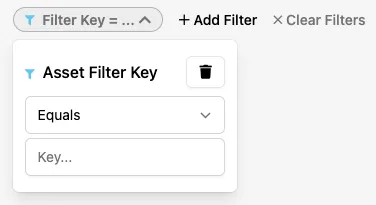
Section titled “Asset Filter Key”Filters Assets that have or don't have matching data in their key field.
Asset Filter Value
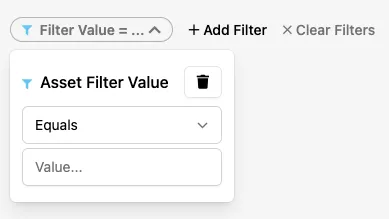
Section titled “Asset Filter Value”Filters Assets that have or don't have matching data in their value field.
Batch Edit Assets
Section titled “Batch Edit Assets”Select multiple Assets at once by clicking the checkbox next to each Asset's thumbnail.

With multiple Assets selected, a dropdown menu appears in the top right corner of the interface with the following options:
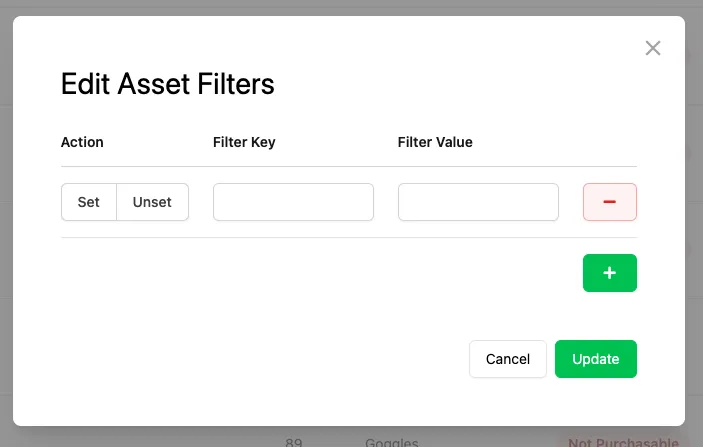
Edit Asset Filters
Section titled “Edit Asset Filters”Create and edit Asset filters for multiple Assets at the same time.
Deactivate Assets
Section titled “Deactivate Assets”Immediately deactivates all of the selected Assets. Deactivating an Asset hides it from your Players' inventories.
Asset Data
Section titled “Asset Data”Assets store data that you input through the Asset Manager. This data is organized into the following areas.
Basic Information
Section titled “Basic Information”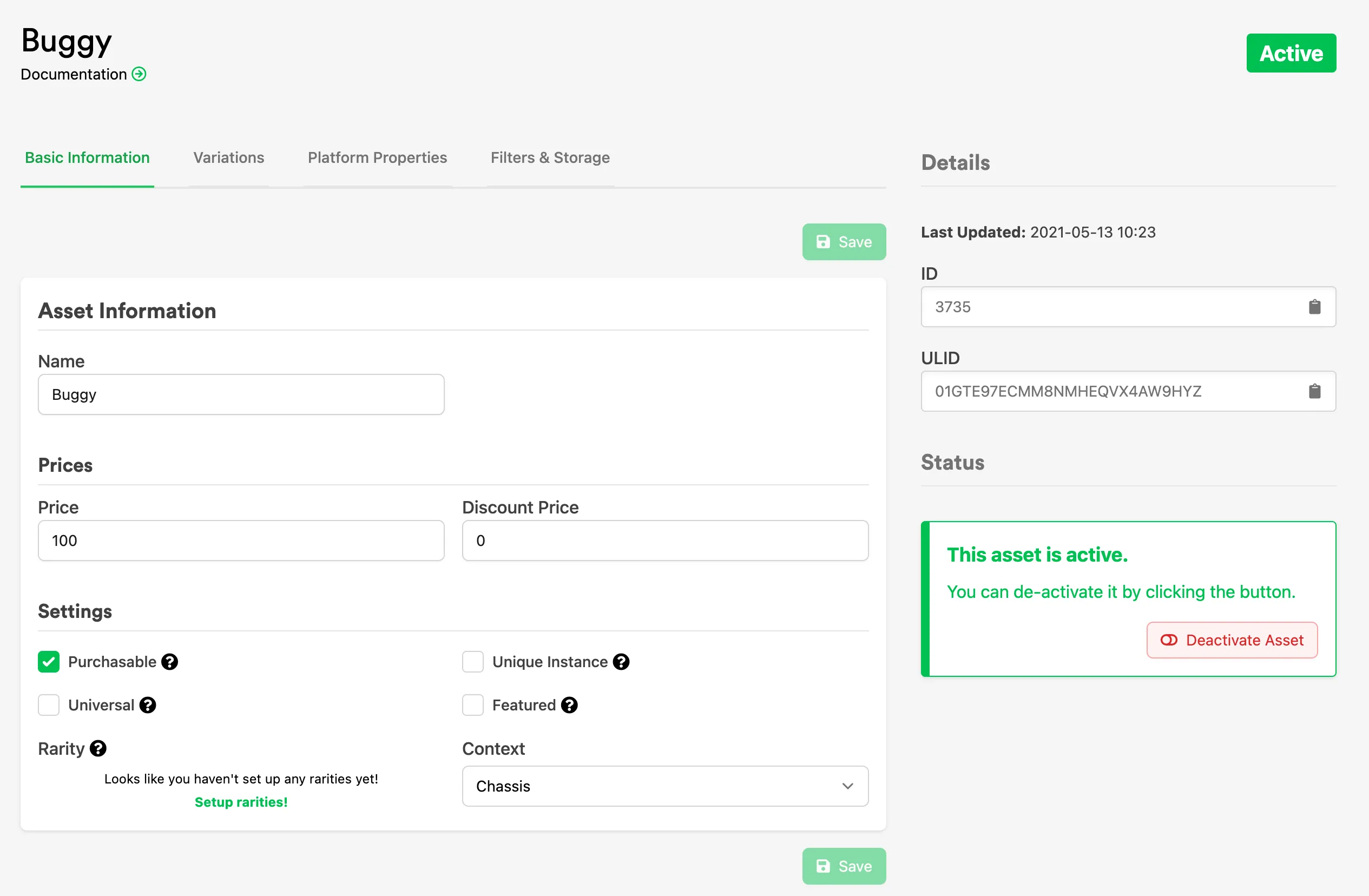
- Name: The name of the Asset, used in the Asset Manager and in your game.
- Price: The price of the Asset, if Currencies are set up.
- Suggested: The sum of all Assets in the Package Contents if the Asset has been assigned the Package Complexity.
- Discount Price: An optional discount price that overrides Price if set lower. If set, both prices are still returned to your game so you can still display the original Price.
- Universal: If enabled, lets you set a start and end date for when the Asset is Universal — see Universal Assets below.
- Featured: If enabled, lets you set a start and end date for when the Asset is marked Featured, so your game's interface can flag it accordingly.
- Purchasable: If enabled, makes the Asset appear in your store and available for purchase.
- Unique Instance: If enabled, a Player can only possess one instance of this Asset.
Universal Assets
Section titled “Universal Assets”A Universal Asset is temporarily added to every Player's inventory while it's marked Universal. Once it's no longer marked Universal, it's removed from a Player's inventory unless that Player has already equipped it.
Complexity Specific Data
Section titled “Complexity Specific Data”Based on the Complexity assigned to the Asset's Context, additional tabs become available on the Asset:
| Complexity | Complexity Specific Data |
|---|---|
| Generic Asset | N/A |
| Loot Box | Loot Box Contents |
| Drop Table | Drop Table |
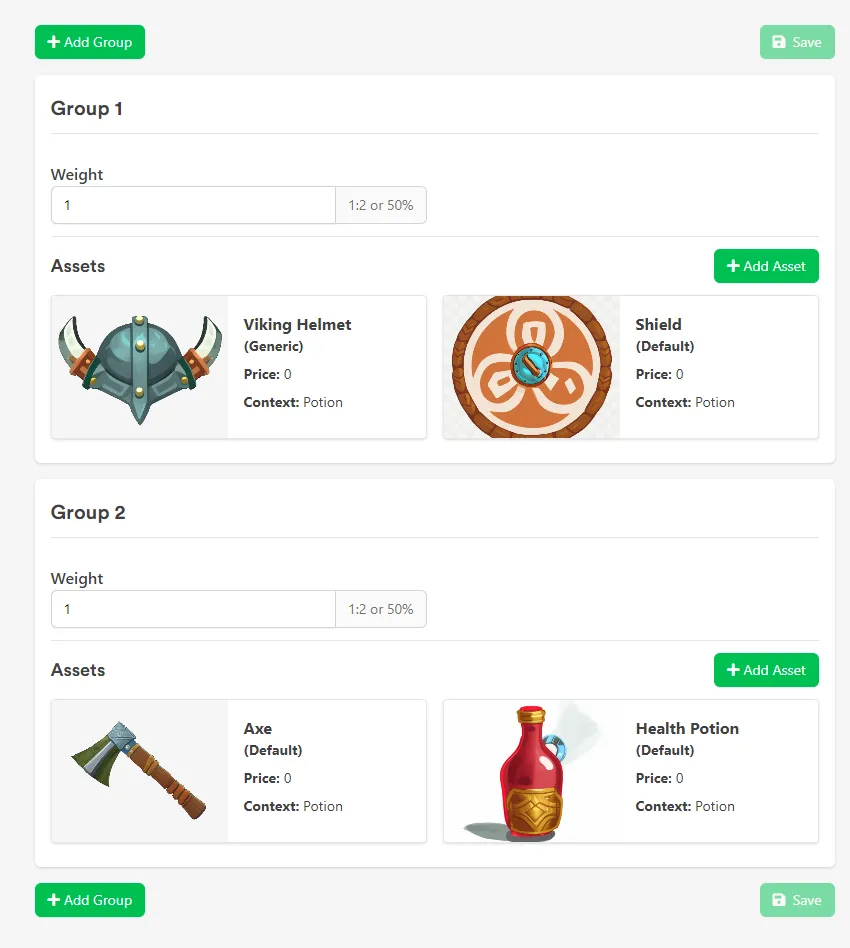
The Loot Box Complexity adds a Loot Box Contents tab to the Asset, where LootLocker randomly selects an Asset from a predefined rarity group of Assets.
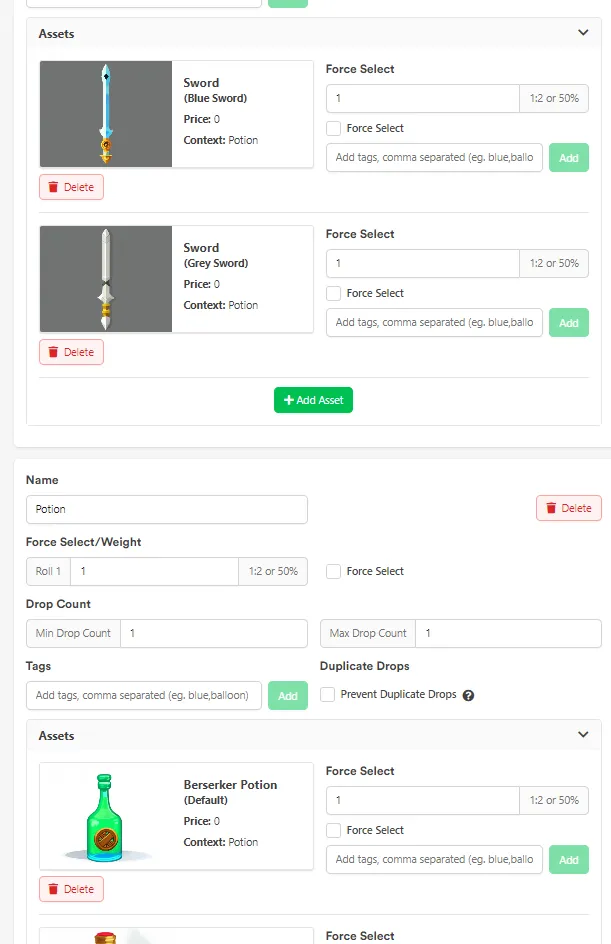
The Drop Table Complexity adds a Drop Table tab to the Asset, where you define the groups, weights, and drop counts LootLocker uses to compute drops.
Platform Properties
Section titled “Platform Properties”Fields related to the platforms active for your game. Certain platforms let you store platform-specific information on an Asset.
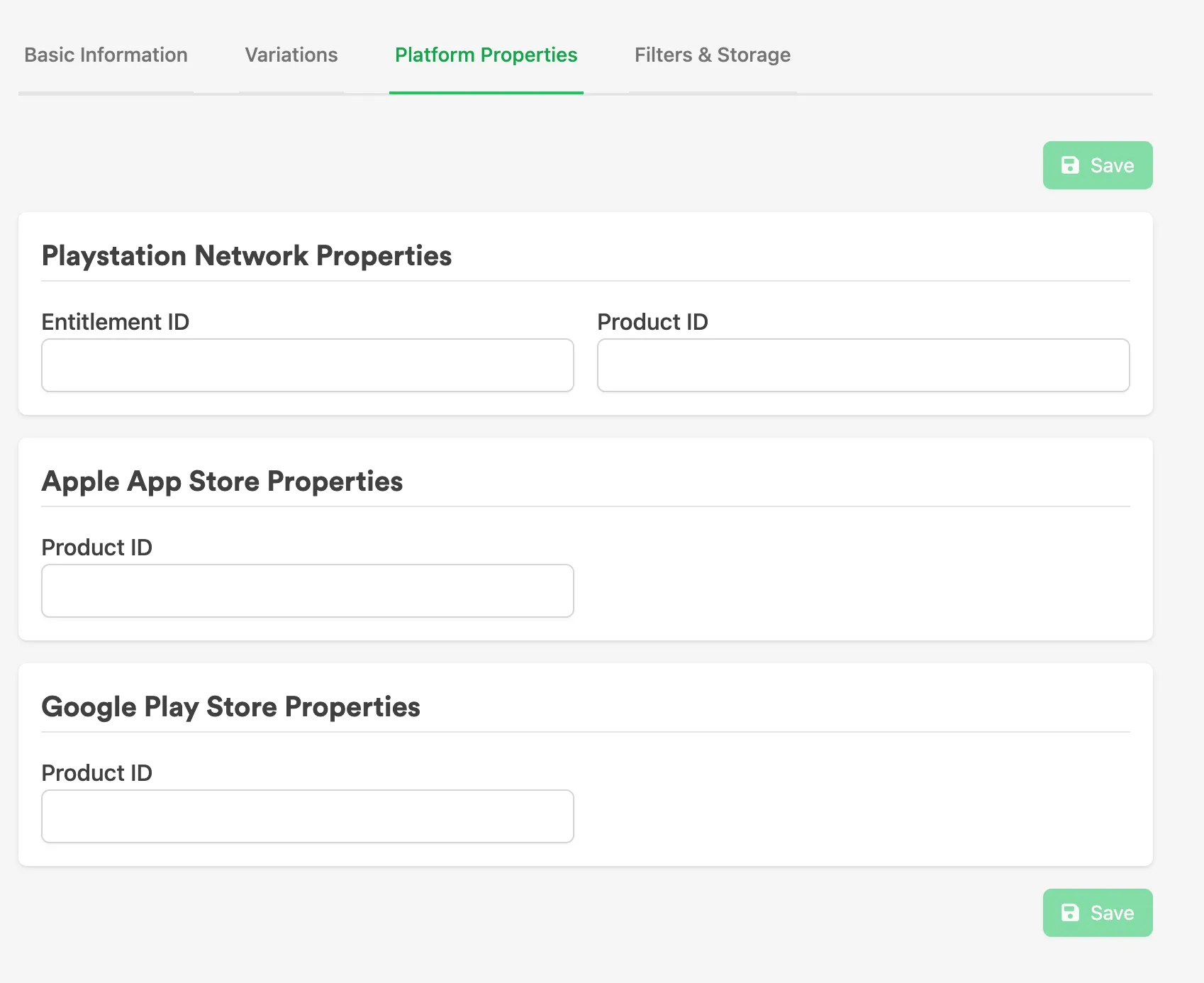
Filters & Storage
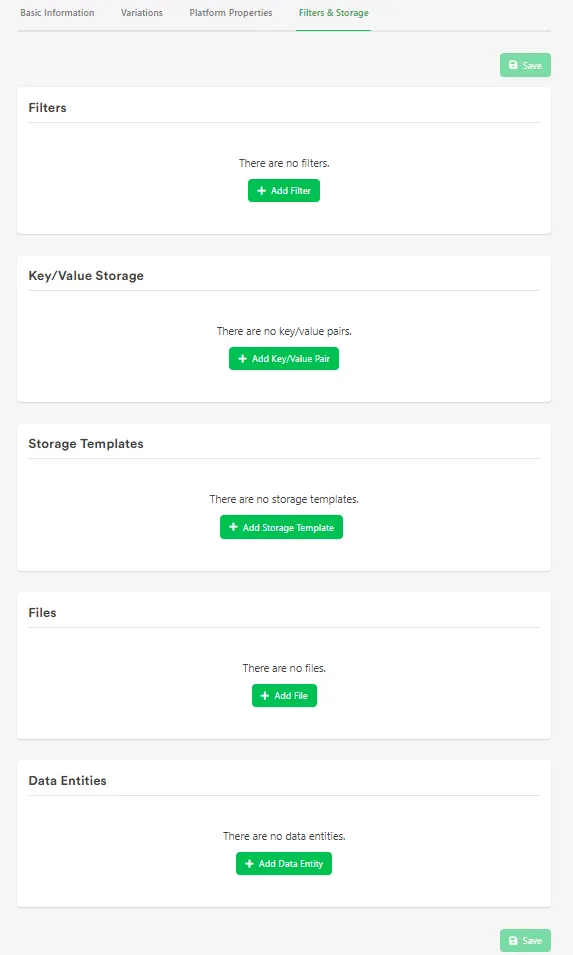
Section titled “Filters & Storage”Connect custom data to an Asset:
- Filters: Further categorize Assets in the Asset Manager and your game.
- Key/Value Storage: Key/Value pairs read by your game — unlike Filters, these aren't used to filter Assets in the Asset Manager.
- Files: Upload a file (up to 15MB) to the Asset for your game to download.
- Data Entities: Add and name blob data on the Asset for your game to read.
Conclusion
Section titled “Conclusion”Now that you understand the Asset Manager and Asset data fields, see Create & Configure an Asset to create your first Asset.