
This how-to connects a Twitch Drops campaign to LootLocker, so claimed Twitch rewards are automatically granted to players in your game.
Prerequisites
Section titled “Prerequisites”- A Twitch organization that owns your game. See Game Management in the Twitch documentation.
- Unified Player Accounts configured for your game — used to authenticate players during the Twitch account link process.
Create an Application in Twitch
Section titled “Create an Application in Twitch”Twitch Drops needs a Twitch application to link player accounts. Register it from your own Twitch account in the Twitch Developer Console, not from the organization's console.
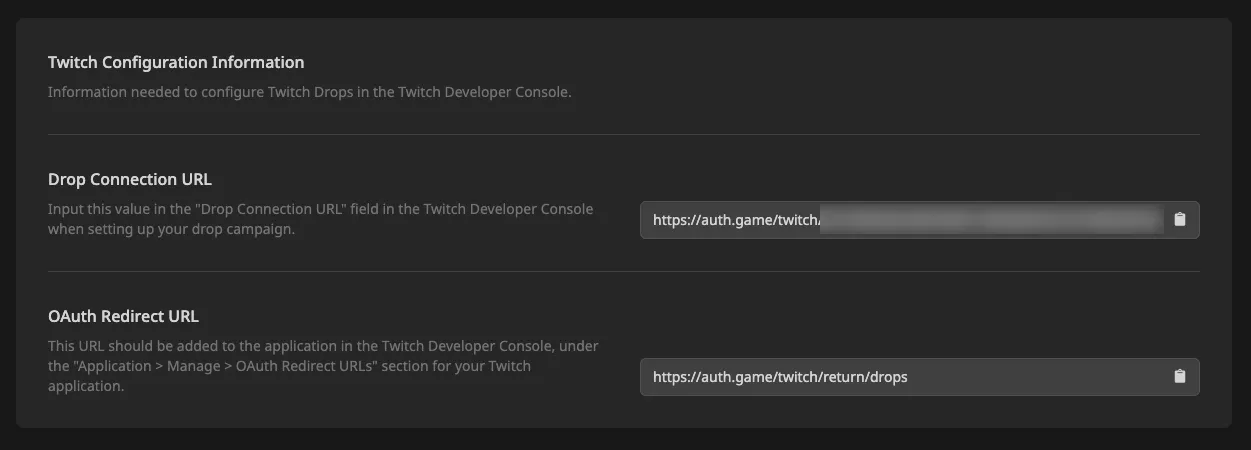
Navigate to the Twitch Drops settings page in the Web Console and copy the OAuth Redirect URL from the Twitch Configuration Information section.
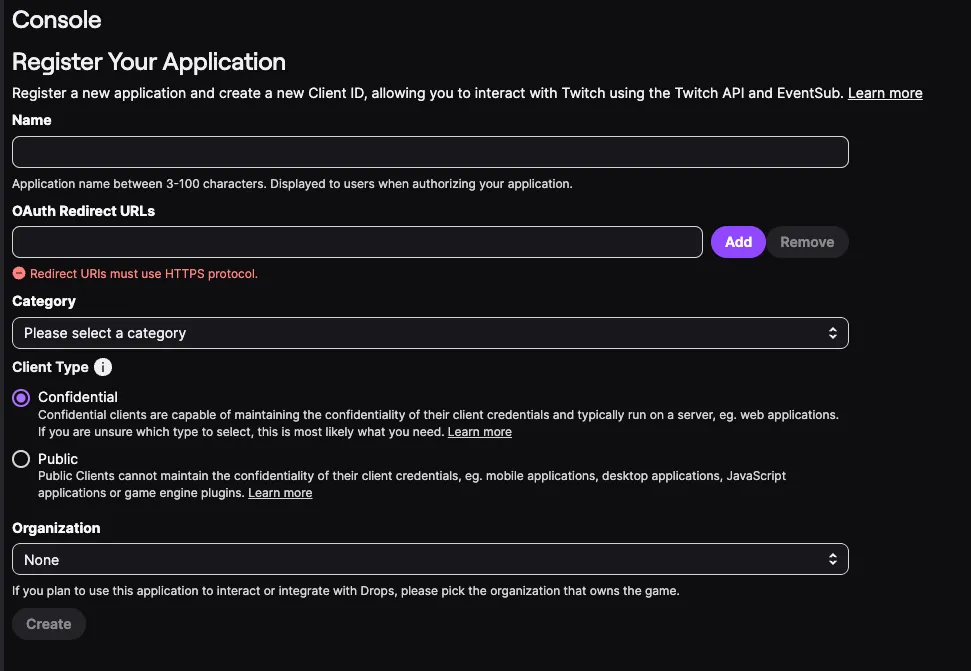
In the Twitch Developer Console, go to Applications and click Register Your Application, then fill in the form:
- Name: a name for the application, shown to players when they authorize it.
- OAuth Redirect URLs: paste the OAuth Redirect URL from LootLocker and click Add.
- Category: select Game Integration.
- Client Type: select Confidential.
- Organization: select the organization that owns your game.
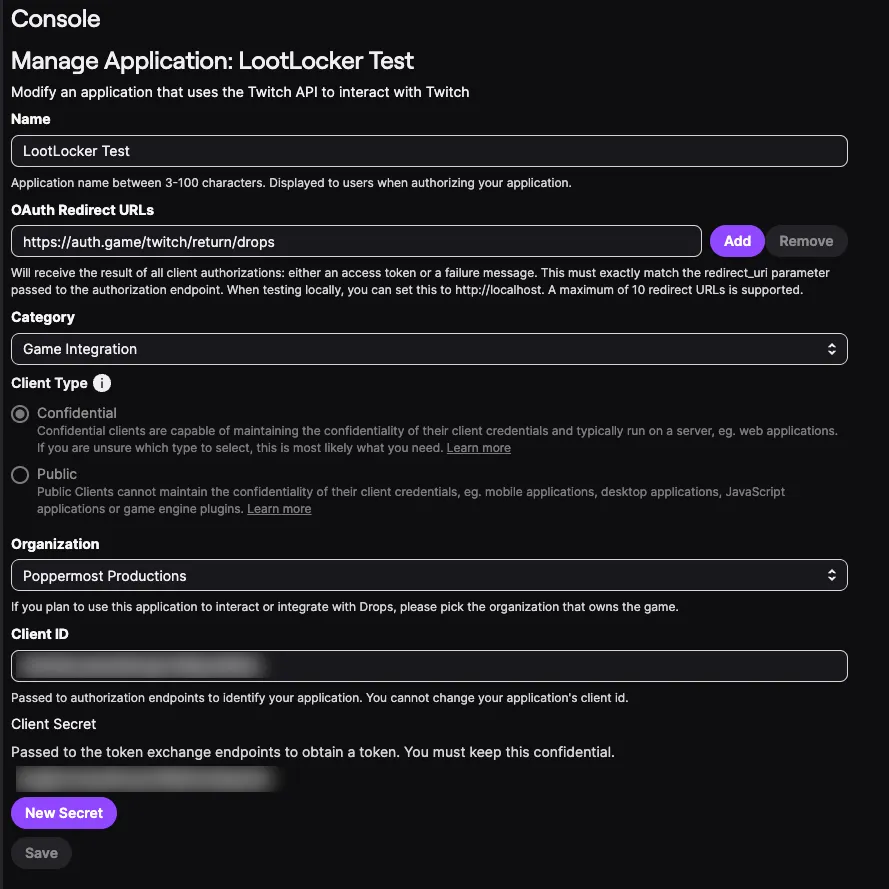
Click Create, then click Manage on the new application. Copy the Client ID, then click New Secret to generate a Client Secret and copy it.
Configure Twitch Drops in LootLocker
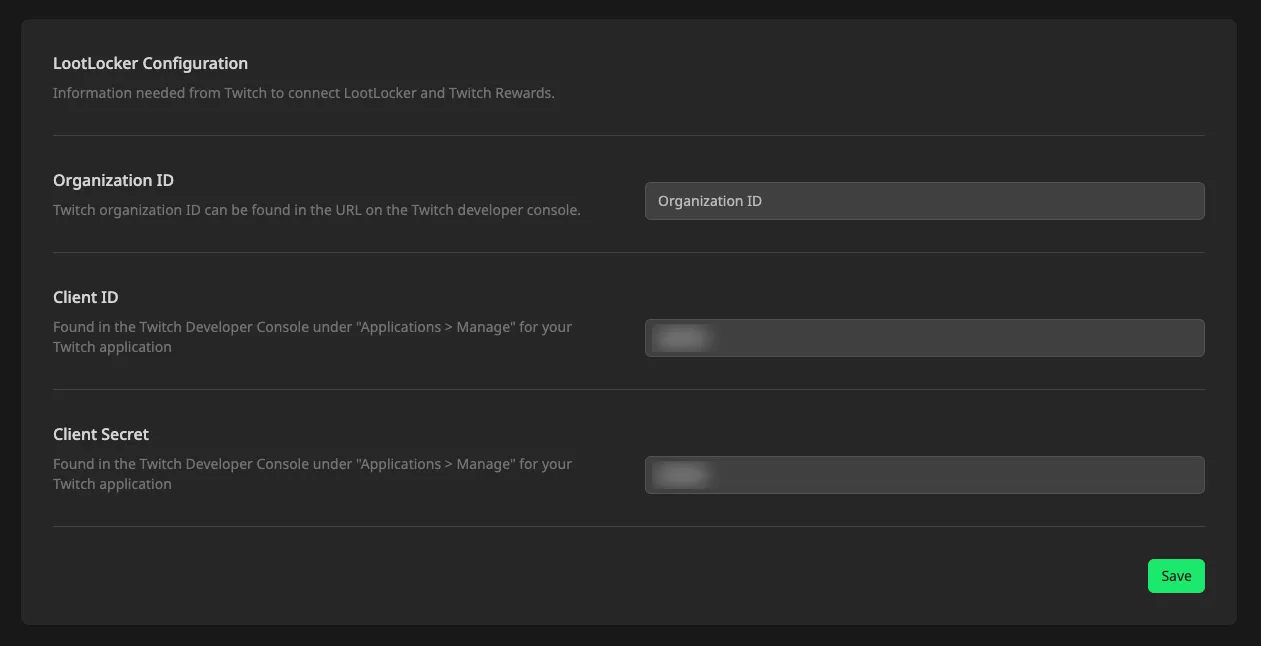
Section titled “Configure Twitch Drops in LootLocker”On the Twitch Drops settings page, fill in the LootLocker Configuration section and click Save:
- Organization ID: the ID of the Twitch organization that owns your game. It appears in the URL when you open the organization in the Twitch Developer Console.
- Client ID: the Client ID of the application you created.
- Client Secret: the Client Secret of the application you created.
Create a Drop in Twitch
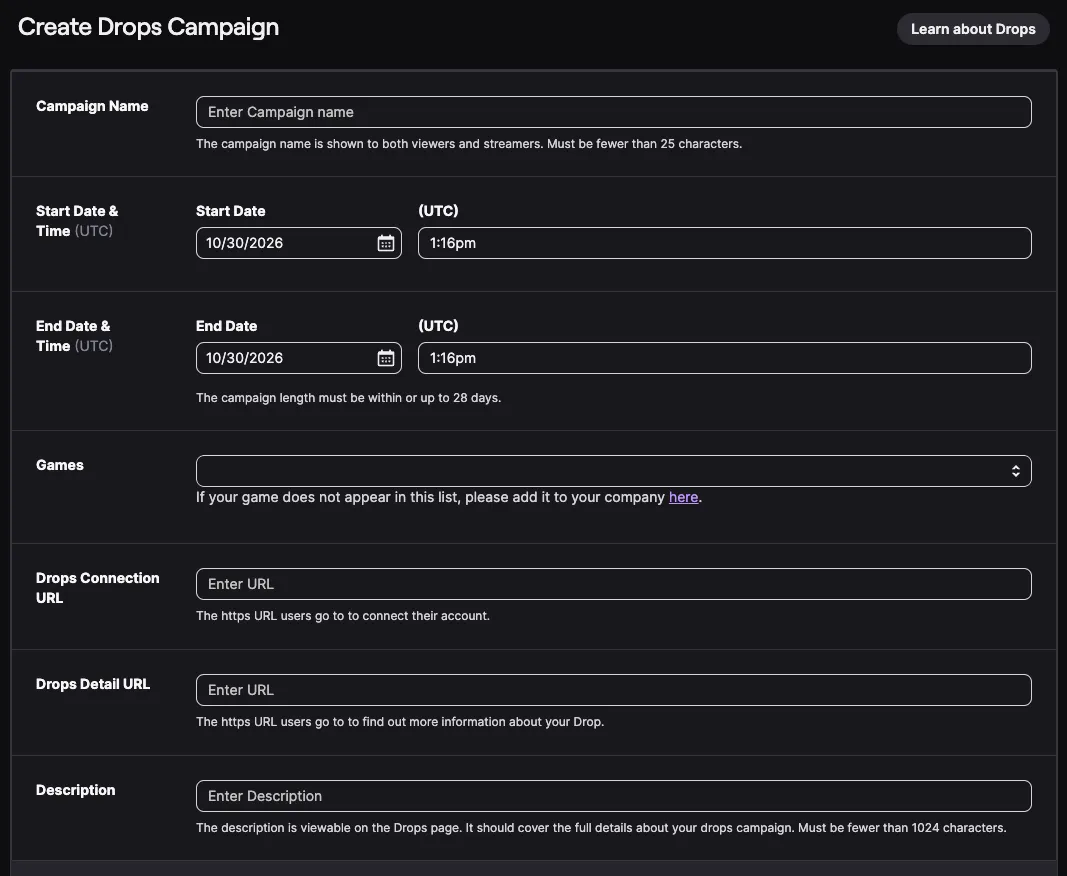
Section titled “Create a Drop in Twitch”In the Twitch Developer Console, open your organization and create a Drops campaign for your game, then set up its rewards and campaign settings.
In Drops Connection URL, paste the Drop Connection URL from the Twitch Configuration Information section of the Twitch Drops settings page. This is the page players are sent to when they select Connect to link their Twitch account.
Create a Drop in LootLocker
Section titled “Create a Drop in LootLocker”Create a LootLocker reward for each reward in your Twitch campaign:
- In the Twitch Developer Console, go to Drops Campaigns > Reward Manager and copy the Reward ID of the reward from the list.
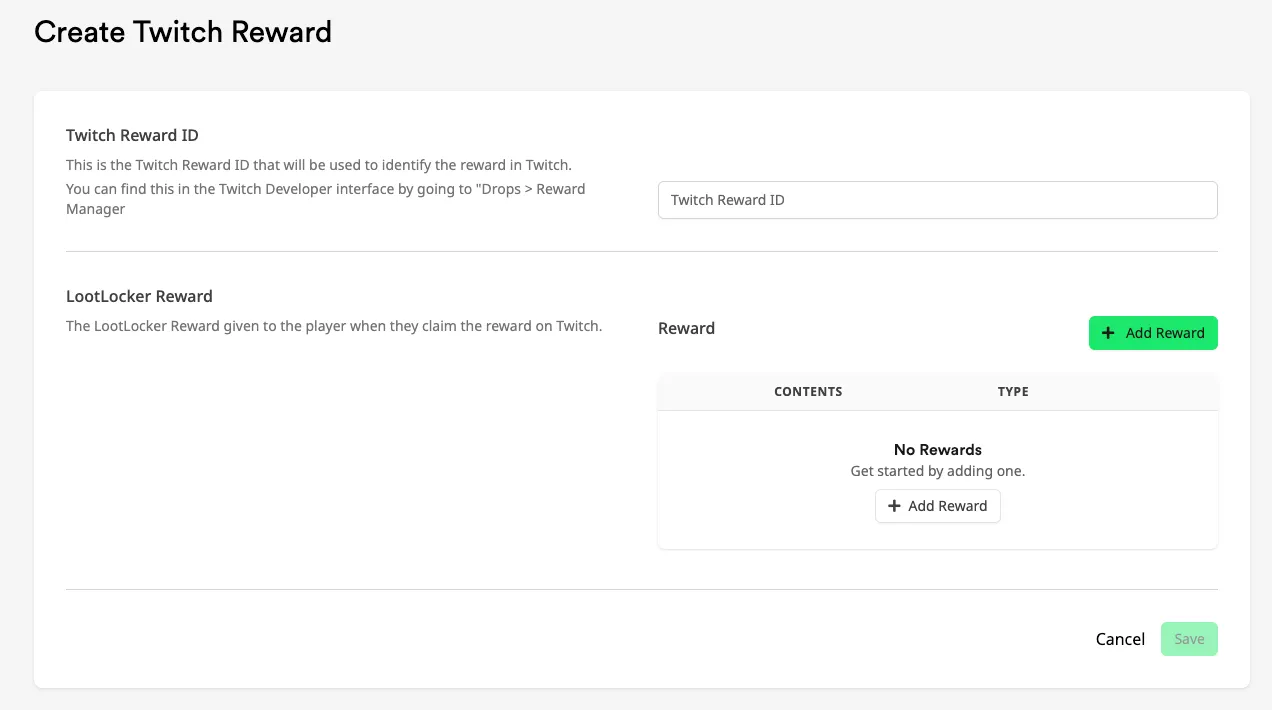
- Navigate to the Twitch Rewards page in the Web Console and create a new Twitch Reward.
- Paste the ID into Twitch Reward ID.
- Under LootLocker Reward, click Add Reward and choose what the player receives when they claim the reward on Twitch.
- Click Save.
Handle Claimed Rewards In-Game
Section titled “Handle Claimed Rewards In-Game”After a player claims a reward on Twitch, LootLocker automatically grants it to their account. Depending on the reward type, you may need extra logic in your game to use it:
- Assets: use the Asset system.
- Progression: use the Progression system.
- Currency: use the Currency system.
To notify players of a claimed reward in-game, implement LootLocker Notifications — the notification source is twitch_drop.
Conclusion
Section titled “Conclusion”You've connected Twitch Drops to LootLocker, so players can link their Twitch account, claim rewards, and receive them automatically in your game.