Player Names
Section titled “Player Names”You can retrieve Player Names from 1st-party platform IDs when authenticating with Platform Login, let players set their own name, or display their public UID. You can also enforce unique player names.
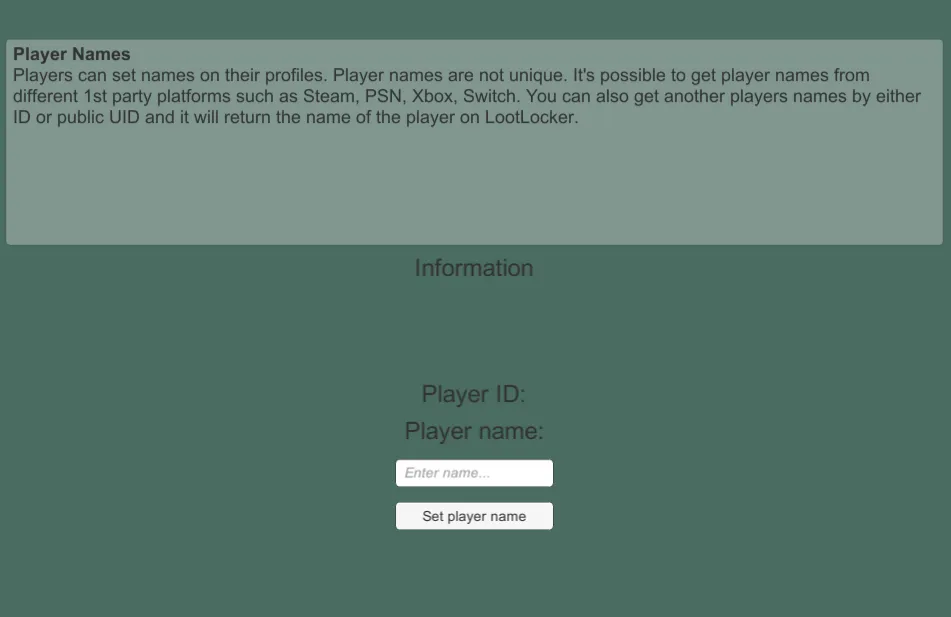
This sample can be found in the Unity SDK under the name 3 - PlayerNames. It demonstrates letting the player set their own name.
In-Engine
Section titled “In-Engine”Enter a name in the field and click Set player name.
Web Console
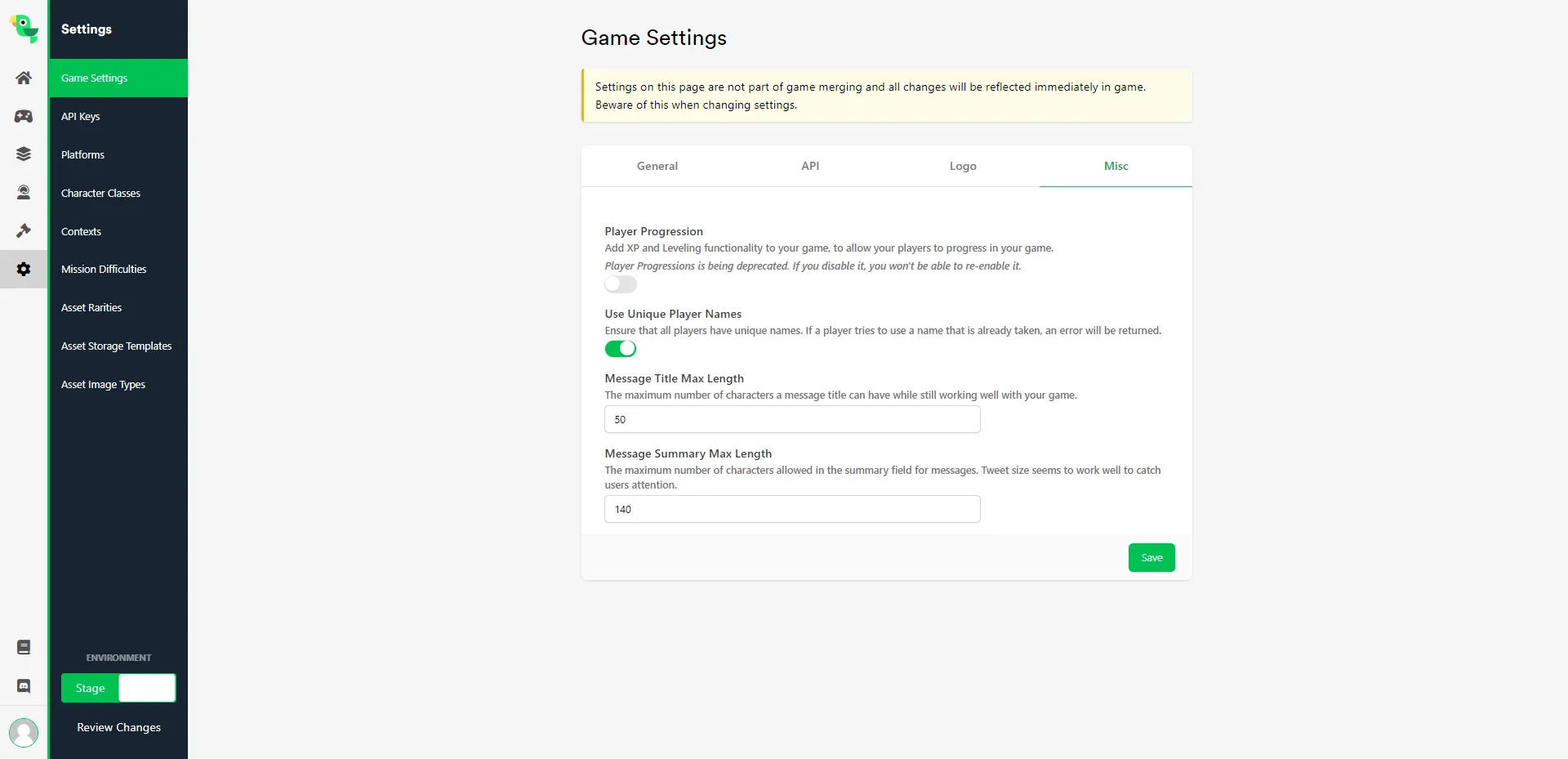
Section titled “Web Console”Enable the Unique Player Names setting in your game settings to require each player name to be unique.
Player Storage
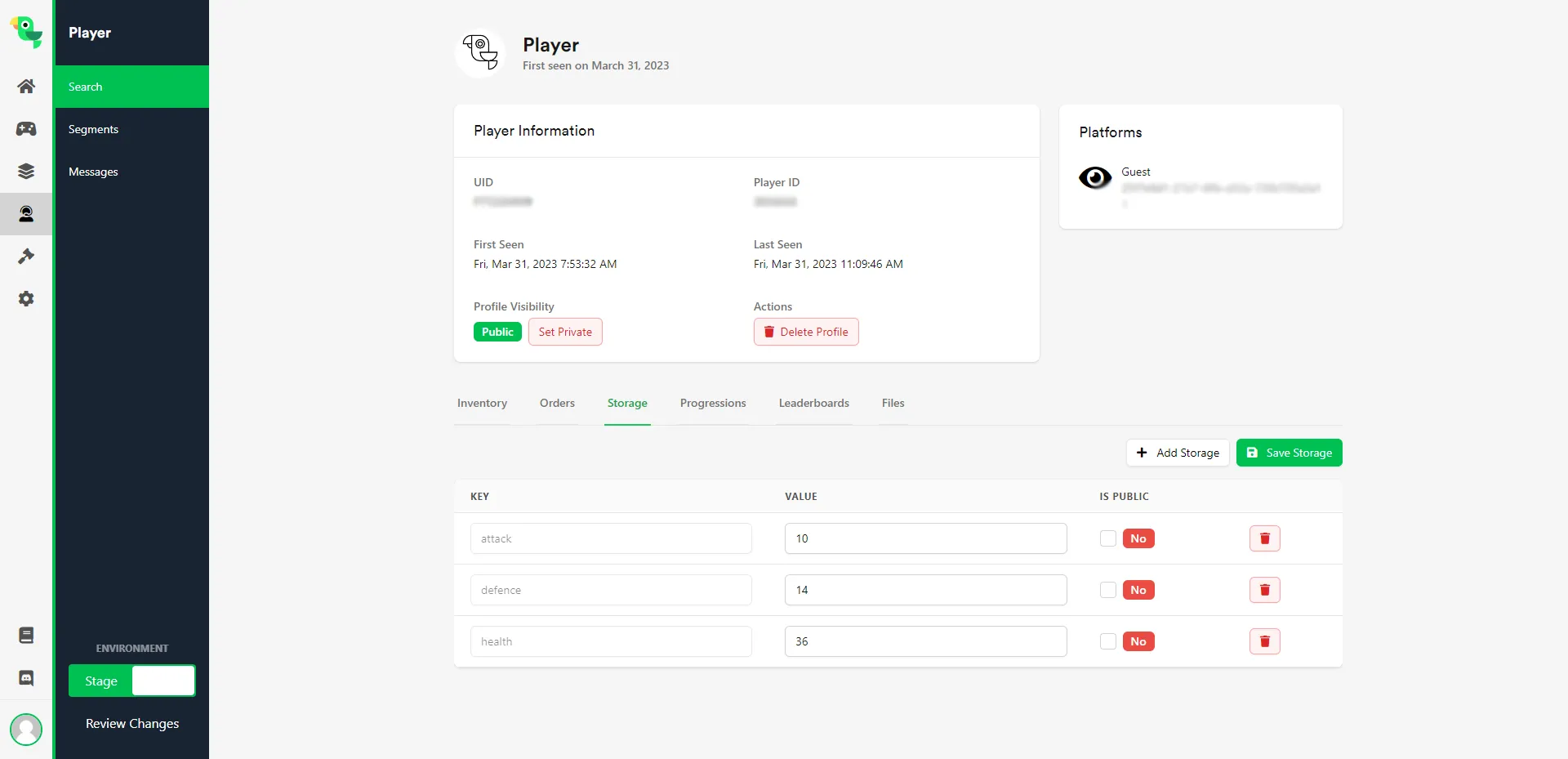
Section titled “Player Storage”With LootLocker, you can store Metadata — key/value pairs — in a player's profile, created, updated, or deleted directly from your game or manually through the Web Console.
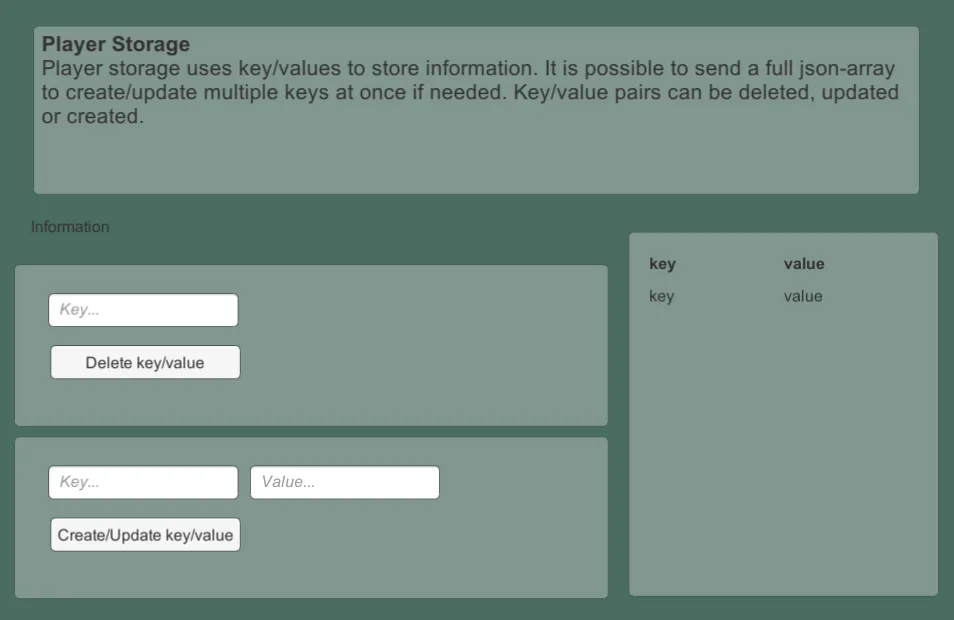
This sample can be found in the Unity SDK under the name 4 - PlayerStorage. It demonstrates creating, updating, and deleting key/value pairs.
In-Engine
Section titled “In-Engine”The sample scene lets you:
- Create a key: enter a key and value in the lower fields and click Create/Update key/value. The new pair appears in the table on the right.
- Update a value: enter the same key with a new value and click Create/Update key/value.
- Delete a key/value: enter the key in the upper field and click Delete key/value.
Web Console
Section titled “Web Console”Search for a player in the Player Manager and view their key/value pairs under the Storage tab.
Player Files
Section titled “Player Files”Player Files let you store files of any type in a player's profile. Stored files can be downloaded from a URL, and each file keeps up to 5 revisions that you can revert through the Web Console.
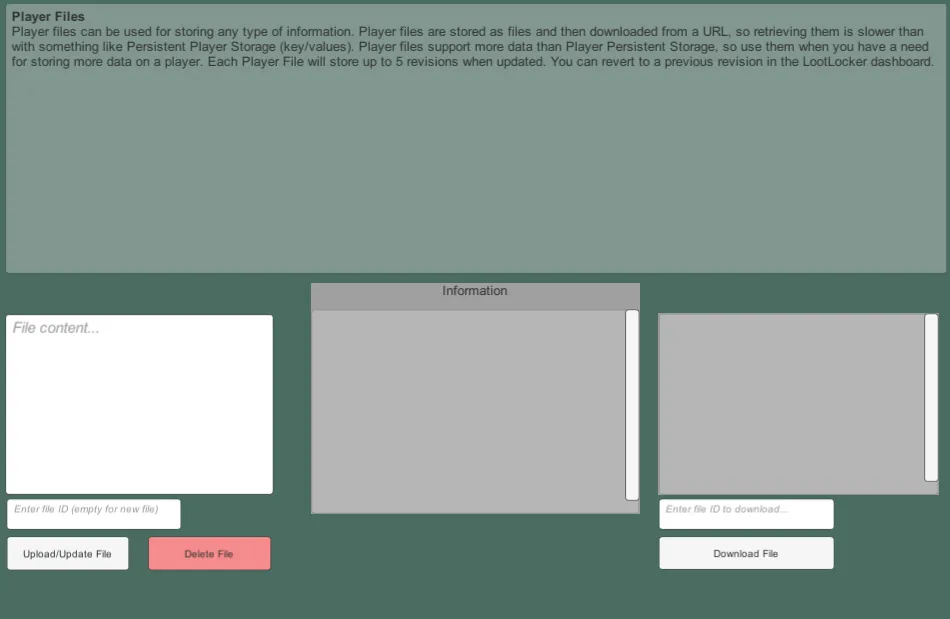
This sample can be found in the Unity SDK under the name 7 - Player Files. It demonstrates uploading a file to the player's profile, updating it with a new file, and downloading it from LootLocker's servers.
In-Engine
Section titled “In-Engine”The sample scene lets you:
- Upload a new file: click Upload/Update File.
- Update a file: select a file, then use the File ID field to specify which file this new file replaces.
- Download a file: enter the file ID from the list on the right and click Download File.
Web Console
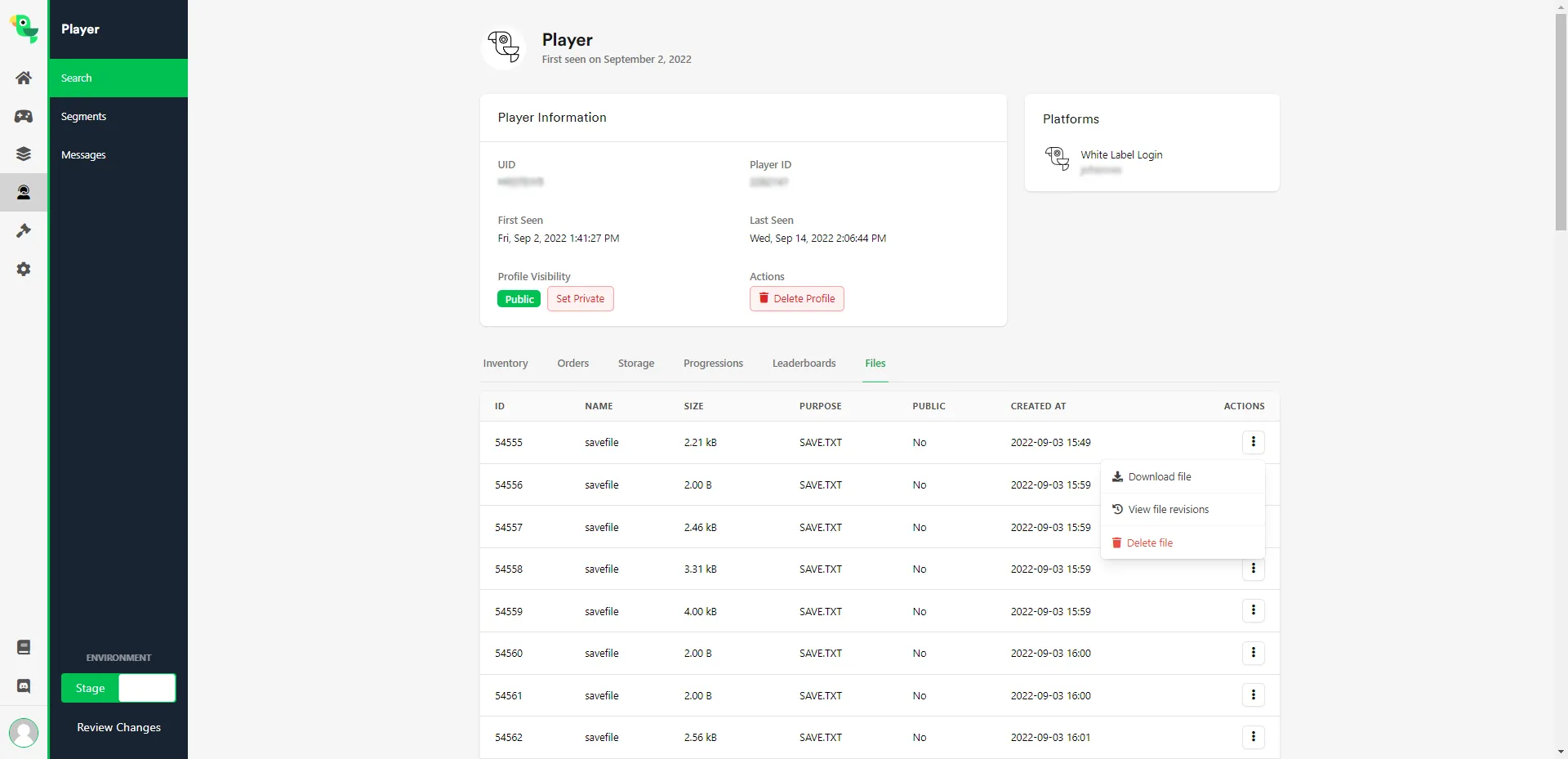
Section titled “Web Console”Search for a player in the Player Manager and view their uploaded files under the Files tab. From there, you can download files, revert to a previous revision, or manually upload a new file.