
This how-to creates an Asset Storage Template and applies it to an Asset.
Prerequisites
Section titled “Prerequisites”- An Asset already created in the Web Console (see Create & Configure an Asset).
What Is an Asset Storage Template?
Section titled “What Is an Asset Storage Template?”Asset Storage Templates let you add pre-defined Key/Value storage pairs to any Asset. You can apply multiple Asset Storage Templates to an Asset, and even override individual keys at the Asset level.
Create an Asset Storage Template
Section titled “Create an Asset Storage Template”To create a new Asset Storage Template, open Content Management in the sidebar of the Web Console, select Assets, then open the Storage Templates tab.
Click Create Asset Storage Template in the top right corner to create a new template. Enter the name of your template in the pop-up modal and click Create.
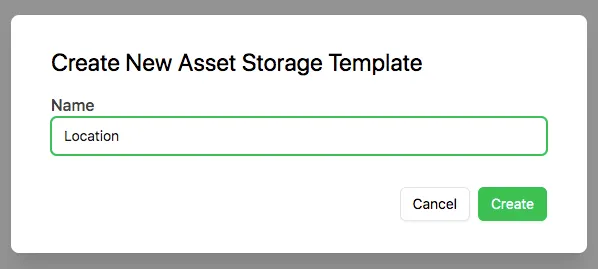
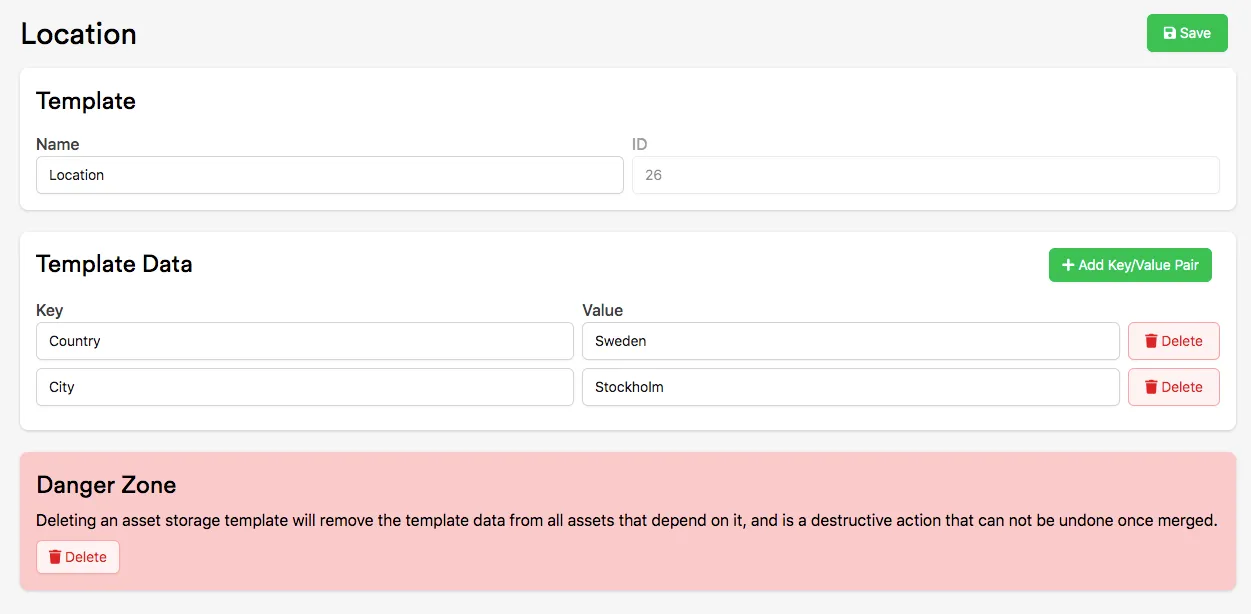
In the new template, click Add Key/Value Pair to create a key/value pair and enter text in the key and value fields. This example creates two key/value pairs with the following information:
| Key | Value |
|---|---|
| Country | Sweden |
| City | Stockholm |
Once complete, click Save to save these key/value pairs. Your template should look something like this:
Add an Asset Storage Template to an Asset
Section titled “Add an Asset Storage Template to an Asset”Navigate to the Asset Manager by clicking Content on the left bar of the Web Console.

Select the Asset you want to add a template to and navigate to the Filters & Storage tab in the Asset's menu. Click Add Storage Template in the Key/Value Storage section, then select the template you want to apply from the dropdown in the pop-up menu.
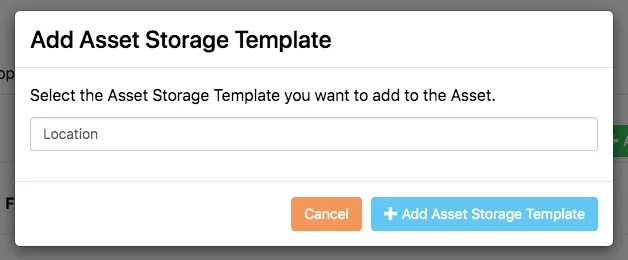
Click + Add Asset Storage Template to apply this template to the current Asset. The two key/value pairs now appear in the Key/Value Storage section.
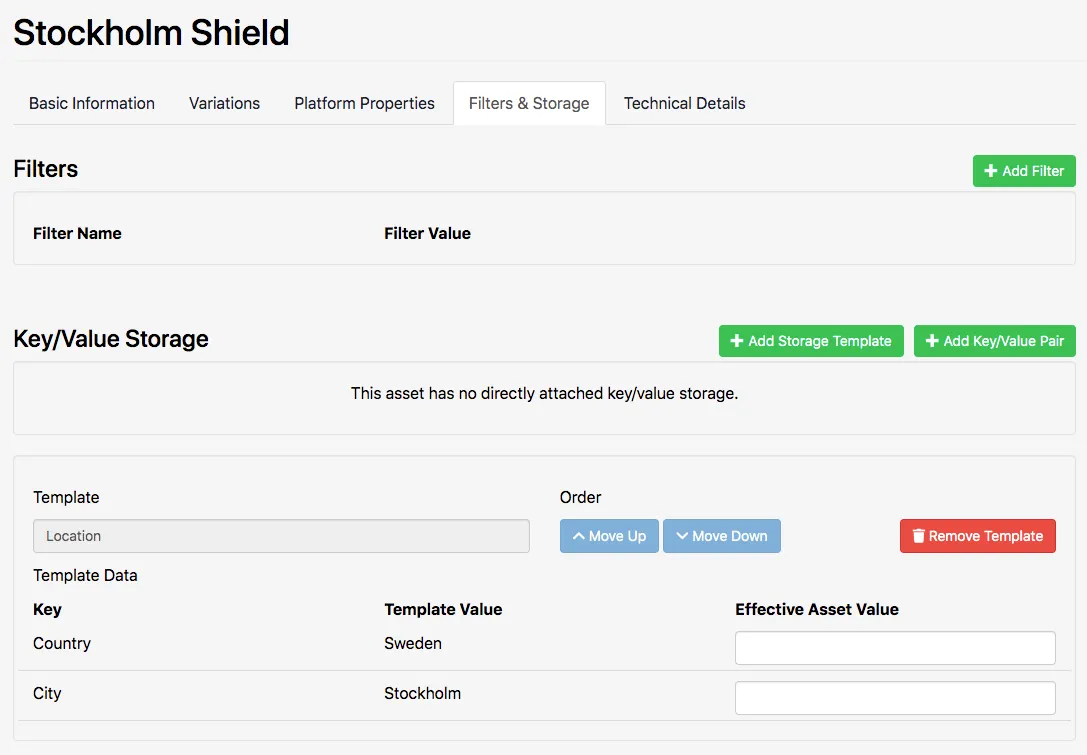
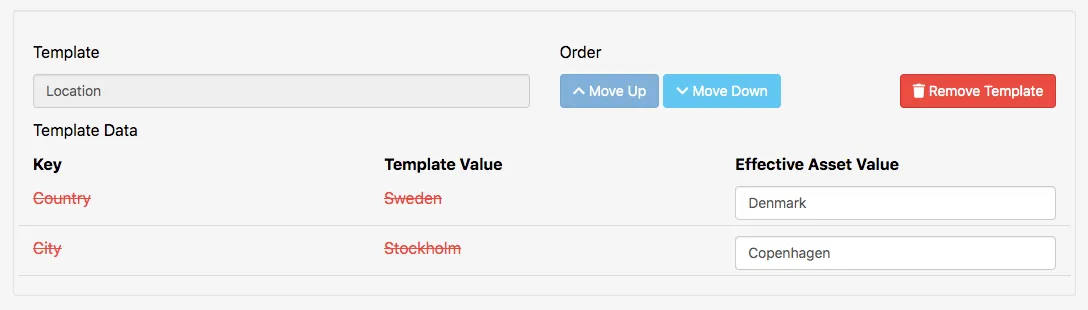
To override the values in the key/value pairs, enter alternative values in the Effective Asset Value field — the Template Value is then crossed out.
Conclusion
Section titled “Conclusion”You've created an Asset Storage Template and applied it to an Asset. Apply the same template to other Assets, or create additional templates for other sets of Key/Value data.