
This how-to connects your game to Brevo, so that the email addresses your players sign up with are added to your Brevo contacts and the Metadata you map is written to their contact attributes.
Prerequisites
Section titled “Prerequisites”- A Brevo account with an API key. Create one in your Brevo account settings under SMTP & API.
- White Label Login configured for your game. Without it, LootLocker has no email addresses to pass to Brevo.
Open the Brevo Settings
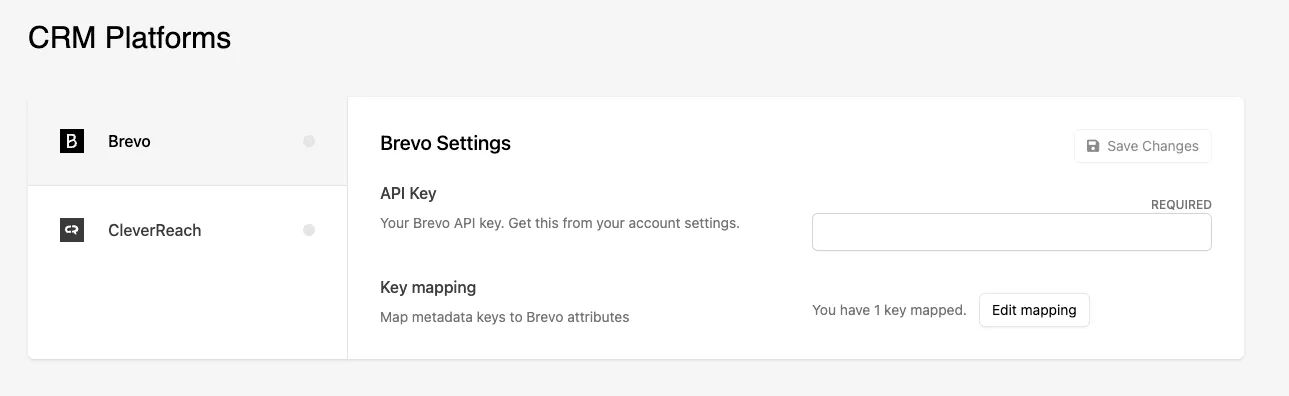
Section titled “Open the Brevo Settings”Click Settings in the Web Console sidebar and open CRM Platforms, then select Brevo from the platform list on the left.
Add Your Brevo API Key
Section titled “Add Your Brevo API Key”Paste your Brevo API key into the API Key field. This is the only credential Brevo needs, and it is required.
Map Your Metadata Keys
Section titled “Map Your Metadata Keys”The Key mapping row shows how many keys are currently mapped and gives you an Edit mapping button to change them. Each mapping sends one Metadata key from a player's profile to one Brevo contact attribute.
You can connect Brevo without mapping any keys — LootLocker will still pass email addresses — but nothing beyond the email address reaches Brevo until you map at least one key. See Map Metadata Keys to CRM Fields for how to map keys individually or in bulk.
Save Your Settings
Section titled “Save Your Settings”Click Save Changes to store the configuration.
Conclusion
Section titled “Conclusion”Brevo is connected, and new White Label Login accounts will appear as contacts in your Brevo list. Decide which contacts your campaigns actually go out to using Brevo's own automations — LootLocker passes the address, but does not record marketing consent on your behalf.