
Configure a Catalog Listing to be purchasable using Epic Games Store.
Prerequisites
- Epic Games Store IAP configured for your game
- At least one rewardable item, such as an Asset, Currency, or Progression
- A Catalog with at least one Catalog Listing
Create the Product in Epic Developer Portal
Go to the Epic Developer Portal, select your game, and navigate to Epic Games Store > Offers.
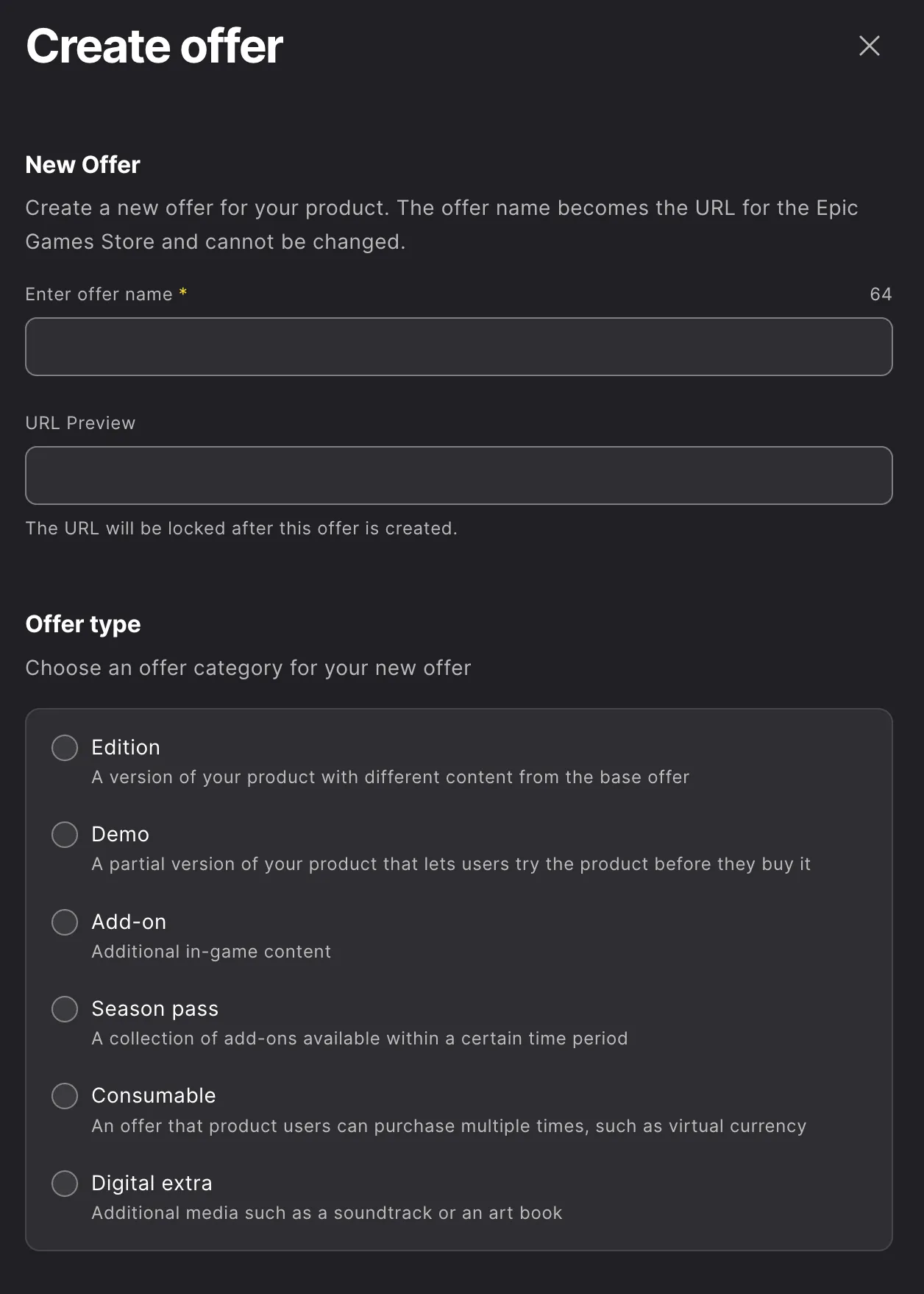
Click Create Offer and fill in the following information:
- Offer Name: a unique name for the content you're selling
- Offer Type: select either Consumable or Add-on, depending on the type of content you're selling
Configure general details, pricing, regions, and availability, then save your changes. Use the Audience Item ID from this offer when configuring your Catalog Listing in LootLocker in the next step.
Add Epic Games Store to a Catalog Listing
In the LootLocker Web Console, go to the Economy tab (under Content), open your Catalog, and select the Catalog Listing you want to configure. In the Actions column, click View Listing.
Open the IAP tab and select Epic Games Store from the list of available providers.
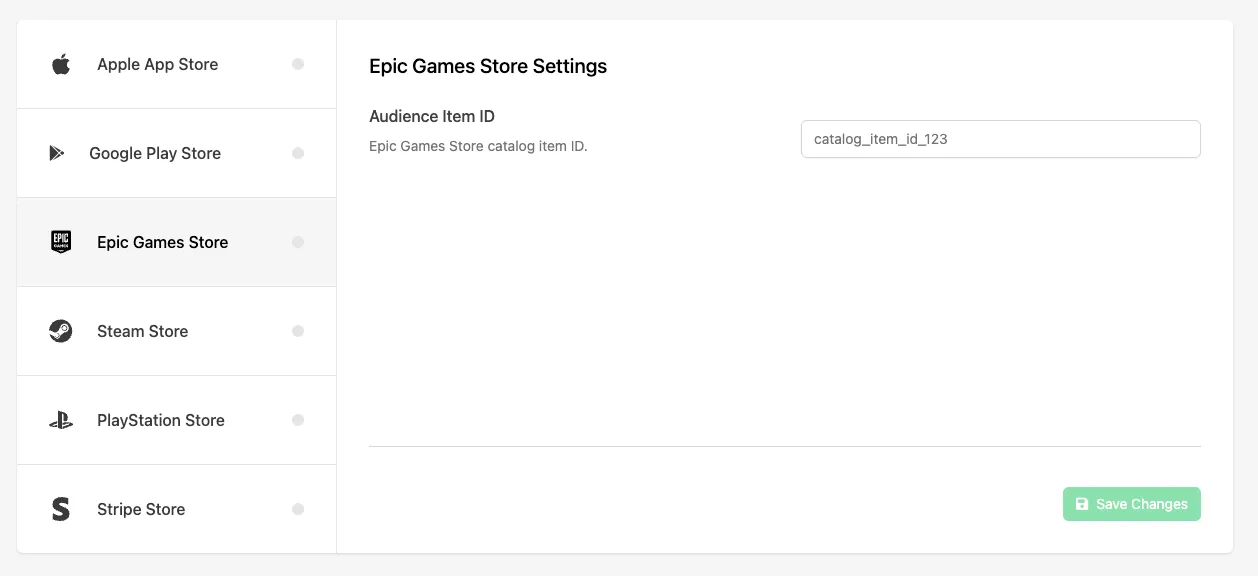
Fill in the following field:
- Audience Item ID: the catalog item identifier from Epic Games Store. This represents the purchasable offer configured in the Epic Developer Portal and must exactly match the Item ID associated with your product.
Click Save Changes to save your Epic Games Store IAP configuration.
Enable the Listing for Purchase
Open the Settings tab for the Catalog Listing and enable the Purchasable toggle to allow the listing to be purchased.
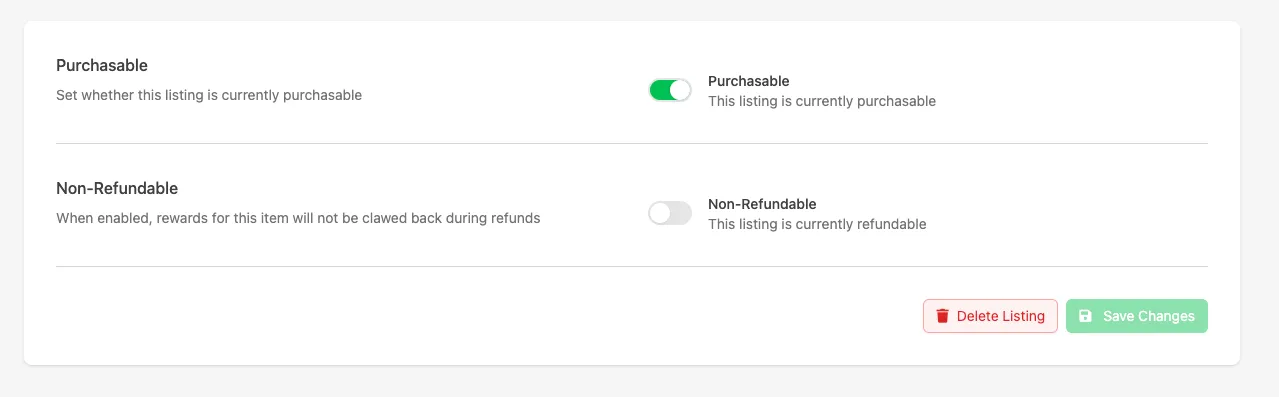
Click Save Changes again.
Conclusion
Your Catalog Listing is now configured to support purchases using Epic Games Store. Once your game is integrated with the purchase flow, players can purchase this listing through Epic Games Store and receive the configured rewards.