
This how-to uses the Reward modal to add one or more Rewards to a LootLocker feature — the same flow used across every feature that supports Rewards.
Prerequisites
Section titled “Prerequisites”- Depending on the Reward Type you want to add, at least one of the following configured in your game:
- For the Discord Role Reward Type, Squire installed in your Discord server (see Add Squire to Discord Server).
Add a Reward
Section titled “Add a Reward”Navigate to the feature where you want to create a reward and click Add Reward (in Catalogs, this button is called Create Listing).
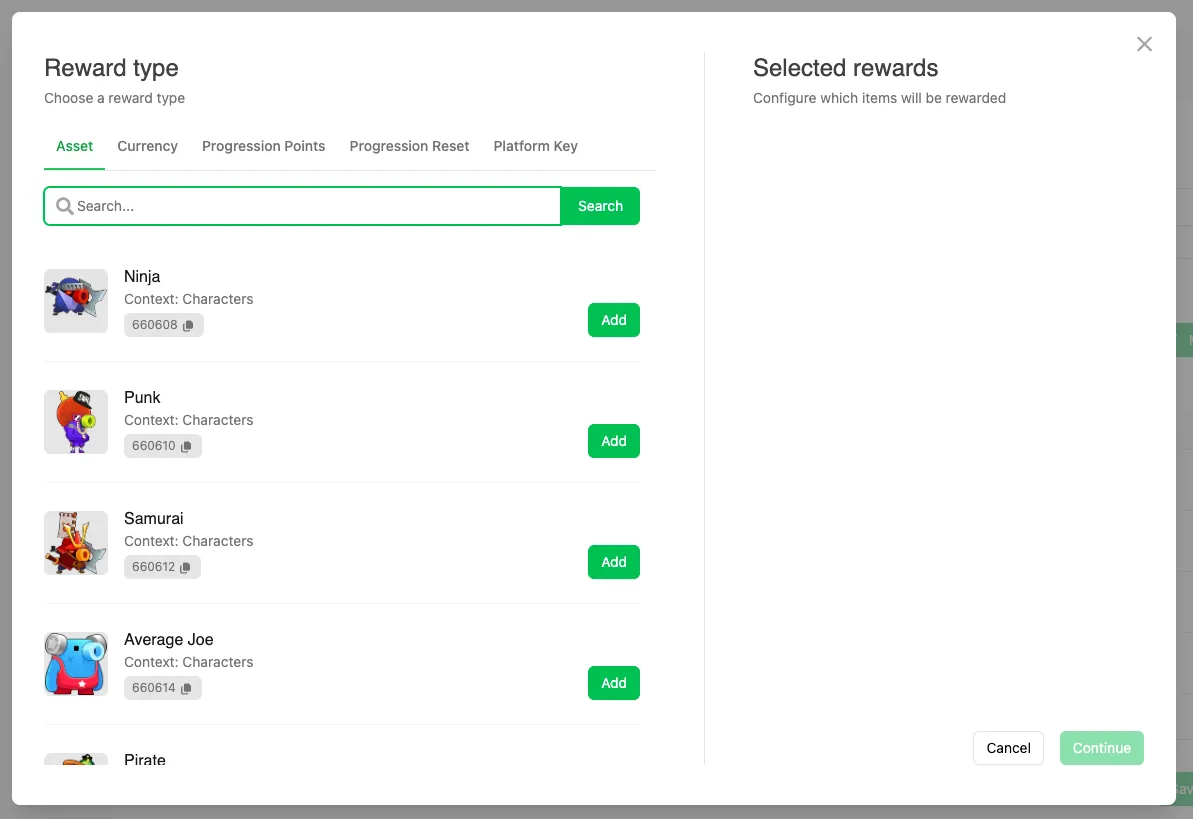
In the modal that appears, you'll see the available Reward Types:
- Assets
- Currency
- Progression Points
- Progression Reset
- Platform Keys
- Discord Role
- File
- Metadata
Select the Reward Type you want to add.
Click Add next to the Asset you want to reward, or click Add multiple times to reward more than one of the same Asset.
Currency
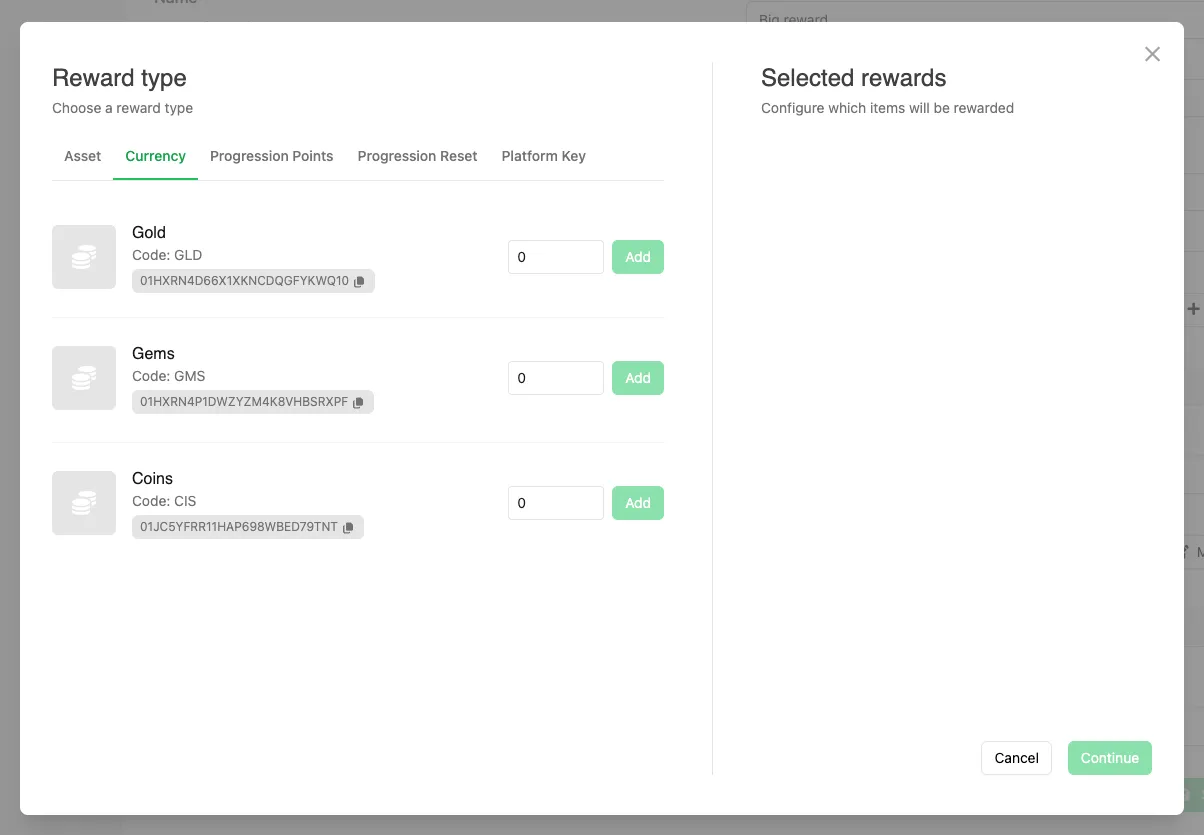
Section titled “Currency”Enter the amount of Currency you want to reward and click Add.
Progression Points
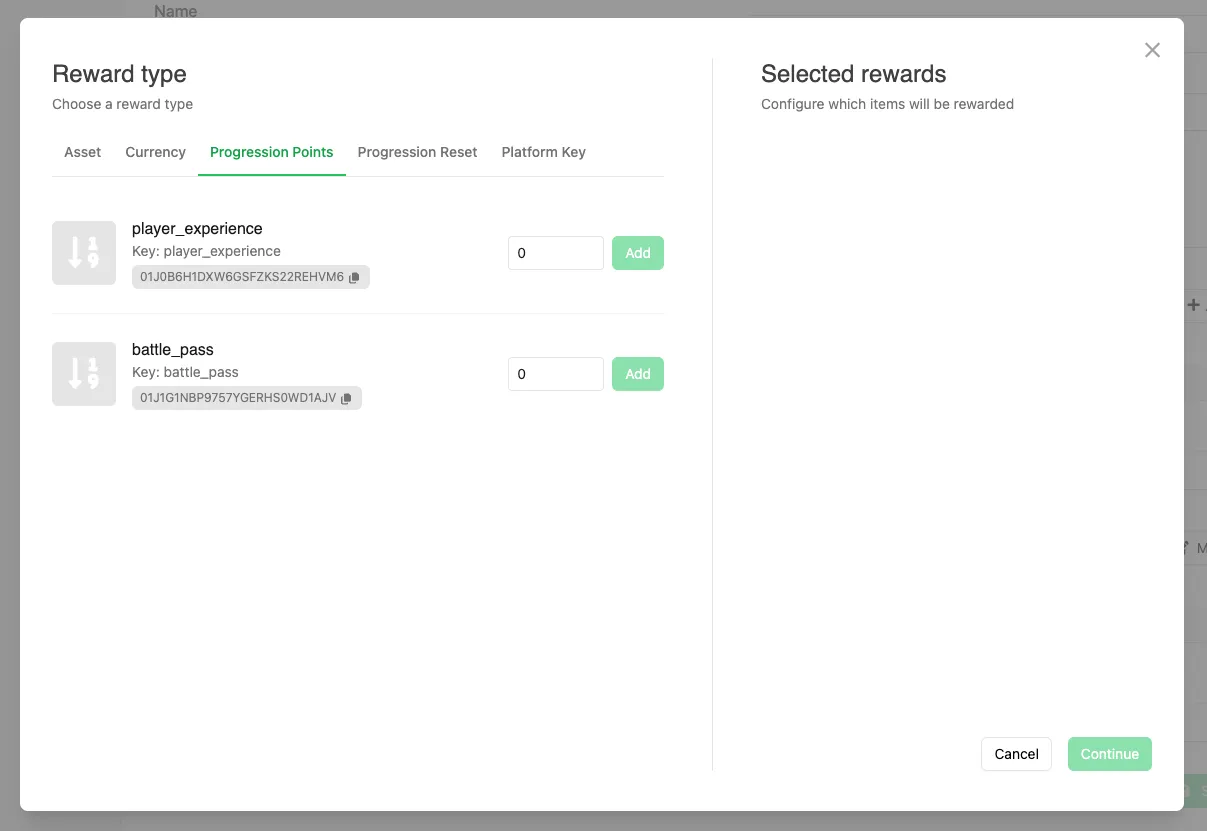
Section titled “Progression Points”Enter the amount of Progression Points to reward and click Add.
Progression Reset
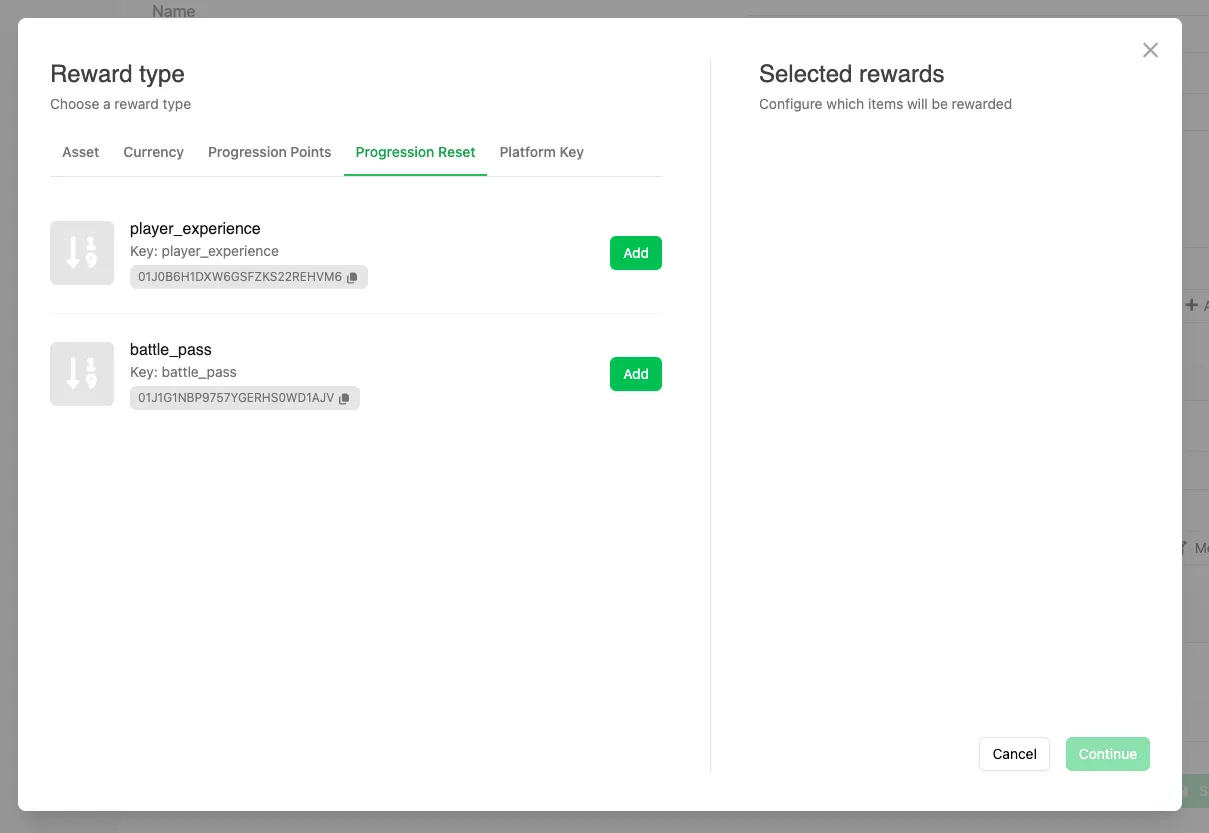
Section titled “Progression Reset”Click Add next to the Progression you want to reset for the player.
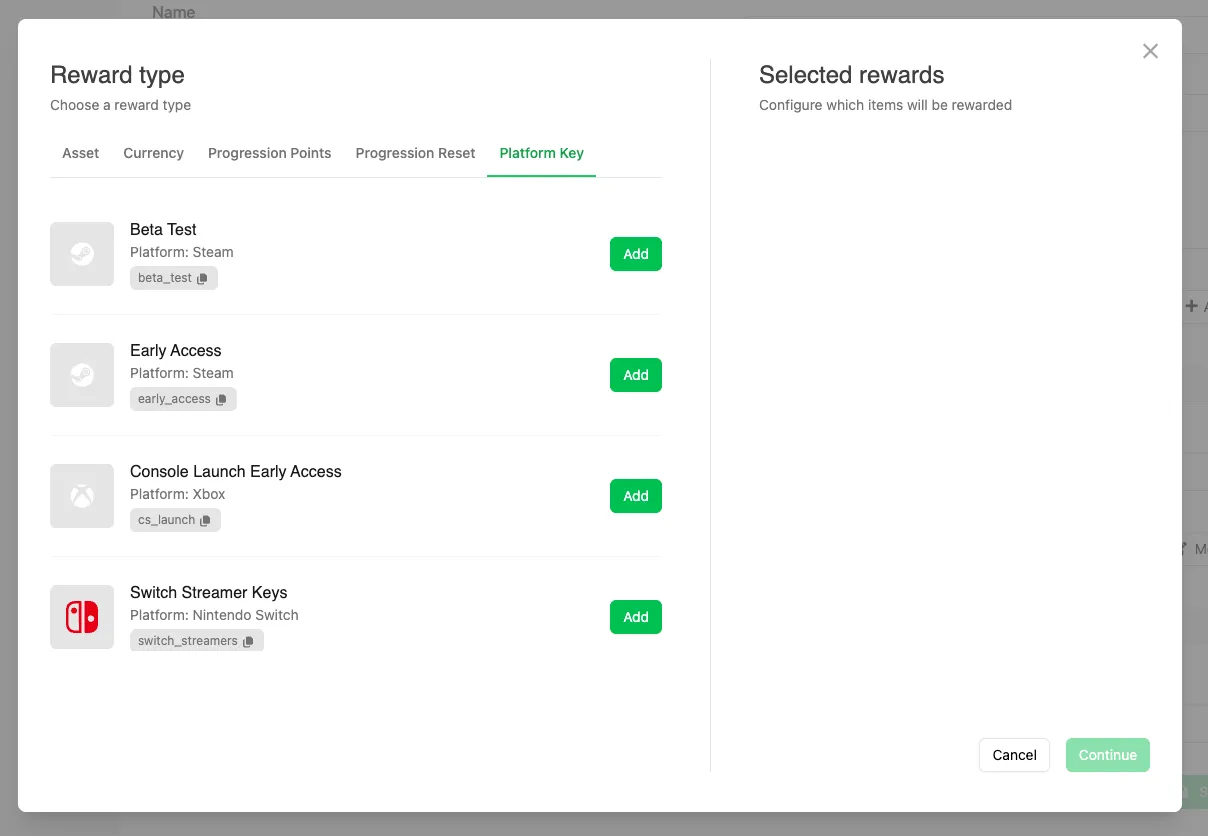
Platform Key
Section titled “Platform Key”Click Add next to the Platform Key campaign you want to reward from.
Discord Role
Section titled “Discord Role”Select the role you want to grant from the Choose a Role dropdown, then click Add Role. The dropdown lists the roles in the Discord server Squire is installed in.
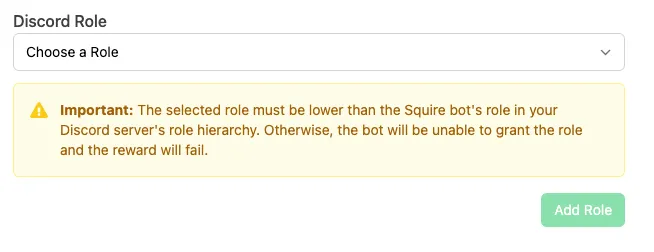
The role you select must sit below Squire's own role in your Discord server's role hierarchy. A Discord bot can only manage roles ranked lower than its own, so if Squire sits below the role you're granting, the reward fails when it's granted. Move Squire's role above it in Server Settings > Roles in Discord.
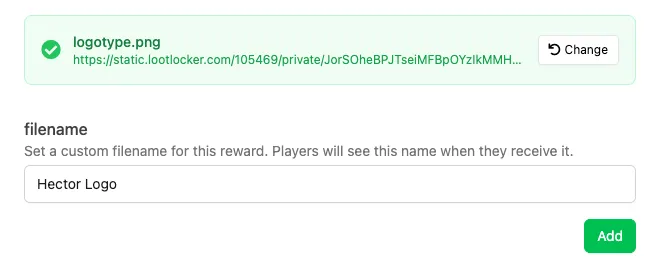
Click Browse and select the file you want to reward. Any file type is accepted.

Once the file has uploaded, set a custom filename. Players see this name when they receive the reward, so it doesn't have to match the name of the file you uploaded. Click Add.
Metadata
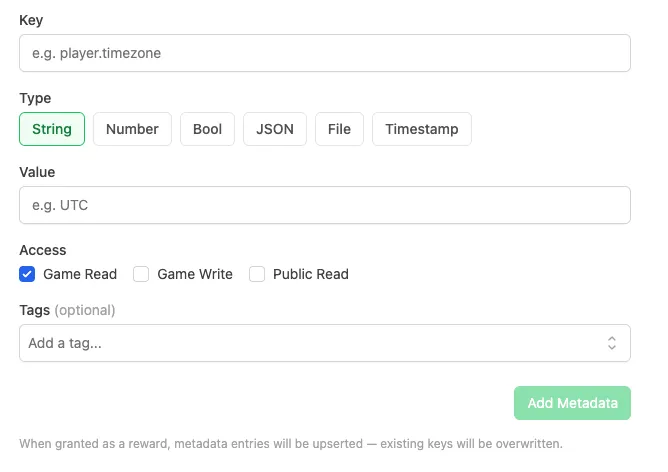
Section titled “Metadata”Enter the Key for the entry, select its Type, and enter the Value. Set which Access levels the entry has, add any Tags you want to filter on later, then click Add Metadata. The entry is written to the player who receives the reward. See Metadata for how these fields behave.
Review Added Rewards
Section titled “Review Added Rewards”On the right side of the modal, you'll see a list of the rewards currently being added.
Click Remove next to a reward to remove it from the list.
If you add more than one reward, a Reward Group is automatically created.
Create a Reward Group
Section titled “Create a Reward Group”A Reward Group allows multiple rewards to be granted at the same time.
Reward Groups require a name and support an optional description.
Once you've added all desired Rewards, click Continue to save the Reward or Reward Group.
Conclusion
Section titled “Conclusion”You've used the Reward modal to add one or more Rewards, optionally grouped into a Reward Group. Next, attach your Reward to a Trigger, a Leaderboard reset, or any other feature that supports Rewards.