
This how-to installs Squire, links your Discord server to LootLocker, and configures the bot for key distribution and broadcasts.
Prerequisites
Section titled “Prerequisites”- An admin account on a Discord server.
Install Squire
Section titled “Install Squire”In the Web Console, open the Settings menu in the left-hand navigation and select Squire.
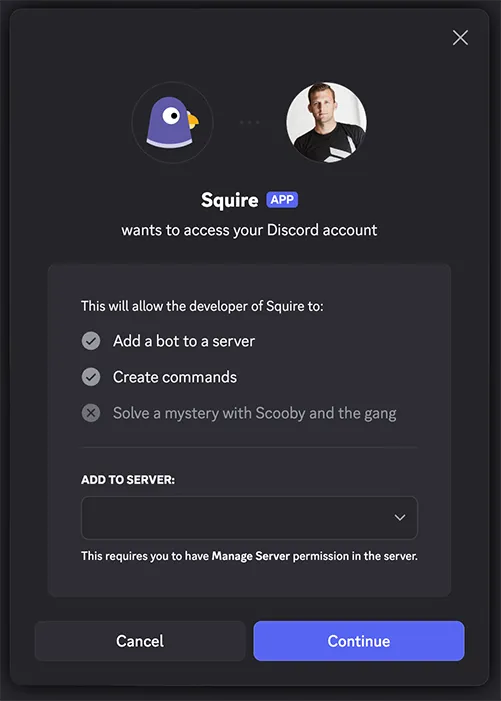
Click Invite Squire to Server in the top-right corner, sign in to Discord, and select the server you want to add Squire to.
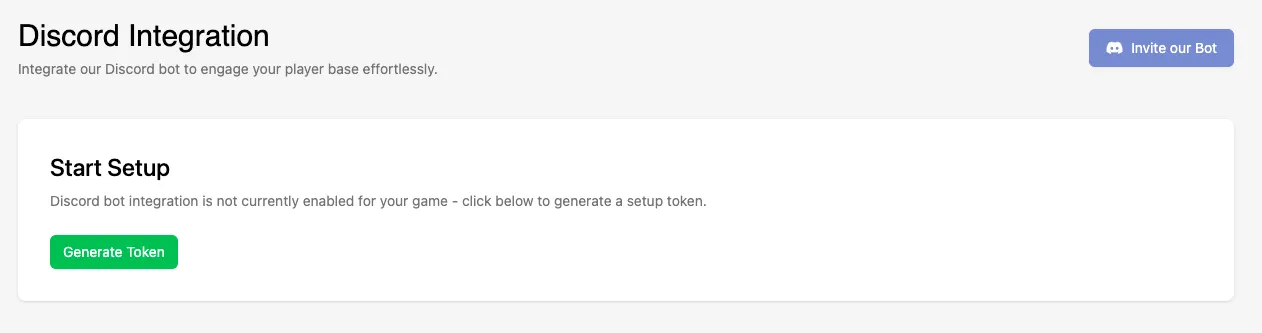
Back in the Web Console, click Generate Token.
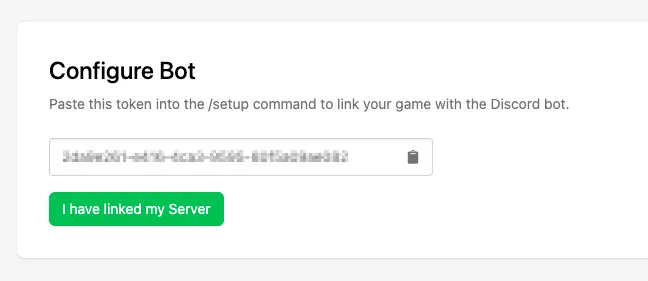
In Discord, use the /setup [token] command with the generated token to link your Discord server to LootLocker.

Return to the Web Console and click I Have Linked My Server to confirm. If the setup is successful, two new configuration tabs appear: Channels & Roles and Embed Styling.
Configure Channels & Roles
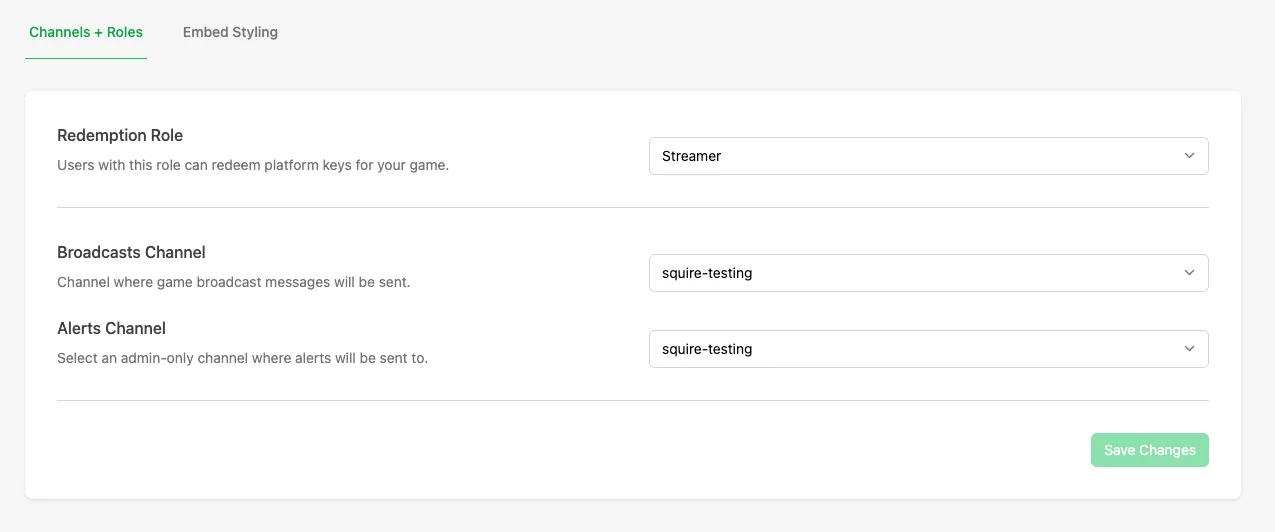
Section titled “Configure Channels & Roles”Use this section to control who can interact with Squire and where messages are posted:
- Redemption Role: the Discord role allowed to redeem Platform Keys for your game.
- Broadcast Channel: the channel where in-game Broadcasts are published.
- Alerts Channel: a channel for admin-only alerts, including logs and error messages generated by Squire.
Configure Embed Styling
Section titled “Configure Embed Styling”This section controls how Squire messages appear in Discord:
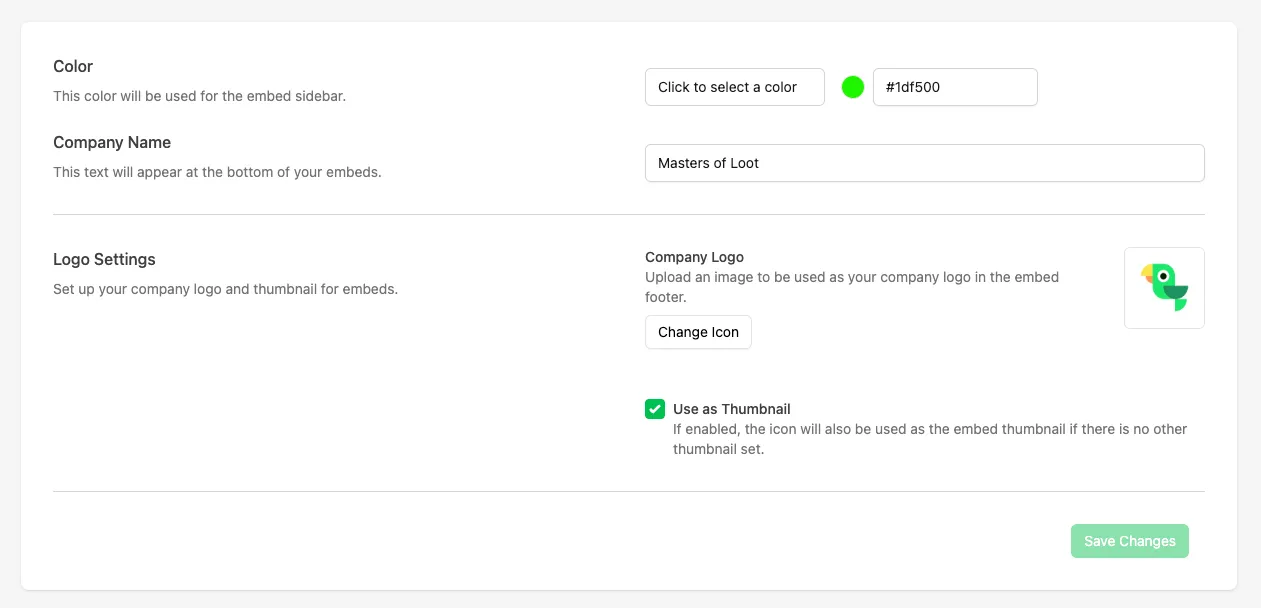
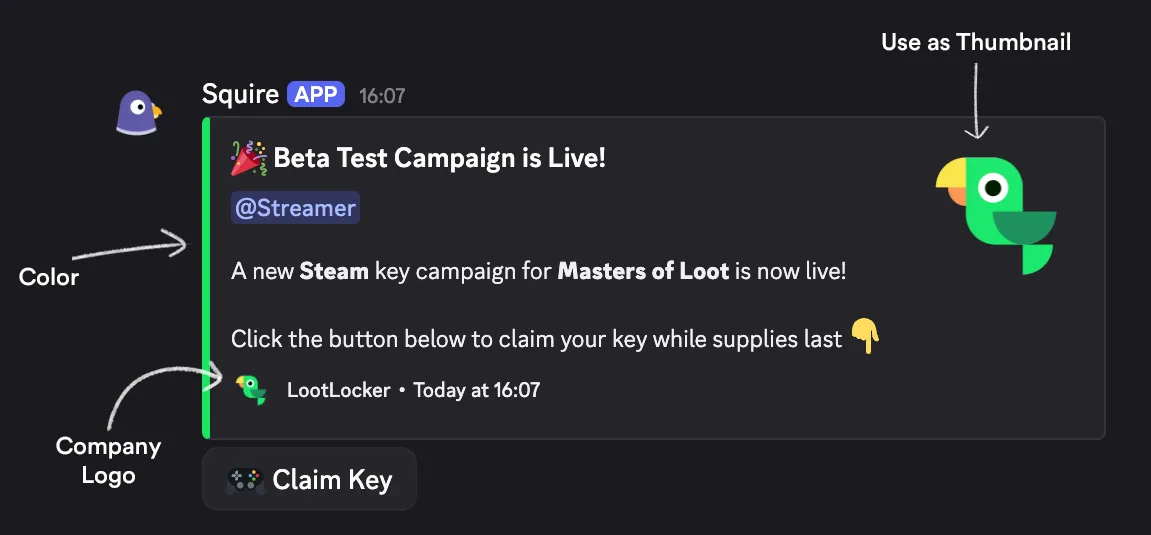
- Color: the accent color displayed on the left side of Squire messages.
- Company Name: appears at the bottom of every Squire message.
- Logo Settings: upload an image to include in every post next to the Company Name. Enable Use as Thumbnail to also display the logo in an additional position within each message.
The image below shows examples of each of these configurable settings.
Conclusion
Section titled “Conclusion”Squire is now installed, configured, and ready to use. You can now distribute Platform Keys, push Discord Broadcasts, or create Claimable Rewards campaigns.