
This how-to creates, edits, and deletes Feedback Categories in the Web Console. Categories are required before players can submit feedback reports, and are managed separately for each feedback type—Player, UGC, and Game—so you can tailor them to each type's needs. This how-to focuses on Player Feedback categories, but the process is the same for the other types.
Prerequisites
Section titled “Prerequisites”No prerequisites.
Add Category
Section titled “Add Category”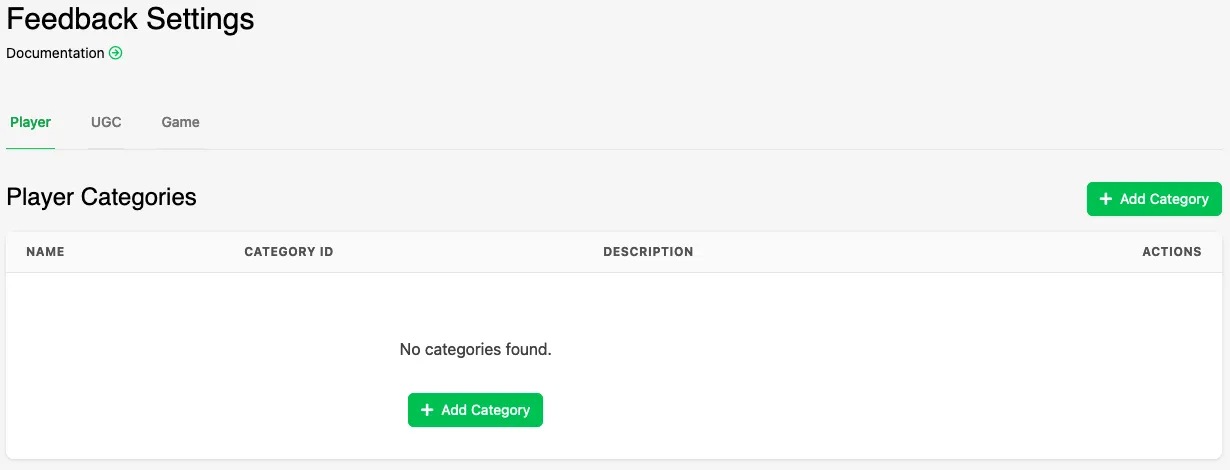
In the Web Console, go to the Feedback section and open Settings. Here you can see a list of all the categories you have set up for Player Feedback.
Press Add Category in the right side of the console and type in the Name and Description of the category you want to add. Press Create to create the new category.
Name is required and must be unique, while Description is optional. These can be shown to the player in your game when they're creating a report.
Edit Category
Section titled “Edit Category”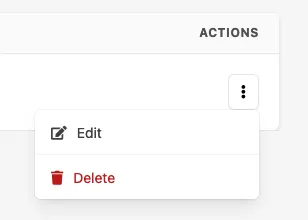
You can edit a category by clicking on the action dropdown on the category in the list and selecting Edit. Here you can change the Name and Description of the category. Press Save to save the changes.
Delete Category
Section titled “Delete Category”You can delete a category by clicking on the action dropdown on the category in the list and selecting Delete.
Conclusion
Section titled “Conclusion”You've created, edited, and deleted Feedback Categories in the Web Console. Next, see Create Player Feedback, Create UGC Feedback, or Create Game Feedback.