
A player shouldn't have to type their email and password every time they start the game — reuse the session token provided by the WhiteLabelLogin call instead.
By default, a session token is valid for 24 hours, but if you send remember me as true, a session lasts 30 days. These sessions are disconnected from the game session, so you still need to create a game session every time the player opens your game.
Prerequisites
Section titled “Prerequisites”Check for a Previous Session
Section titled “Check for a Previous Session”When a player opens the game, first check if they have a previous session you can use.
// Remember to use the LootLocker namespace in the top of your file.using LootLocker.Requests;
LootLockerSDKManager.CheckWhiteLabelSession(response =>{    if (response)    {        // Start a new session        Debug.Log("session is valid, you can start a game session");    }    else    {        // Show login form here        Debug.Log("session is NOT valid, we should show the login form");    }});
Not yet implemented in the Unreal SDK.
Not yet implemented in the Godot SDK.
curl -X POST "https://api.lootlocker.io/white-label-login/verify-session" \ -H "domain-key: 11aaa11" \ -H "is-development: true" \ -H "Content-Type: application/json" \Example response:
{ "game_id": 2, "user_id": 406,}Depending on the response, either show the login form and ask for email and password again, or start a game session.
Request Password Reset
Section titled “Request Password Reset”If the user wants to reset their password, use the following example to send them an email with a link to a reset password page. The page is hosted on LootLocker and uses the settings in Platform Settings for name and logo.
// Remember to use the LootLocker namespace in the top of your file.using LootLocker.Requests;
// This code should be placed in a handler when user clicks reset password.LootLockerSDKManager.WhiteLabelRequestPassword(email, (response) =>{ if (!response.success) { Debug.Log("error requesting password reset");
return; }
Debug.Log("requested password reset successfully");});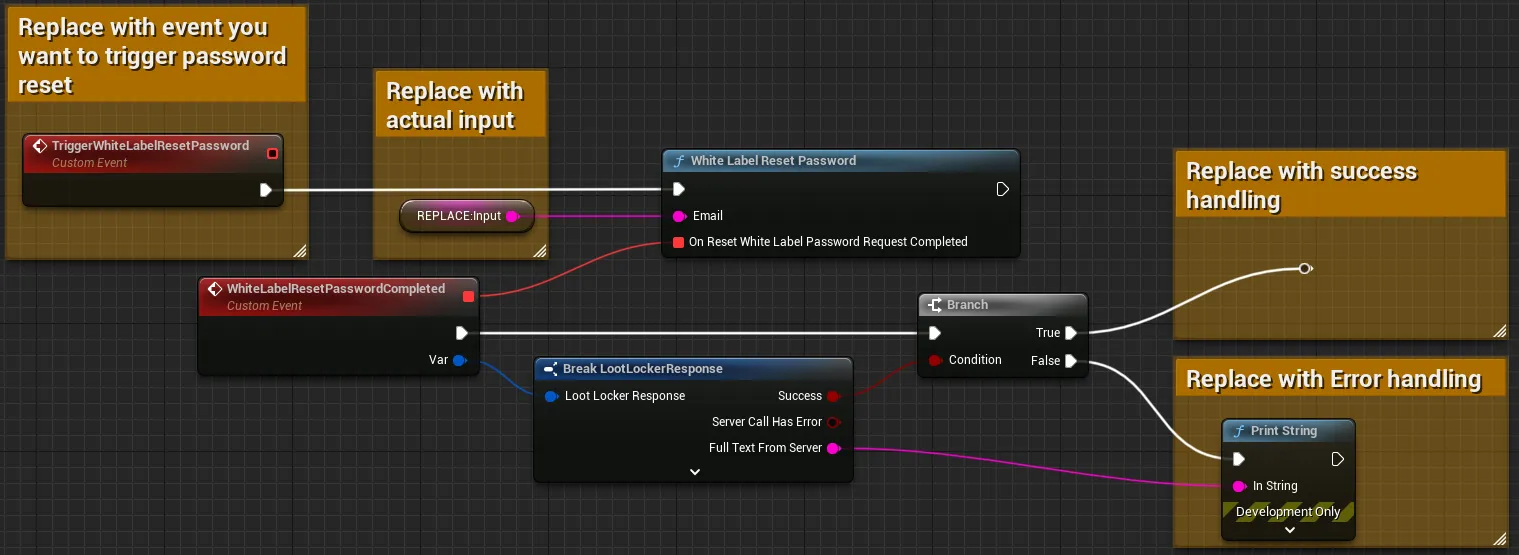
Above is an example of how to implement password reset for a White Label user using blueprints in Unreal Engine. For an example you can copy and paste into your editor, look here.
Input
Exchange the TriggerWhiteLabelResetPassword event for whatever event should trigger the login flow. Replace the REPLACE: Input node with the user's email, usually collected from user input.
Output
Branch the completed events on the success flag, and add error handling for the failure case.
Coming soon — this sample hasn't been written yet.
curl -X POST "https://api.lootlocker.io/white-label-login/request-reset-password" \ -H "domain-key: 11aaa11" \ -H "is-development: true" \ -H "Content-Type: application/json" \This returns a 204 with no body.
Conclusion
Section titled “Conclusion”You can now recognize returning White Label users without asking for their credentials again, and let them reset a forgotten password.