
This how-to migrates a player's entitled DLC content from a first-party platform into their LootLocker inventory, and retrieves the DLCs they've already migrated.
Prerequisites
Section titled “Prerequisites”- Unity or Unreal SDK installed and configured in your project.
- A DLC configured in the Web Console and linked to a first-party platform.
- A Player session started through that first-party platform (see Authentication).
Initiate DLC Migration
Section titled “Initiate DLC Migration”Trigger a DLC migration manually to check the player's first-party account for new DLC and move any entitled content into their inventory.
LootLockerSDKManager.InitiateDLCMigration((response) =>{ if (response.success) { Debug.Log("Successfully initiated DLC migrations"); } else { Debug.Log("Error initiating DLC migrations"); }});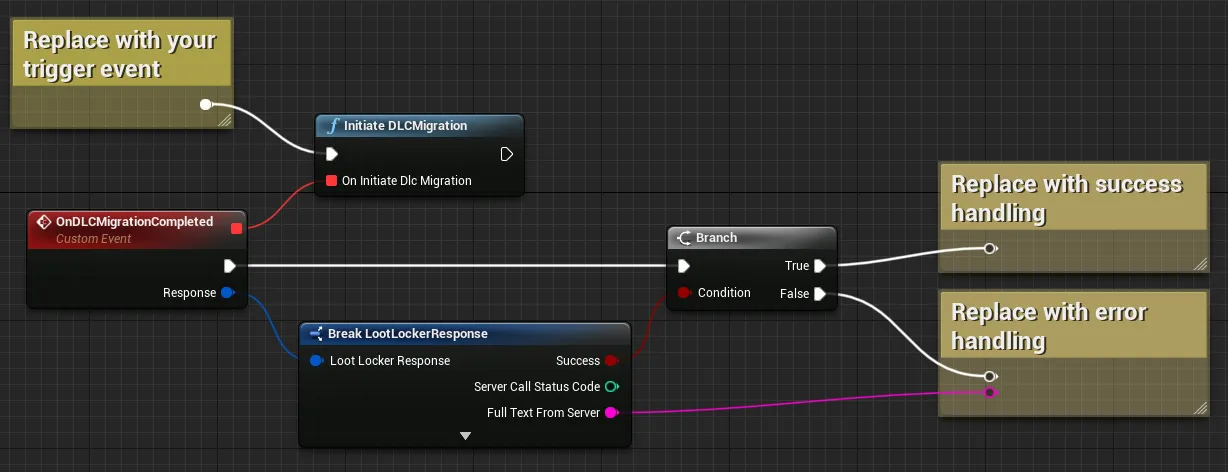
Coming soon — this sample hasn't been written yet.
Coming soon — this sample hasn't been written yet.
Get Migrated DLCs
Section titled “Get Migrated DLCs”Retrieve the DLCs the player has already migrated.
LootLockerSDKManager.GetDLCMigrated((response) =>{ if (response.success) { Debug.Log("Successfully received migrated DLCs"); } else { Debug.Log("Error receiving migrated DLCs"); }});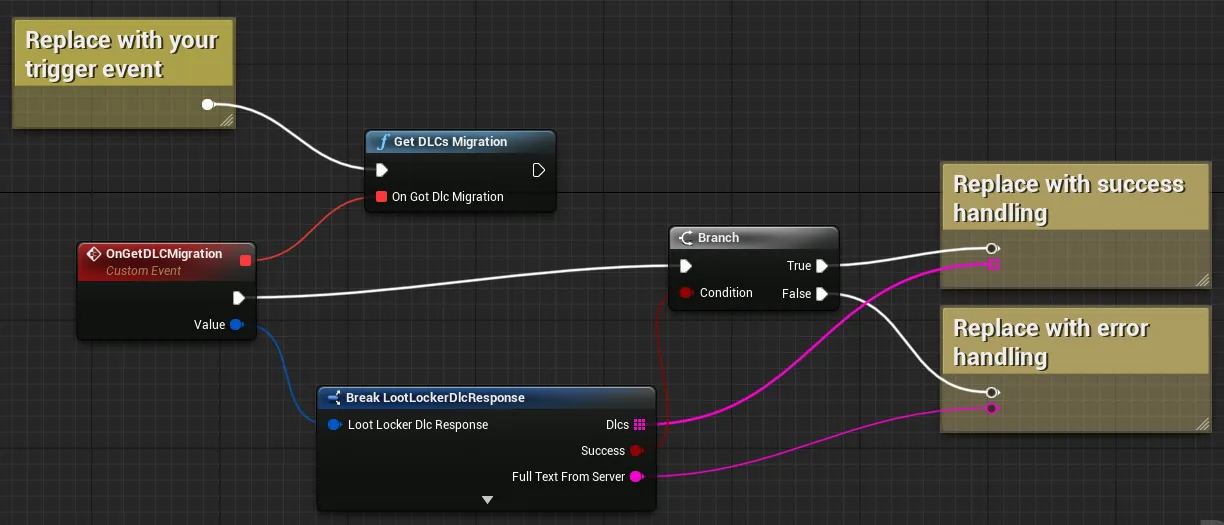
Coming soon — this sample hasn't been written yet.
Coming soon — this sample hasn't been written yet.
Conclusion
Section titled “Conclusion”You've migrated a player's DLC content and retrieved their migrated DLCs from your game. Next, review LootLocker's full feature set to decide which other features to implement.