
This how-to tours the Player Manager in the Web Console: searching for players and reading their profile, inventory, orders, storage, progression, leaderboards, and files.
Prerequisites
Section titled “Prerequisites”- A Player that has either started a session at least once, or been created manually in the Player Manager.
Player Search
Section titled “Player Search”Reach the Player Manager by clicking the player icon in the left sidebar of the Web Console.

The Player Manager automatically loads your most recent players. Search for a player by entering their platform ID (Steam ID, PSN ID, etc.) or their Public UID in the search field and clicking Search.
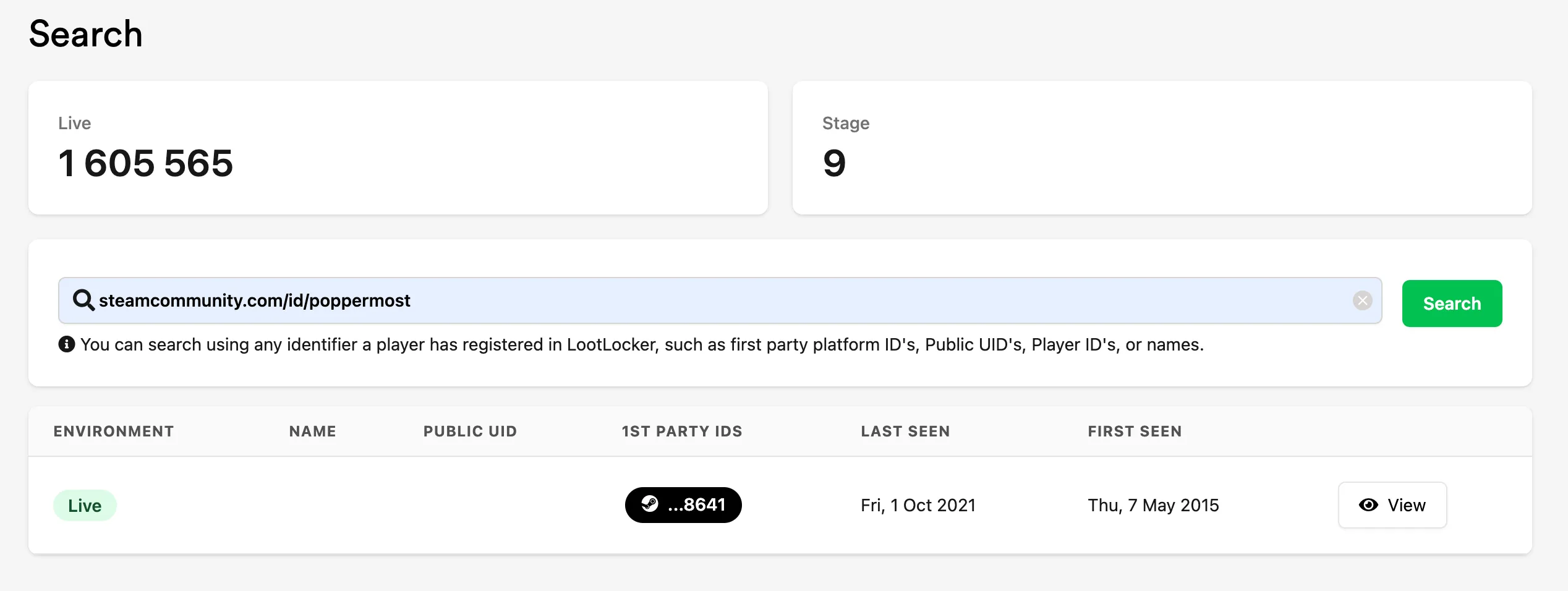
Click View on a search result to load the Player Page.
Player Page
Section titled “Player Page”The Player Page displays all relevant information for the selected player, including their assets, orders, and storage.
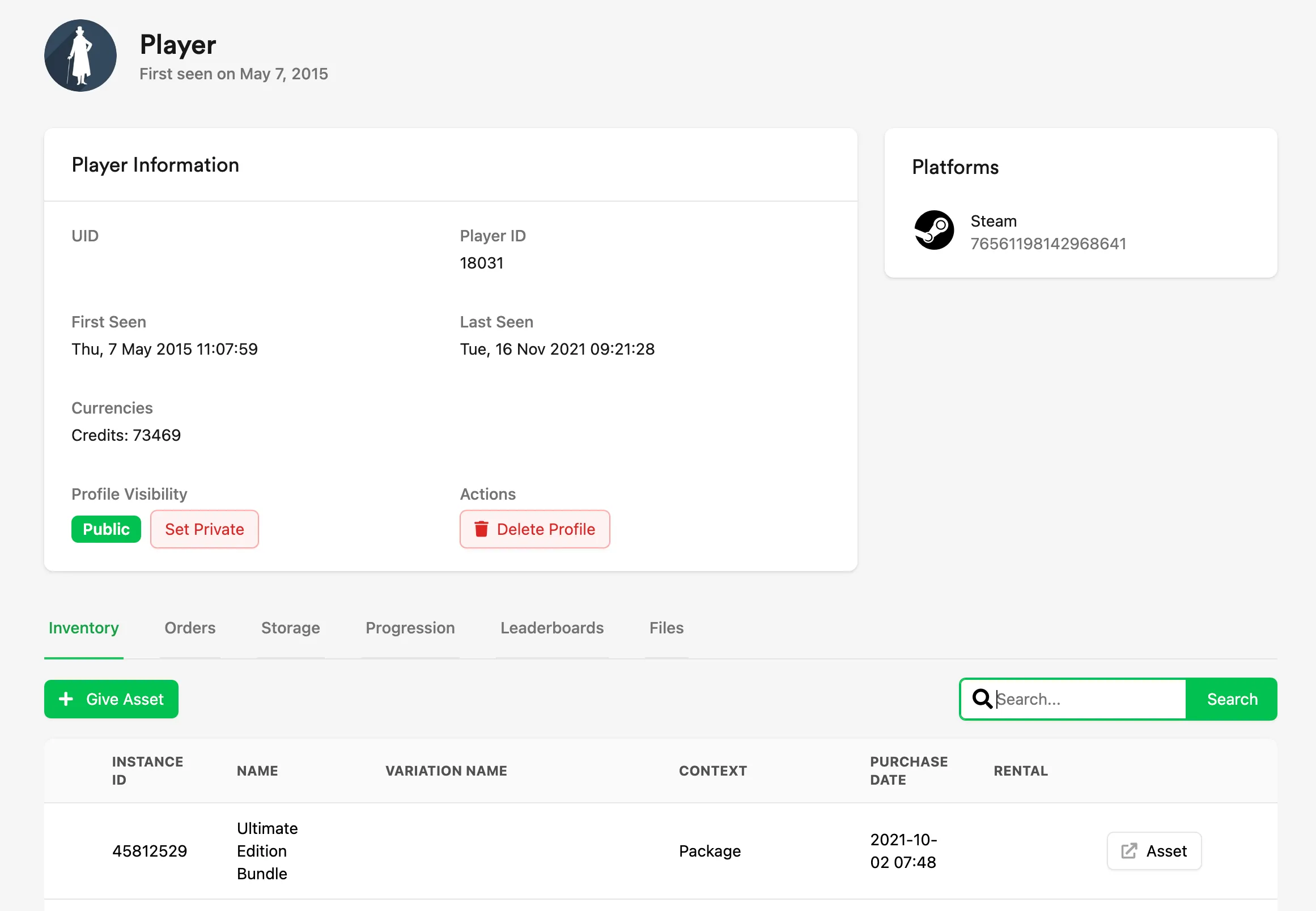
Player Information: basic information at the top of the Player Page, including:
- Name: the player's profile name set on the first-party platform. Clicking the name opens the platform's player page, if available.
- Avatar: the player's avatar set on the first-party platform, if available.
- Public UID: a public identifier used by players to identify themselves.
- Player ID: an identifier used within the APIs.
- First Seen: the date the player first played your game.
- Last Seen: the most recent date the player played your game.
- Currencies: the total values of currencies the player has in their account.
Profile Visibility: sets whether the player's profile is visible to the public. This affects integrations such as Steam Inventories and Marketplace — neither works for the player if their profile is set to private.
Delete Profile: anonymizes the player account. This operation can't be reversed.
Platforms: displays all platform accounts linked to this player profile.
Inventory
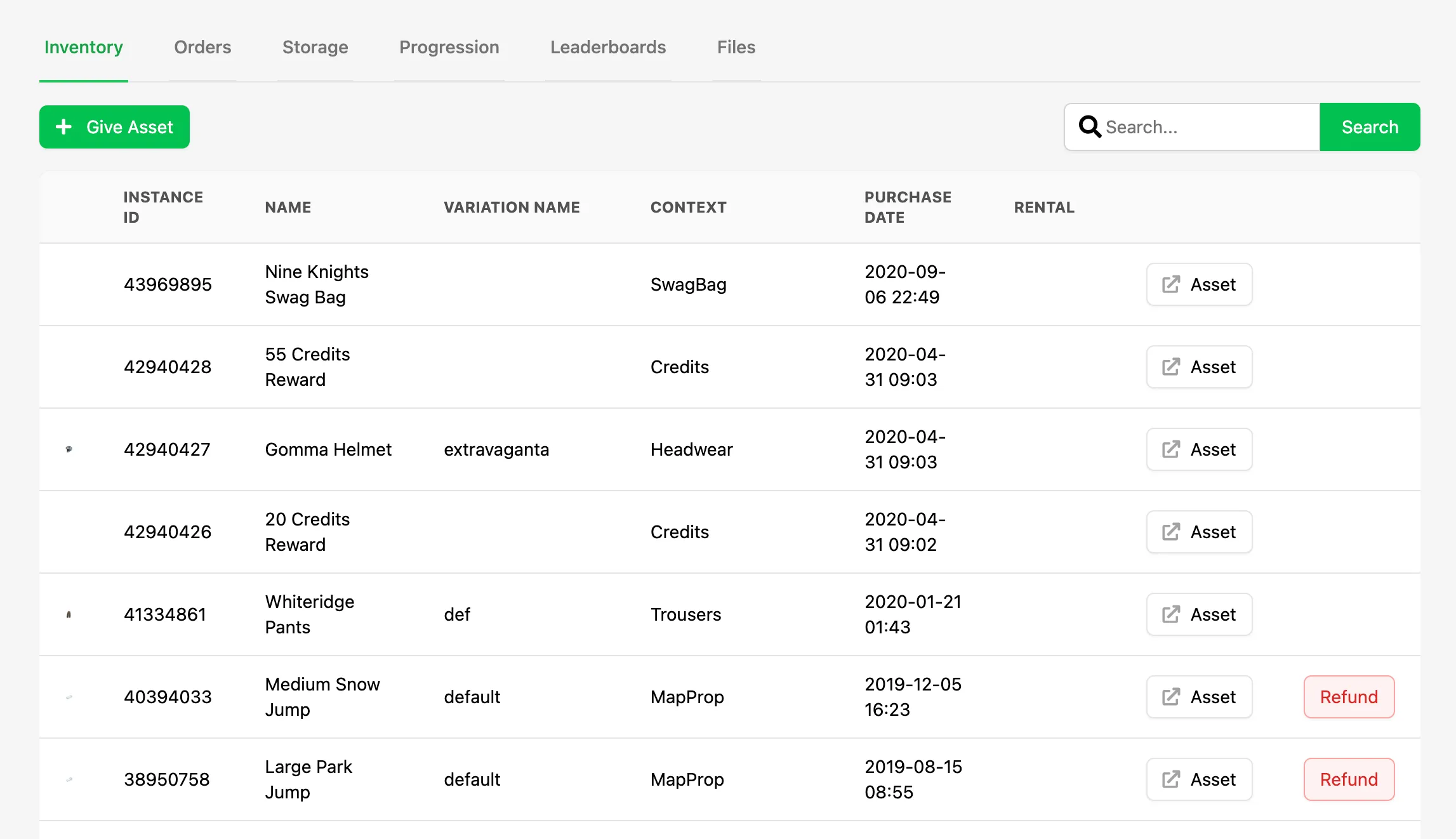
Section titled “Inventory”Lists all assets in the player's inventory and the date each asset was added. The inventory can be searched, and assets can be quickly viewed through their corresponding link.
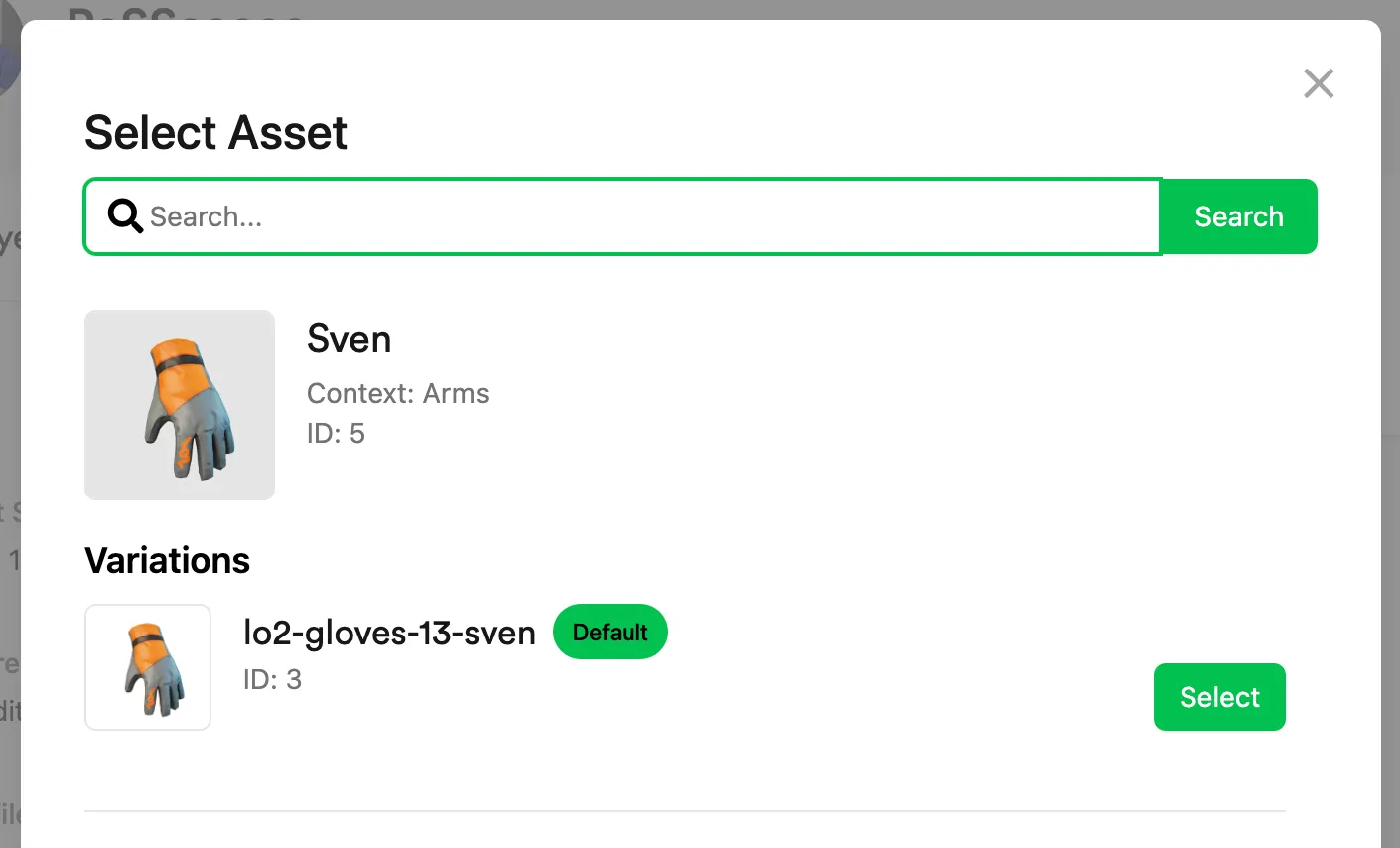
Give Asset: click Give Asset to manually add an asset to the player's profile. This opens a window where you can search through all of your game's assets.
Refund: an asset purchased using in-game currency can be refunded by clicking Refund. This removes the asset from the player's inventory and refunds the currency amount to the player's wallet.
Orders
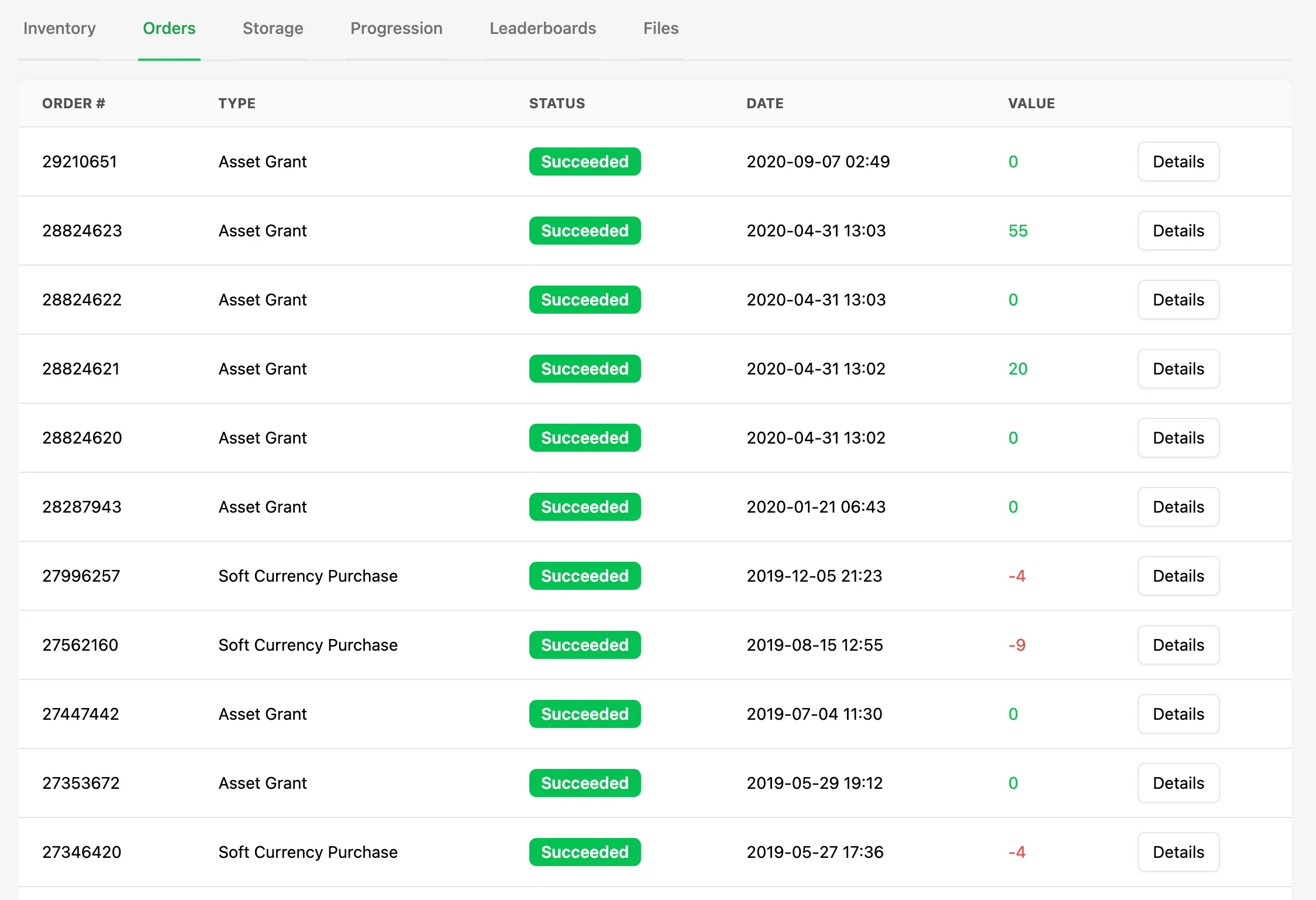
Section titled “Orders”Lists all asset grants that have taken place within the player's inventory, whether from store purchases or other events. Each order can be inspected for full details. Orders with a green value indicate the player received assets and/or currency; orders with a red value indicate the player spent currency to purchase an asset.
Storage
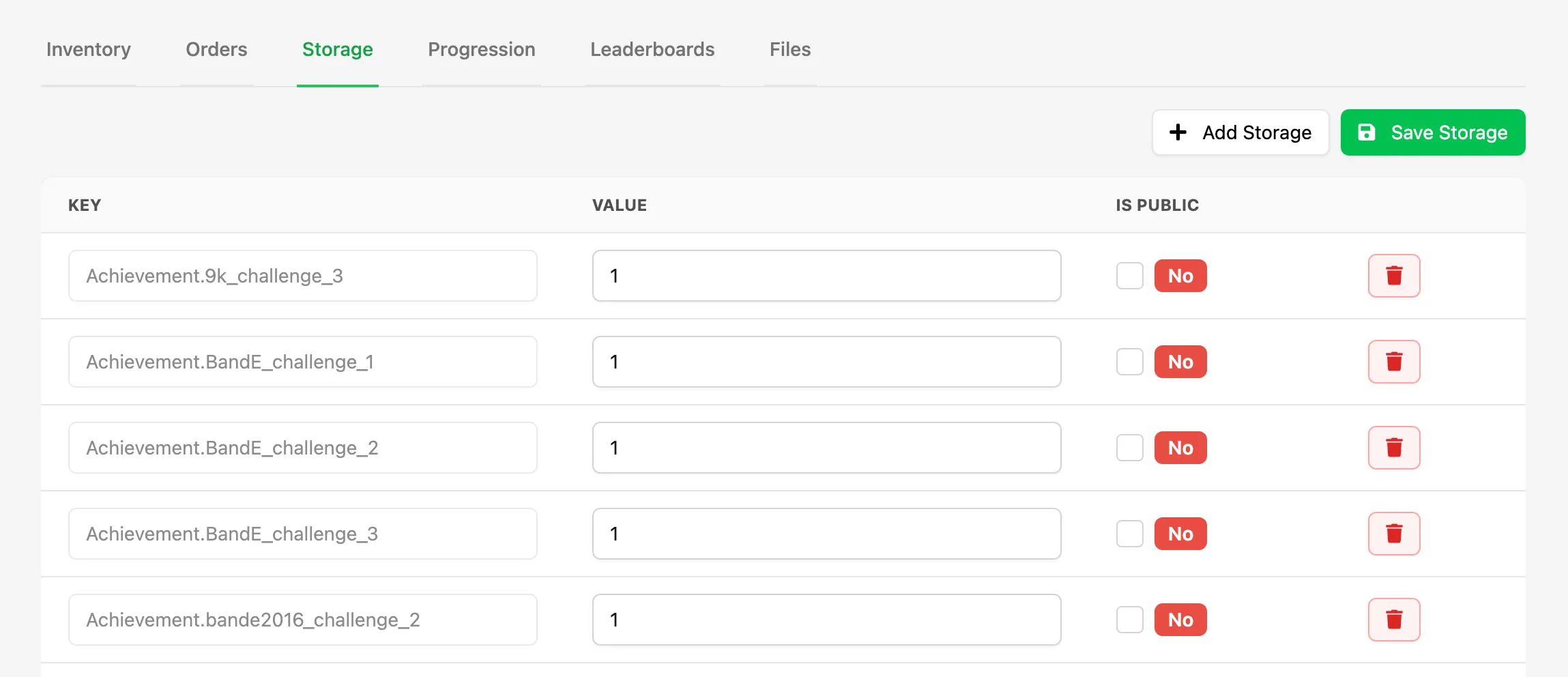
Section titled “Storage”Displays all key/value pairs your game stores for the player. Create new pairs by clicking Add Storage. Existing pairs can be edited, deleted, or made public and readable by other players.
Progression
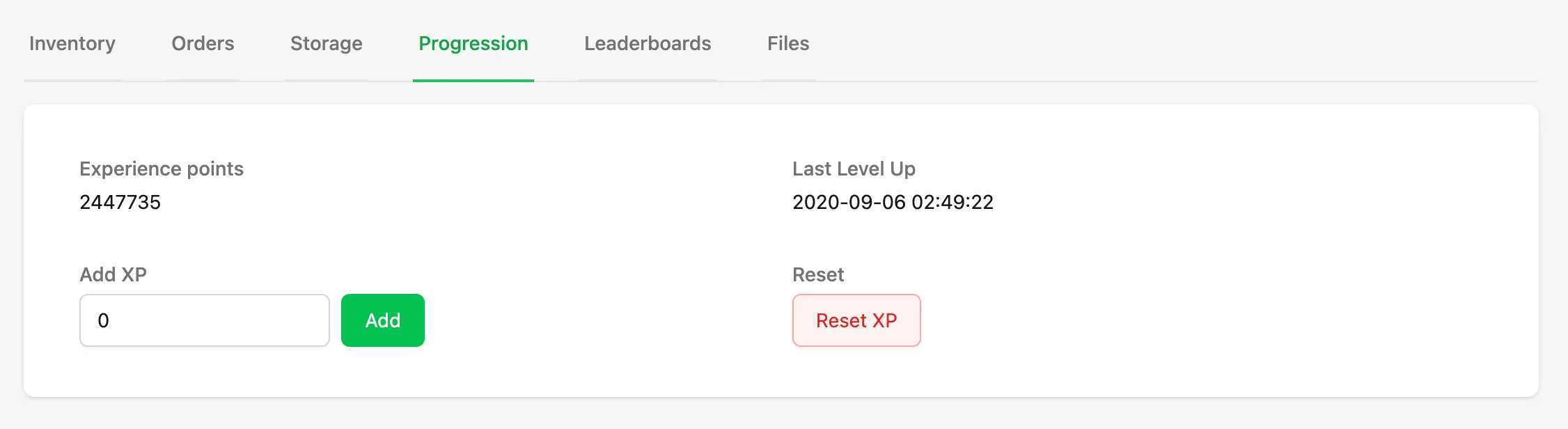
Section titled “Progression”View the XP the player has earned in your Progression system. Add XP to the player's progression by clicking Add, or reset it by clicking Reset XP.
Leaderboards
Section titled “Leaderboards”Shows which Leaderboards the selected player has submitted scores to, including the Leaderboard Name, ID, the player's rank, and their score entry. You can edit or delete individual entries the player has made to different leaderboards.
Remove Player From All Leaderboards: removes the player from every leaderboard. This action isn't reversible.
Shows which files have been uploaded to the player's profile. Files can be used to store player config or save game files if you want to use LootLocker as a cloud save service.
Conclusion
Section titled “Conclusion”You've toured the Player Manager and can now search for players and review their profile, inventory, orders, storage, progression, leaderboards, and files.