
This how-to searches, sorts, and manages the visibility of Assets in the Asset Manager.
Prerequisites
Section titled “Prerequisites”- At least one Asset created in the Web Console (see Create & Configure an Asset).
Search for an Asset
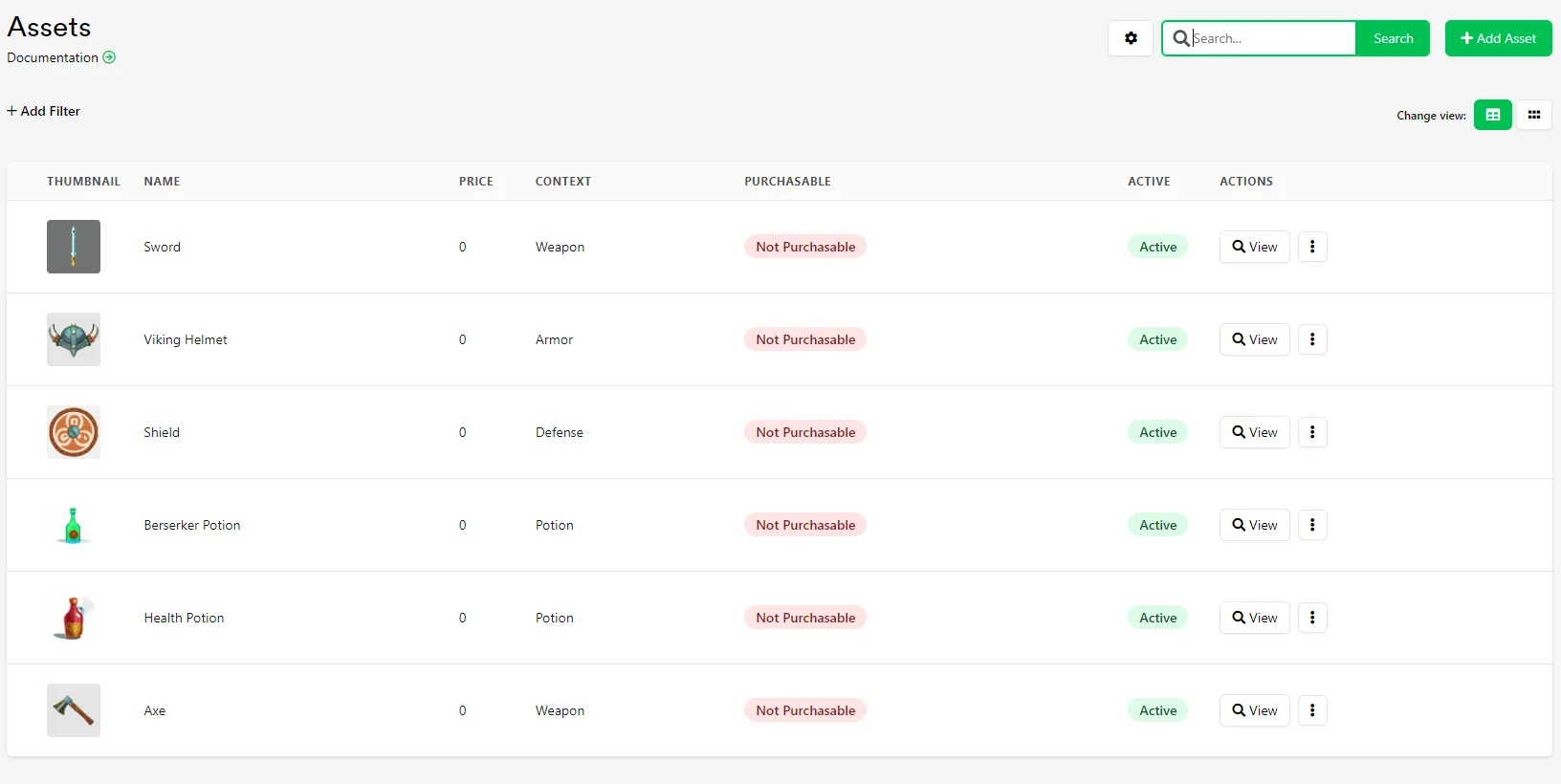
Section titled “Search for an Asset”If your game has a lot of different Assets, search or organize the Asset Manager screen to find what you need. Enter your search terms into the search box in the top right corner of the Asset Manager screen.

Sort and Filter Assets
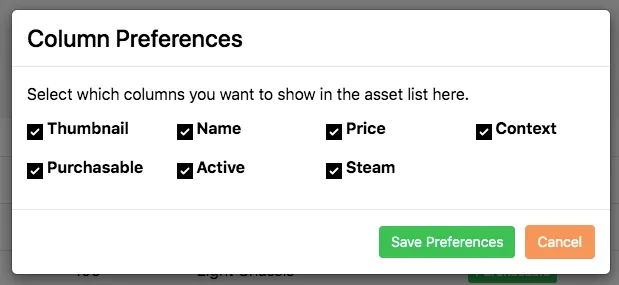
Section titled “Sort and Filter Assets”Assets in the Asset Manager are sorted by Context by default. Click the title of a column to sort by a different filter. Click the cog icon next to the search bar to edit which columns are visible in the Asset Manager.
Edit an Asset
Section titled “Edit an Asset”Click Edit next to the Asset you want to edit, on the right side of the Asset Manager screen.
Activate or Deactivate an Asset
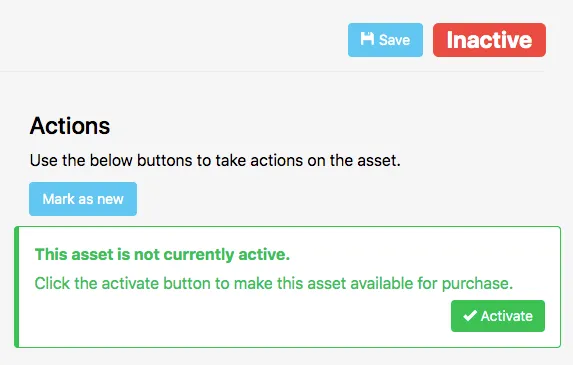
Section titled “Activate or Deactivate an Asset”New Assets are inactive by default. An inactive Asset isn't sent to your game and can't be granted to a Player. Click the green Activate button when editing an Asset to activate it, or the red Deactivate button to deactivate it.
Conclusion
Section titled “Conclusion”You've searched, sorted, and managed the visibility of Assets in the Asset Manager. Next, see Retrieve Assets In-Game to fetch Assets from your game.