
This how-to walks you through configuring Steam authentication in LootLocker and starting a Steam session from your game.
Prerequisites
Section titled “Prerequisites”- Unity, Unreal, or Godot SDK installed and configured in your project (not required for REST).
- A registered Steamworks developer account and a game set up in Steamworks.
Configure Steam in LootLocker
Section titled “Configure Steam in LootLocker”Go to Platform Settings in the LootLocker Web Console and enable the Steam platform.
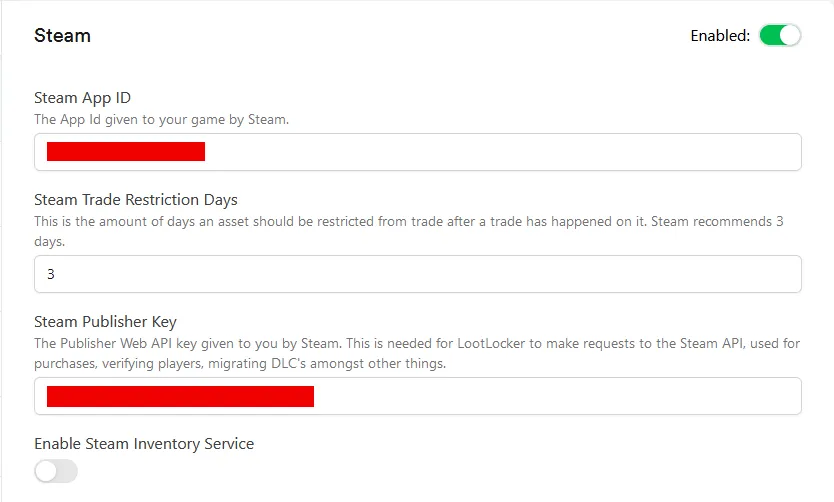
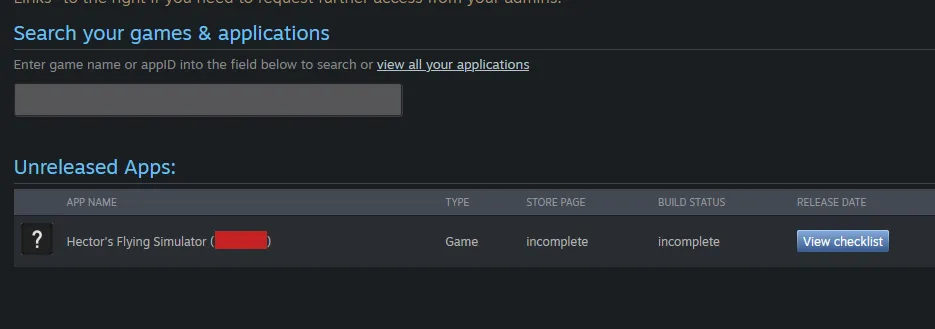
Steam App ID: log in to the Steamworks Partner Dashboard to find your App ID.
Steam Publisher Key: follow this guide from Valve to find your Publisher Key.
Install Steamworks in Your Project
Section titled “Install Steamworks in Your Project”Before you can authenticate with Steam and start a LootLocker session, you need access to a few values from the Steamworks API. To learn more about authentication with Steam, read Valve's documentation on Session Tickets in Steamworks.
Install Steamworks.NET, the recommended third-party library for accessing the Steamworks API in a Unity game, using the instructions at http://steamworks.github.io/installation/.
Configure your game to work with Steam using Unreal's official documentation:
Configure your game to work with Steam using the official GodotSteam documentation.
Coming soon — this sample hasn't been written yet.
Authenticate Player
Section titled “Authenticate Player”Once Steamworks is integrated in your project, authenticate the player. A successful call returns data you can use to display information to the player or make further calls to LootLocker during this session.
Create a new empty GameObject in your scene named GameManager (skip this if you already have one), then add a new script to it called GameManager.
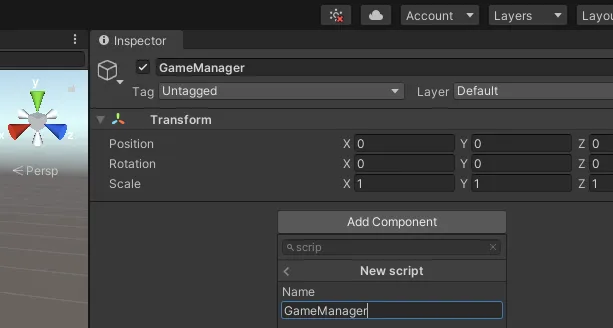
Open up your new script in your editor of choice and add the following code:
using LootLocker.Requests;using Steamworks;using System;using System.Collections;using System.Collections.Generic;using System.Text;using UnityEngine;
public class GameManager : MonoBehaviour{    // Consider offsetting this from the start method to avoid startup race conditions    void Start()    {        // To make sure Steamworks.NET is initialized       if (!SteamManager.Initialized)        {            return;        }
        var ticket = new byte[1024];        var networkIdentity = new SteamNetworkingIdentity();        HAuthTicket ticketResult = SteamUser.GetAuthSessionTicket(ticket, ticket.Length, out uint actualTicketSize, ref networkIdentity);        if (ticket.Equals(HAuthTicket.Invalid))        {            Debug.LogWarning("Ticket from Steam was invalid: " + ticket.ToString());            return;        }
        LootLockerSDKManager.VerifyPlayerAndStartSteamSession(ref ticket, actualTicketSize, (response) =>        {            if (!response.success)            {                Debug.Log("Error starting a LootLocker session from the Steam User: " + response.errorData.ToString());                return;            }
            Debug.Log("Successfully started a LootLocker session from Steam User with ID: " + SteamID.ToString());        });  }}
Retrieve the Steam Session Ticket
Retrieve the SteamSessionTicket from the Online Subsystem you set up in the previous step.
Create a new UClass called USteamSessionHelper (this is the .h file):
#pragma once
#include "CoreMinimal.h"
#include "SteamSessionHelper.generated.h"
UCLASS(Blueprintable)class USteamSessionHelper : public UObject{    GENERATED_BODY()public:    UFUNCTION(BlueprintCallable, CallInEditor, Category = "<YourProjectName> | SteamSessionHelper")    static FString GetSteamSessionTicket(int LocalUserNumber);};
Paste the following into the .cpp file:
// Copyright (c) 2021 LootLocker
#include "SteamSessionHelper.h"
#include "Interfaces/OnlineIdentityInterface.h"#include "OnlineSubsystem.h"
FString USteamSessionHelper::GetSteamSessionTicket(int LocalUserNumber){    const IOnlineSubsystem* OnlineSubsystem = IOnlineSubsystem::Get(STEAM_SUBSYSTEM);    if (OnlineSubsystem == nullptr || OnlineSubsystem->GetSubsystemName() != STEAM_SUBSYSTEM)    {  //Handle error: "Could not get Steam Online Subsystem"  return "";    }
    const IOnlineIdentityPtr IdentityInterface = OnlineSubsystem->GetIdentityInterface();    if (IdentityInterface == nullptr || !IdentityInterface.IsValid())    {  //Handle error: "Could not get Steam Online Subsystem Identity Interface"  return "";    }
    if(IdentityInterface->GetLoginStatus(LocalUserNumber) != ELoginStatus::LoggedIn)    {        //Handle error: "Player is not logged in"  return "";    }
    return IdentityInterface->GetAuthToken(LocalUserNumber);}
Generate Visual Studio project files and build the project. You can now use these methods to get the Steam session ticket from either Blueprints or code.
Verify the Player and Start a LootLocker Session
In Blueprint, retrieve the token from the GetSteamSessionTicket node in the <YourProjectName> | SteamSessionHelper category (right-click anywhere in the Event Graph to find it). Pass the SteamSessionTicket into the Start Steam Session Using Ticket node.
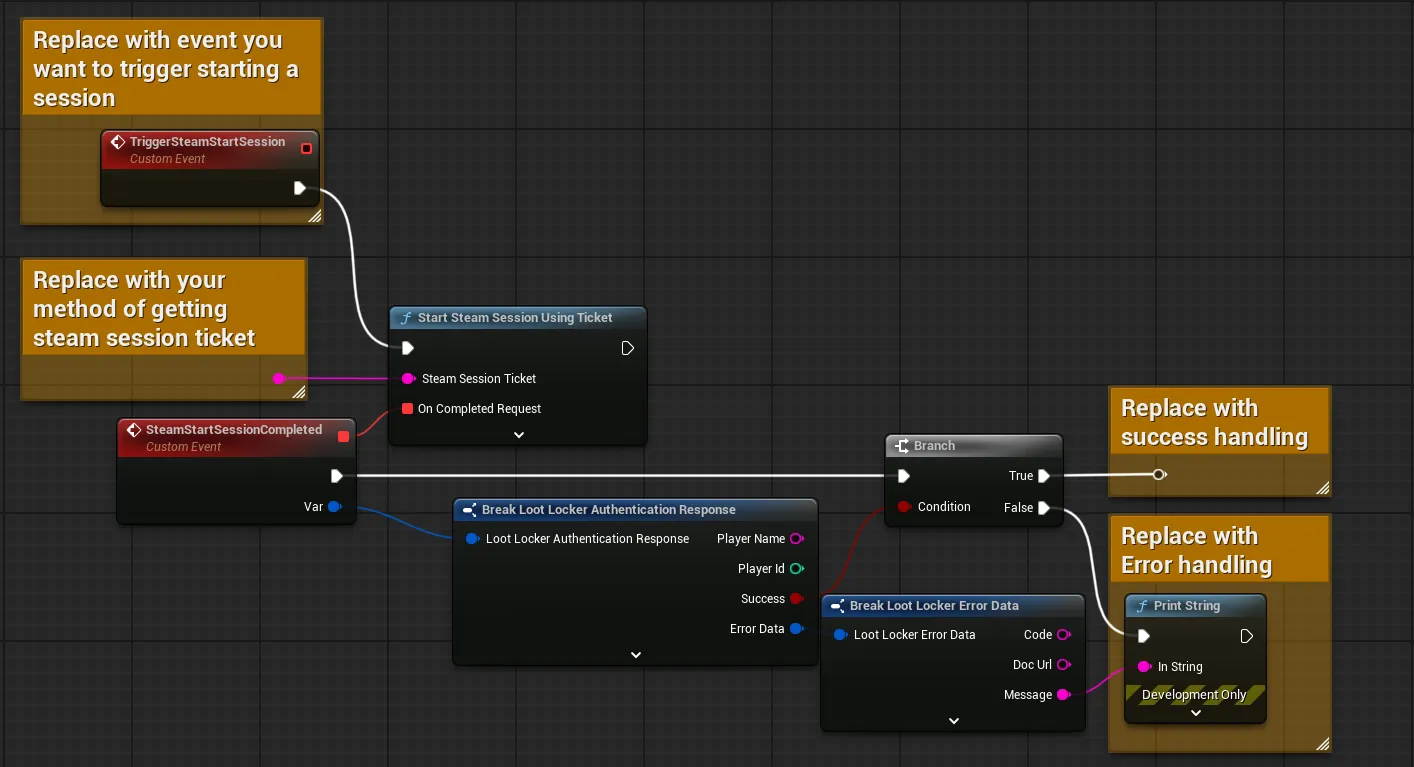
Input
Exchange the TriggerSteamAuthentication event for whatever event should trigger the login flow. This example doesn't include the nodes you made above to get the Steam ID and session ticket, so use those (or your own method) and plug the values into the Verify Player and Start Steam Session node.
Output
Branch the completed events on the success flag, and add error handling for the failure case. The session response also includes player_id, public_uid, and player_ulid, among other useful fields.
Follow the guide from GodotSteam to initialize Steam. Once Steam is initialized, open the script from which you want to trigger LootLocker authentication and add the following code:
var auth_ticket = Steam.getAuthSessionTicket()if !auth_ticket.has('buffer'):    printerr("Steam Auth Session Ticket retrieval failed")    # Handle error as fit in your code
var authTicketString : String = LL_Authentication.ParseSteamAuthTicket(auth_ticket['buffer'], auth_ticket['size'])if authTicketString.is_empty():    printerr("Auth ticket could not be parsed")    # Handle error as fit in your code
var steamLoginResponse = await LL_Authentication.SteamSession.new(authTicketString).send()if(!steamLoginResponse.success) :    printerr("Login failed with reason: " + steamLoginResponse.error_data.to_string(), true)    # Handle error as fit in your codeprint("Successfully started Steam session with LootLocker")
Run your game and check the console for the success message to confirm the session started correctly.
Coming soon — this sample hasn't been written yet.
Conclusion
Section titled “Conclusion”You've started using LootLocker in your game with Steam. Next, review LootLocker's full feature set to decide which other features to implement.