
This how-to pushes a Broadcast from LootLocker directly into your Discord server, keeping messaging consistent between your game and your community. Broadcasts pushed to Discord use the channel configured in the Squire Channels & Roles settings.
Prerequisites
Section titled “Prerequisites”- Squire invited and configured in your Discord server.
Publish a Broadcast to Discord
Section titled “Publish a Broadcast to Discord”You can push a Broadcast to Discord when creating a new Broadcast or by enabling Discord delivery on an existing one.
Scheduling a New Broadcast
Section titled “Scheduling a New Broadcast”Navigate to Broadcasts in the Web Console and click Create New Broadcast.
Fill in all required fields for the Broadcast content and publication schedule. See the Broadcasts how-to for more information.
At the bottom of the page, locate the Discord Settings and enable Publish to Discord.
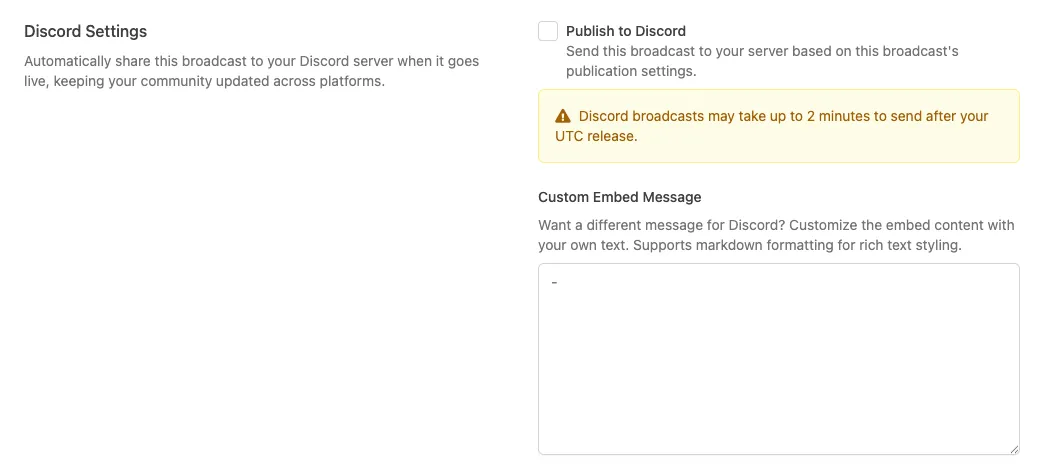
Click Create Broadcast to save the Broadcast.
Once published, the Broadcast is pushed to the Discord channel based on the earliest available date and time defined in the publication schedule.
Pushing an Existing Broadcast
Section titled “Pushing an Existing Broadcast”Navigate to Broadcasts in the Web Console and click Edit on the Broadcast you want to push to Discord.
Scroll to the bottom of the page and click Publish to Discord.
The Broadcast is scheduled for Discord delivery based on its publication schedule. If the Broadcast is already live, it's pushed to Discord immediately.
Custom Embed Message
Section titled “Custom Embed Message”Replace the text in your Discord broadcast by entering custom text in the Custom Embed Message field. This field supports the full range of markdown.
Published Broadcasts
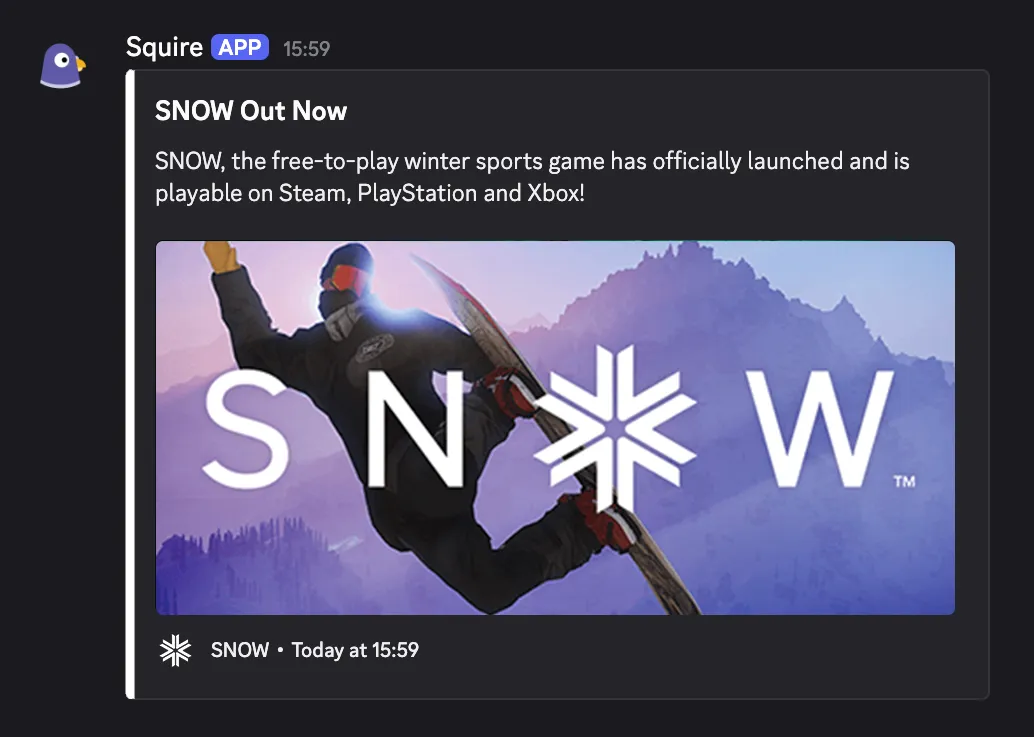
Section titled “Published Broadcasts”Once published, the Broadcast appears in the configured Discord channel with the styling defined in the Squire Embed Styling settings.
Conclusion
Section titled “Conclusion”You've pushed new and existing Broadcasts to your Discord server. To get the most out of Squire, consider using Broadcasts in-game to announce upcoming key distribution campaigns, or keep patch notes and live event messaging in sync across your game and Discord.