
This how-to retrieves a player's inventory in-game, and gifts or refunds assets from the Web Console.
Prerequisites
Section titled “Prerequisites”- Unity, Unreal, or Godot SDK installed and configured in your project (not required for REST).
- An active Player session (see Authentication).
- At least one Asset configured in the Web Console to gift or refund.
Retrieve Inventory in Game
Section titled “Retrieve Inventory in Game”Retrieve the inventory of a player from your game.
LootLockerSDKManager.GetInventory((response) =>{ if (response.success) { Debug.Log("Successfully retrieved player inventory: " + response.inventory.Length); } else { Debug.Log("Error getting player inventory"); }});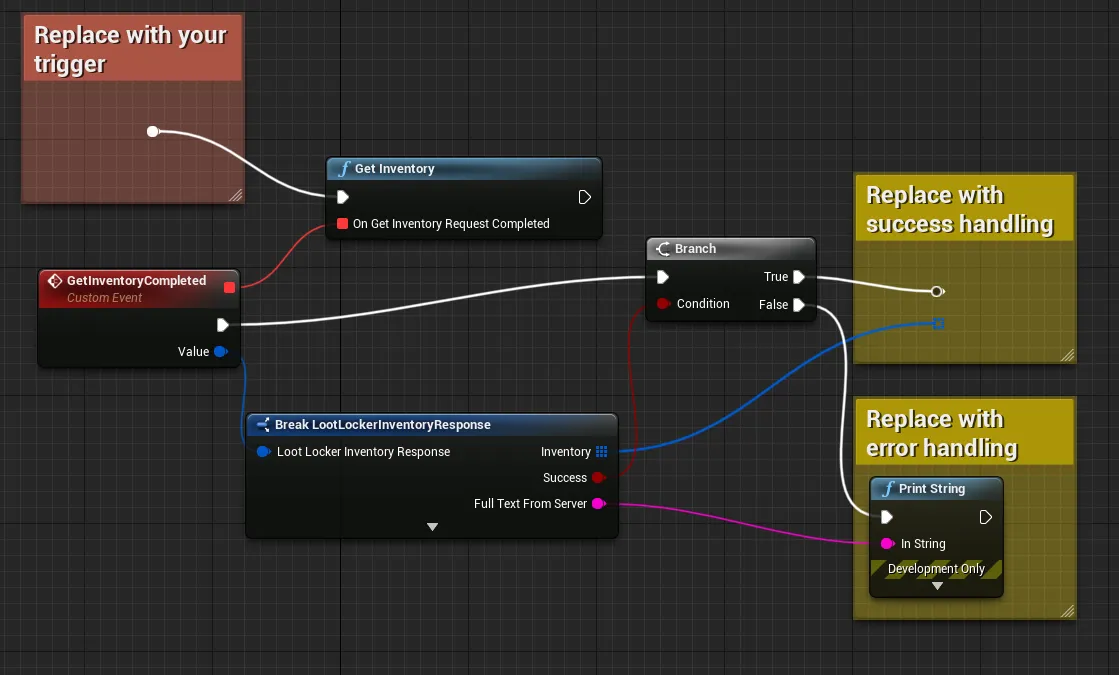
Input
Exchange the empty event node for whatever event should trigger this flow.
Output
Branch the completed events on the success flag, and add error handling for the failure case.
Coming soon — this sample hasn't been written yet.
curl -X GET "https://api.lootlocker.io/game/v1/player/inventory/list" \ -H "x-session-token: your_token_here"Example response:
{ "success": true, "inventory": [ { "instance_id": 538, "variation_id": 45, "rental_option_id": null, "acquisition_source": "grant_default_loadout", "acquisition_date": "2022-05-30T07:57:58+00:00", "asset": {...}, "rental": { "is_rental": false, "time_left": null, "duration": null, "is_active": null } } ]}Gift an Asset
Section titled “Gift an Asset”Gifting grants a specific Asset to a player directly through the LootLocker Web Console.
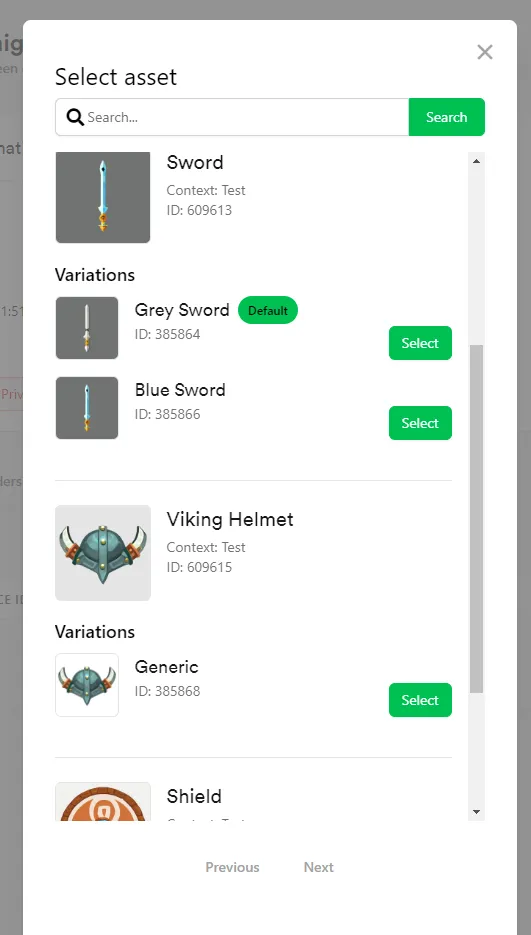
Click the Give Asset button in the Player Manager interface. Search for and select an Asset from the popup list — this immediately grants the player the Asset. A list of all granted Assets can be found in the Orders tab in the Player Manager interface.
Refund an Order
Section titled “Refund an Order”Refunds can be used if a player purchases an Asset unintentionally or needs to be refunded for other reasons.

Navigate to the Inventory tab in the Player Manager interface, find the Asset in question, and use the Refund button. This immediately refunds the purchased Asset and returns the Currency to the player's wallet. If the player purchased an Asset Package, you'll need to refund all Assets from that package for the Currency to be returned.
Conclusion
Section titled “Conclusion”You've retrieved a player's inventory from your game and can now gift or refund assets from the Web Console. Next, review LootLocker's full feature set to decide which other features to implement.