
This how-to views and resolves Player, UGC, and Game Feedback reports in the Web Console.
Prerequisites
Section titled “Prerequisites”- At least one Feedback report submitted (see Create Player Feedback, Create UGC Feedback, or Create Game Feedback).
View the Feedback Overview
Section titled “View the Feedback Overview”The default page for Feedback in the Web Console is the Overview page. Here you can quickly view the most recent, and most active Feedback reports by type.
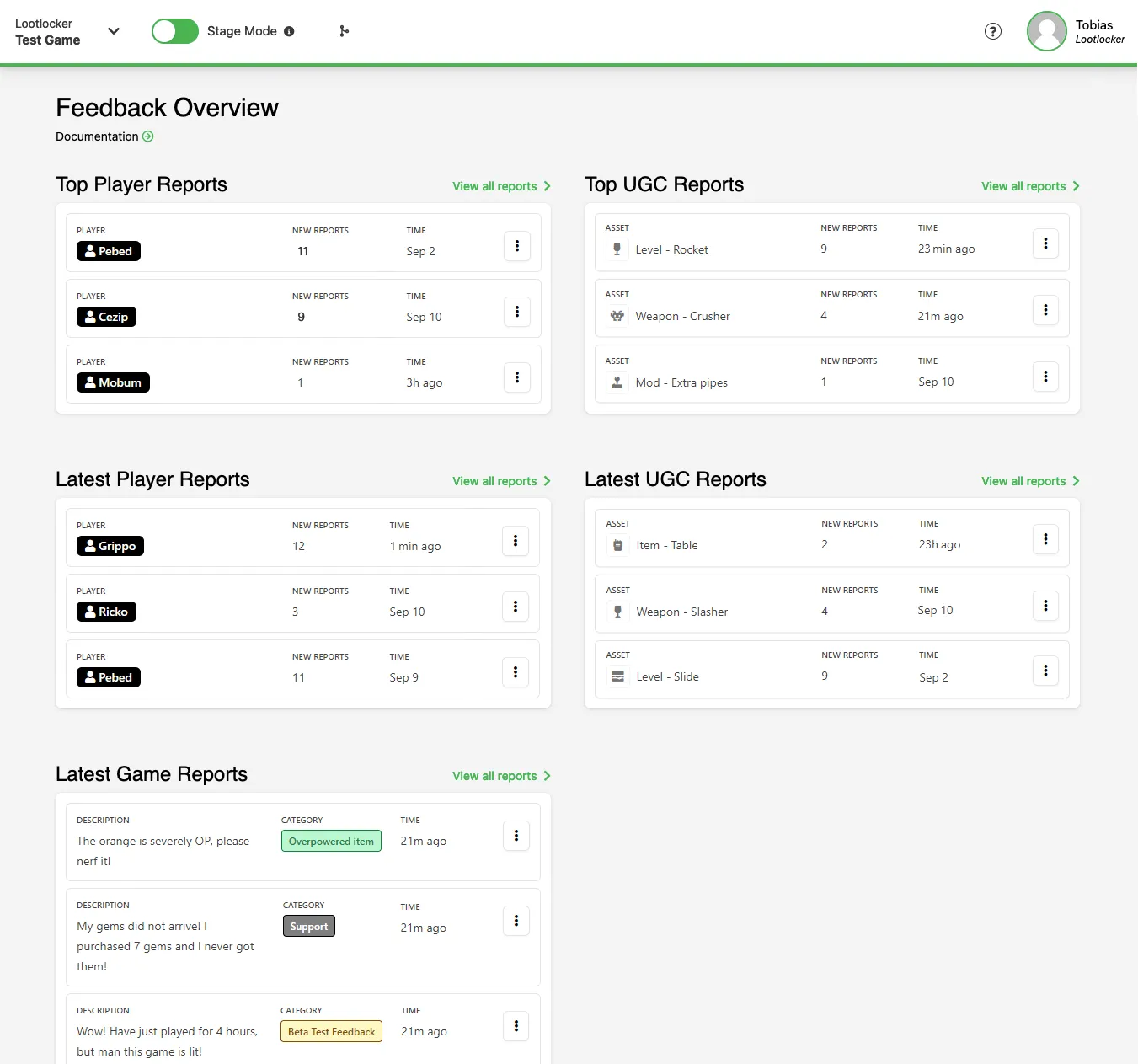
Click the View all reports link next to each section to get taken to each Feedback type's summary page. Alternatively, use the sidebar to navigate to these pages directly by clicking on Players, UGC, and Game.
Manage Player Feedback
Section titled “Manage Player Feedback”Player Feedback Overview
Section titled “Player Feedback Overview”The Player Feedback overview page lets you view all Player Feedback, sorted by either the most recent reports, or by players with the most reports against them.
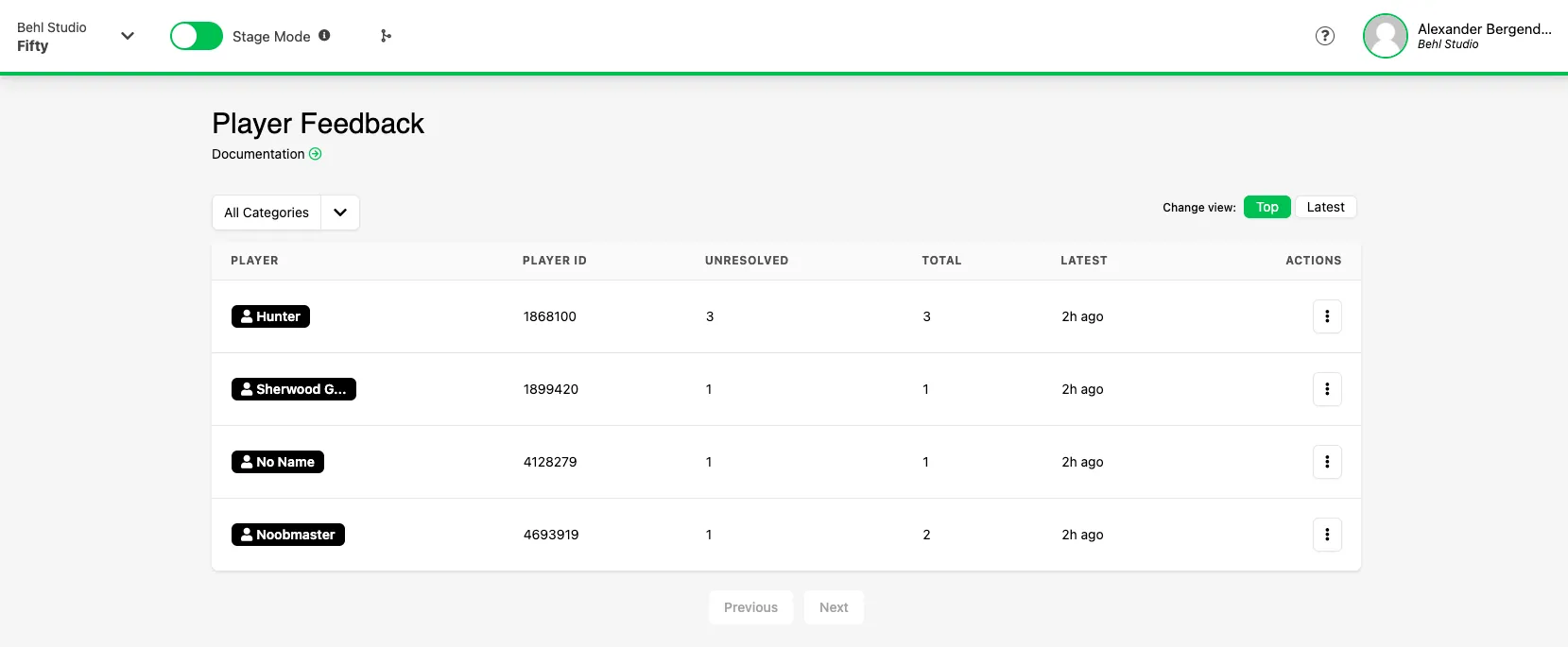
In this view you can filter by categories by selecting the All Categories drop down above the list of reports.
To view an individual report's details, simply click on the report in the list. You can click the Actions button on the right side of a report to resolve the report without having to open the report first. In this menu you can also click View Feedback to view the report's details, or View Player to be taken to the reported player's player management screen.
Player Feedback Report
Section titled “Player Feedback Report”The following information is available when viewing a Player Feedback report:
- Unresolved / Resolved: Select either Unresolved or Resolved to switch between viewing the unresolved reports or the previously resolved reports
- Incident Time: This field displays the time and date when the report was submitted
- Submitted By: This field displays the player who reported the player in this report. Click on the player's name to be taken to their profile
- Description: This field displays the text that was provided in the player's report
If multiple reports have been submitted against this player they will be visible in a list below. Use the collapse chevron to expand or collapse individual reports.
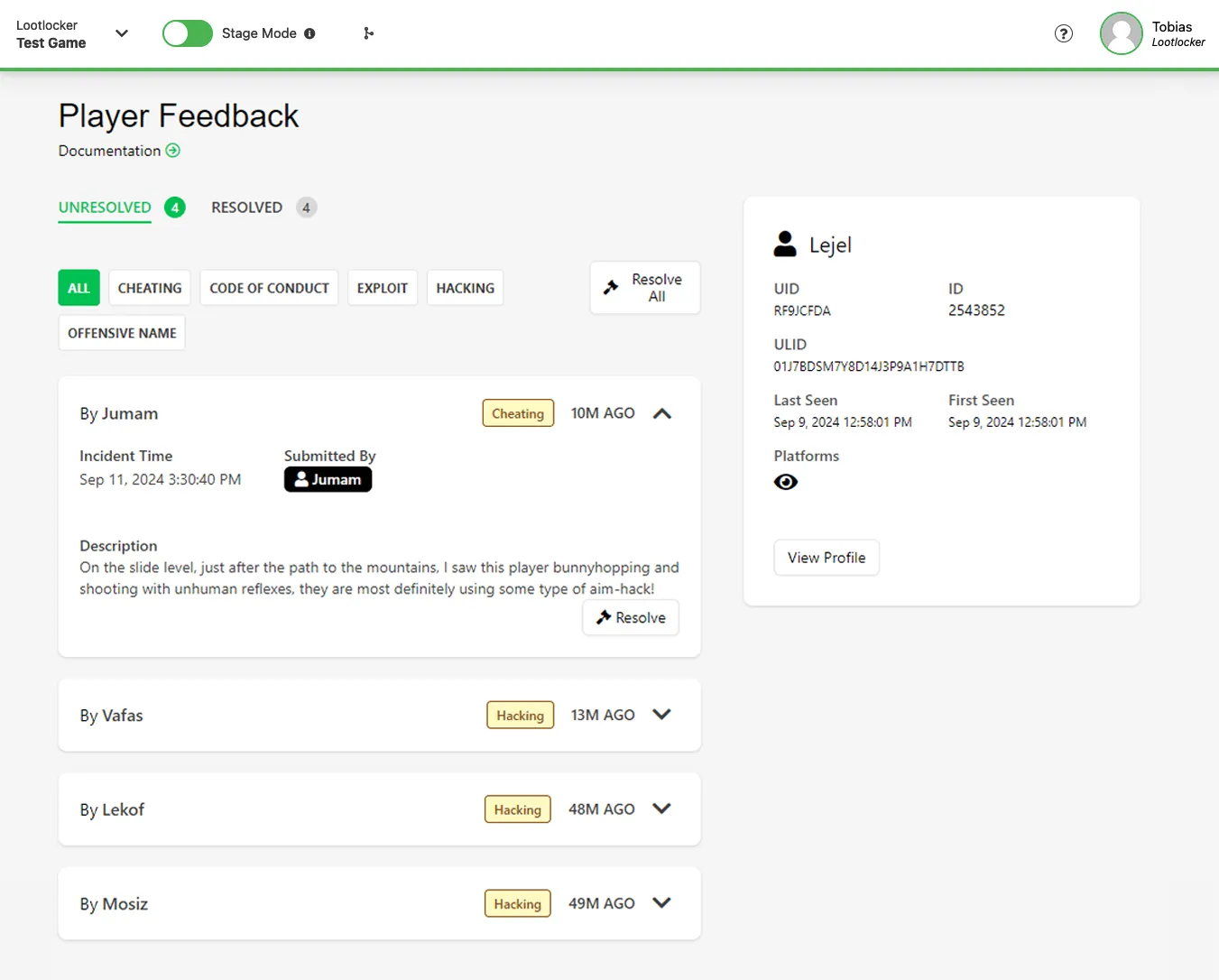
You can take the following actions when viewing a Player Feedback report:
- Resolve: When viewing an unresolved report you can click the Resolve button to set the state of the report as Resolved
- Resolve All: Use the Resolve All button to set all unresolved reports as Resolved
- Reopen: When viewing a resolved report, you can click the Reopen button to set the state of the report as Unresolved again
- View Profile: Click the View Profile button to view the profile of the reported player
To filter the Feedback reports by Category, simply click one of the Category names at the top of the list of reports.
Manage UGC Feedback
Section titled “Manage UGC Feedback”UGC Feedback Overview
Section titled “UGC Feedback Overview”The UGC Feedback overview page lets you view all UGC Feedback, sorted by either the most recent reports, or by content with the most number of reports.
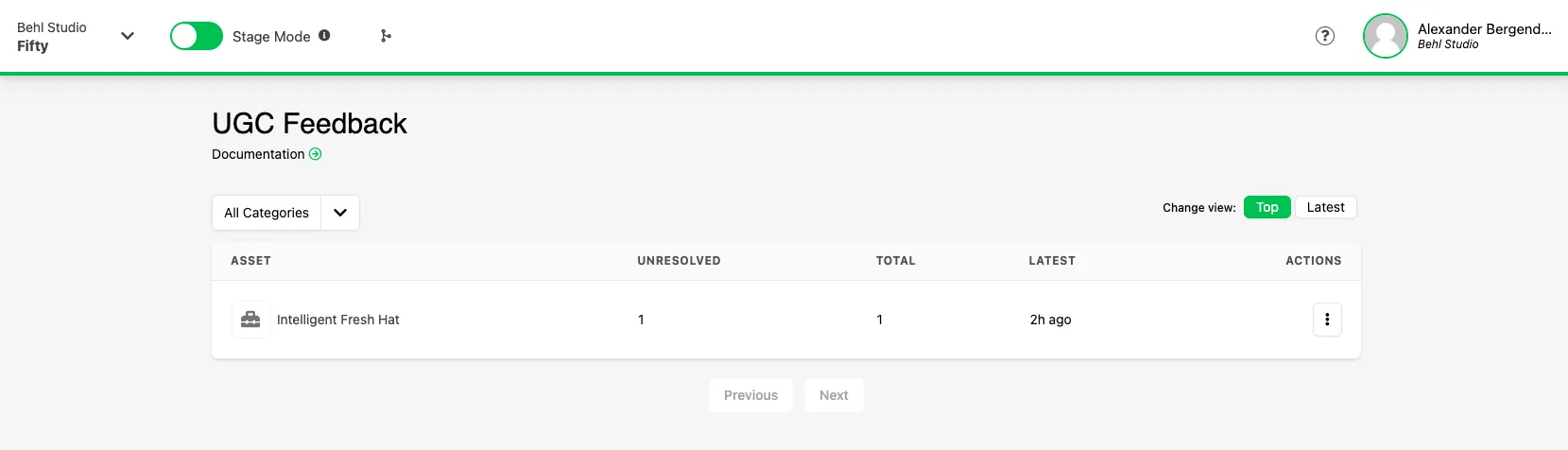
In this view you can filter by categories by selecting the All Categories drop down above the list of reports.
To view an individual report's details, simply click on the report in the list. You can click the Actions button on the right side of a report to resolve the report without having to open the report first. In this menu you can also click View Feedback to view the report's details, or View Asset to be taken to the reported Asset in the content management screen.
UGC Feedback Report
Section titled “UGC Feedback Report”The following information is available when viewing a UGC Feedback report:
- Unresolved / Resolved: Select either Unresolved or Resolved to switch between viewing the unresolved reports or the previously resolved reports
- Incident Time: This field displays the time and date when the report was submitted
- Submitted By: This field displays the player who reported the UGC in this report. Click on the player's name to be taken to their profile
- Description: This field displays the text that was provided in the player's report
If multiple reports have been submitted against this UGC they will be visible in a list below. Use the collapse chevron to expand or collapse individual reports.
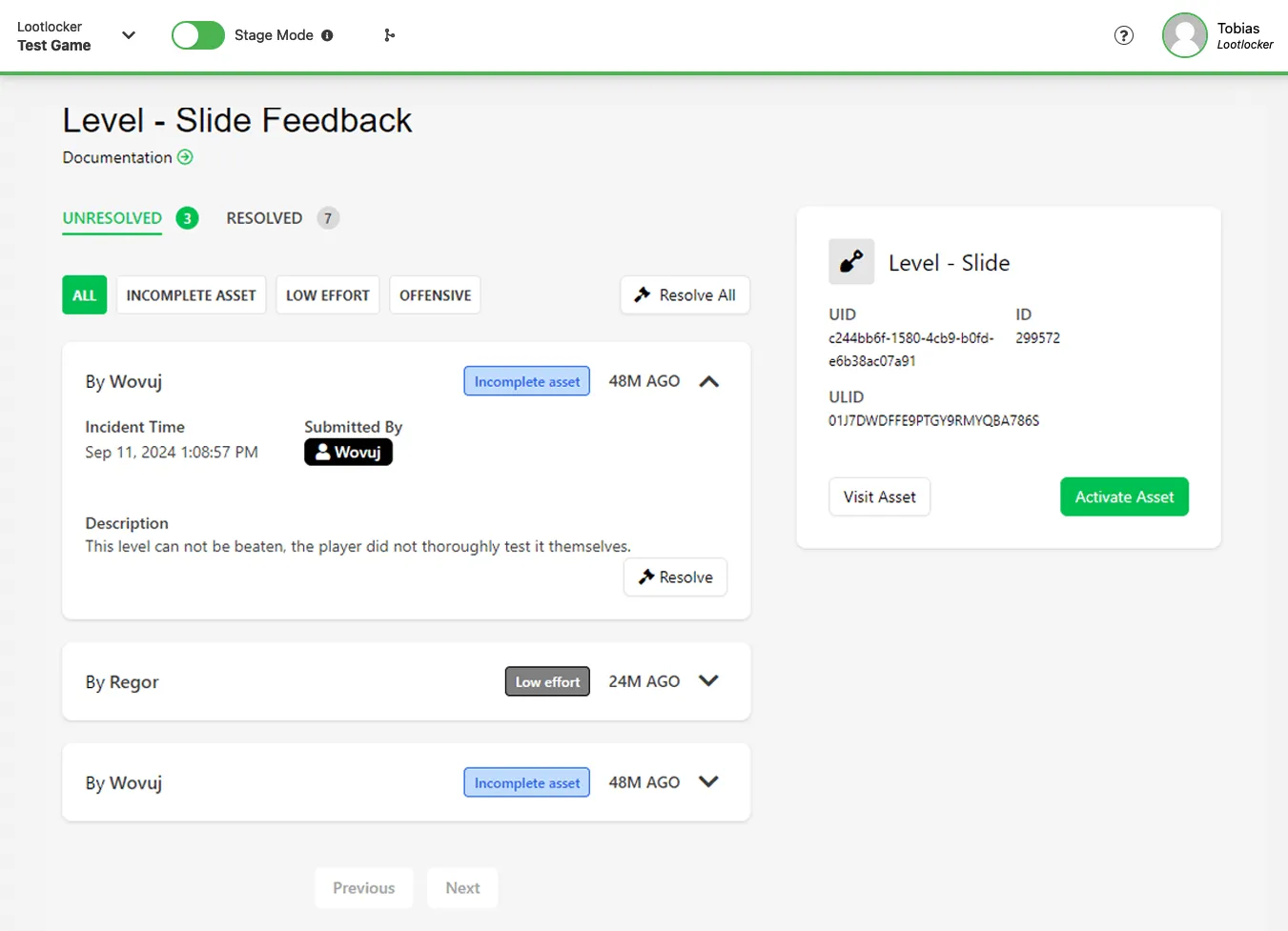
You can take the following actions when viewing a UGC Feedback report:
- Resolve: When viewing an unresolved report you can click the Resolve button to set the state of the report as Resolved
- Resolve All: Use the Resolve All button to set all unresolved reports as Resolved
- Reopen: When viewing a resolved report, you can click the Reopen button to set the state of the report as Unresolved again
- Visit Asset: Click the Visit Asset button to view the Asset that has been reported
- Deactivate Asset: Click the Deactivate Asset button to immediately deactivate this Asset and remove it from your game (this will not delete the Asset)
To filter the Feedback reports by Category, simply click one of the Category names at the top of the list of reports.
Manage Game Feedback
Section titled “Manage Game Feedback”Game Feedback Overview
Section titled “Game Feedback Overview”The Game Feedback overview page lets you view all Game Feedback, sorted by either unresolved or resolved reports.
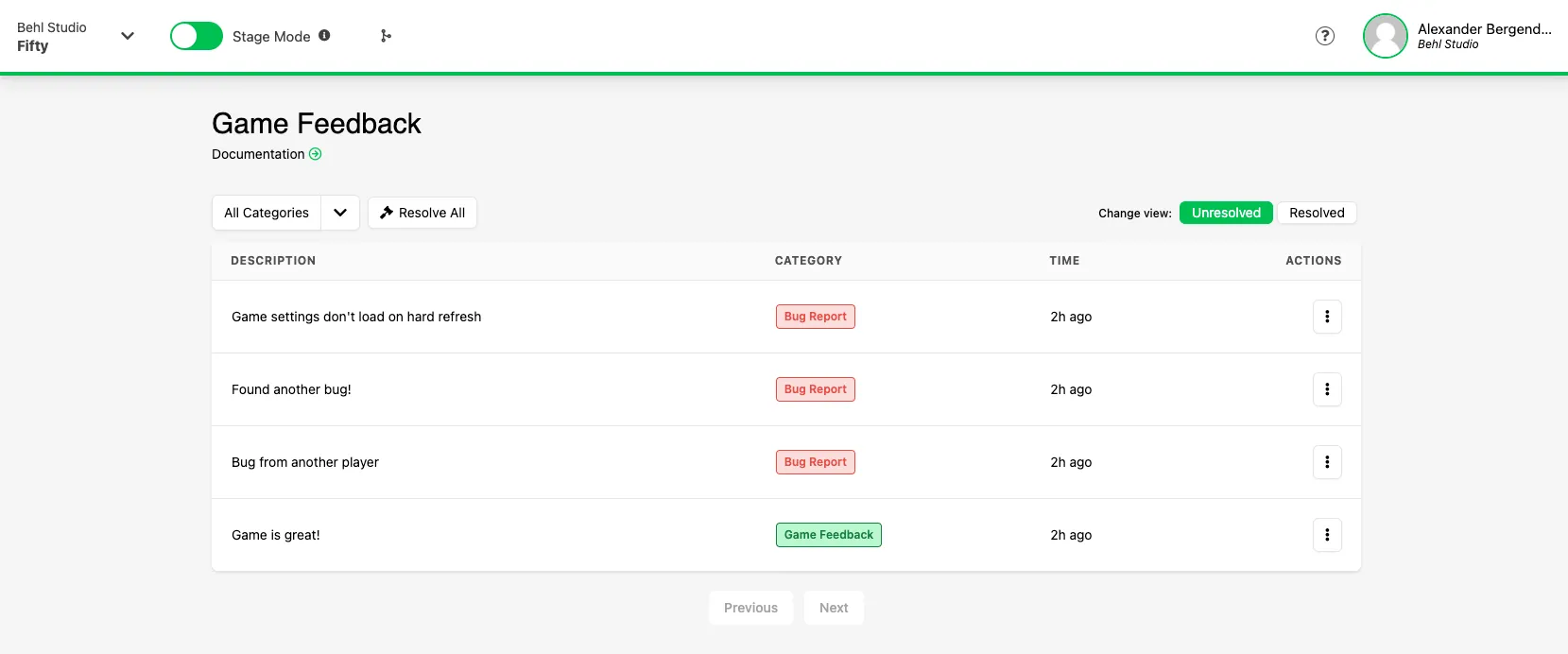
In this view you can filter by categories by selecting the All Categories drop down above the list of reports.
Click Resolve All to resolve all reports immediately. To find resolved reports, click on the Resolved button in the top right corner.
To view an individual report's details, simply click on the report in the list. You can click the Actions button on the right side of a report to resolve the report without having to open the report first. In this menu you can also click View Feedback to view the report's details.
Game Feedback Report
Section titled “Game Feedback Report”The following information is available when viewing a Game Feedback report:
- Incident Time: This field displays the time and date when the report was submitted
- Submitted By: This field displays the player who submitted this report. Click on the player's name to be taken to their profile
- Description: This field displays the text that was provided in the player's report
If multiple reports have been submitted against this report they will be visible in a list below. Use the collapse chevron to expand or collapse individual reports.
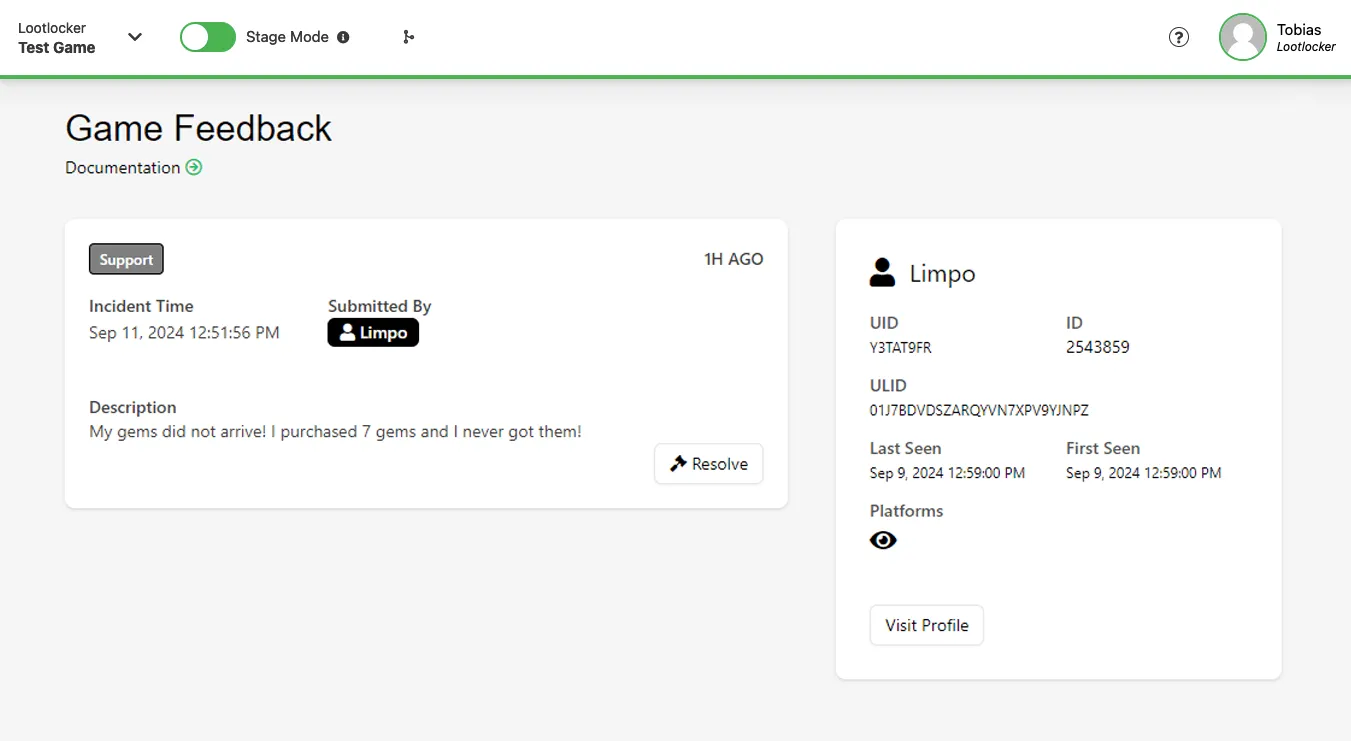
You can take the following actions when viewing a Game Feedback report:
- Resolve: When viewing an unresolved report you can click the Resolve button to set the state of the report as Resolved
- Reopen: When viewing a resolved report, you can click the Reopen button to set the state of the report as Unresolved again
- View Profile: Click the View Profile button to view the profile of the player who submitted the report
Conclusion
Section titled “Conclusion”You've viewed and resolved Player, UGC, and Game Feedback reports in the Web Console.