
Properly ending player sessions and cleaning up multi user state is important for security and memory management, especially in games where players can log out, switch profiles, or leave the device.
Prerequisites
Section titled “Prerequisites”How It Works
Section titled “How It Works”- When a player logs out, or you want to remove their session, end their session and remove their state from the SDK.
- When the player leaves but doesn't log out, set them to inactive but keep the cached session data, so the player can pick the session up later (until the token expires).
Sign Your Player Out
Section titled “Sign Your Player Out”When a player actively signs out or removes their profile from the device, end the LootLocker session and clear the cached state for that player. This means they'll have to authenticate again if they decide to play on the same device later.
// The ulid that you want to end the session for// In a multi user context it is vital to make sure that you're ending// the session for the correct player.string playerUlid = "player_ulid_here";
// Remember to provide the shouldClearLocalState parameter as true// to clear the local state of the player.bool bShouldClearLocalState = true;LootLockerSDKManager.EndSession(endSessionResponse =>{    if (endSessionResponse.success)    {        Log("Session ended successfully");    }    else    {        // Handle errors        Log("Failed to end session, local state not cleared: " + endSessionResponse.errorData);    }}, bShouldClearLocalState, playerUlid);
// The ulid that you want to end the session for// In a multi user context it is vital to make sure that you're ending// the session for the correct player.FString playerUlid = "player_ulid_here";
// EndSession will clear the local state for youULootLockerSDKManager::EndSession(FLootLockerDefaultDelegate::CreateLambda([=](const FLootLockerResponse& endSessionResponse){ if (endSessionResponse.success) { UE_LOG(<LogCategory>, Warning, TEXT("Session ended successfully")); } else { UE_LOG(<LogCategory>, Warning, TEXT("Failed to end session: %s"), *endSessionResponse.ErrorData.Message); }}), playerUlid);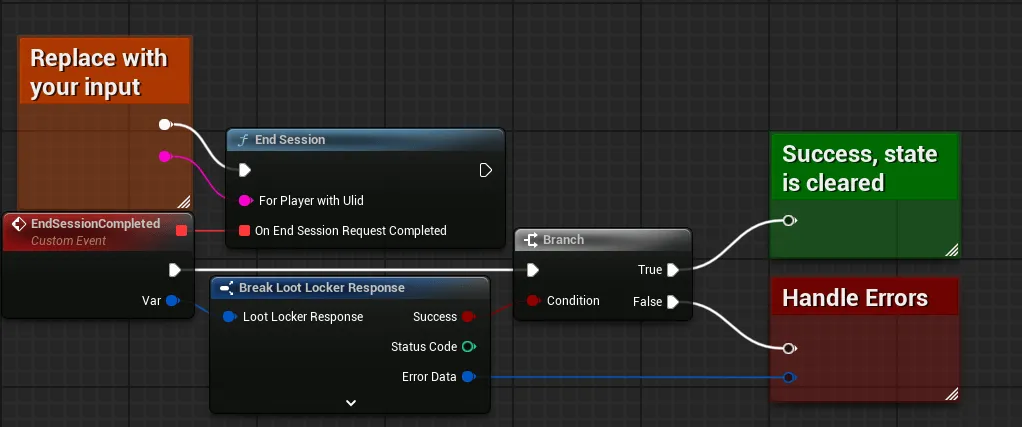
Coming soon — this sample hasn't been written yet.
Coming soon — this sample hasn't been written yet.
Manually Clear Player State
Section titled “Manually Clear Player State”You may want to manually and explicitly clear the local session — for example, when the session has expired with LootLocker, the user has finished moving an identity provider from one player to another, or you simply want to clean up local data.
Unlike ending a session, this makes no calls to LootLocker systems — it only removes information stored locally about the player(s).
For a Specific Player
Section titled “For a Specific Player”// The ulid that you want to clear data forstring playerUlid = "player_ulid_here";
LootLockerSDKManager.ClearCacheForPlayer(playerUlid);// The ulid that you want to clear data forFString playerUlid = "player_ulid_here";
ULootLockerSDKManager::ClearCacheForPlayer(playerUlid);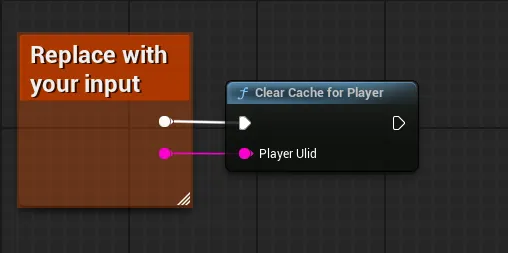
Coming soon — this sample hasn't been written yet.
Coming soon — this sample hasn't been written yet.
For Everyone
Section titled “For Everyone”Use this if you want a clean slate on the device — during development, or when resetting game settings.
LootLockerSDKManager.ClearAllPlayerCaches();ULootLockerSDKManager::ClearAllPlayerCaches();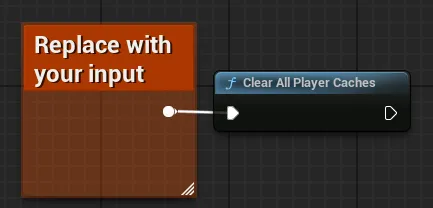
Coming soon — this sample hasn't been written yet.
Coming soon — this sample hasn't been written yet.
For Everyone Except a Specific Player
Section titled “For Everyone Except a Specific Player”Use this when, for example, account linking has finished and the new session token should be the only active one on the device, or when a local hot seat session finishes and all visitor users should be removed from the device.
// The ulid that you want to keep data forstring playerUlid = "player_ulid_here";
LootLockerSDKManager.ClearAllPlayerCachesExceptForPlayer(playerUlid);
// The ulid that you want to keep data forFString playerUlid = "player_ulid_here";
ULootLockerSDKManager::ClearAllPlayerCachesExceptForPlayer(playerUlid);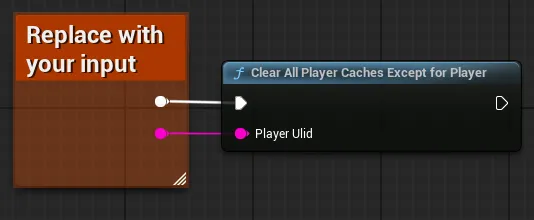
Coming soon — this sample hasn't been written yet.
Coming soon — this sample hasn't been written yet.
Manage Active vs Inactive Players
Section titled “Manage Active vs Inactive Players”When a player stops playing for now, set them to inactive in the SDK. The session won't be used for requests unless specifically requested.
This makes no calls to the LootLocker backend and is non-destructive — no data is lost or altered, it only designates whether the specified player is considered active.
For a Specific Player
Section titled “For a Specific Player”// The ulid of the player that you want to set to inactivestring playerUlid = "player_ulid_here";
LootLockerSDKManager.SetPlayerUlidToInactive(playerUlid);// The ulid of the player that you want to set to inactiveFString playerUlid = "player_ulid_here";
ULootLockerSDKManager::SetPlayerUlidToInactive(playerUlid);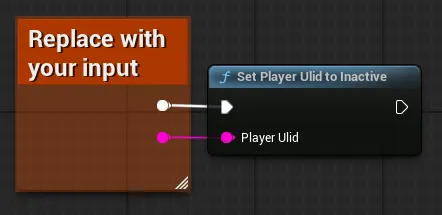
Coming soon — this sample hasn't been written yet.
Coming soon — this sample hasn't been written yet.
For Everyone
Section titled “For Everyone”LootLockerSDKManager.SetAllPlayersToInactive();ULootLockerSDKManager::SetAllPlayersToInactive();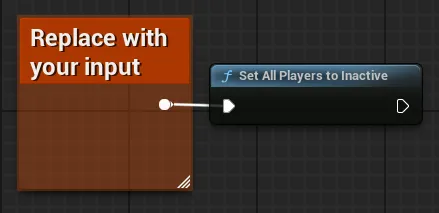
Coming soon — this sample hasn't been written yet.
Coming soon — this sample hasn't been written yet.
For Everyone Except a Specific Player
Section titled “For Everyone Except a Specific Player”// The ulid that you want to keep activestring playerUlid = "player_ulid_here";
LootLockerSDKManager.SetAllPlayersToInactiveExceptForPlayer(playerUlid);// The ulid that you want to keep activeFString playerUlid = "player_ulid_here";
ULootLockerSDKManager::SetAllPlayersToInactiveExceptForPlayer(playerUlid);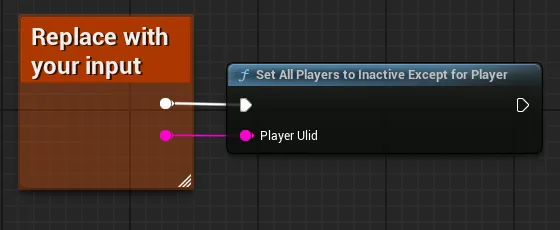
Coming soon — this sample hasn't been written yet.
Coming soon — this sample hasn't been written yet.
Conclusion
Section titled “Conclusion”You can now end sessions, manually clear player state, and manage active vs. inactive players in a multi user context.