
This how-to maps the Metadata on your players' profiles to fields in your connected CRM, so you can build campaigns around in-game values rather than email addresses alone.
Prerequisites
Section titled “Prerequisites”- Brevo or CleverReach connected. See Connect Brevo or Connect CleverReach.
- Metadata attached to your players' profiles, and the keys it is stored under.
Open the Key Mapping Modal
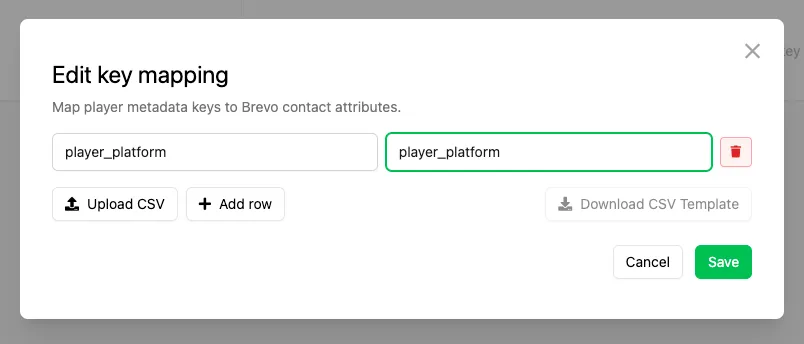
Section titled “Open the Key Mapping Modal”Click Settings in the Web Console sidebar, open CRM Platforms, and select your platform. Next to Key mapping you'll see how many keys are currently mapped. Click Edit mapping to open the modal.
Map a Key
Section titled “Map a Key”Click Add row to add an empty mapping, then fill in both fields:
- The left field is the Metadata key as it is stored on the player's profile.
- The right field is the field it should be written to in the CRM. For Brevo, this is a contact attribute, and the attributes available in your Brevo account are pulled in for you to choose from.
Add one row per key you want to send. There is no limit on how many keys you can map. Click the trash icon at the end of a row to remove that mapping.
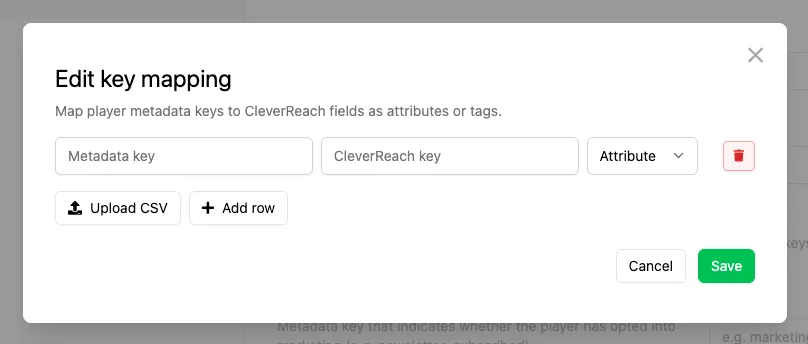
For CleverReach, each row has a third field that sets how the value is written. Leave it set to Attribute.
Map Keys in Bulk with a CSV
Section titled “Map Keys in Bulk with a CSV”Adding rows one at a time gets slow once you have a lot of keys. Click Download CSV Template to get a file with the columns already set up, fill in one row per mapping, and click Upload CSV to load them all into the modal at once.
Save the Mapping
Section titled “Save the Mapping”Click Save to close the modal, then Save Changes on the platform settings page to store the configuration.
Conclusion
Section titled “Conclusion”Your mapped Metadata now reaches the CRM whenever a player's Metadata is updated, ready to segment and target campaigns on in the CRM itself.