
This how-to applies your Branding Elements to the hosted sign-in page at auth.game, which players use to sign in to their White Label Login account outside your game.
Prerequisites
Section titled “Prerequisites”- At least one Branding Element to apply.
- White Label Login configured for your game.
Open the auth.game Tab
Section titled “Open the auth.game Tab”Click Settings in the Web Console sidebar, open Branding, and select the auth.game tab.
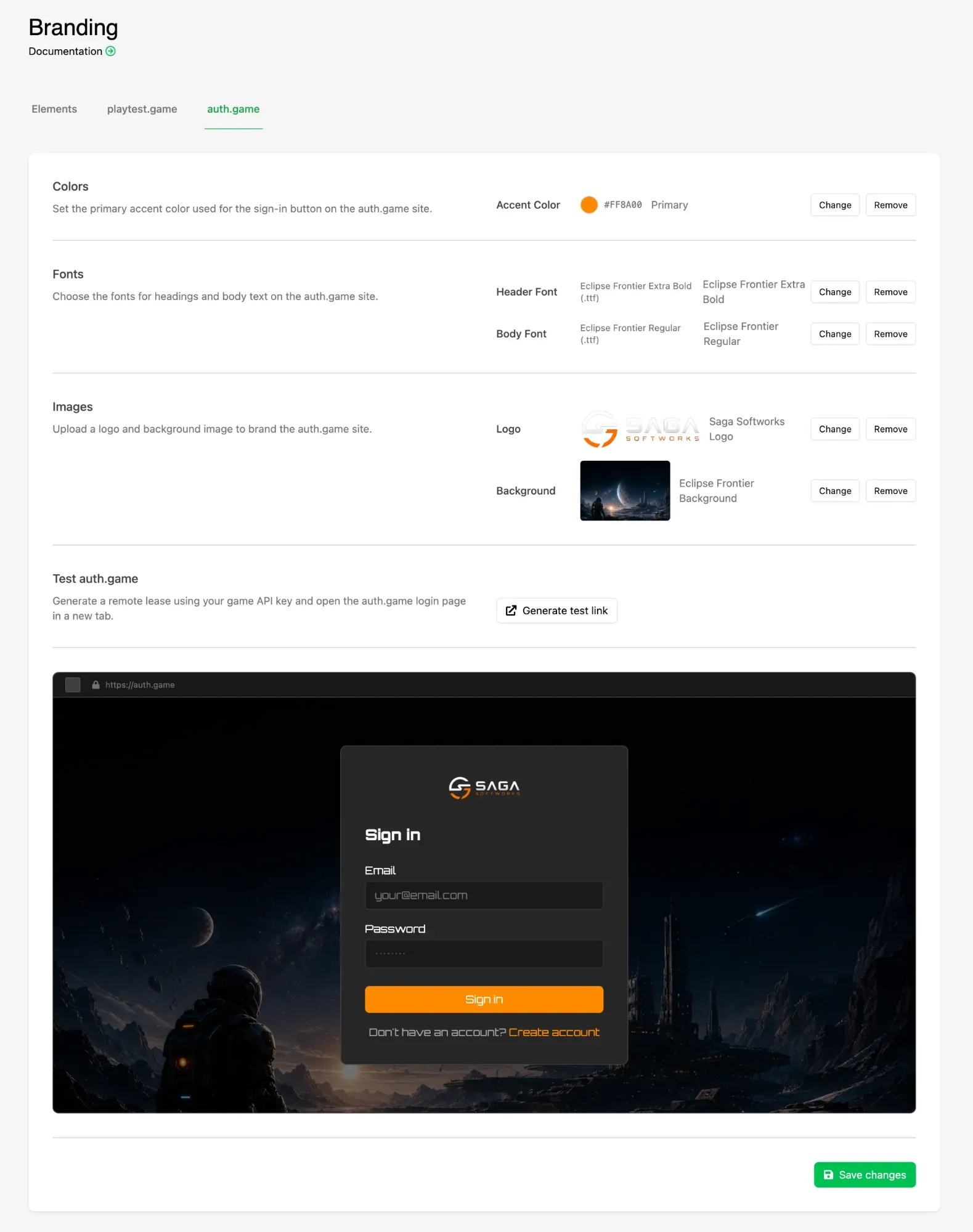
As on the playtest.game tab, each slot starts as Not set and uses default styling until you click Select and pick an Element. Filled slots offer Change and Remove.
Set the Accent Color
Section titled “Set the Accent Color”Accent Color styles the sign-in button. It is the one piece of color on an otherwise plain page, so pick something players will recognize as yours.
Choose the Fonts
Section titled “Choose the Fonts”Pick a Header Font for the headings and a Body Font for field labels and supporting text.
Set the Images
Section titled “Set the Images”- Logo sits above the sign-in form.
- Background fills the page behind it.
Check the Preview and Save
Section titled “Check the Preview and Save”The preview at the bottom updates live as you choose, showing the sign-in form with your branding applied. Click Save changes to publish it.
Test the Live Page
Section titled “Test the Live Page”Click Generate test link under Test auth.game. This creates a remote lease using your game API key and opens the real auth.game sign-in page in a new tab, exactly as a player would see it — worth doing once your fonts and background are in place, since a real render catches contrast problems a preview can flatter.
Conclusion
Section titled “Conclusion”Players signing in outside your game now land on a page that looks like it belongs to you rather than to LootLocker. Brand the sign-up side too with Brand Your Playtest Onboarding Page.