
This how-to limits a Survey to a specific group of players using Player Segments, so only the players you want are asked.
Prerequisites
Section titled “Prerequisites”- A Survey (see Create a Survey).
Add a Segment
Section titled “Add a Segment”Open the Survey from the Surveys page in the Player Operations section of the Web Console and click Add Segment under Player segments.
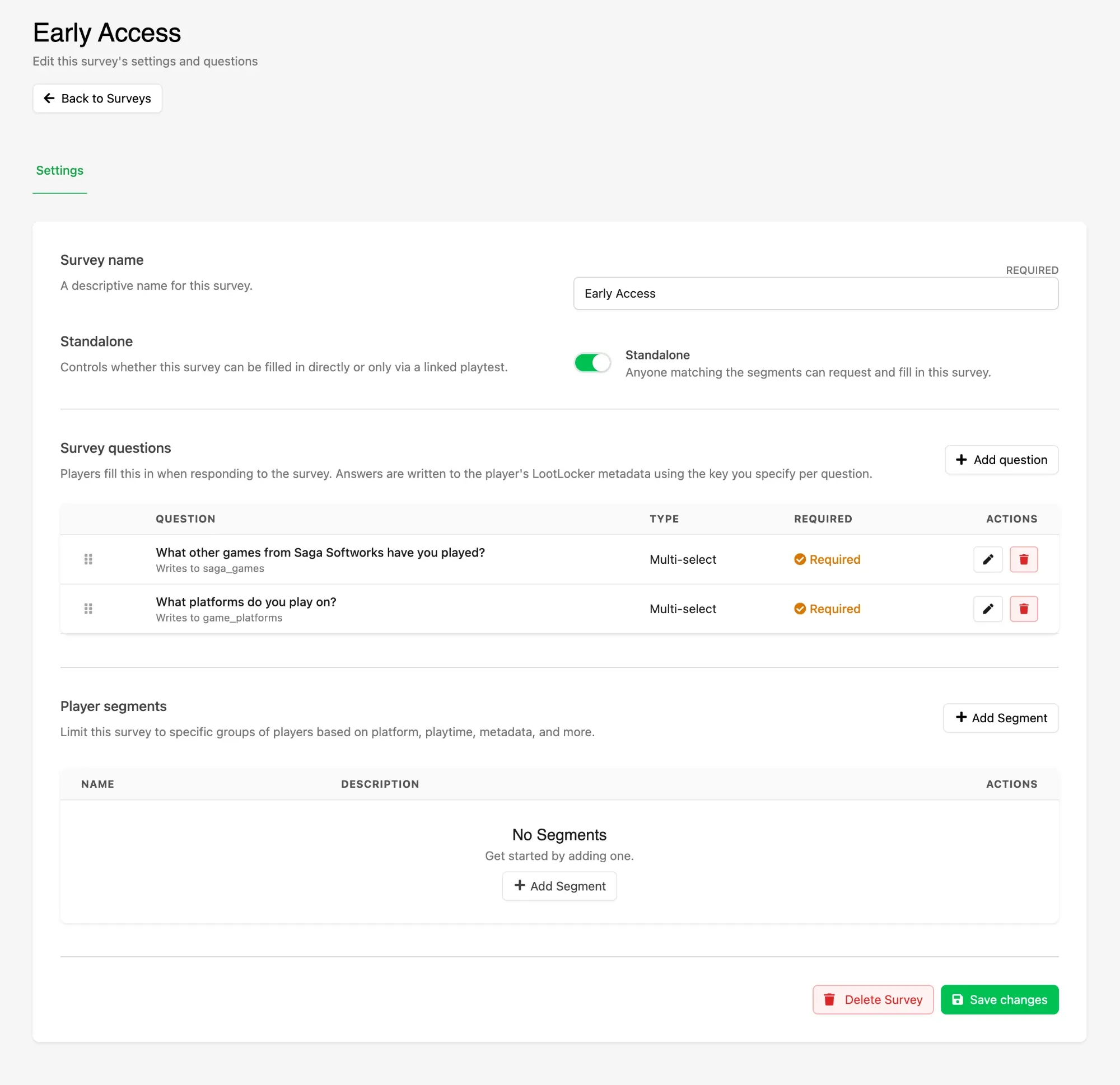
Build the Segment from conditions covering platform, playtime, join date, other games played, and Metadata values — see Create a Segment for what each condition does. Click Save changes when you are done.
Because Survey answers are stored as Metadata, the Metadata conditions let you target a Survey using answers from an earlier one — asking a follow-up only of players who picked a particular option.
Understand What a Segment Does
Section titled “Understand What a Segment Does”What a Segment controls depends on how the Survey is reached:
- On a standalone Survey, it decides who is offered the Survey at all. Only players who match see it in the Player Portal.
- On a Survey attached to a Playtest, it acts as a gate on onboarding rather than a filter.
Require a Linked Account During Onboarding
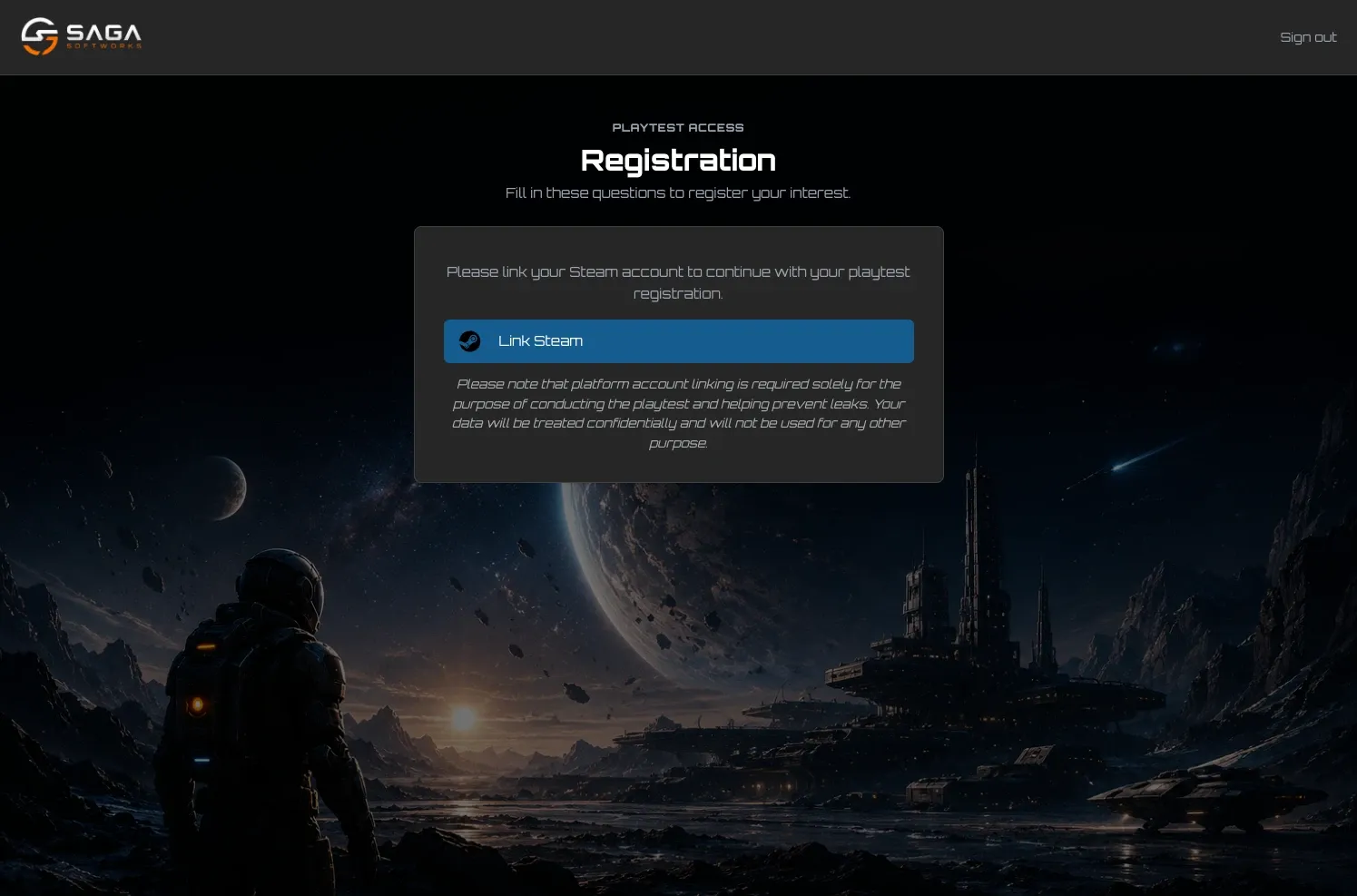
Section titled “Require a Linked Account During Onboarding”A Have Linked condition on a Survey attached to a Playtest asks players to link that platform account before they can answer the questions, rather than excluding those who have not. This is how you make account linking a requirement of signing up — useful when you plan to deliver keys through that platform, or want to tie sign-ups to a real platform account.
Conclusion
Section titled “Conclusion”Your Survey now reaches the right players, whether that means limiting who sees it in the Player Portal or requiring an account to be linked during Playtest sign-up. Read what came back in View Survey Answers.