
This how-to creates a Playtest and publishes its hosted onboarding page, so players can sign up for your closed beta or early access round.
Prerequisites
Section titled “Prerequisites”- White Label Login configured and enabled for your game. Players register for a Playtest by creating a White Label Login account, so sign-ups cannot work without it.
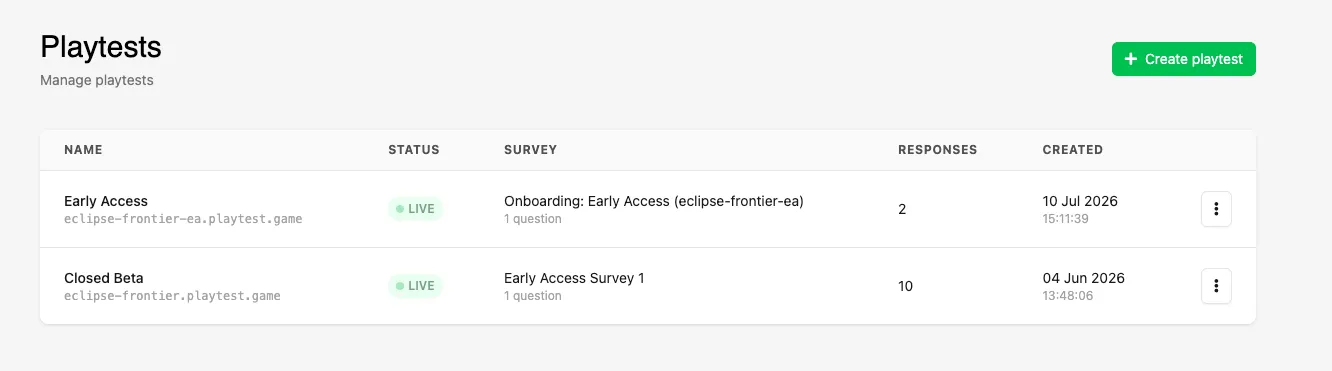
Open the Playtests Page
Section titled “Open the Playtests Page”Click Playtests in the Player Operations section of the Web Console sidebar, then click Create playtest.
Name the Playtest
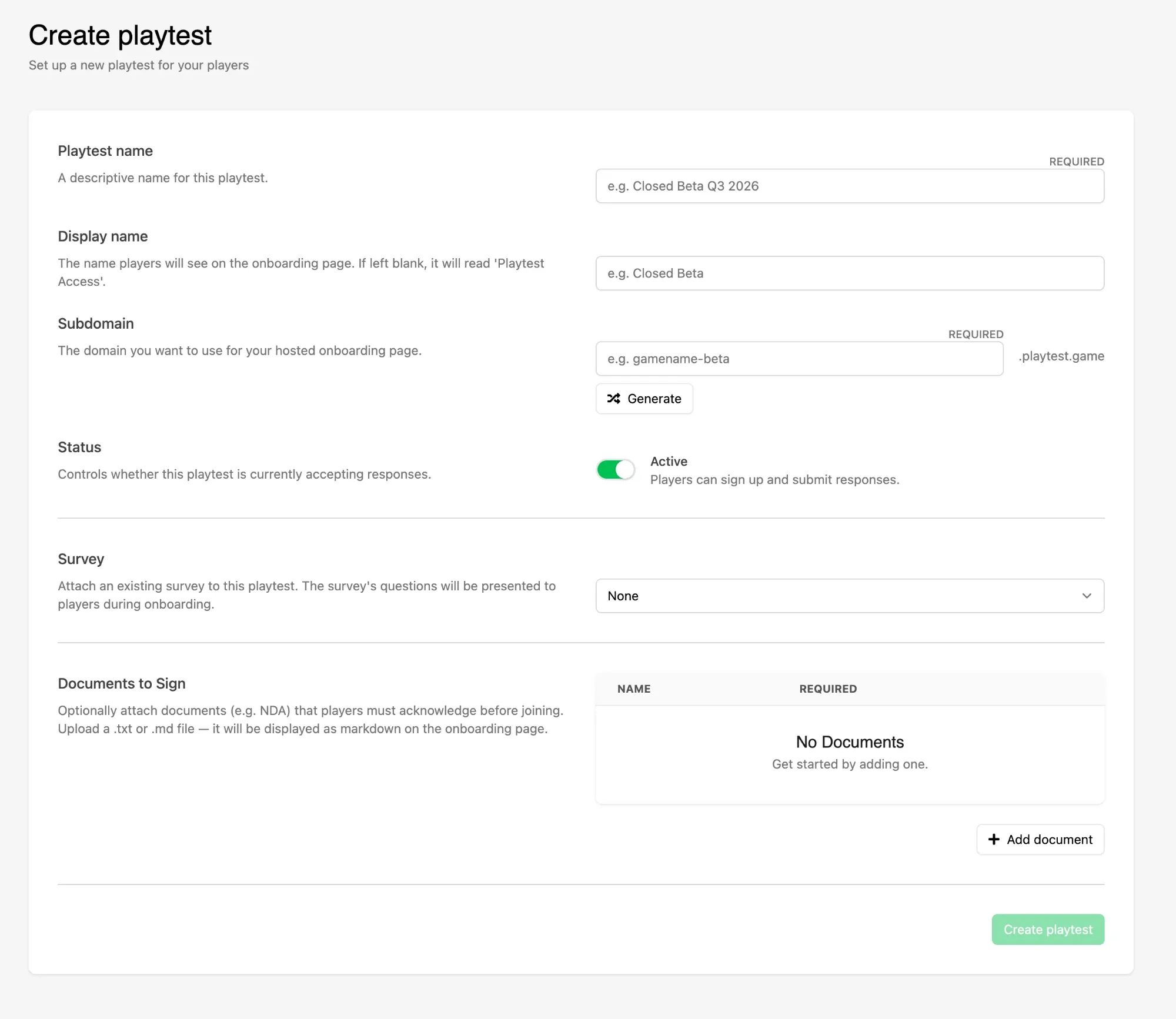
Section titled “Name the Playtest”Fill in the two name fields:
- Playtest name is required. It identifies the Playtest in the Web Console and is not shown to players.
- Display name is what players see on the onboarding page. Leave it blank and the page reads "Playtest Access".
Choose a Subdomain
Section titled “Choose a Subdomain”Enter the subdomain you want the onboarding page hosted on, or click Generate to have one suggested for you. The page goes live at yoursubdomain.playtest.game.
Set the Status
Section titled “Set the Status”Leave Active on for the Playtest to accept sign-ups. Turn it off and the Playtest is listed as INACTIVE and stops taking new responses; players who already registered keep their access.
Attach a Survey and Documents
Section titled “Attach a Survey and Documents”Both are optional and can be added later:
- Survey attaches an existing Survey whose questions are presented during onboarding. See Attach a Survey to a Playtest.
- Documents to Sign attaches documents players acknowledge before joining. See Add Documents to a Playtest.
Save the Playtest
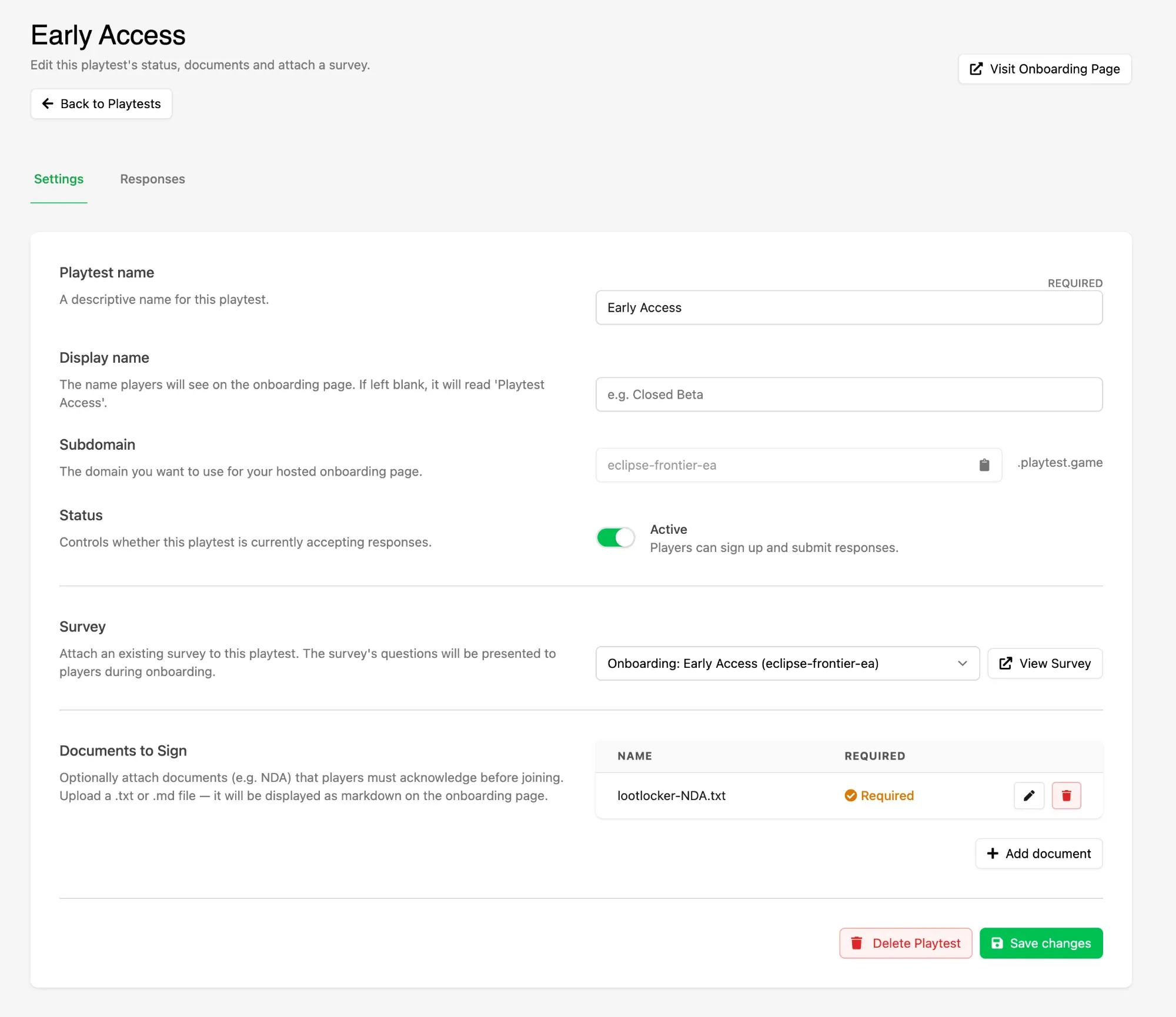
Section titled “Save the Playtest”Click Create playtest. The Playtest opens on its Settings tab, where every field except the subdomain stays editable, and Visit Onboarding Page opens the live page as a player sees it.
Check What Players See
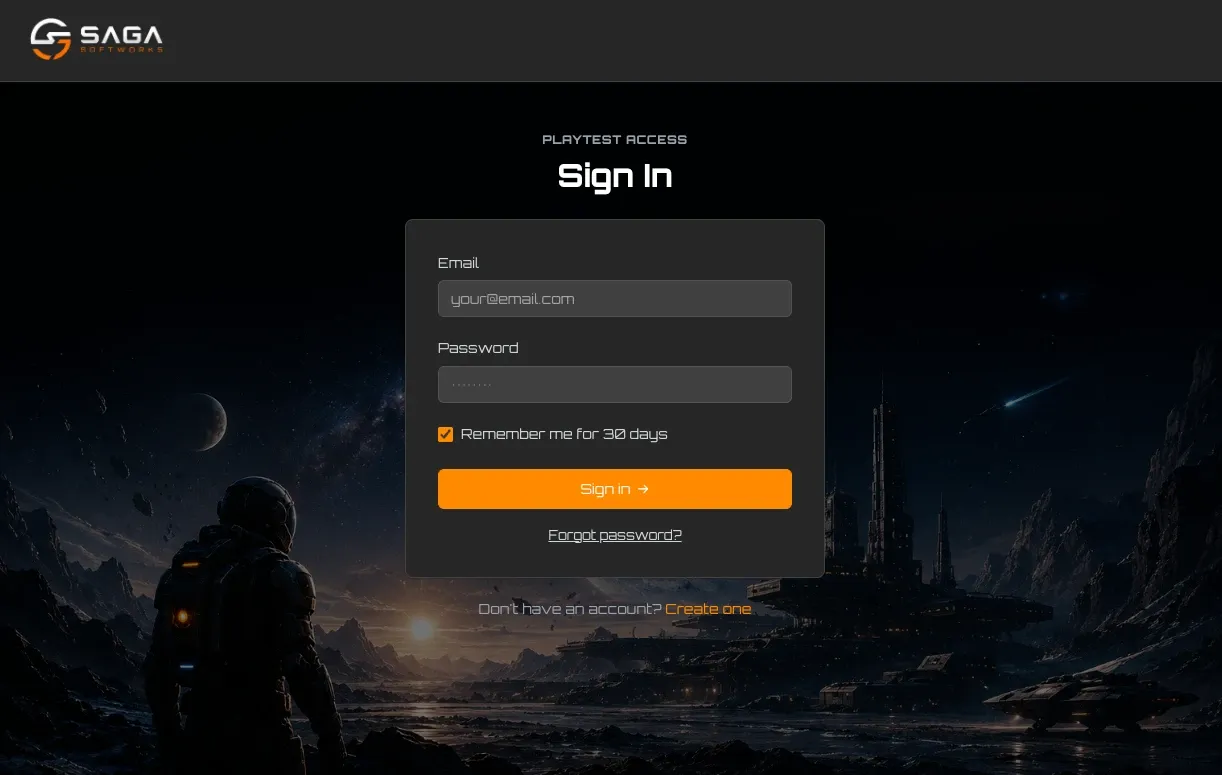
Section titled “Check What Players See”Click Visit Onboarding Page to open the live page. Players move through it in this order:
- Sign in or create an account. Returning players sign in; new ones create a White Label Login account with an email address and password.
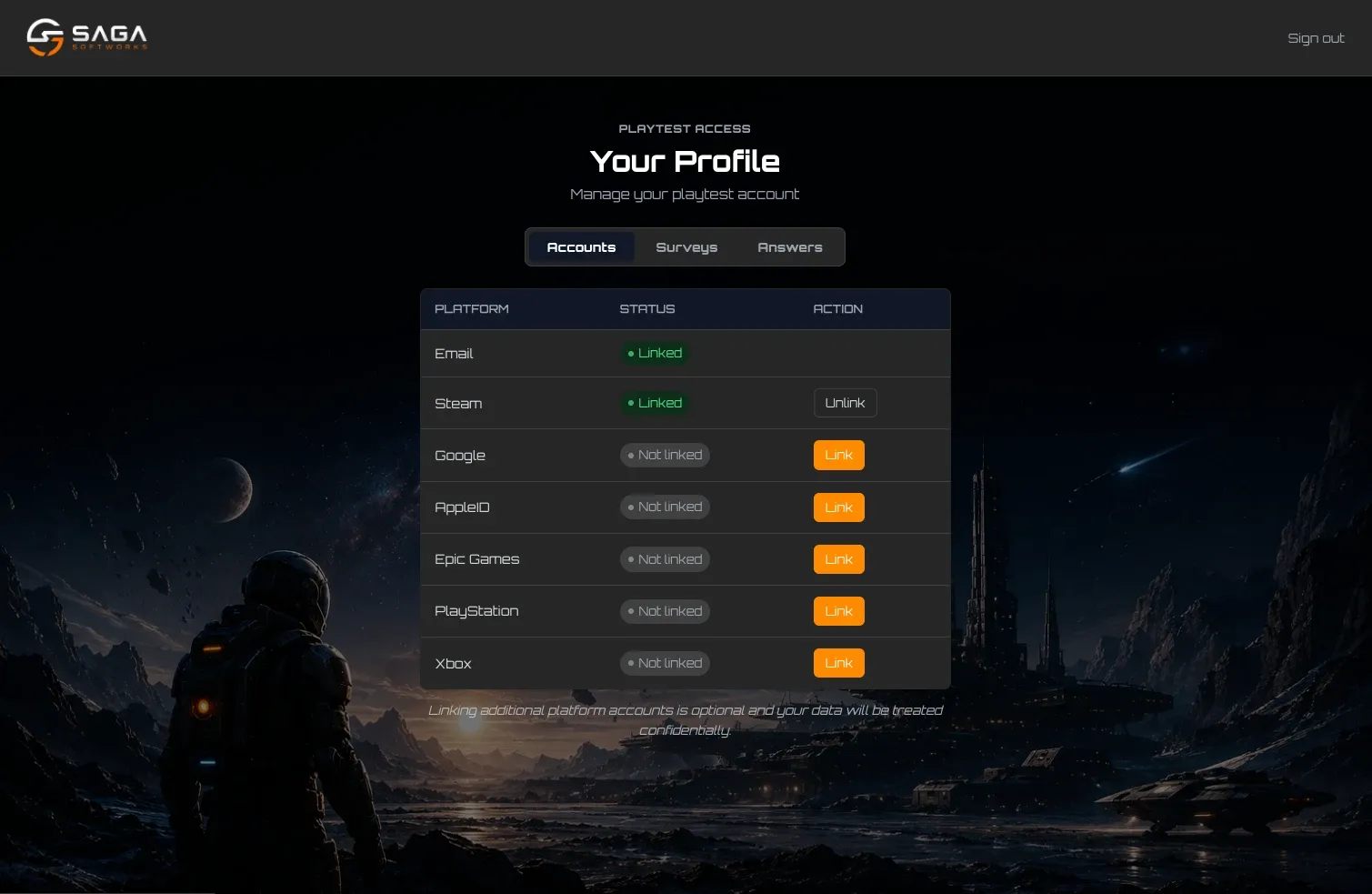
- Link a platform account. Optional by default. Attaching a Survey with a linked-account Player Segment turns this into a required step.
- Acknowledge documents. Each document you attached is shown in turn, and players must scroll to the bottom of one before they can acknowledge it.
- Answer the Survey. If a Survey is attached, its questions are presented here.
- Registration complete. The player is confirmed as registered and can open their profile in the Player Portal, where they manage their linked accounts and review the answers they gave.
Conclusion
Section titled “Conclusion”Your Playtest is live and players can register at its playtest.game address. Style the page to match your game with Brand Your Playtest Onboarding Page, then check who has signed up in View Playtest Responses.