
This how-to applies your Branding Elements to the transactional emails LootLocker sends your players, so each one carries your logo and colors instead of LootLocker's.
The following emails are branded:
- Magic Link: the link sent when a player signs in to their White Label Login account with a magic link.
- Sign Up: the link sent when a new player signs up with a magic link, which they click to confirm their email address and create their account.
- Verify Account: the link a player follows to confirm their email address.
- Password Reset: the link a player follows to choose a new password.
- Reward Granted: the notice a player receives when they are granted a Reward.
- Subscription Created: the confirmation a player receives when they start a subscription.
- Subscription Scheduled: the notice a player receives when they cancel their subscription, giving the date it ends. The player keeps access until then and is not charged again.
- Subscription Cancelled: the notice a player receives when their subscription ends.
Prerequisites
Section titled “Prerequisites”- At least one Branding Element to apply.
- White Label Login configured for your game, including the email service settings.
Open the White Label Email Tab
Section titled “Open the White Label Email Tab”Click Settings in the Web Console sidebar, open Branding, and select the White Label Email tab.
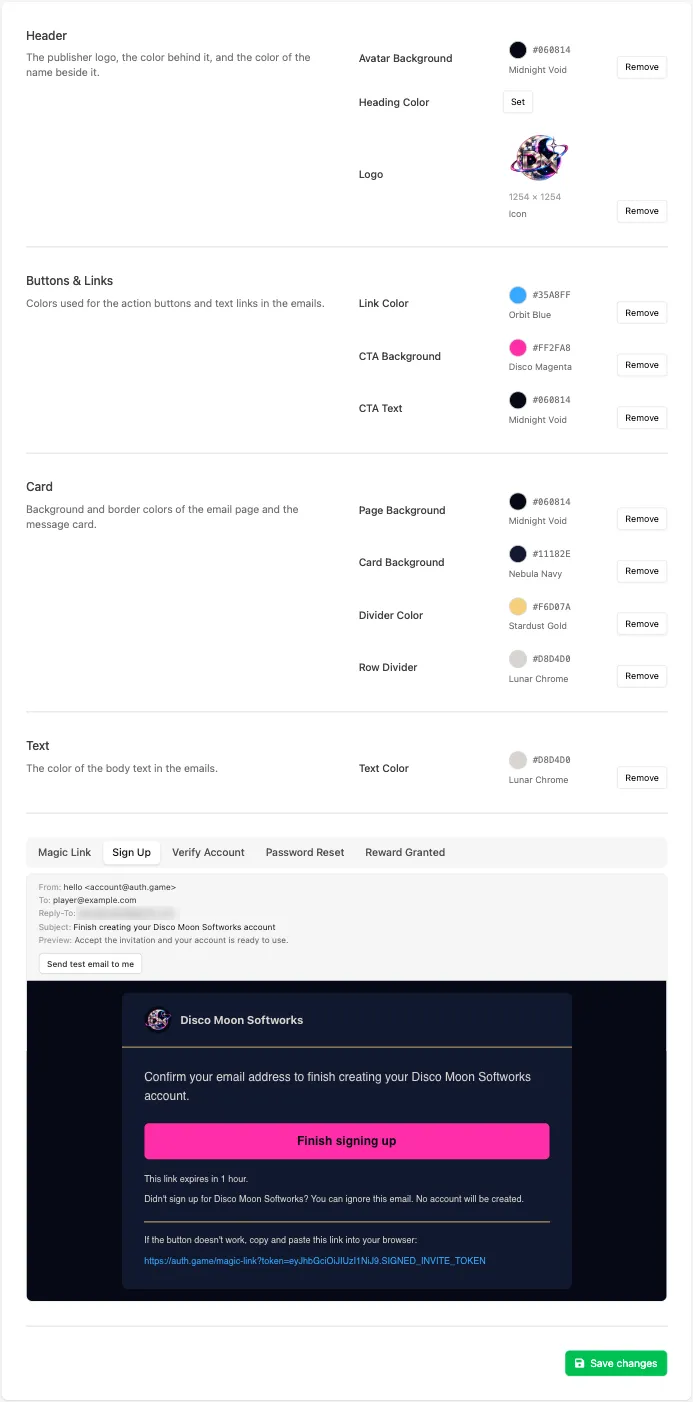
Each slot uses default styling until you click Set and pick an Element. Filled slots show the Element's name and value, with a Remove button to clear it.
Style the Header
Section titled “Style the Header”The header is the strip at the top of every email, holding your logo and the name beside it.
- Avatar Background fills the circle behind the logo.
- Heading Color colors the name beside the logo.
- Logo is the image in that circle.
The name itself is the Game/Company Name from your White Label Login settings.
Style Buttons and Links
Section titled “Style Buttons and Links”- Link Color colors text links, including the fallback link at the bottom of each email.
- CTA Background fills the action button, such as Finish signing up.
- CTA Text colors the label on that button.
Style the Card
Section titled “Style the Card”Each email is a card set on a page background.
- Page Background fills the area around the card.
- Card Background fills the card itself.
- Divider Color colors the lines separating the header and the fallback link from the message.
- Row Divider colors the lines between rows inside the message.
Set the Text Color
Section titled “Set the Text Color”Text Color colors the body text of every email. Pick an Element with enough contrast against Card Background to stay readable.
Check the Preview and Save
Section titled “Check the Preview and Save”The preview at the bottom updates live as you choose. Switch between the email tabs to check each email, since they differ in length and layout.
Only emails your game sends have a tab. Magic Link and Sign Up appear only when Magic Link Mode is enabled, and Verify Account only when Enable Account Verification is on, both in your White Label Login settings.
Above the preview, the sender, recipient, reply-to address, subject and preview text show what a player sees in their inbox. The sender name and reply-to address come from your White Label Login settings.
Click Save changes to apply the branding to every email LootLocker sends from then on.
Send a Test Email
Section titled “Send a Test Email”Click Send test email to me to send the email in the selected preview tab to your own address. You can send one test email per minute. Email clients render colors and images differently from the preview, so check the real email in the clients your players use.
Conclusion
Section titled “Conclusion”Players now receive sign-in, account, reward and subscription emails styled with your branding. Brand the page those emails link to with Brand Your Sign-In Page.