
This how-to schedules a Reward Campaign in the Web Console, optionally limits it to a segment of players and a maximum number of winners, and reviews the players who received the Reward once the campaign has run.
Prerequisites
Section titled “Prerequisites”- A Player that has either started a session at least once, or been created manually in the Player Manager.
- The content you want to reward already configured in your game — see the prerequisites in Add a Reward for what each Reward Type needs.
- To target a specific group of players, a Player Segment created in your game.
Reward Campaigns Menu
Section titled “Reward Campaigns Menu”You'll find Reward Campaigns under Player Operations in the Web Console sidebar. From here, you can schedule new campaigns and review existing ones.
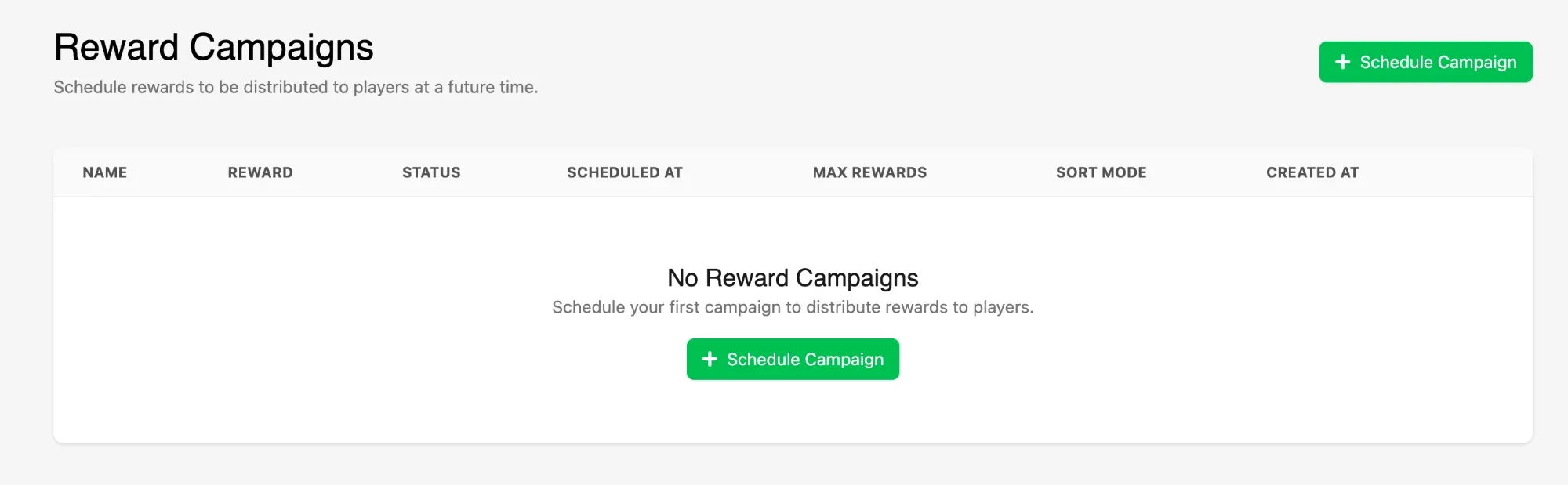
Each campaign in the list shows its name, the Reward it distributes, its status, the scheduled time, the maximum number of rewards, the sort mode, and when it was created.
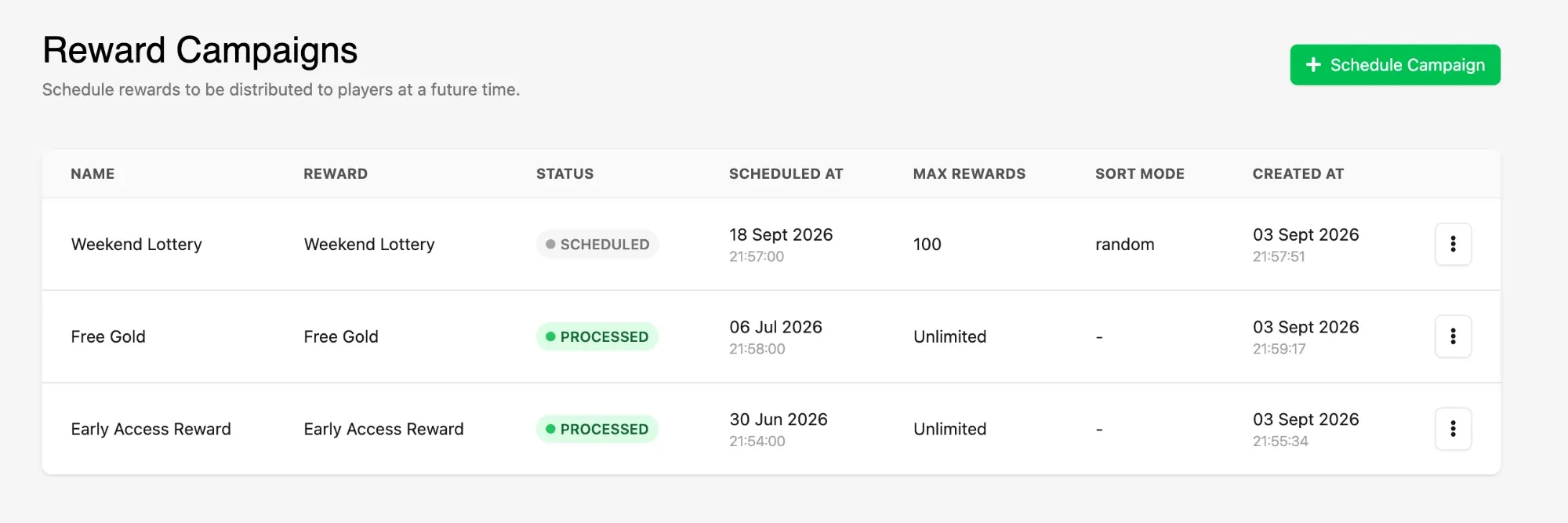
A campaign has one of three statuses:
- Scheduled: the campaign is waiting for its scheduled time.
- Queued: the scheduled time has passed and the campaign is actively distributing its Reward.
- Processed: the campaign has finished distributing its Reward.
Scheduling a Campaign
Section titled “Scheduling a Campaign”Click Schedule Campaign to open the campaign form.
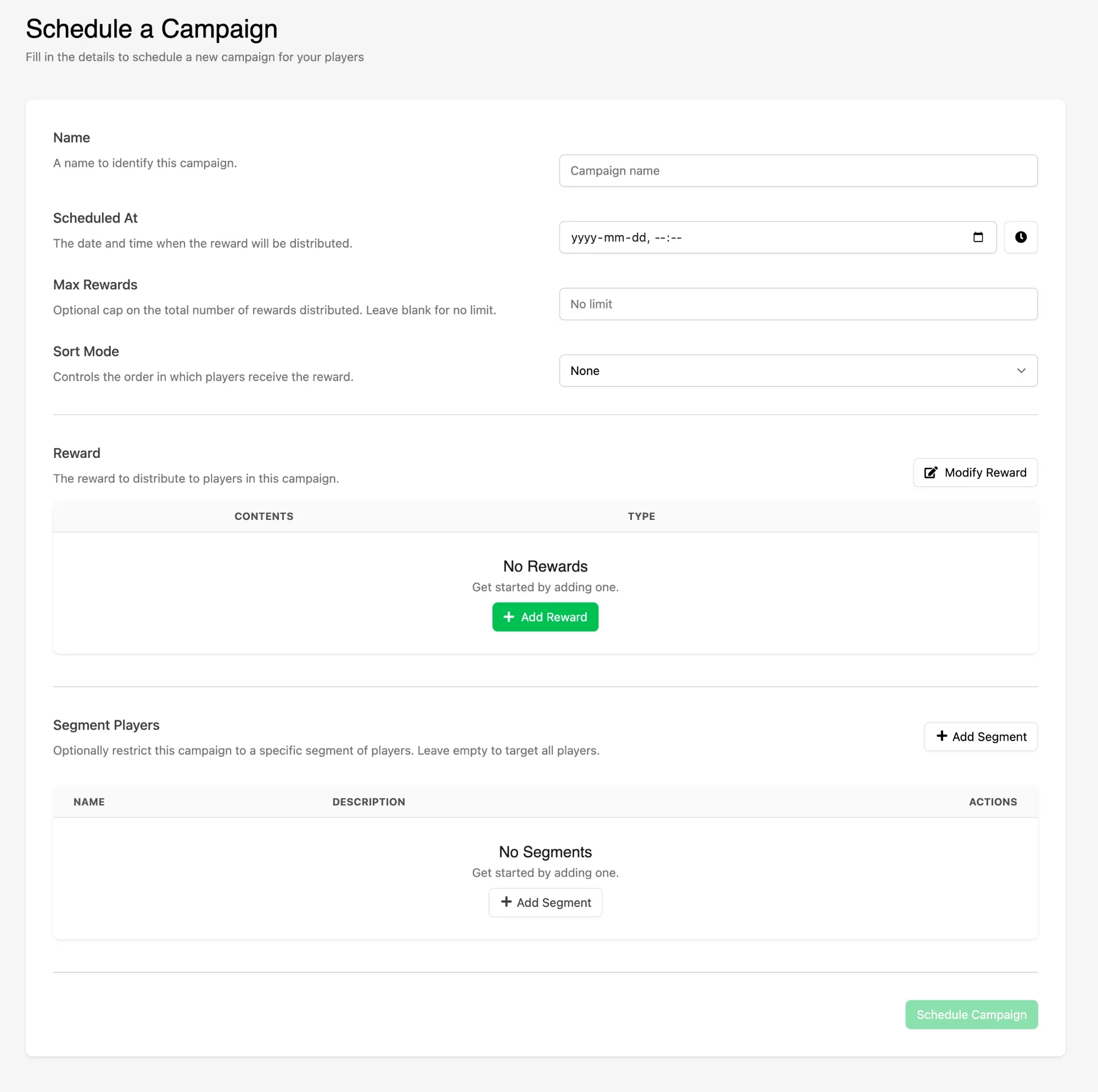
Fill in the campaign details:
- Name (Required): a name to identify the campaign. This is only used within the Web Console.
- Scheduled At (Required): the date and time the Reward is distributed. Use the clock button to set the time.
- Max Rewards: an optional cap on how many players are rewarded. Leave it blank to reward every eligible player.
- Sort Mode:
NoneorRandom. This controls the order in which players are picked, which only changes the outcome when Max Rewards is lower than the number of eligible players — useRandomto pick winners at random, as in a lottery or giveaway.
Adding the Reward
Section titled “Adding the Reward”In the Reward section, click Add Reward to open the Reward modal and select what the campaign distributes. Every Reward Type is available here — see Add a Reward for the full walkthrough of each type.
Once a Reward has been added, the Reward section lists its contents and type. Use Modify Reward to change it, or View to inspect it.
Segmenting Players
Section titled “Segmenting Players”By default a campaign targets every player in your game. To restrict it, click Add Segment in the Segment Players section and select a Player Segment.
A player must match all conditions within a Segment to qualify. If you add several Segments to the same campaign, they're evaluated as an OR condition — a player only needs to qualify for one of them to be eligible for the Reward.
When you're done, click Schedule Campaign to save.
Editing a Scheduled Campaign
Section titled “Editing a Scheduled Campaign”Open a campaign to view its Settings tab, where you can change any of its details and click Save Changes, or remove it entirely with Delete Campaign.
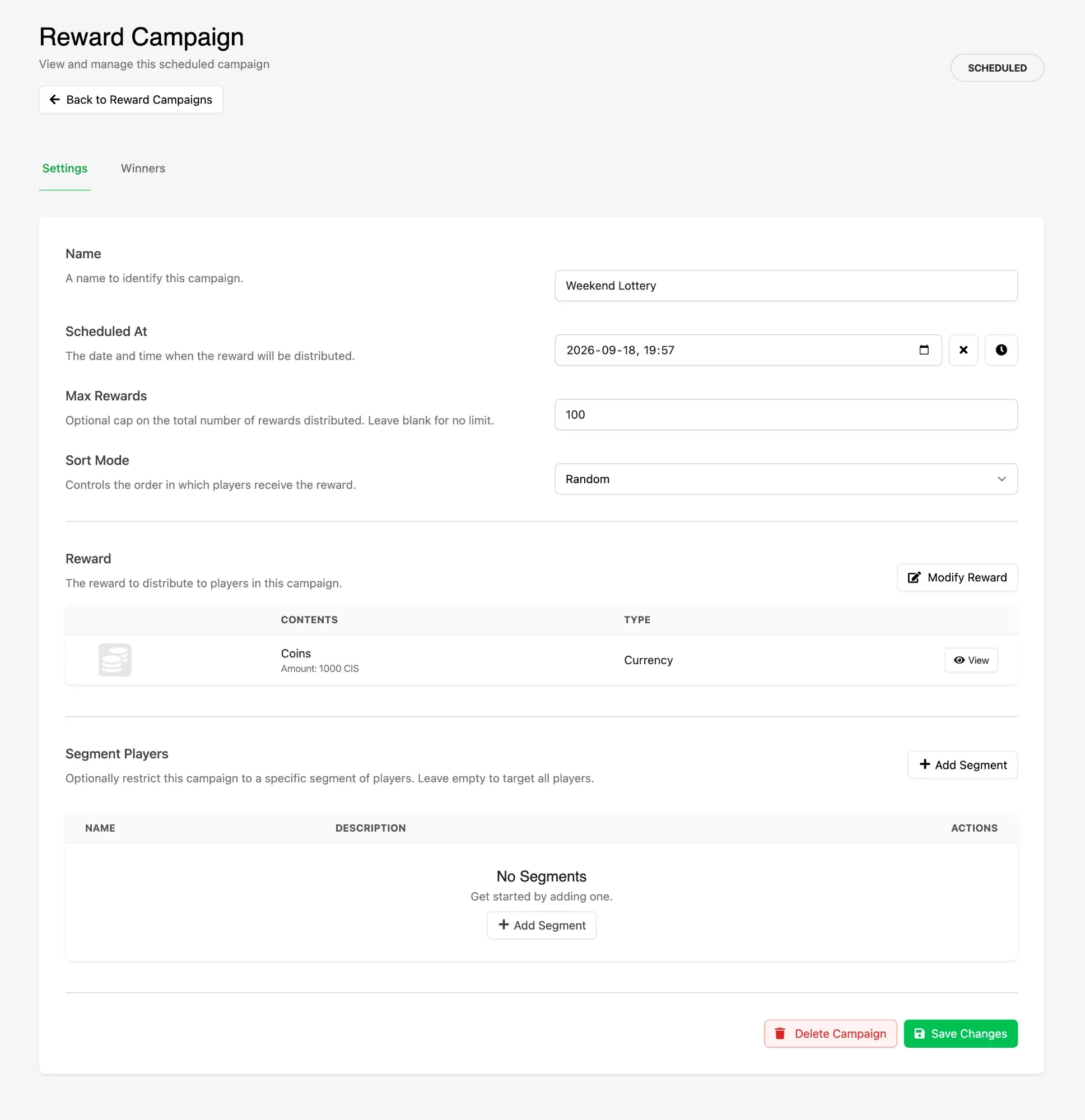
Once a campaign has been processed it becomes read only, and the Settings tab states that the campaign has already been processed and cannot be edited.
Reviewing Winners
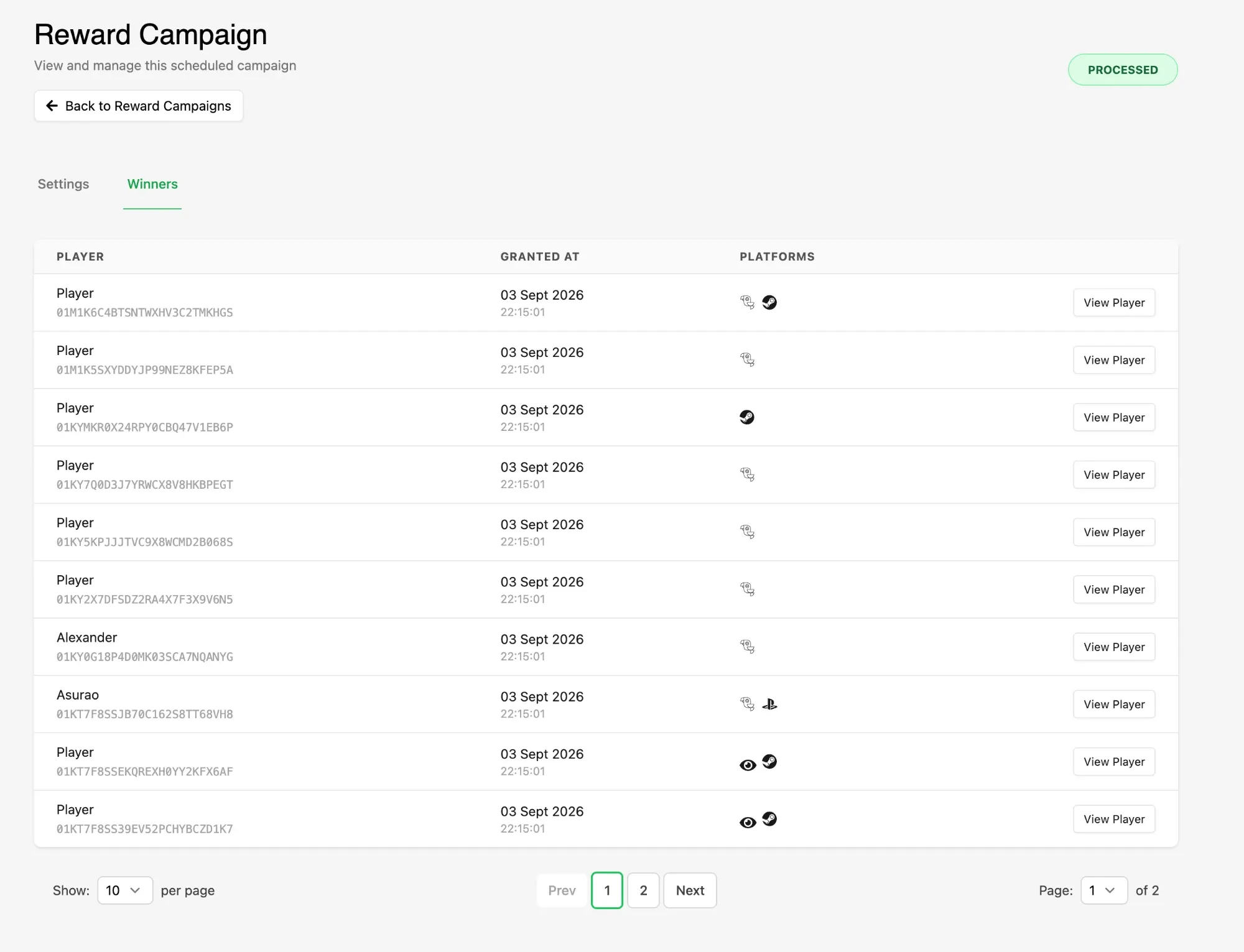
Section titled “Reviewing Winners”The Winners tab lists every player who received the Reward from this campaign, with the time it was granted and the platforms the player has authenticated with. Use the pagination controls at the bottom to page through the list, and View Player to open a player's profile in the Player Manager.
The Reward is granted to each player's profile when the campaign is processed. To let players know in-game that they've received it, use a Notification — see List Notifications and Mark as Read In-Game for handling them in your game.
Conclusion
Section titled “Conclusion”You've scheduled a Reward Campaign, targeted it at the players you want to reach, and reviewed who received the Reward. Next, set your game up to alert players to the Rewards they've received using Notifications.