
This how-to attaches a document, such as an NDA, that players read and acknowledge as part of signing up for a Playtest.
Prerequisites
Section titled “Prerequisites”- A Playtest (see Create a Playtest).
- The document saved as a
.txtor.mdfile.
Open the Document Editor
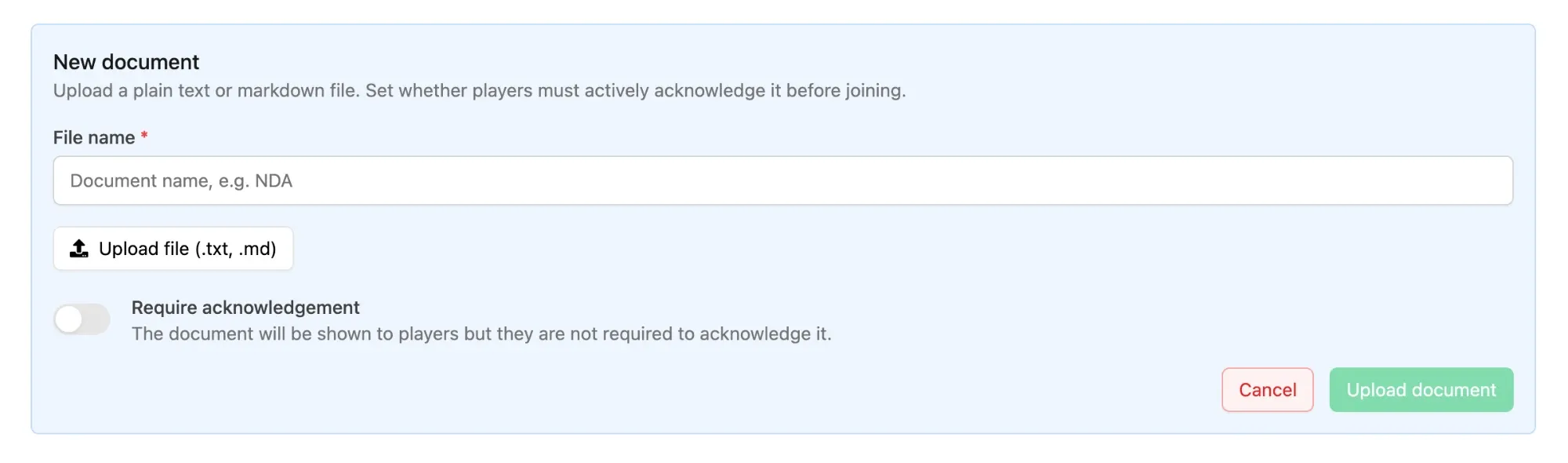
Section titled “Open the Document Editor”Open the Playtest from the Playtests page in the Player Operations section of the Web Console, and on the Settings tab click Add document under Documents to Sign.
Upload the File
Section titled “Upload the File”Enter a File name — this is the heading players see above the document — then click Upload file (.txt, .md) and select your file. The contents are rendered as markdown on the onboarding page, so headings, lists, and emphasis in a .md file carry through.
Decide Whether Acknowledgement Is Required
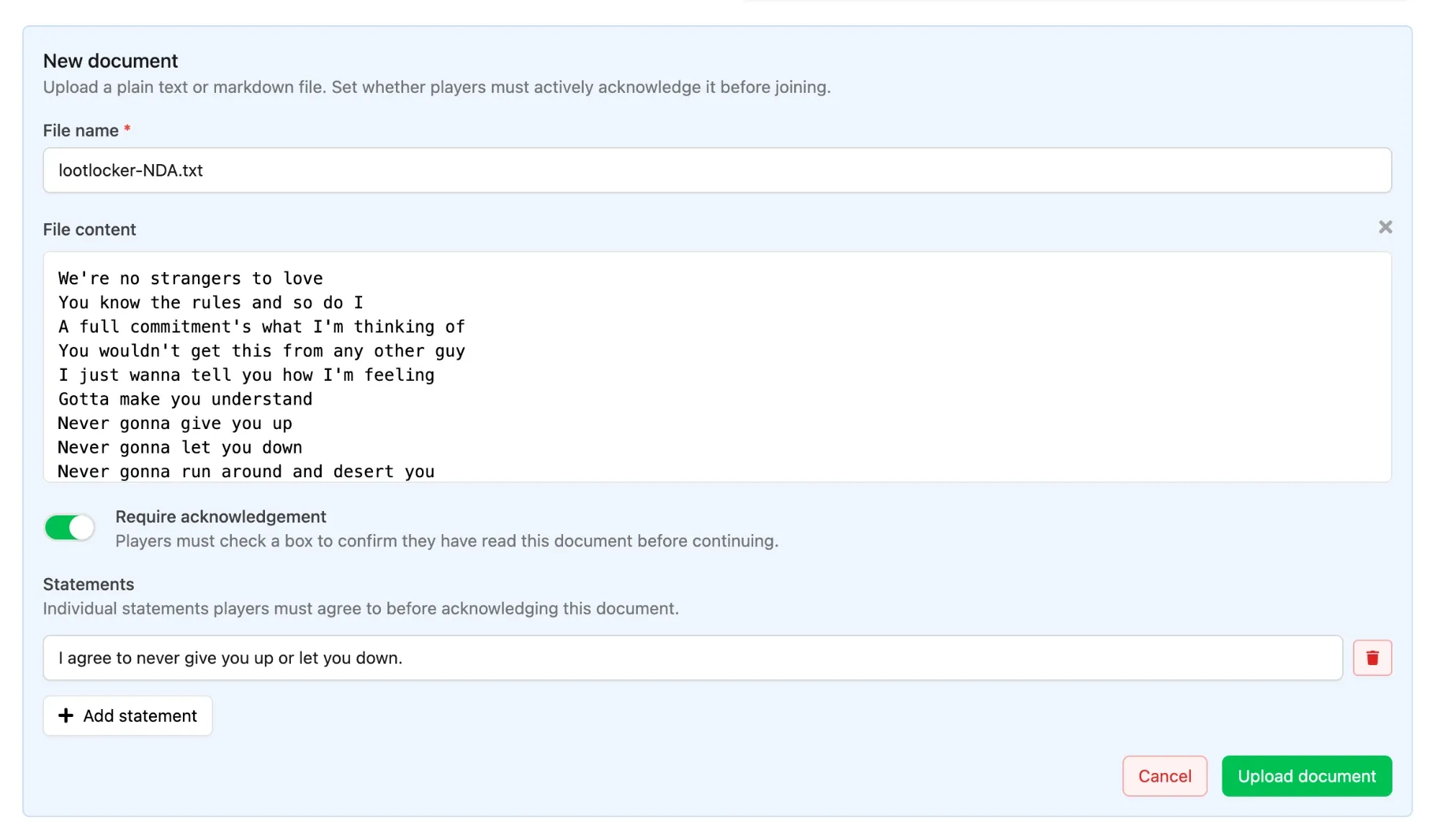
Section titled “Decide Whether Acknowledgement Is Required”Turn Require acknowledgement on and players must tick a box confirming they have read the document before they can continue. Leave it off and the document is shown but nothing is required of the player.
Add Acknowledgement Statements
Section titled “Add Acknowledgement Statements”Statements are additional points a player agrees to, on top of confirming they have read the document itself. An NDA might be paired with statements covering the specific things you care about, such as not sharing video footage of the playtest online, or not discussing the build outside your test channel.
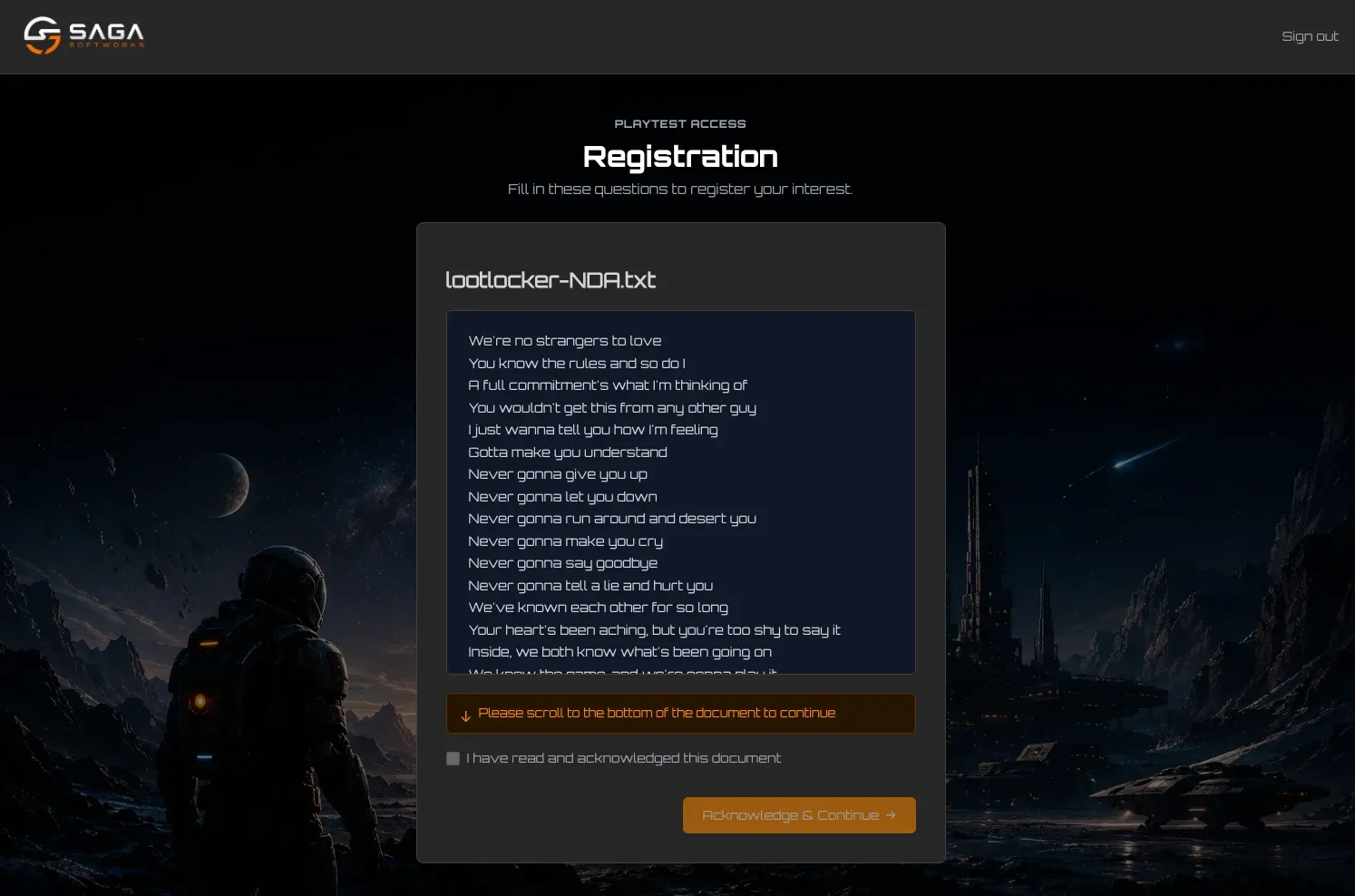
Click Add statement for each one and write it as something the player is confirming. Each statement gets its own checkbox on the onboarding page, so every one of them has to be ticked before the player can continue.
Save the Document
Section titled “Save the Document”Click Upload document. The document appears in the Documents to Sign table with its name and whether it is required, and can be edited or removed from there.
On the onboarding page, players must scroll to the bottom of the document before the acknowledgement checkbox becomes available.
Conclusion
Section titled “Conclusion”Players now acknowledge your document before they can complete registration, and each acknowledgement is recorded against their profile along with the time it was given. Add as many documents as you need — each one is presented in turn during onboarding.