
This how-to reviews who has signed up for a Playtest and what they answered, so you can decide who to grant access to.
Prerequisites
Section titled “Prerequisites”- A Playtest with at least one registered player.
Open the Responses Tab
Section titled “Open the Responses Tab”Open the Playtest from the Playtests page in the Player Operations section of the Web Console and select the Responses tab.
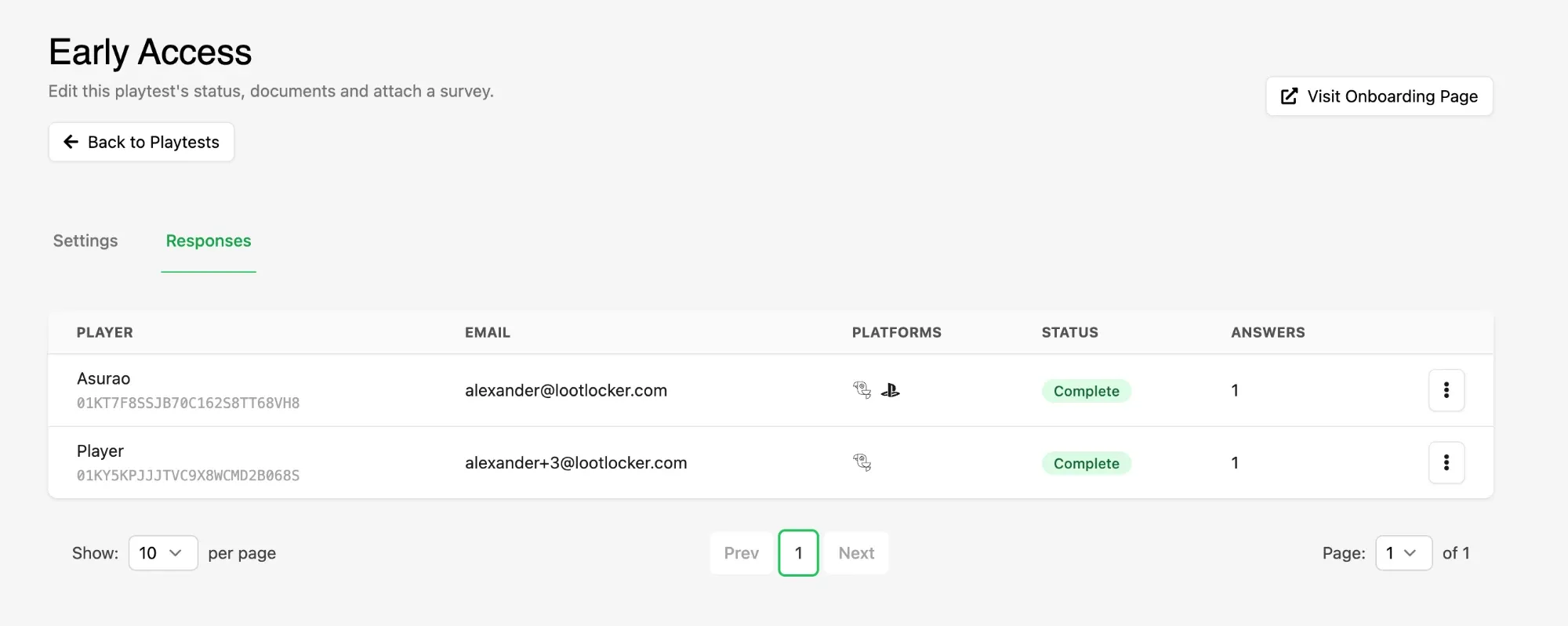
Each row is one player who started registration:
- Player is their display name and Player ID.
- Email is the address they registered their White Label Login account with.
- Platforms shows icons for the platform accounts they have linked.
- Status is
Completefor players who finished onboarding, andIncompletefor those who started but dropped out partway. - Answers counts the Survey questions they answered.
Use the Show dropdown to change how many rows appear per page.
Read a Player's Answers
Section titled “Read a Player's Answers”Open the row's menu and choose View Answers to see what that player submitted, or View Player to open their full profile in the Player Manager.
Find the Answers in Metadata
Section titled “Find the Answers in Metadata”Survey answers are stored as Metadata on the player's profile, under the keys set on each question. Open the player in the Player Manager and select the Metadata tab to see them alongside everything else stored about that player, including the record of which documents they acknowledged and when.
Conclusion
Section titled “Conclusion”You can see who registered, how far they got, and what they told you. When the round is over, turn the Playtest's Active toggle off on the Settings tab to stop new sign-ups without affecting the players who already registered.