
This how-to attaches a Survey to a Playtest, so its questions are asked while players register.
Prerequisites
Section titled “Prerequisites”- A Playtest (see Create a Playtest).
- A Survey with at least one question (see Create a Survey).
Select the Survey
Section titled “Select the Survey”Open the Playtest from the Playtests page in the Player Operations section of the Web Console, and on the Settings tab pick your Survey from the Survey dropdown. Click Save changes.
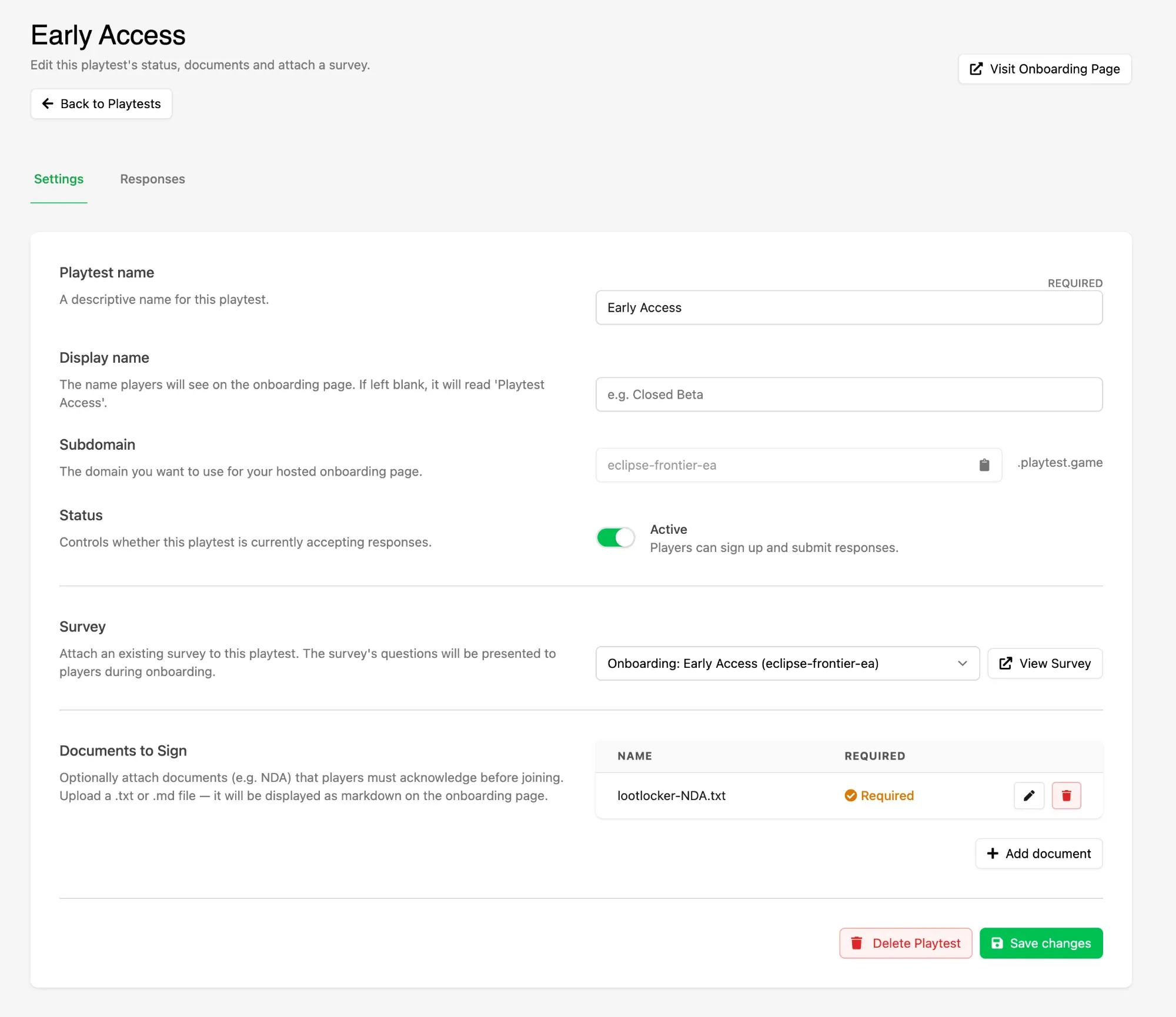
A Playtest takes one Survey, but the same Survey can be attached to several Playtests — useful when you run separate tests and want the answers to line up. Once selected, View Survey opens it so you can change its questions without leaving the Playtest.
Check What Players Will Be Asked
Section titled “Check What Players Will Be Asked”The Survey's questions are presented as a single step during onboarding, after any documents have been acknowledged. Questions marked as required must be answered before the player can continue.
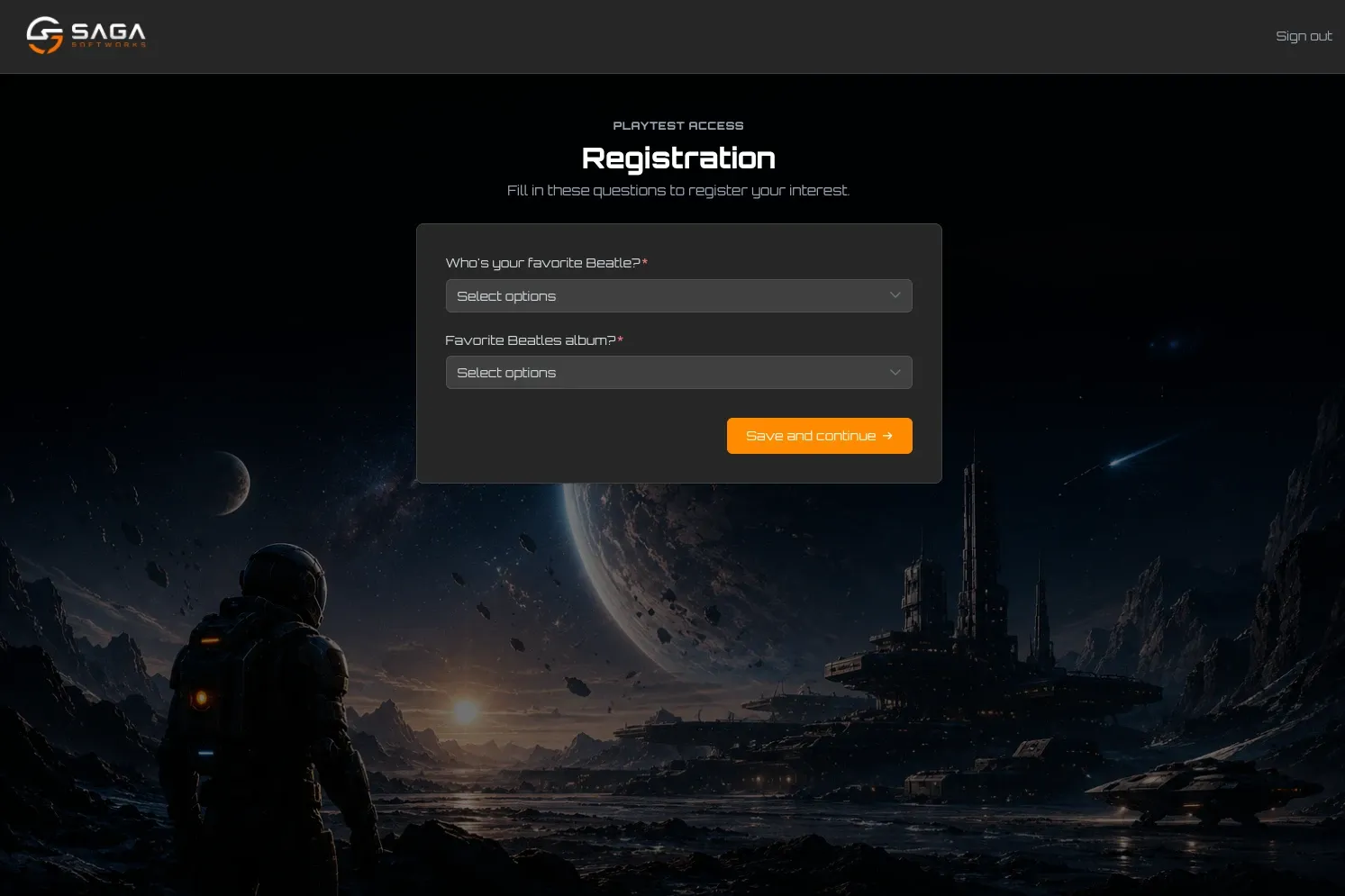
Use Visit Onboarding Page in the Playtest header to see the questions rendered as a player sees them.
Require an Account to Be Linked
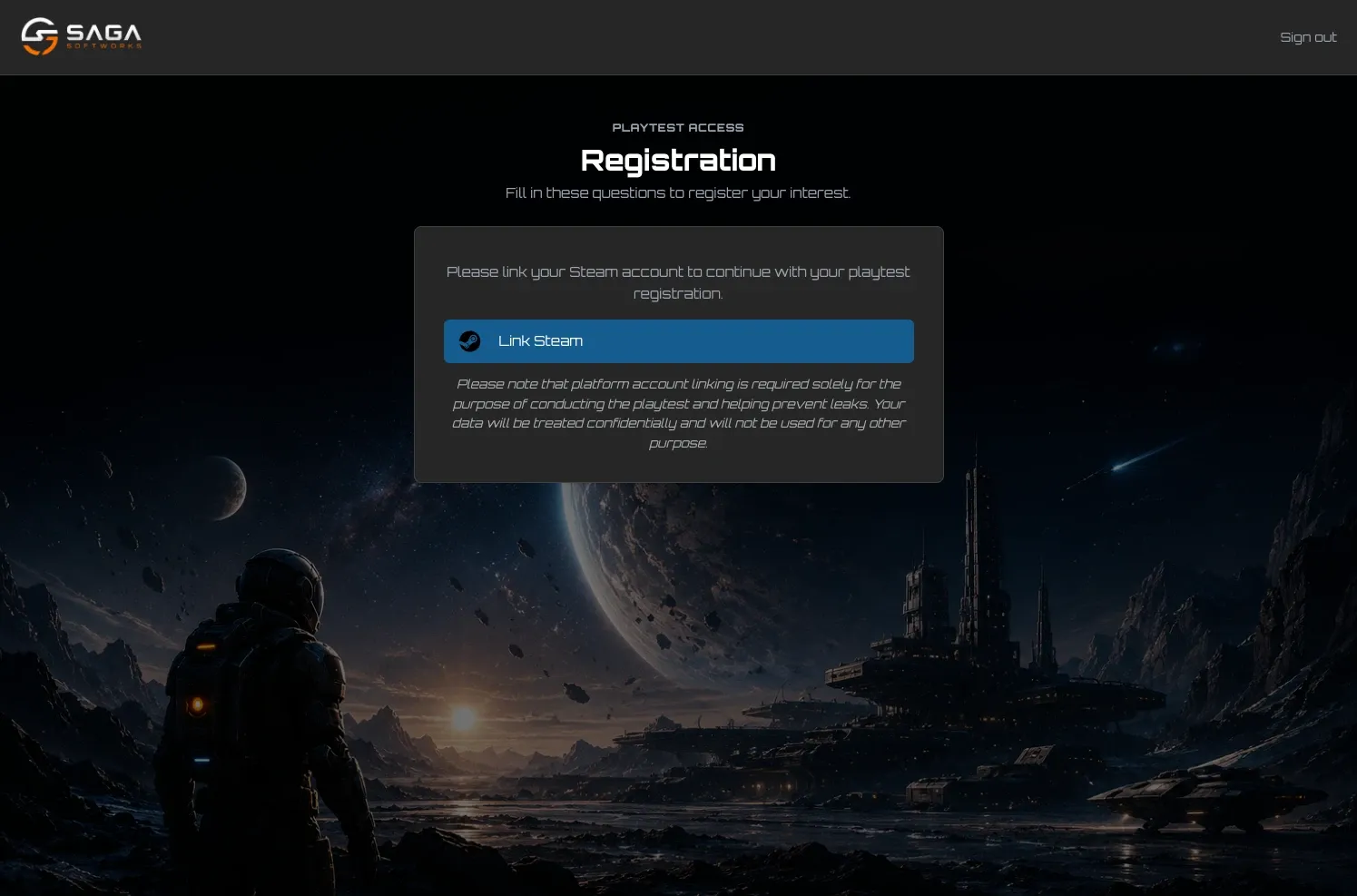
Section titled “Require an Account to Be Linked”Linking a platform account is optional during onboarding unless you ask for it. To require it, add a Player Segment with a Have Linked condition to the Survey — see Target a Survey with Segments. Players who have not linked that platform are asked to do so before they can answer the questions.
Conclusion
Section titled “Conclusion”Your Playtest now collects answers as part of sign-up, stored as Metadata on each player's profile. Review what players told you in View Playtest Responses.