
This how-to adds a question to a Survey and sets where its answer is stored on the player's profile.
Prerequisites
Section titled “Prerequisites”- A Survey (see Create a Survey).
Open the Question Editor
Section titled “Open the Question Editor”Open the Survey from the Surveys page in the Player Operations section of the Web Console and click Add question under Survey questions.
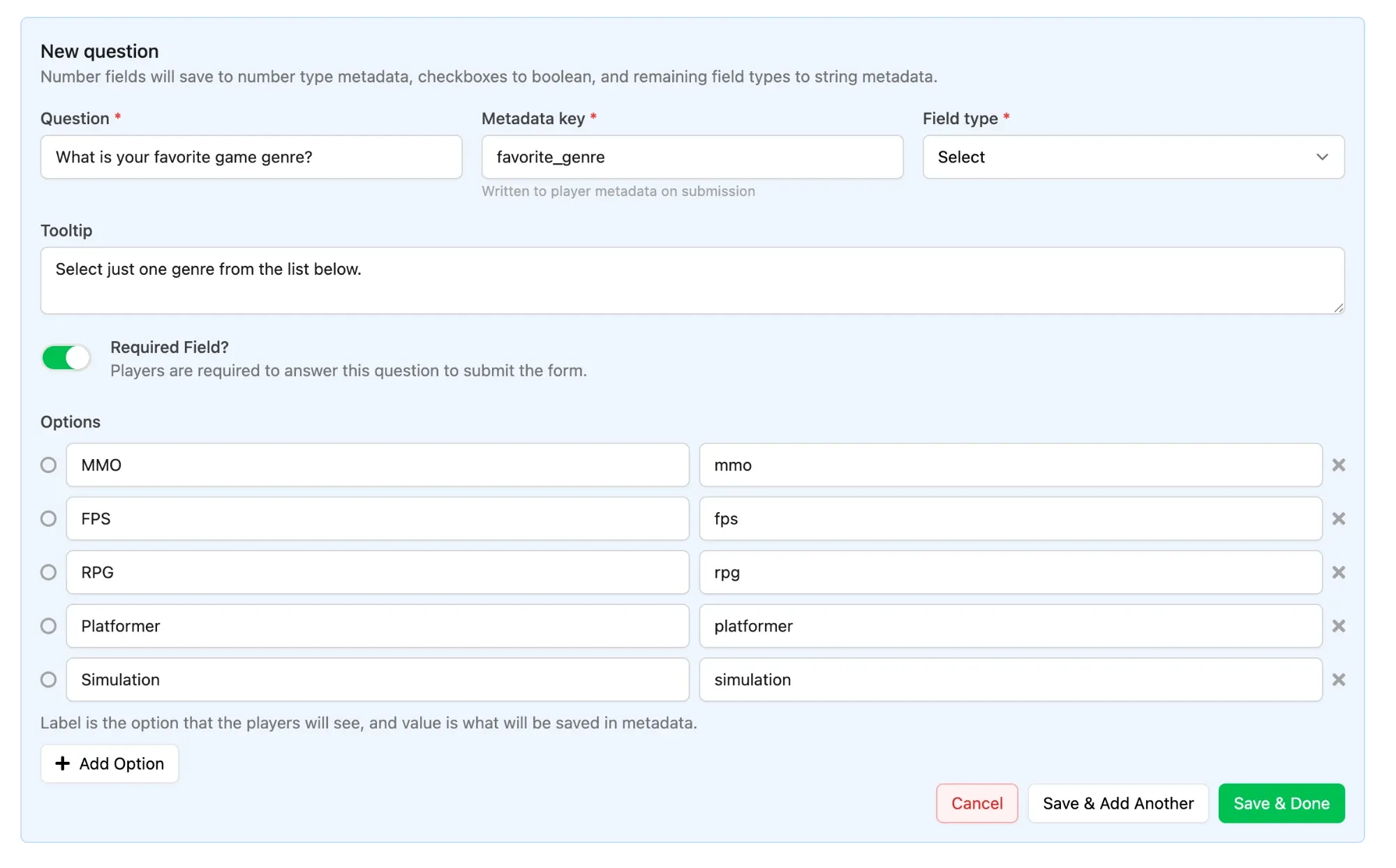
Write the Question and Choose a Key
Section titled “Write the Question and Choose a Key”Fill in the two required fields:
- Question is the wording players see.
- Metadata key is where the answer is written on the player's profile when they submit the Survey. Use a key that describes the answer rather than the question —
favorite_genrerather thanquestion_1— since this is what you will match on later in Player Segments and CRM Platforms.
Pick the Field Type
Section titled “Pick the Field Type”Field type decides how players answer and how the answer is stored:
- Short Text: a single-line text field, stored as string Metadata.
- Long Text: a multi-line text field, stored as string Metadata.
- Number: a numeric field, stored as number Metadata.
- Date: a date field, stored as string Metadata.
- Checkbox: a single box to tick, stored as boolean Metadata.
- Select: a dropdown where players pick one option, stored as string Metadata.
- Multi-select: a dropdown where players pick several options, stored as a JSON array of the selected values.
Pick the type that matches how you want to filter on the answer later. A number stored as a number can be compared with Have Number Metadata in a Segment; the same value stored as text can only be matched exactly.
Add a Tooltip and Set Whether It Is Required
Section titled “Add a Tooltip and Set Whether It Is Required”Tooltip is optional helper text shown with the question — use it to explain how to answer, such as whether more than one option can be picked.
Turn Required Field? on and players must answer before they can submit.
Define the Options
Section titled “Define the Options”Select and Multi-select questions need options. Each one is a pair:
- The left field is the label, which players see.
- The right field is the value, which is written to Metadata.
Click Add Option for each additional option, and the cross beside a row to remove it. Keep values short and lowercase — mmo rather than MMO games I enjoy — so they are easy to match on in a Segment.
Save the Question
Section titled “Save the Question”Click Save & Add Another to write another question, or Save & Done to return to the Survey. Questions appear in the Survey questions table with their type and whether they are required, and can be reordered by dragging the handle on the left, edited with the pencil, or removed with the bin.
Conclusion
Section titled “Conclusion”Your Survey asks the question, and each answer lands on the player's profile under the key you chose. Decide who gets asked in Target a Survey with Segments.