
This how-to creates a Survey and decides whether players reach it on its own or through a Playtest.
Prerequisites
Section titled “Prerequisites”- White Label Login configured and enabled for your game. Players need a White Label Login account to reach a Survey, whether they find it in the Player Portal or answer it while signing up for a Playtest.
Open the Surveys Page
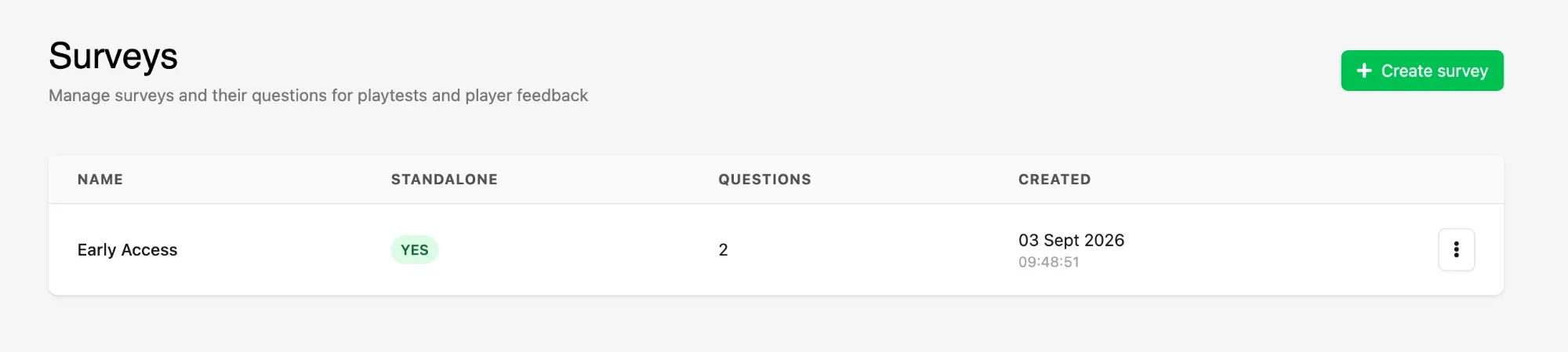
Section titled “Open the Surveys Page”Click Surveys in the Player Operations section of the Web Console sidebar, then click Create survey.
Name the Survey
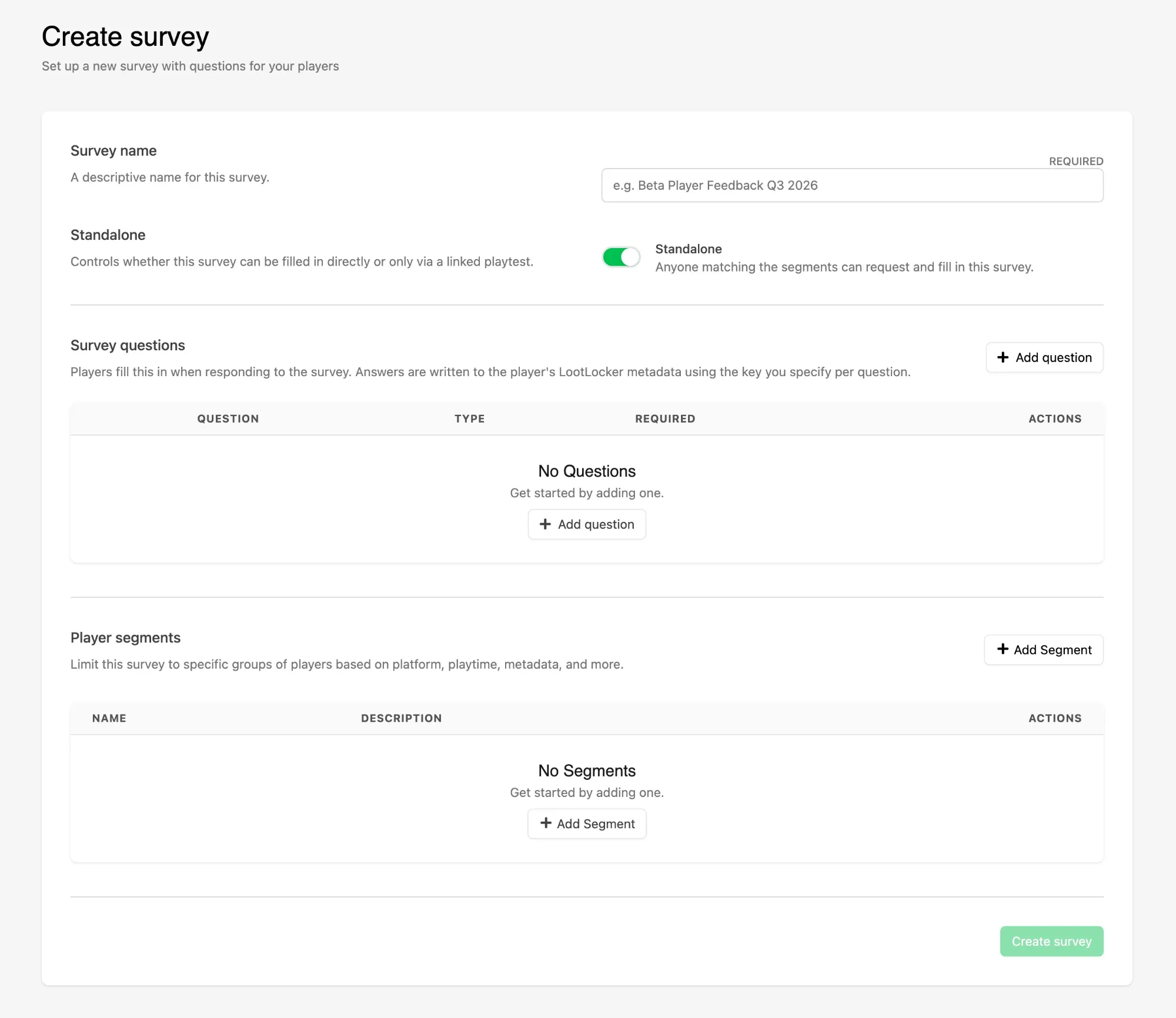
Section titled “Name the Survey”Enter a Survey name. It identifies the Survey in the Web Console and in the dropdown you pick from when attaching one to a Playtest, so name it after what it asks or the round it belongs to.
Set Standalone
Section titled “Set Standalone”Standalone decides how players reach the Survey, and is the main decision to make here:
- Leave it on and the Survey stands on its own. Players who match its Segments find it in the Player Portal and can fill it in whenever they like, which suits ongoing feedback and follow-up questions.
- Turn it off and the Survey is only reachable through a Playtest it is attached to, asked as one step of signing up.
A standalone Survey can still be attached to a Playtest. Turning Standalone off simply stops it appearing anywhere else.
Add Questions and Segments
Section titled “Add Questions and Segments”Both sections can be filled in now or after the Survey exists:
- Survey questions are what players are asked, and where each answer is stored. See Add Survey Questions.
- Player segments limit who is asked. See Target a Survey with Segments.
Save the Survey
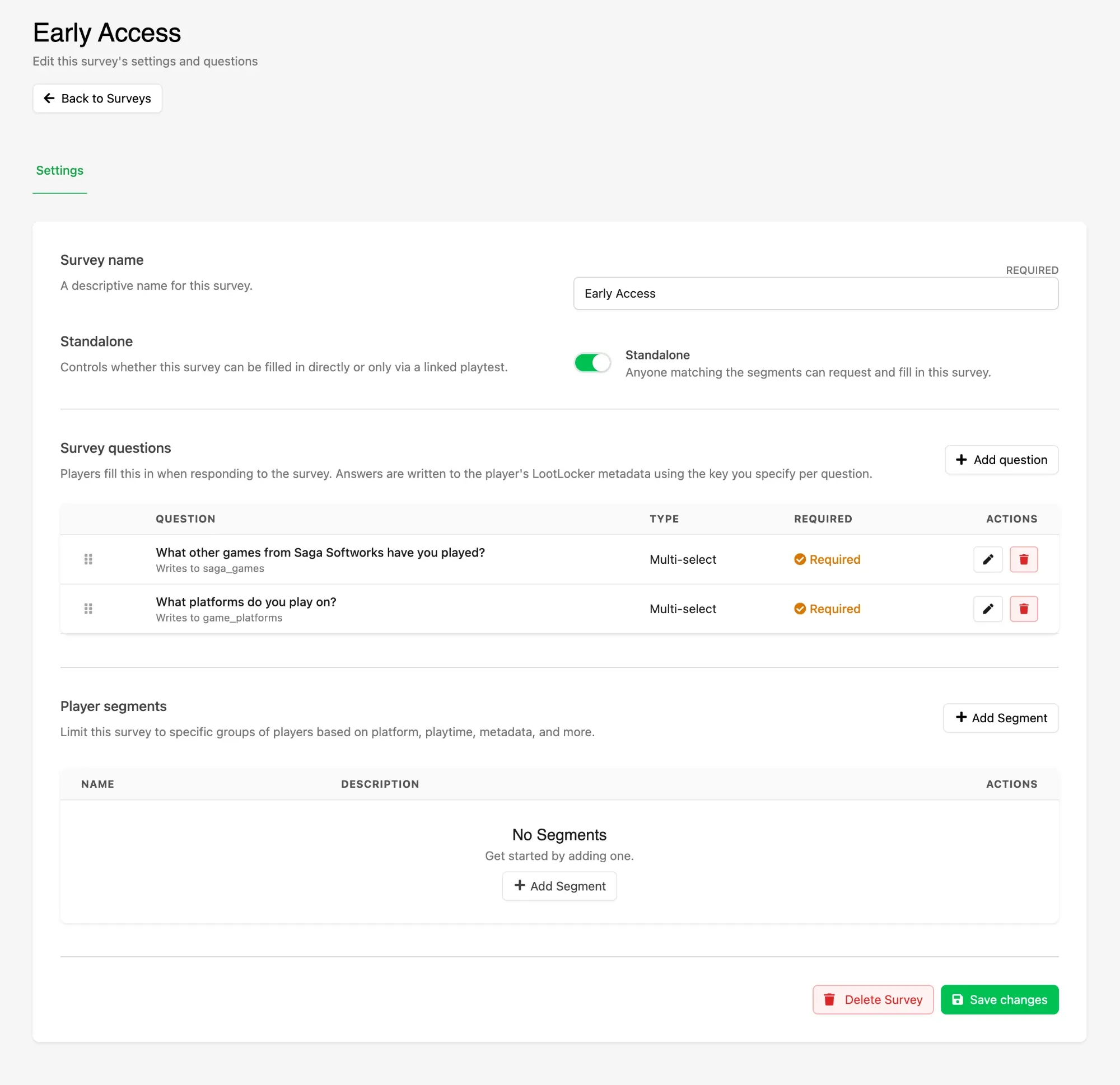
Section titled “Save the Survey”Click Create survey. The Survey opens on its Settings tab, where questions can be reordered by dragging their handles, and Delete Survey removes it.
Conclusion
Section titled “Conclusion”Your Survey exists and is ready for questions. Add them in Add Survey Questions, then attach the Survey to a Playtest with Attach a Survey to a Playtest.