
Game Settings holds your game's identifiers, name, and status, controls which players can start a session, and adds fields to the White Label signup form. Select Settings in the Web Console side bar, then Game Settings. The page has three tabs: General, Limit Access, and Custom Signup Fields.
General
Section titled “General”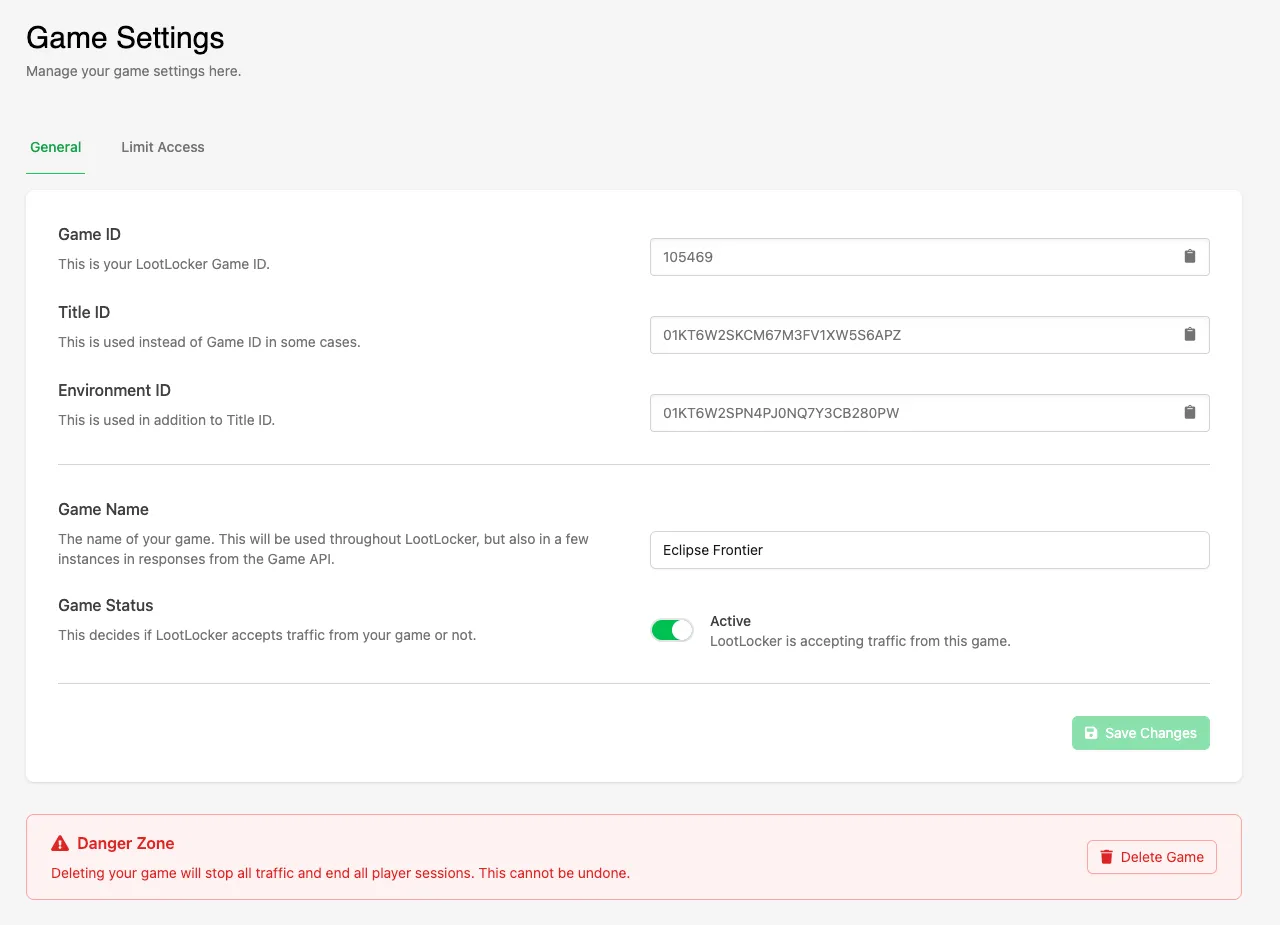
Game ID, Title ID, and Environment ID
Section titled “Game ID, Title ID, and Environment ID”The identifiers for your game. Some APIs and SDK settings use the Title ID and Environment ID instead of the Game ID. Click the copy icon next to a field to copy its value.
Game Name
Section titled “Game Name”The name of your game. This is used throughout LootLocker and in a few responses from the Game API.
Game Status
Section titled “Game Status”Decides whether LootLocker accepts traffic from your game. Switch it off and no players can authenticate with your game.
Danger Zone
Section titled “Danger Zone”Click Delete Game to delete your game. Deleting a game stops all traffic and ends all player sessions, and can't be undone.
Limit Access
Section titled “Limit Access”Limit Access restricts which players can start a session in your game. When it's enabled, only players who match at least one of the Player Segments you add can start a session, for example players on a specific platform or players with an Entitlement for a subscription.
Enable Limit Access
Section titled “Enable Limit Access”Open the Limit Access tab and click the Limit Access switch.

Enabling Limit Access clears every existing game session, so all players need to authenticate again. Click Enable to confirm.
Add Player Segments
Section titled “Add Player Segments”Click Add Segment and configure the conditions a player must match to start a session. To learn more about configuring Segments, see Create a Segment.

A player must match all conditions within a single Segment. If you add multiple Segments, a player only needs to match one of them to start a session.
Click Save Segments to apply your changes.
Handle Denied Players
Section titled “Handle Denied Players”A player who doesn't match any Segment gets an error when they try to start a session. Handle this error in your game, for example by telling the player they don't have access.
Disable Limit Access
Section titled “Disable Limit Access”Click the Limit Access switch again to let every player start a session. Disabling Limit Access doesn't affect active sessions.
Custom Signup Fields
Section titled “Custom Signup Fields”Custom Signup Fields are additional fields shown on the White Label Login signup form, such as extra questions or an agreement to your Terms of Use and Privacy Policy. Each answer is saved as Metadata on the player's profile.
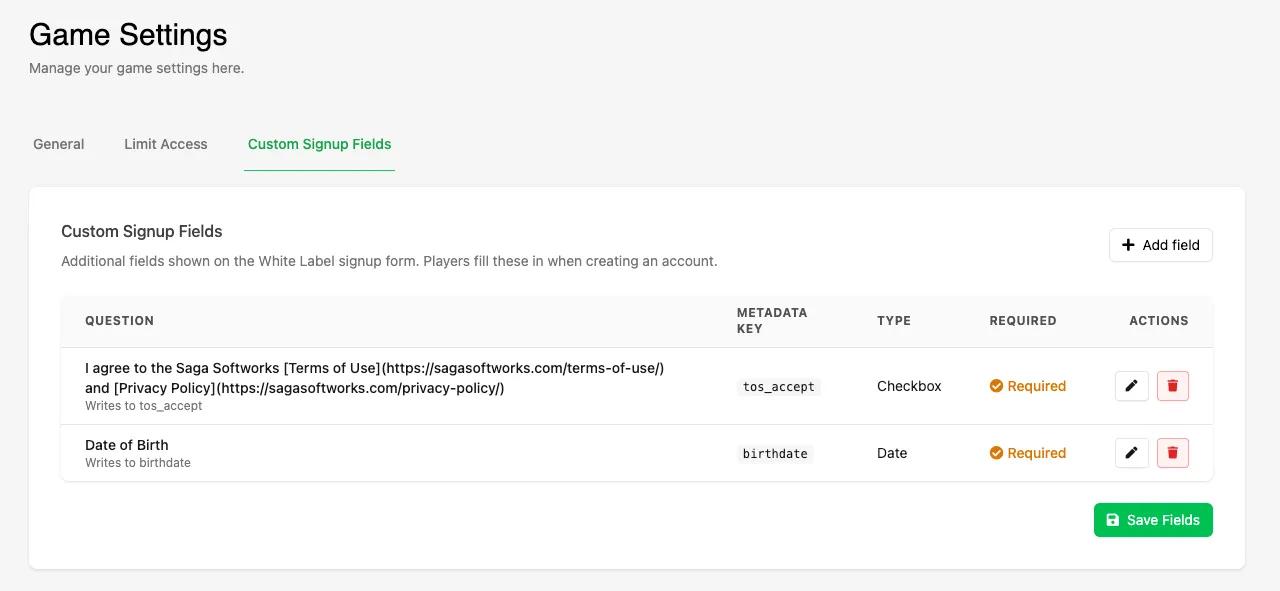
Add a Field
Section titled “Add a Field”Open the Custom Signup Fields tab and click Add field. Fields are set up the same way as Survey questions:
- Question: the wording players see. Supports Markdown, so you can link to pages such as your Privacy Policy with
[Privacy Policy](https://example.com/privacy-policy). - Metadata key: where the answer is written on the player's profile.
- Field type: how players answer.
- Required: players must fill in the field before they can create an account.
- Sensitive: marks the answer as personal information. Sensitive answers aren't shown in the Web Console unless requested.
Click Save Fields to apply your changes.
Field Types
Section titled “Field Types”- Text: a text field, stored as string Metadata.
- Number: a numeric field, stored as number Metadata.
- Checkbox: a single box to tick, stored as boolean Metadata.
- Select (Dropdown): a dropdown where players pick one option, stored as string Metadata.
- Date: a date field, stored as string Metadata.
- JSON: a JSON value, stored as JSON Metadata.
- Static Text (Display Only): text shown on the form with nothing for players to fill in. Nothing is saved to the player's profile.