
This how-to creates a reusable Segment Template, and reviews and exports the players who match it. Once a template exists, you can import it anywhere a Segment is used.
Prerequisites
Section titled “Prerequisites”- A Player that has either started a session at least once, or been created manually in the Player Manager.
Creating a Segment Template
Section titled “Creating a Segment Template”In the Web Console, open the Players menu in the left sidebar and select Segment Templates. The list shows every template in your organization, along with its description and the latest estimate of how many players match it.
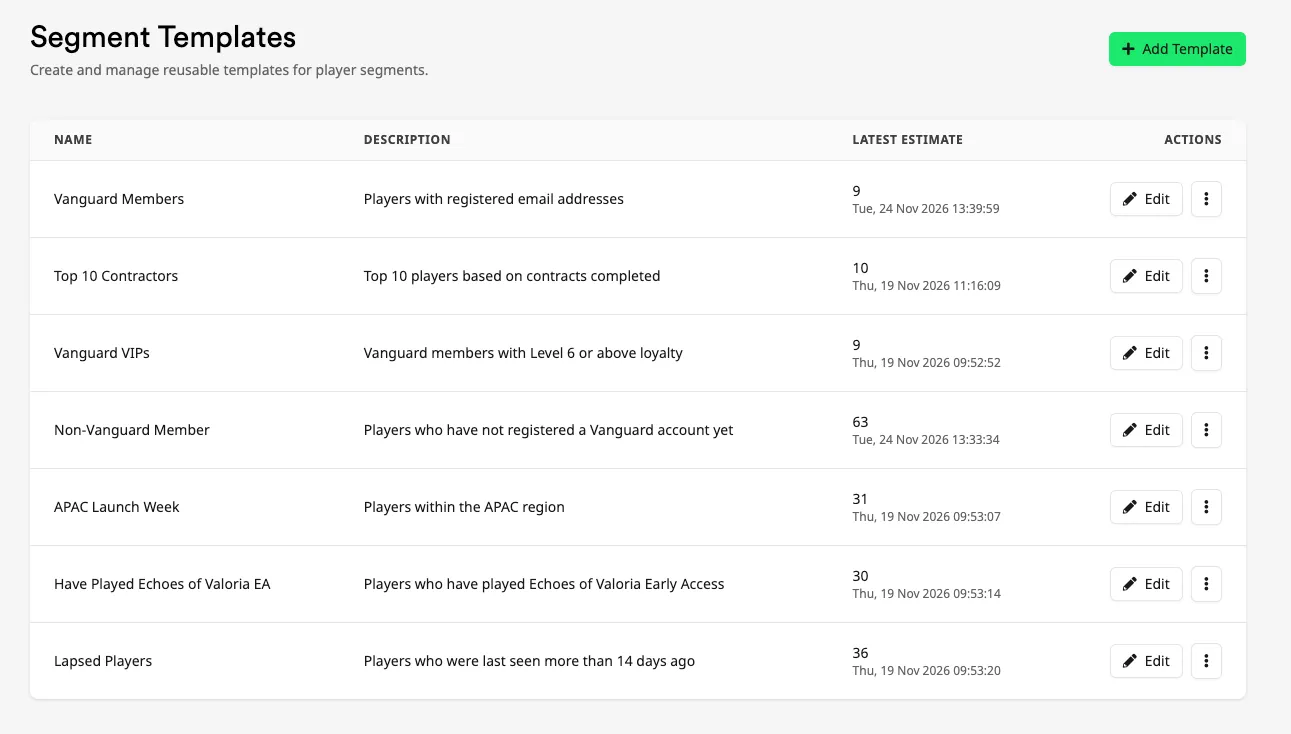
Click Add Template to create a new template.
Template Name
Section titled “Template Name”Enter a Template Name to identify the template, and optionally a Description explaining what it's for. The name and description are shown when you pick a template to import into a feature.
Segment Conditions
Section titled “Segment Conditions”Under Segment Conditions, click Add condition, then set:
- Attribute: the player data to evaluate, such as have linked or were last seen.
- Operator: how to compare the data, such as one of.
- Parameters: the values to match against.
Templates use the same conditions as a Segment created inside a feature. For what each condition targets, see the condition list in Create a Segment.
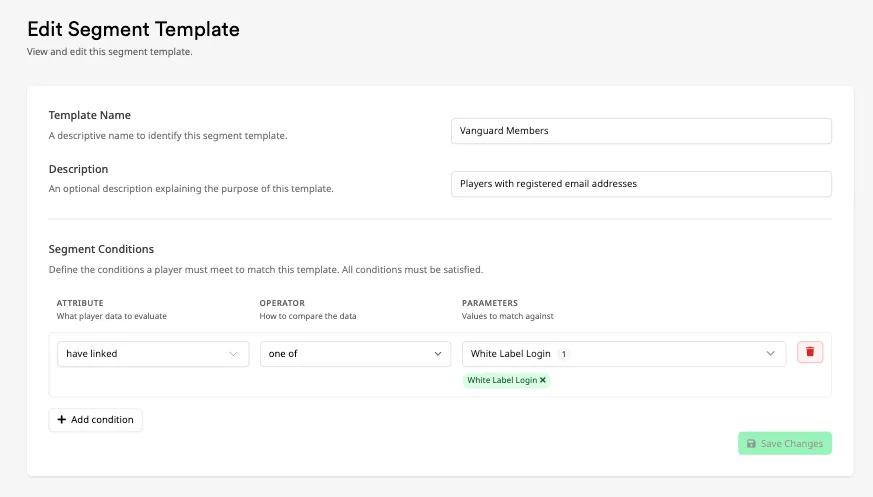
Add as many conditions as you need. A player must meet every condition to match the template. Click Save Changes to save the template.
Reviewing Matching Players
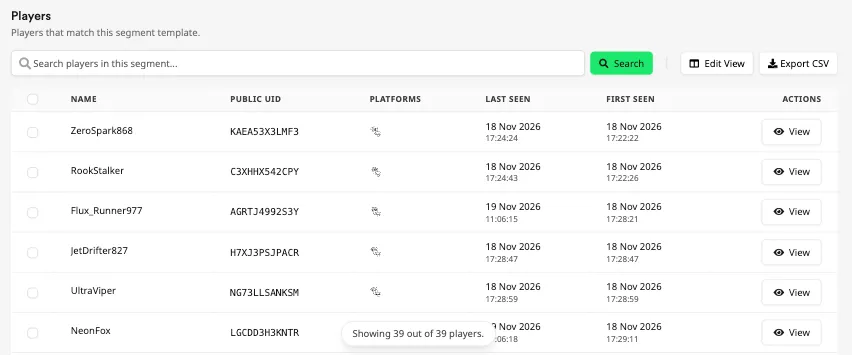
Section titled “Reviewing Matching Players”The Players section below the template's conditions lists every player who currently matches the template. Use the search box to find a specific player in the list, and click View on any row to open that player in the Player Manager.
Changing the Columns
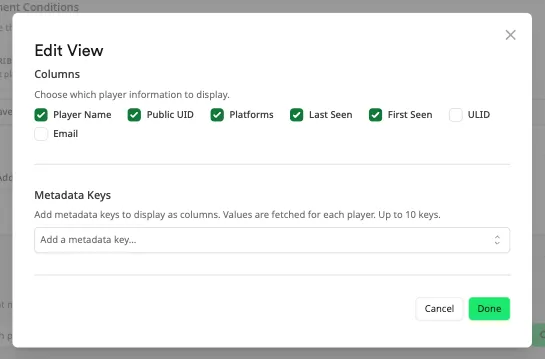
Section titled “Changing the Columns”Click Edit View to choose which columns the list shows. Under Columns, select from Player Name, Public UID, Platforms, Last Seen, First Seen, ULID, and Email. Under Metadata Keys, add up to 10 Metadata keys to show each player's value for that key as its own column. Click Done to apply the view.
Restricting or Excluding Specific Players
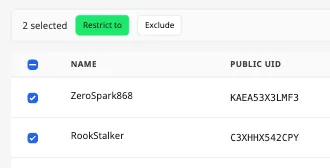
Section titled “Restricting or Excluding Specific Players”Select the checkbox next to one or more players, then click Restrict to to limit the template to only those players, or Exclude to remove them from it. Either action adds an are condition with the selected players to the template's conditions. Click Save Changes to update the template.
Exporting Players
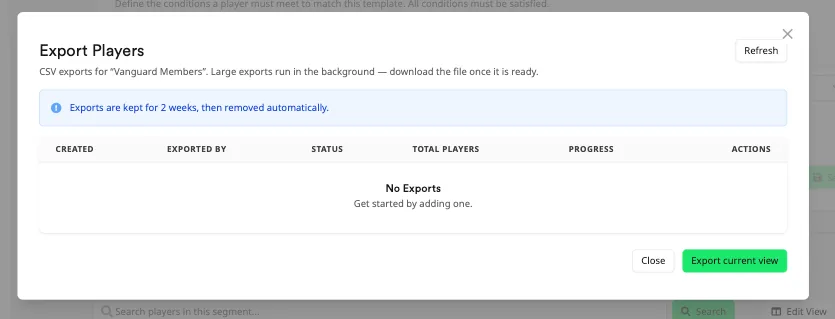
Section titled “Exporting Players”Click Export CSV to open the Export Players dialog, then click Export current view. The export uses the columns currently shown in the list, including any Metadata columns. Large exports run in the background, so the export's progress appears in the dialog. Once it's ready, download the file from the Actions column. Click Refresh to update the status.
Conclusion
Section titled “Conclusion”You've created a Segment Template and reviewed the players who match it. To use it in a feature, see Importing a Segment Template.